TL;DR
Hover over your knowledge base, click the three dots, and select Settings.
Let's Do It Together!
1. Select Knowledge Base
Select the Knowledge Base you want to customize.
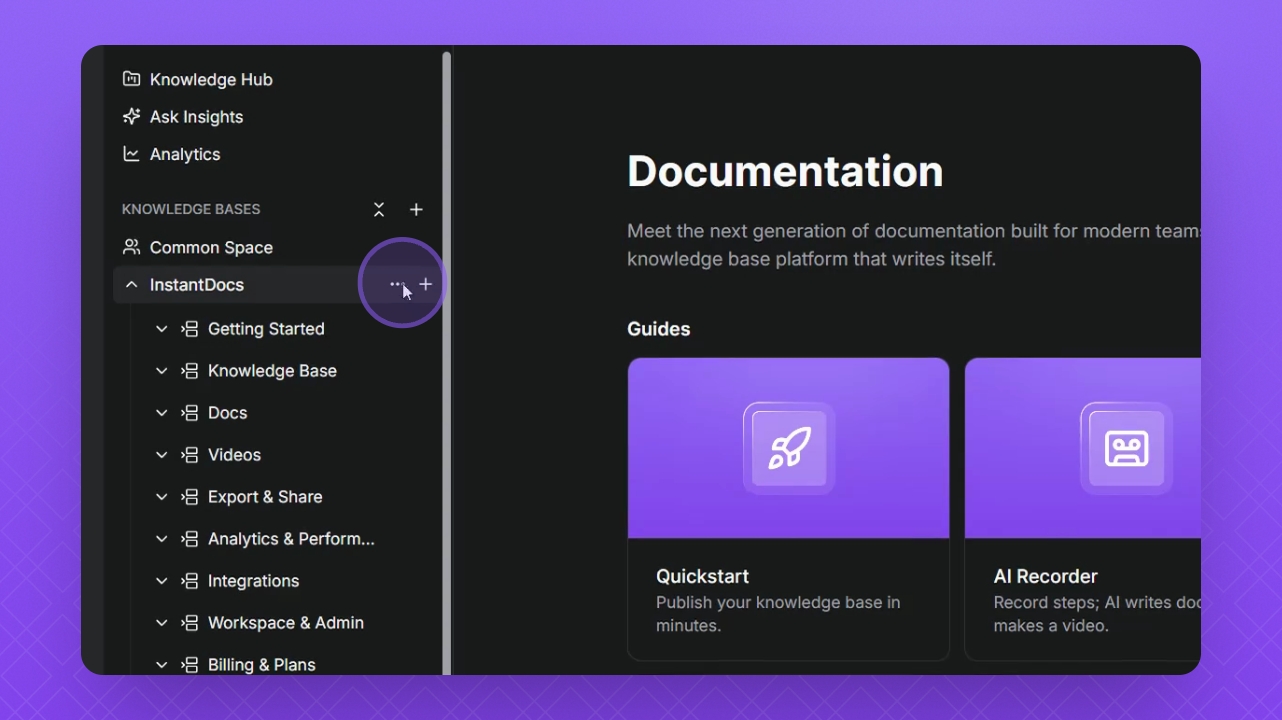
2. Access Customization
Click the three dots, then select Settings.
Click the Theme & Styling tab.
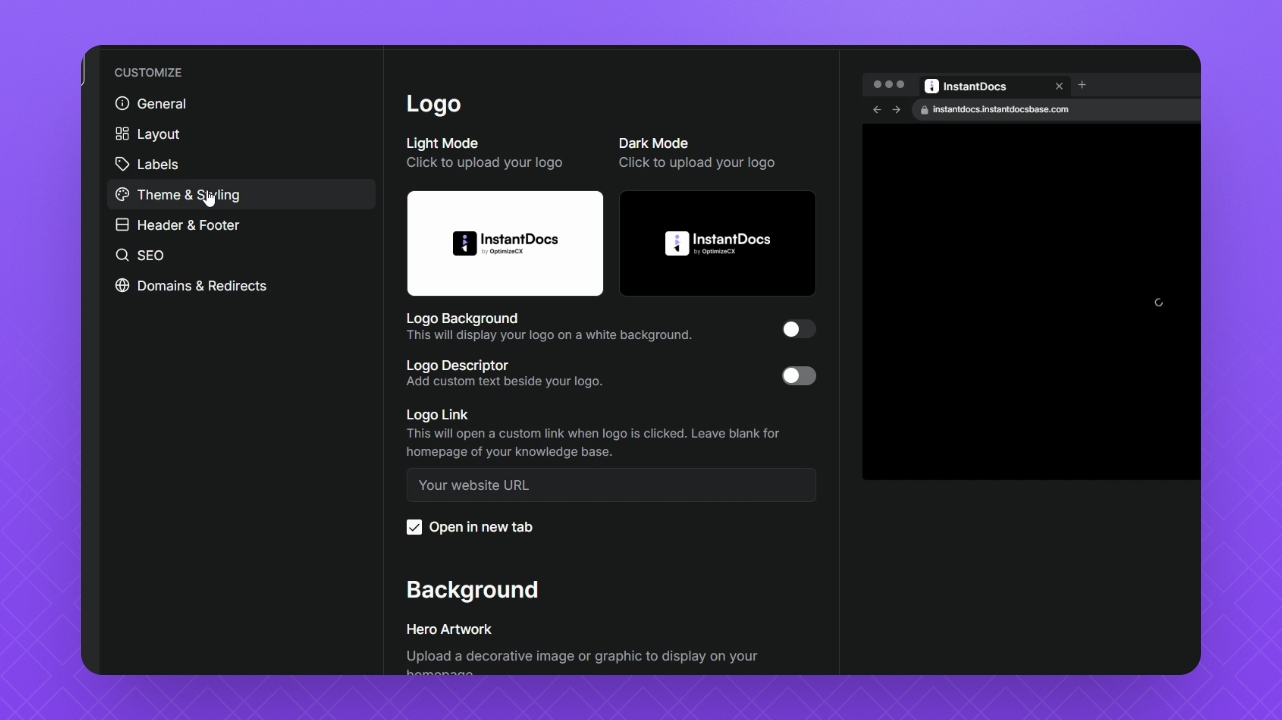
3. Update Logo
Change your logo to Light mode or Dark mode.
Click the icon to upload your logo image, or add a website URL to your logo.
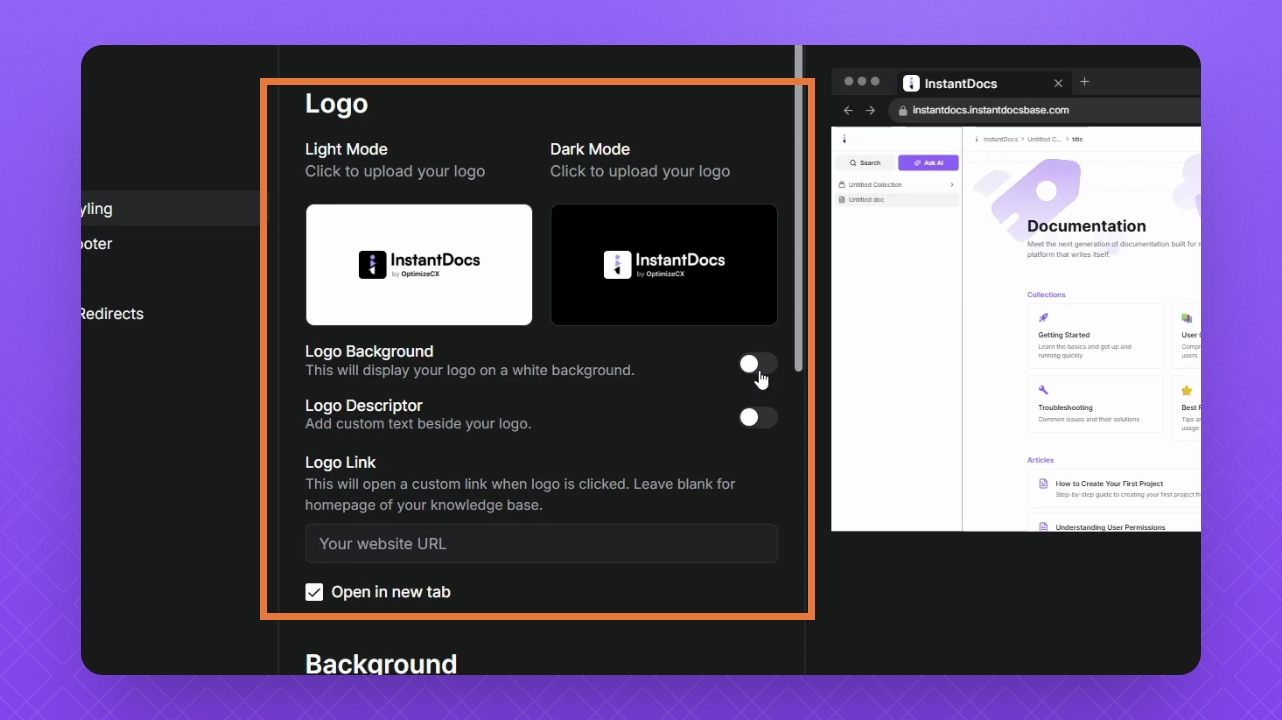
Toggle the Logo Background button to display your logo on a white background.
Click the Logo Descriptor toggle button to add custom text beside your logo.
Enter the text in the Descriptive Text field.
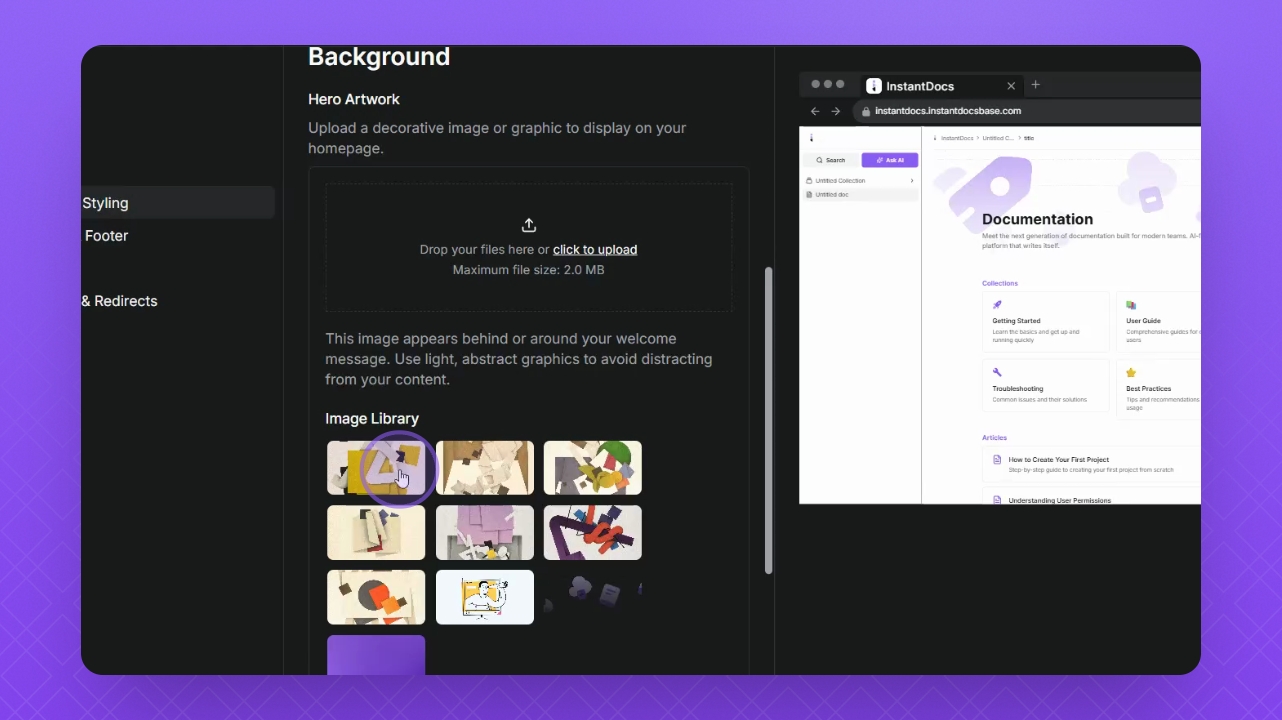
5. Customize Background
Click and upload your own background for your document.
Alternatively, use the image library to select available images.
6. Edit Styling
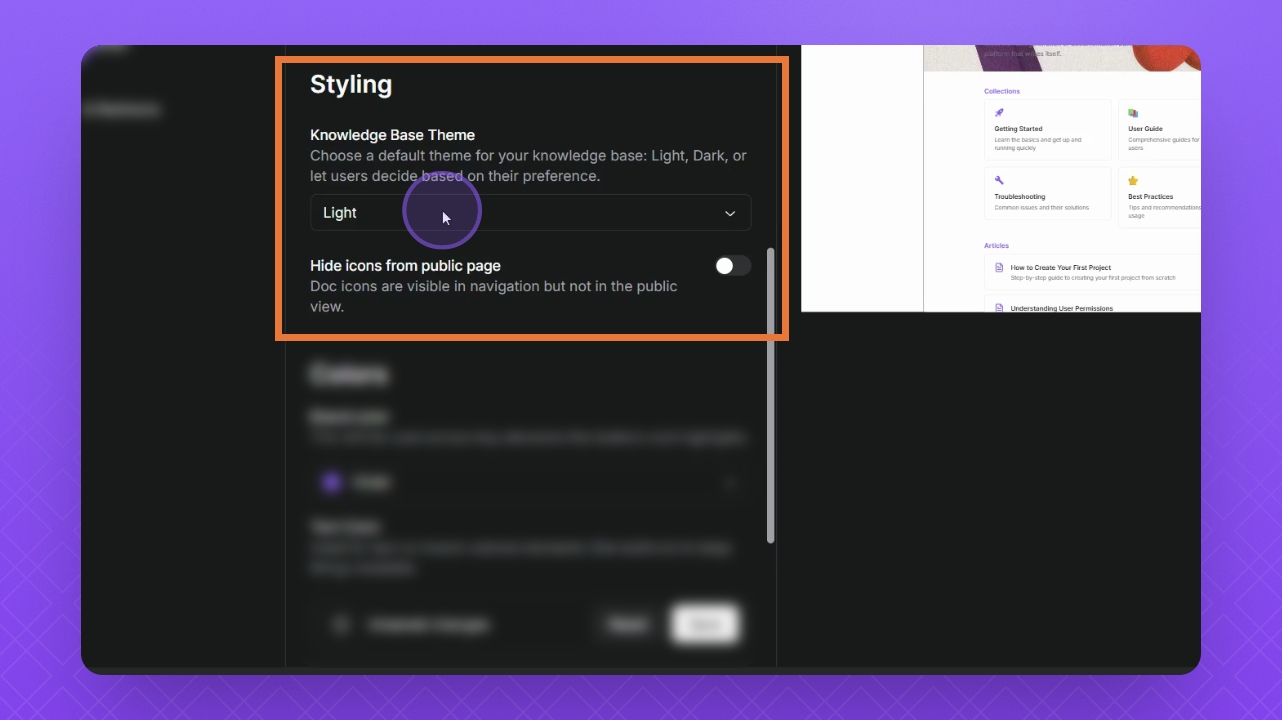
Edit the Theme of your Knowledge Base by clicking the drop down.
Hide icons from the Public page by clicking the toggle button.
7. Modify Colors
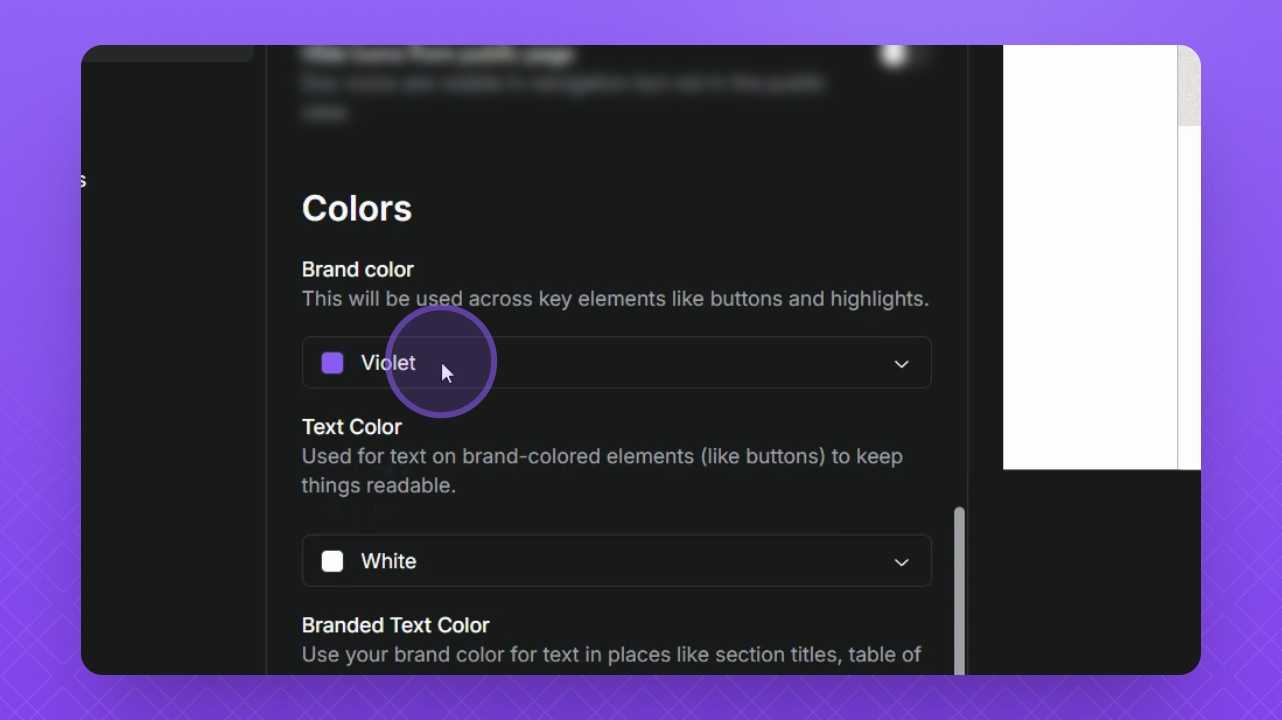
Edit your brand color from the drop down.
Change your text color using the drop down.
Add custom branded text color using the Custom Color Wheel and Hex field.
8. Save Changes
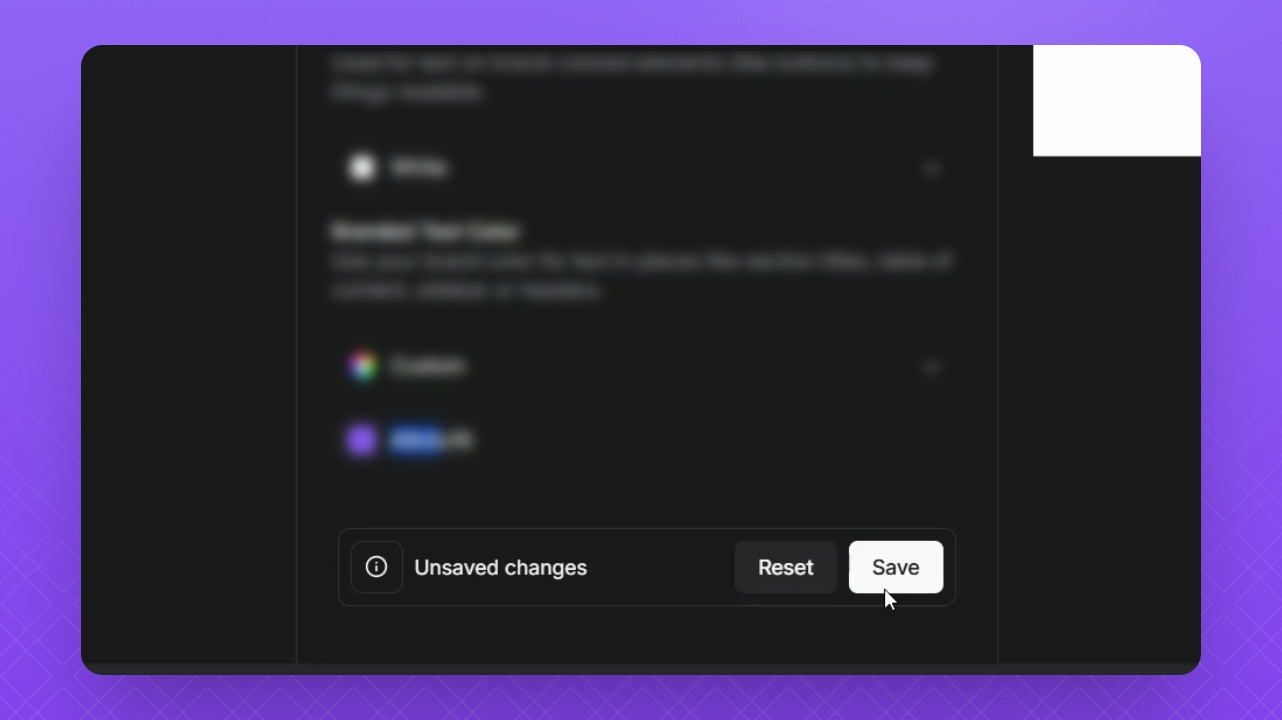
Click Save Changes to save all your unsaved changes.