TL;DR
Change the layout style in your Knowledge Base settings.
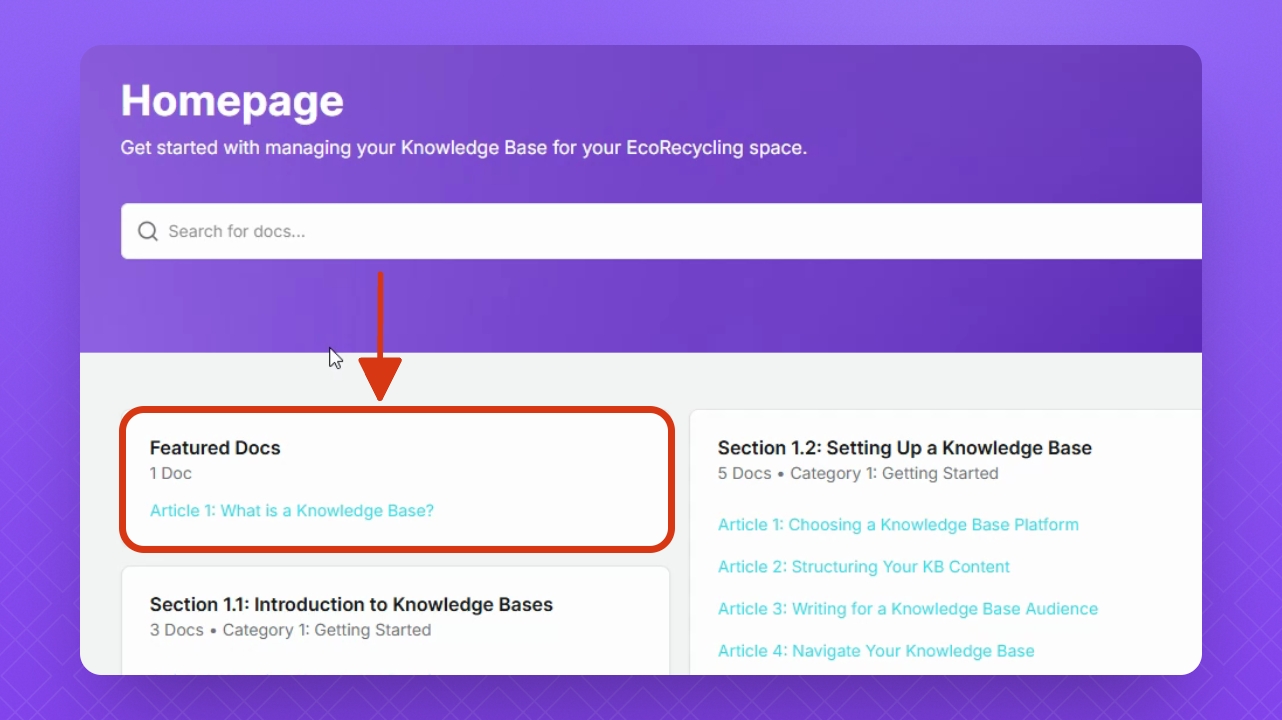
Preview your homepage to view featured articles.
Let's Do It Together!
Step 1: Access the Default Layout
Click the Knowledge Base name in the left side panel.
Click the Homepage button in the top right corner and select Default.
You will now see the default layout of your Knowledge Base homepage.
Step 2: Feature an Article
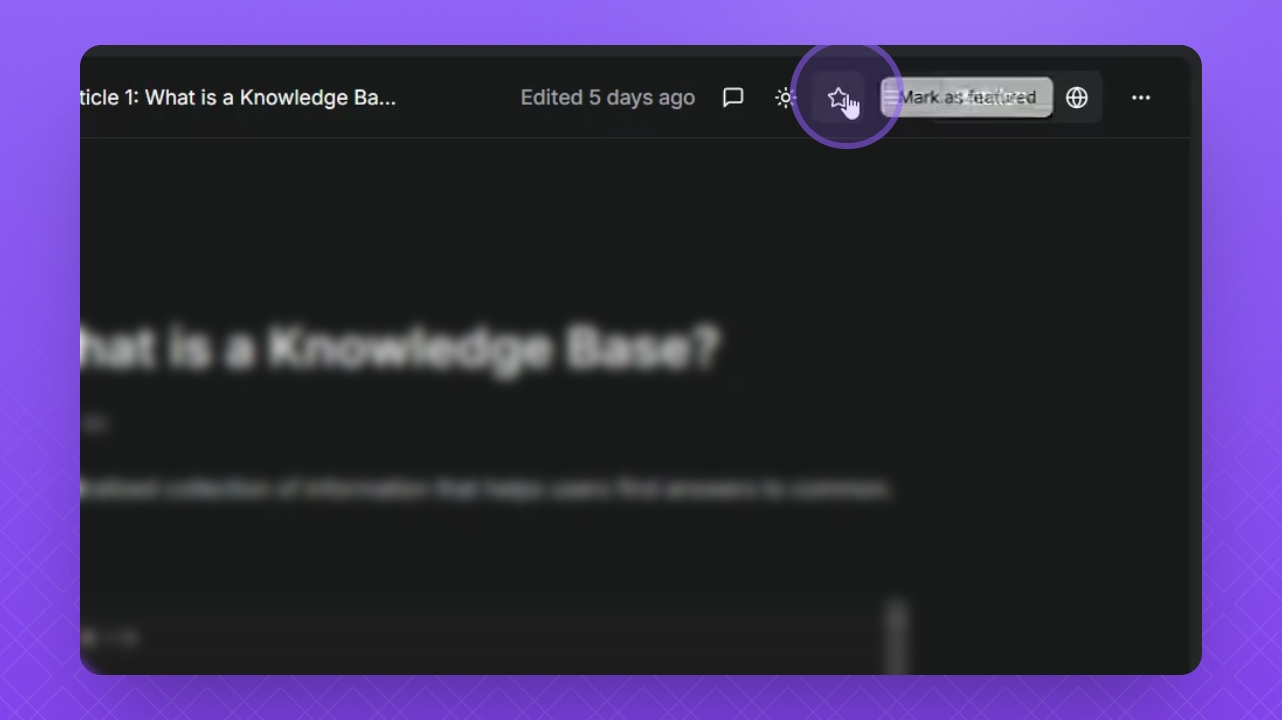
To mark an article as featured, click the Star icon in the top right corner of your article.
Click the Globe button in the top right corner of your doc to preview featured articles. Click the View button in your Homepage to preview it.
Step 3: Customize Homepage Layout
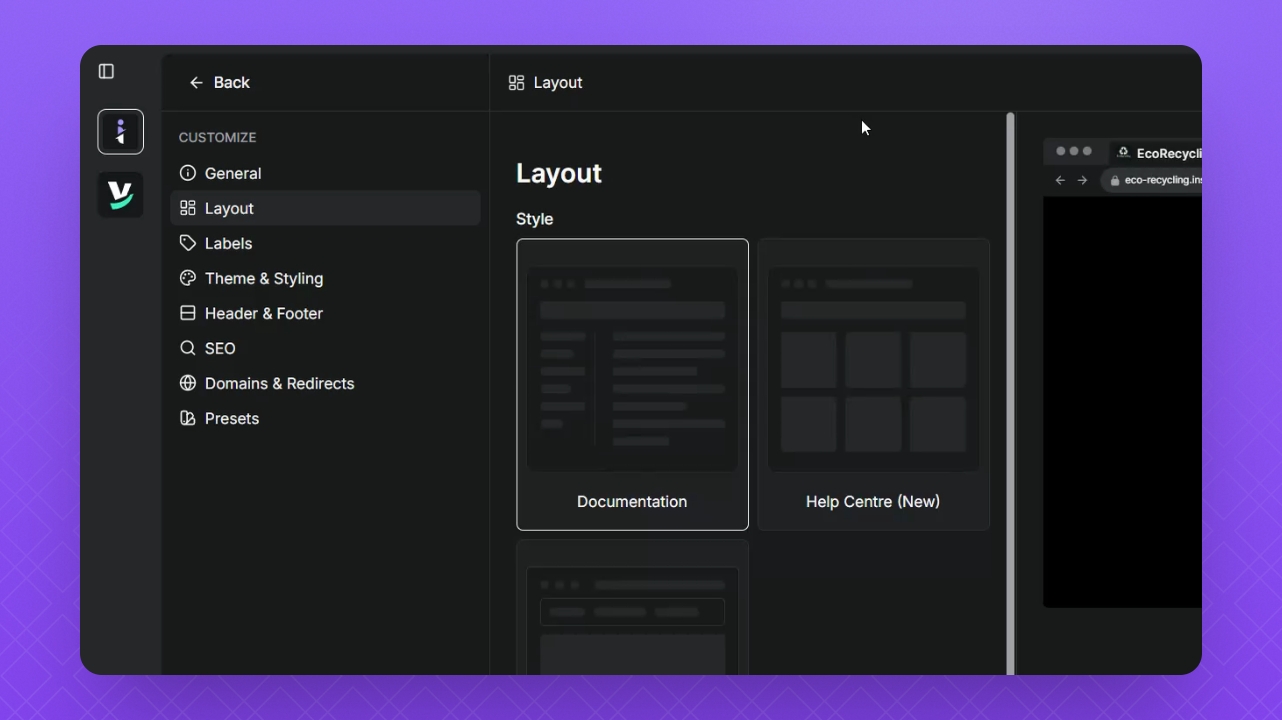
Hover over your Knowledge Base name, click the three dots, then select Settings.
Navigate to the Layout tab and select a new layout style.
Select Help Center Legacy and then click Save.
Your Knowledge Base homepage will now display the Legacy layout.
Step 4: Verify Featured Articles
Navigate back to your homepage to check the layout.
Confirm that the Featured Docs section displays all your featured articles.