

TL;DR
1
Access Search Performance
Go to the Search Performance tab in your analytics hub.
2
Review search metrics
Check search counts, results, and click-through rates.
3
Filter metrics
Sort metrics by various criteria for better insights.
4
Identify content gaps
Find keywords with no results to create new documentation.
Let's Do It Together!
Step 1: Access the Search Performance Tab
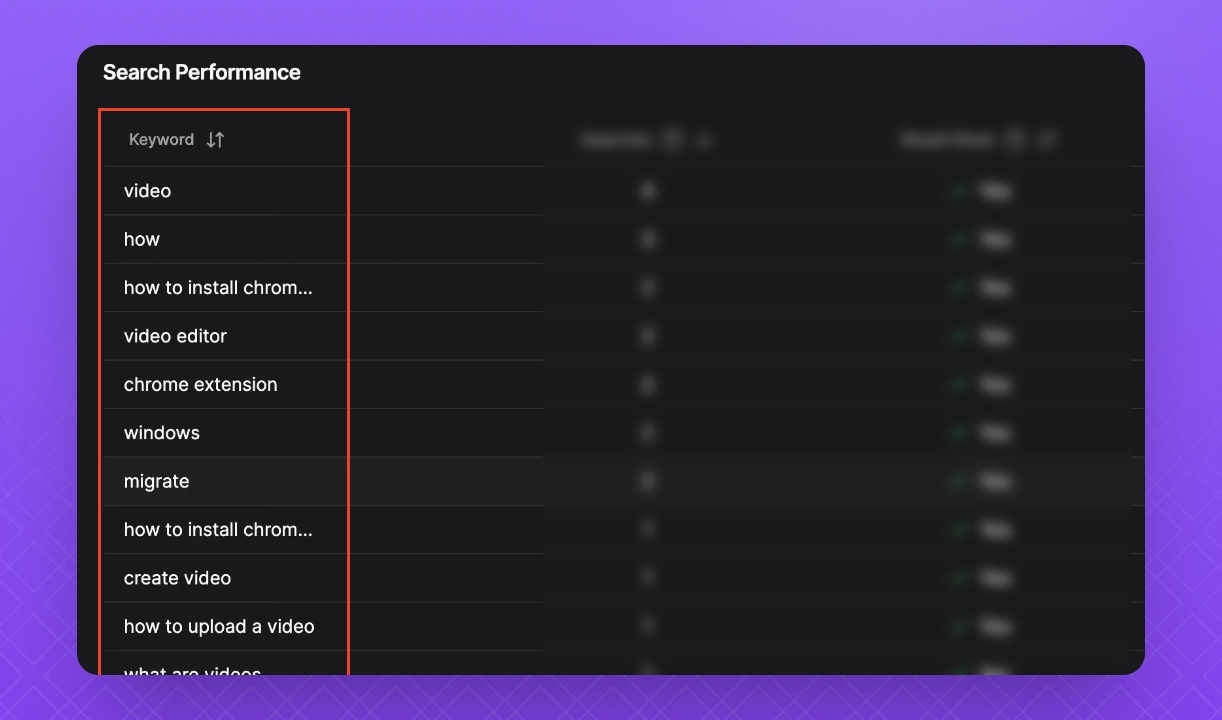
Navigate to the Search Performance tab in the analytics hub.
Here, you will see keywords that have been searched in your knowledge base.
2. Review Search Metrics
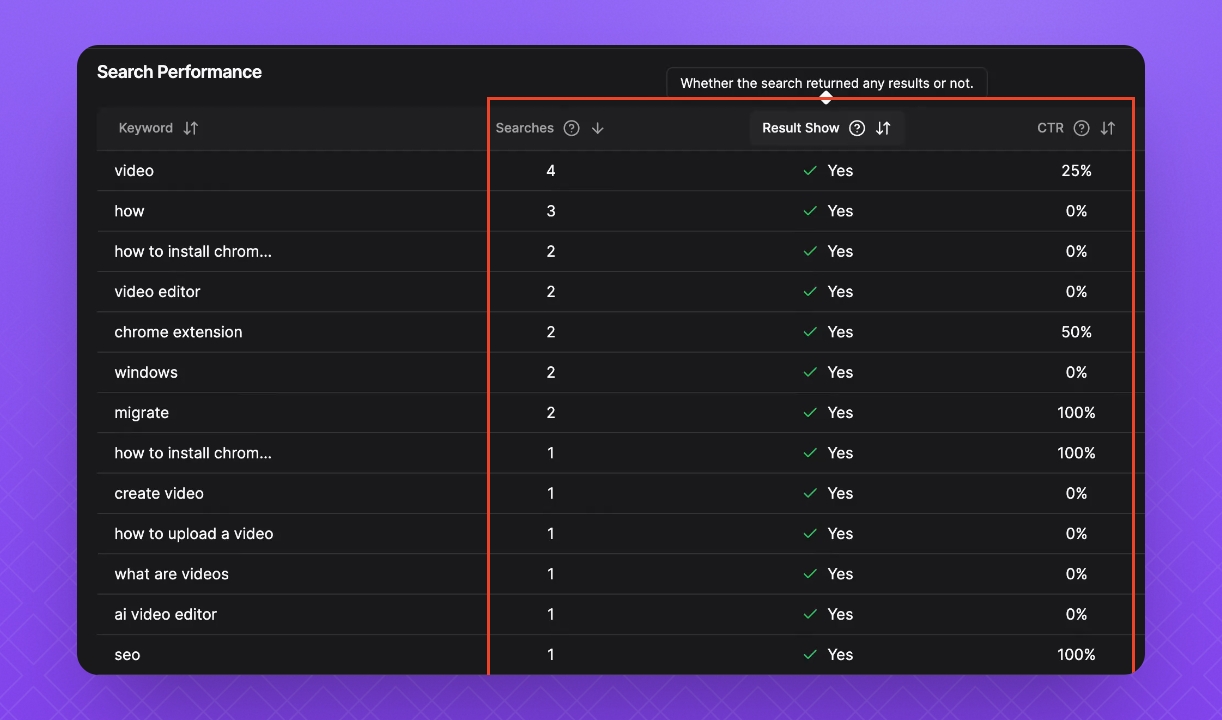
Check the number of times each keyword has been searched.
See whether the search returned results or not.
Find the click-through rate, which indicates user engagement with search results.
3. Filter Search Metrics
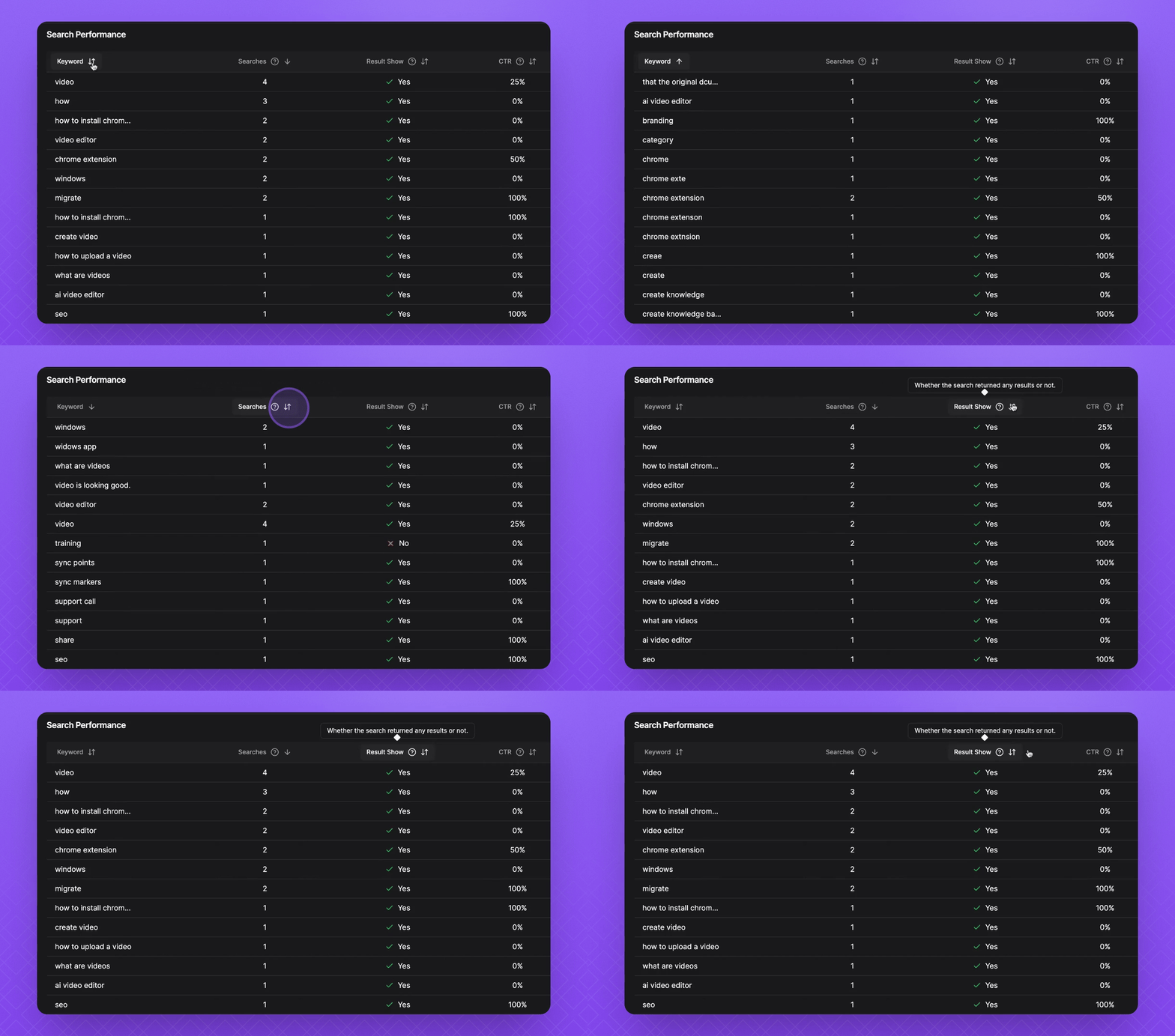
Filter each metric from top to bottom.
Sort searches from most to least and results from yes to no.
Adjust the click-through rate from highest to lowest or vice versa.
4. Identify Content Gaps
Use the metrics to find search results that do not show.
This indicates which documents you may need to create to fill the gap.