TL;DR
1
Open SEO Settings
Click the three dots and select SEO.
2
Add Keywords
Enter keywords in the Keywords field, separated by commas.
3
Apply Tags
Press Enter to apply the keywords as tags.
4
Upload Image
Upload an Open Graph preview image using the Upload button.
5
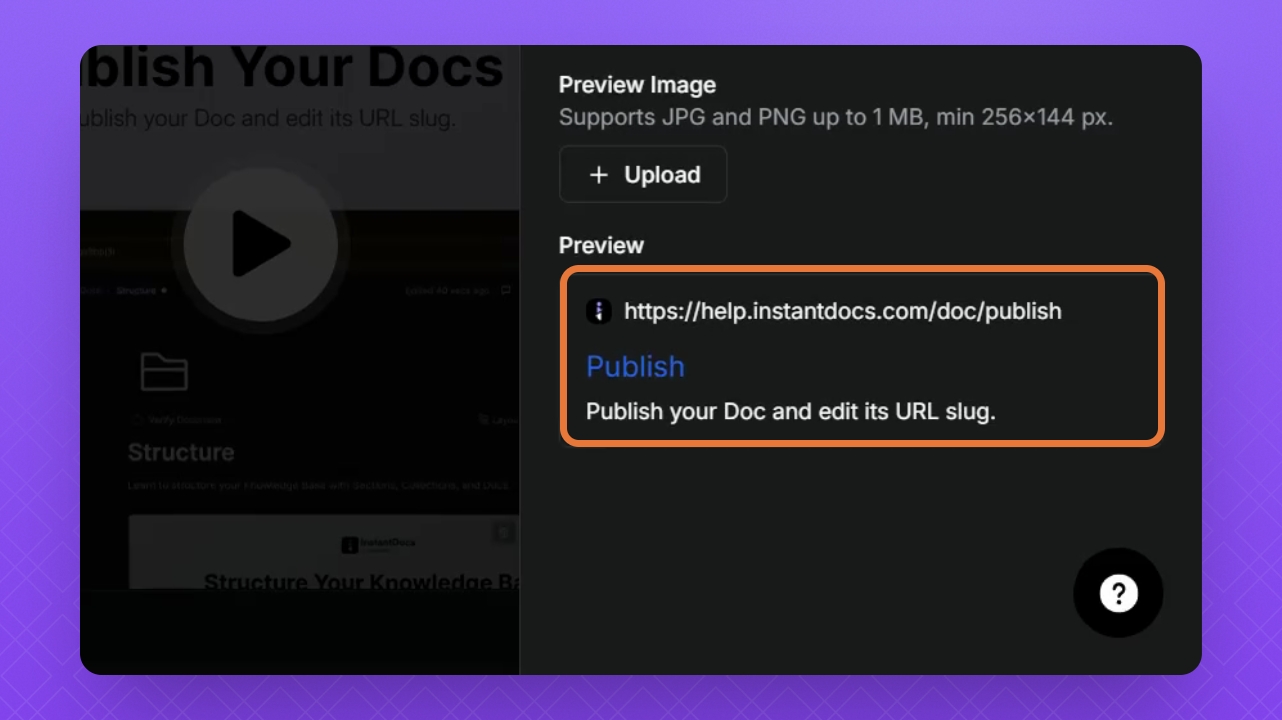
Check Preview
View how your article link will look in the preview area.
Let's Do It Together!
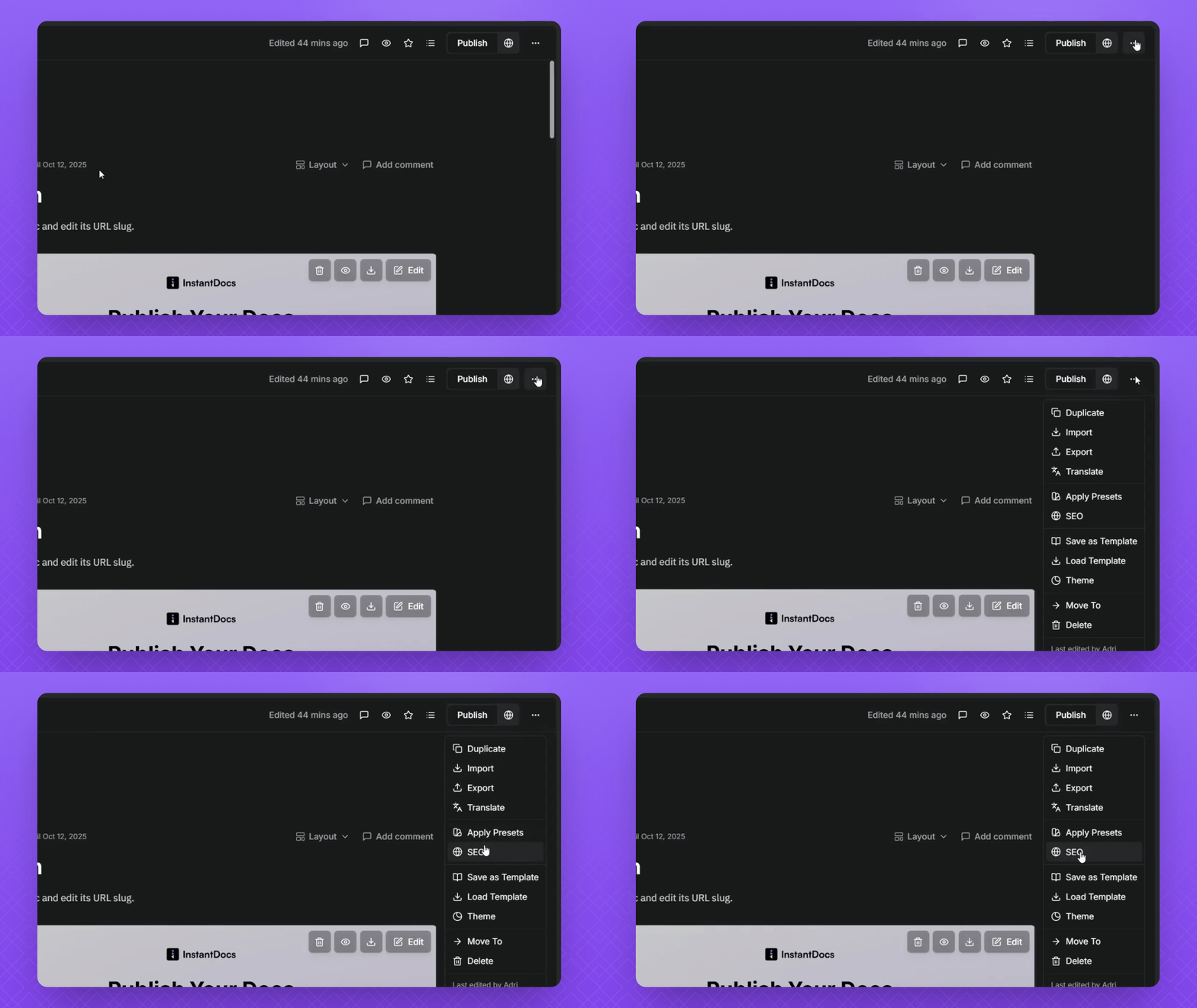
Step 1: Access SEO Settings
Click the three dots in the top right corner.
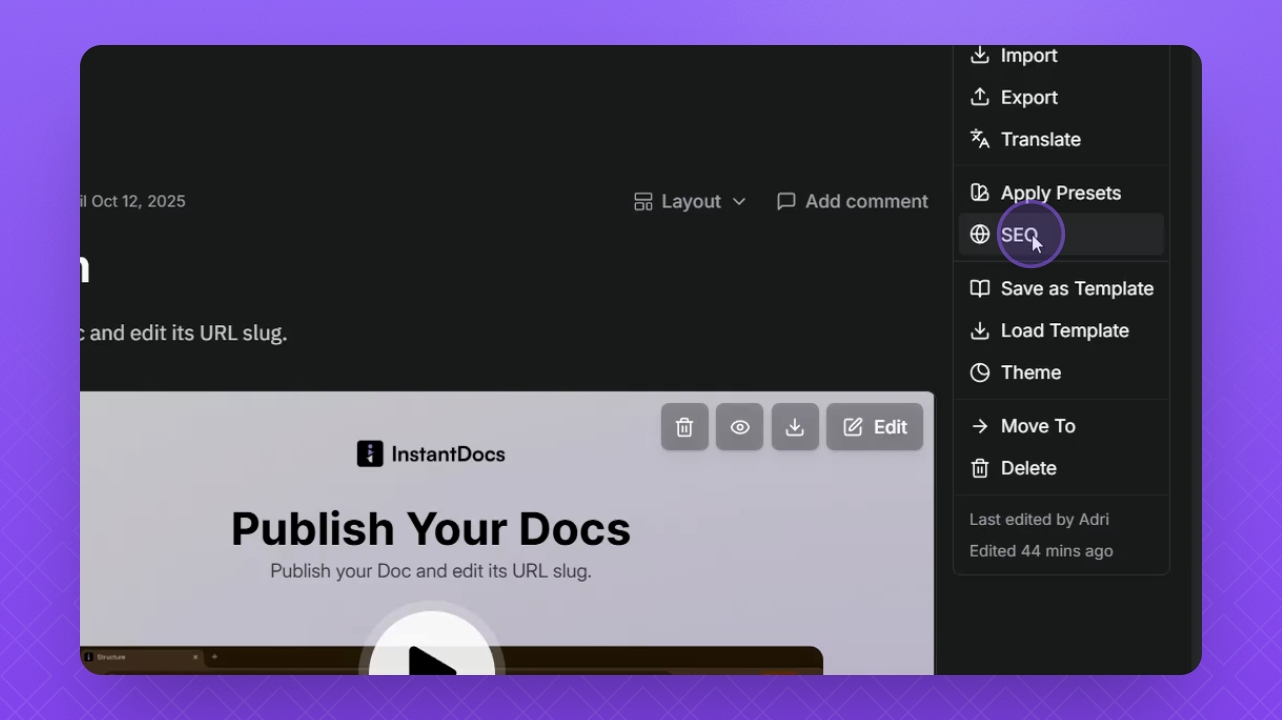
Step 2: Select SEO Option
Select SEO from the dropdown menu.
Step 3: Add Keywords
Enter your keywords in the Keywords field.
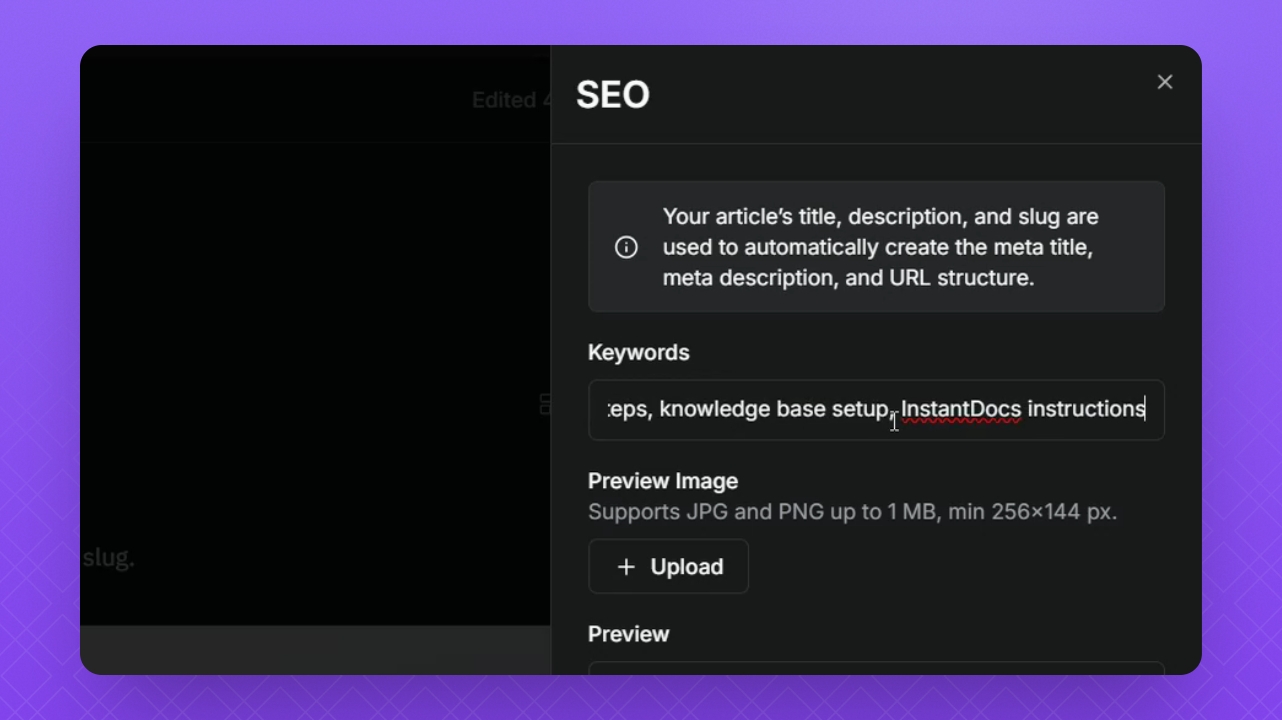
Step 4: Input Keywords
Separate keywords by commas.
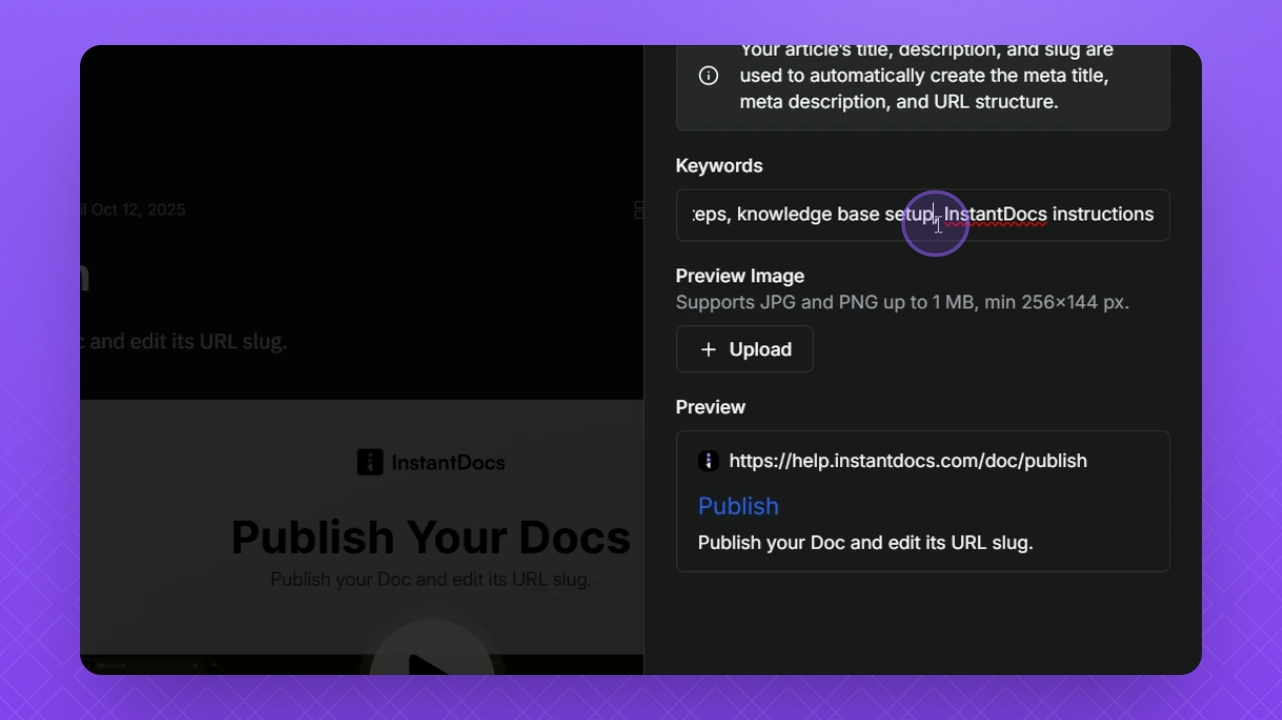
Step 5: Apply Tags
Press Enter on your keyboard to apply the tags.
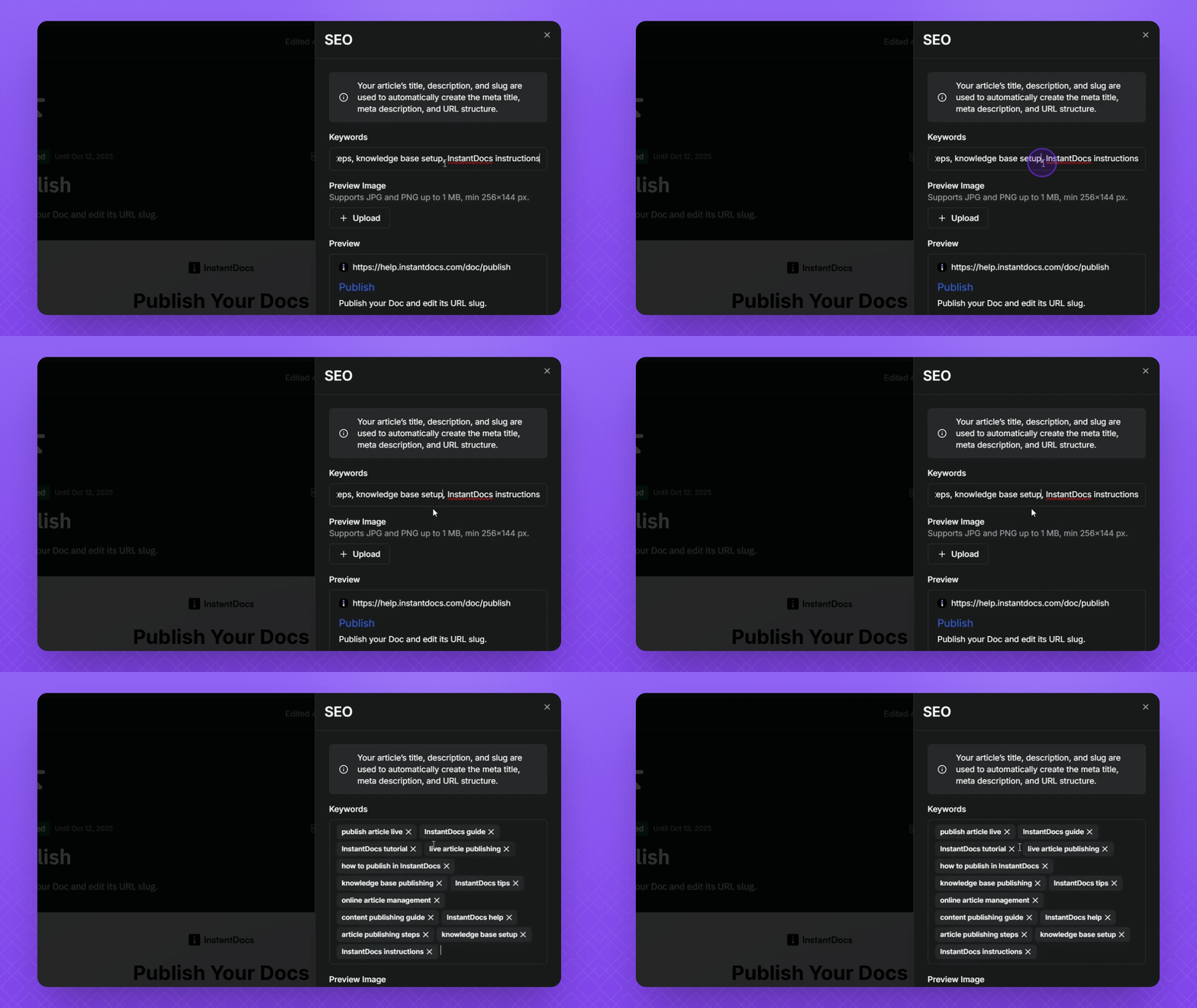
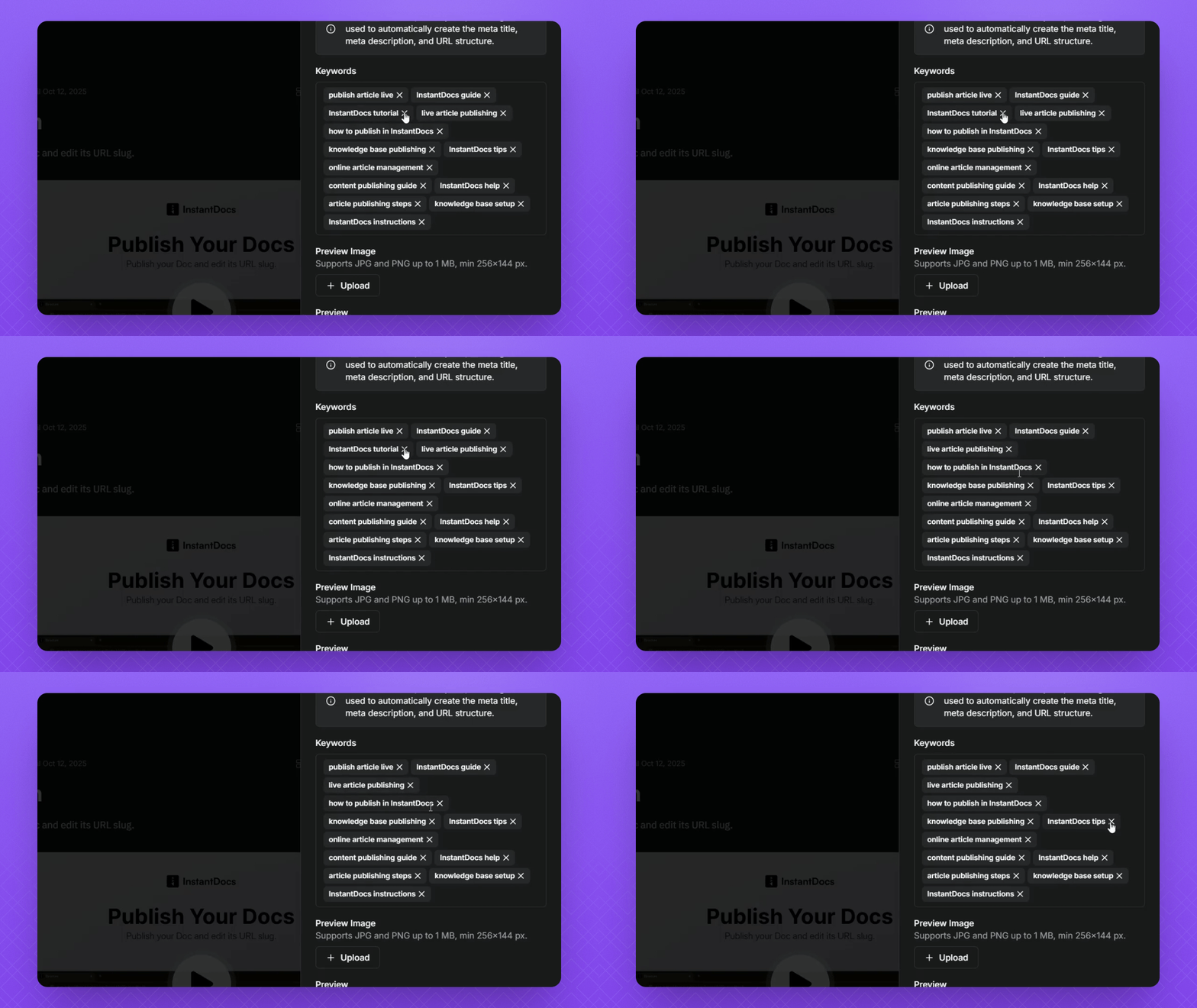
Step 6: Remove Tags
Click the cross icon next to a tag to remove it.
Step 7: Upload Open Graph Image
Use the Upload button to add an Open Graph preview image.
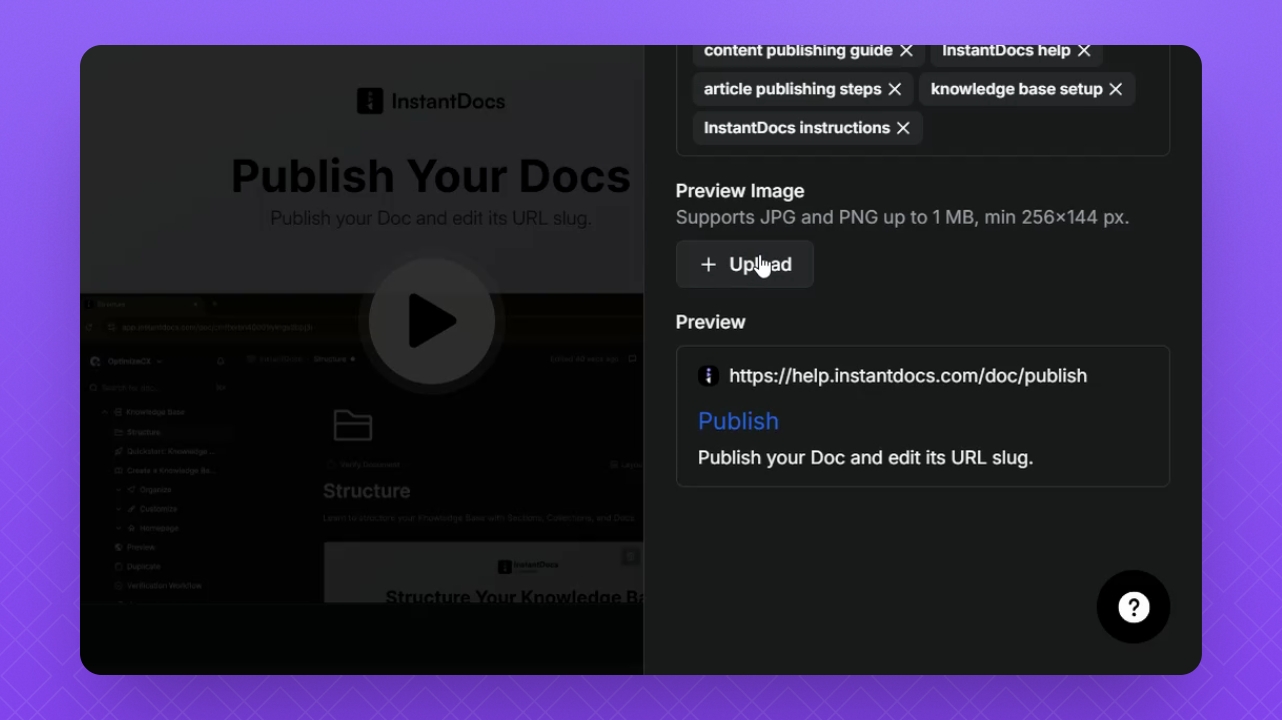
Step 8: Preview Article Link
Check the preview area to see how your article link will appear.