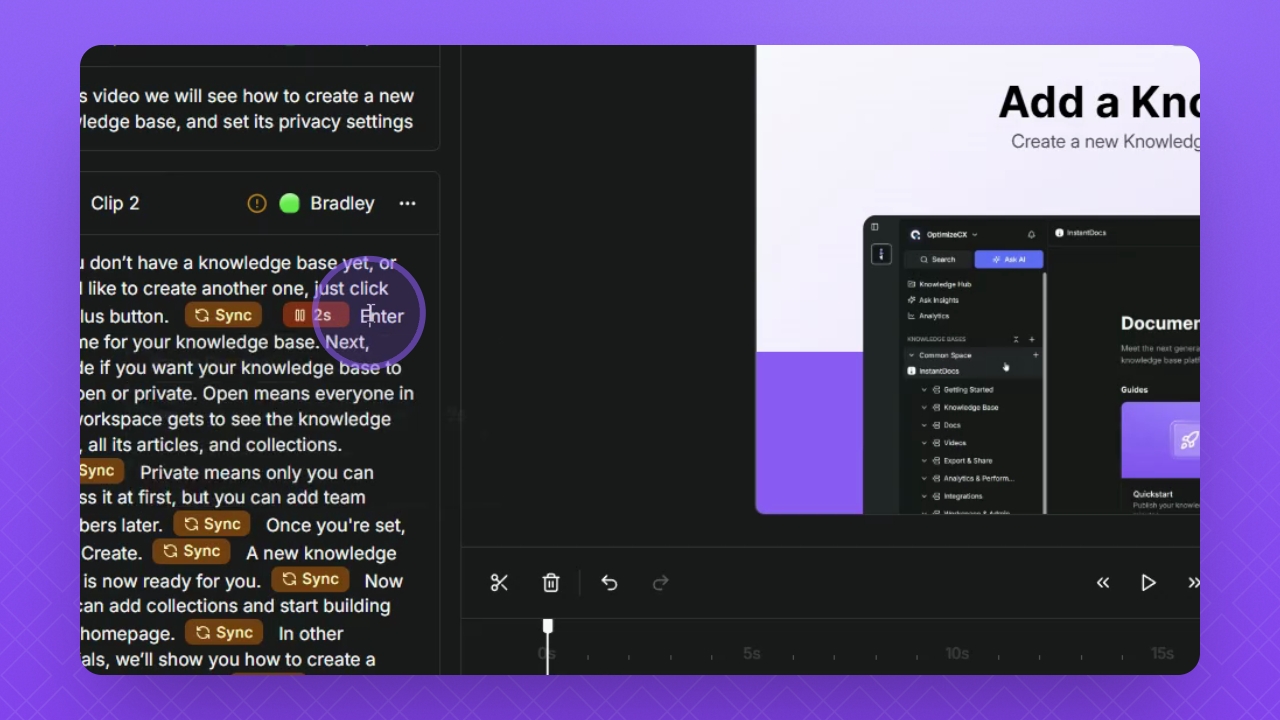
TL;DR
Let's Do It Together!
Step 1: Add a Sync Point
Identify a part of the video that is not aligning with the script.
Locate the key moment in the video script, for e.g. where a click happens.
Add the Sync point right after that moment in the sentence.
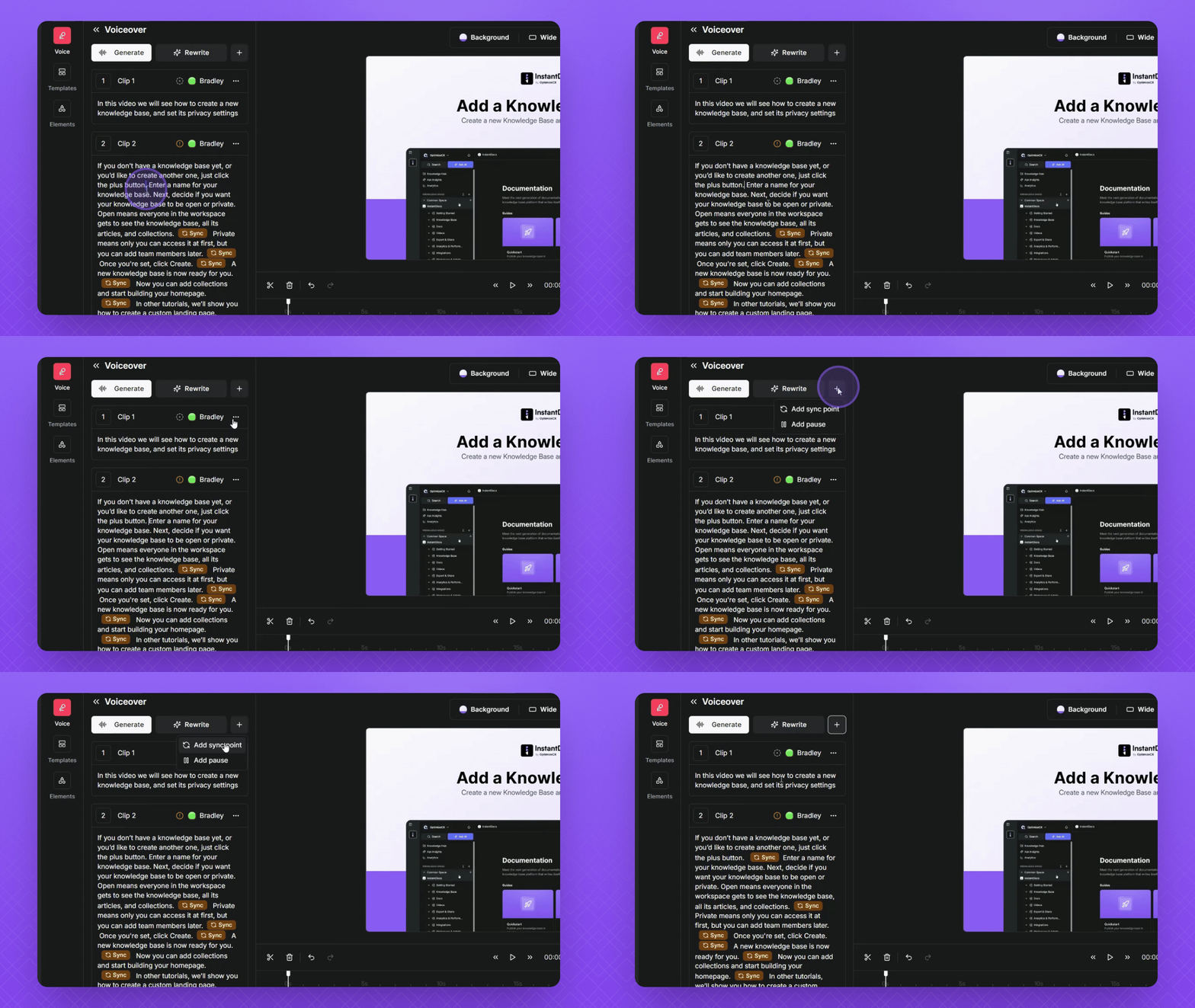
Navigate to the top of the voiceover section and click the + button.
Select Add Sync Point.
Your Sync point is now added to the video timeline.
Step 2: Confirm the Sync Point
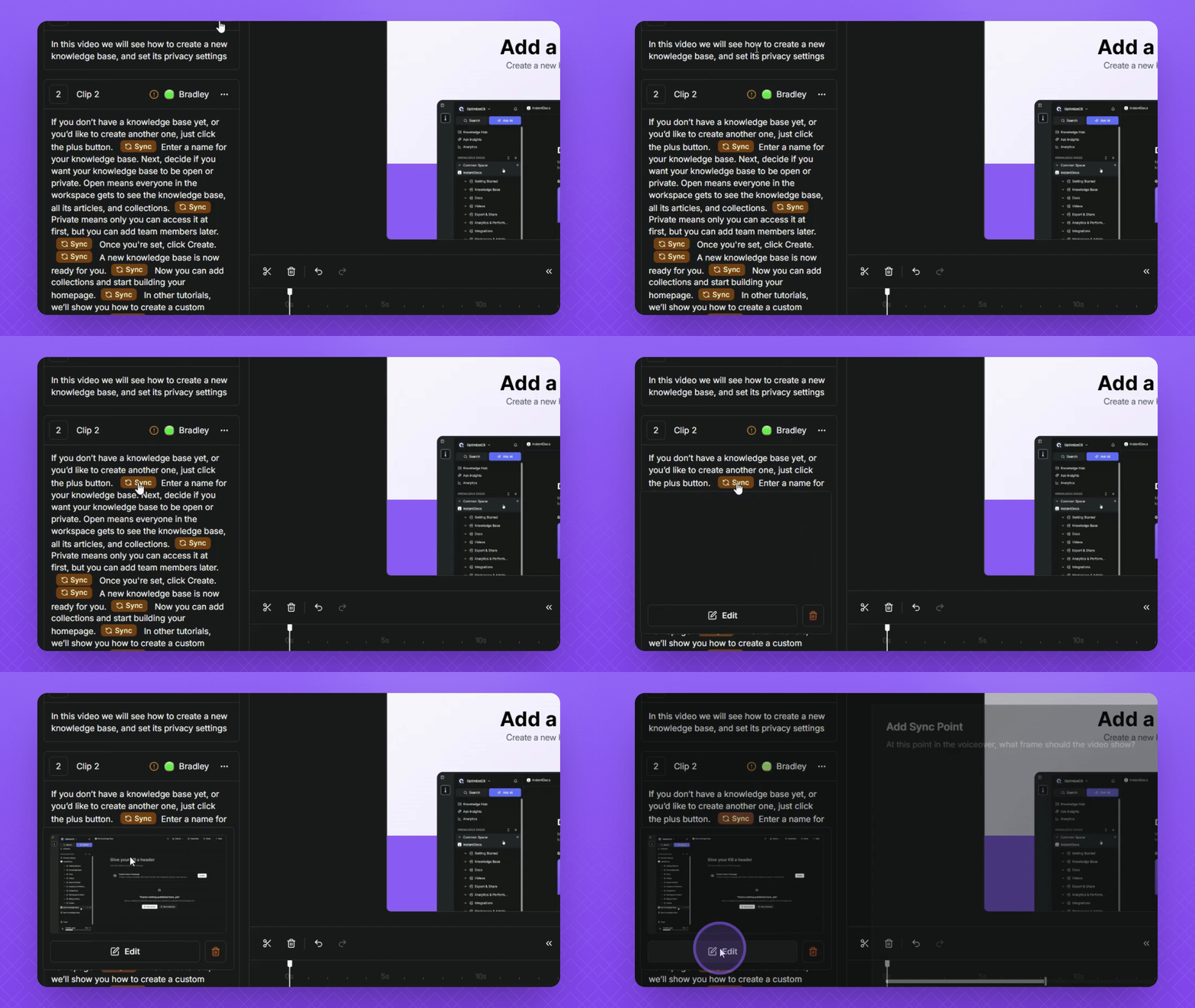
Click on the Sync button, then click Edit.
Scroll the slider to the point in the video where the moment or click occurs.
Once you find the correct spot, click Confirm to save your Sync.
Step 3: Add a Pause Point
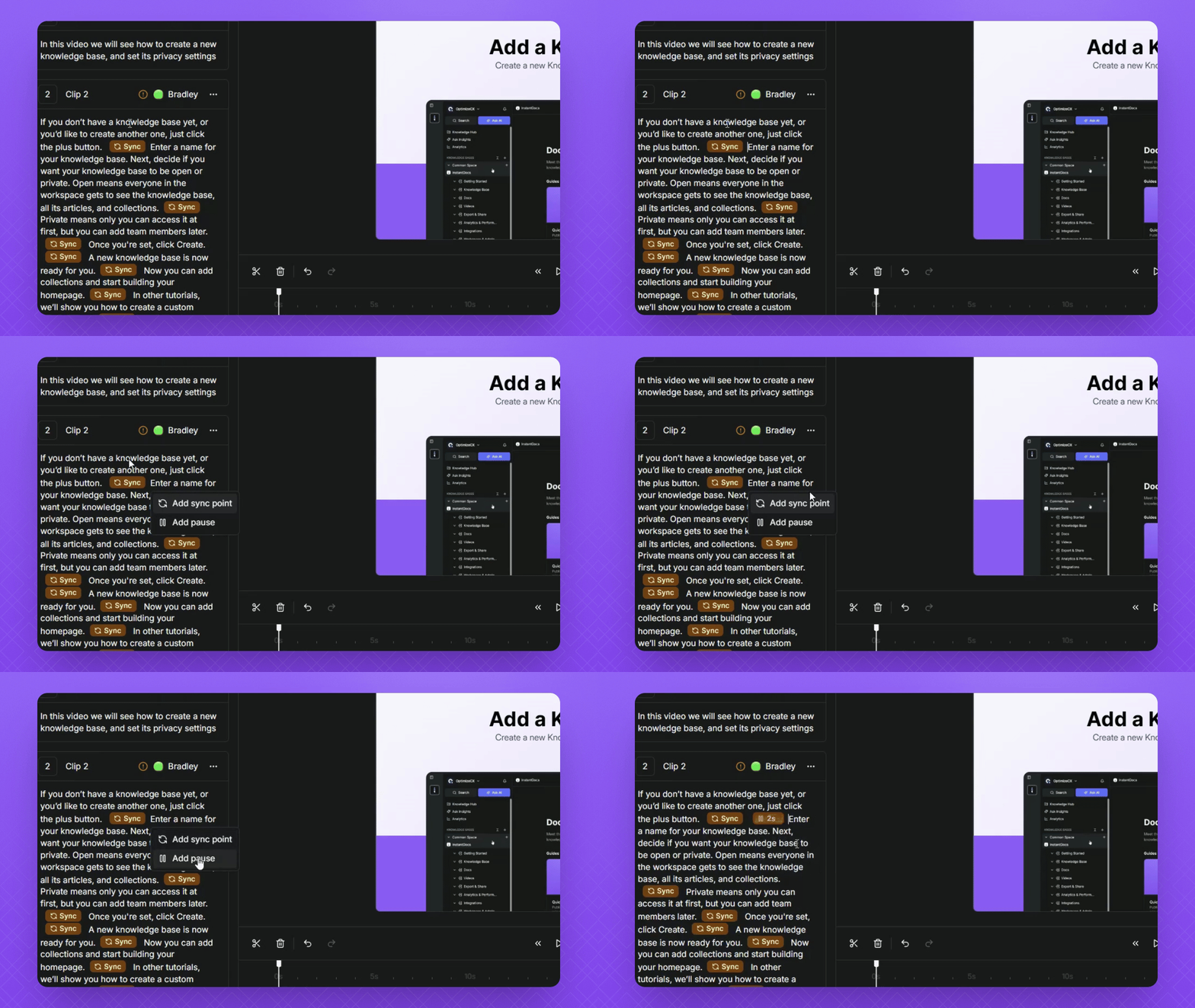
Click the + button at the top of the Voiceover bar or type the / shortcut.
Click the Add Pause button.
After adding, click on the Pause point and adjust the slider to change the Pause duration as needed.
Your Pause point is now added and adjusted in the video timeline.
Step 4: Finalize Your Edits
Ensure that your Sync point and Pause points are correctly placed.
Always remember to generate the Voiceover to apply the changes.
Play the video preview to confirm.