TL;DR
Let's Do It Together!
Step 1: Delete a Doc
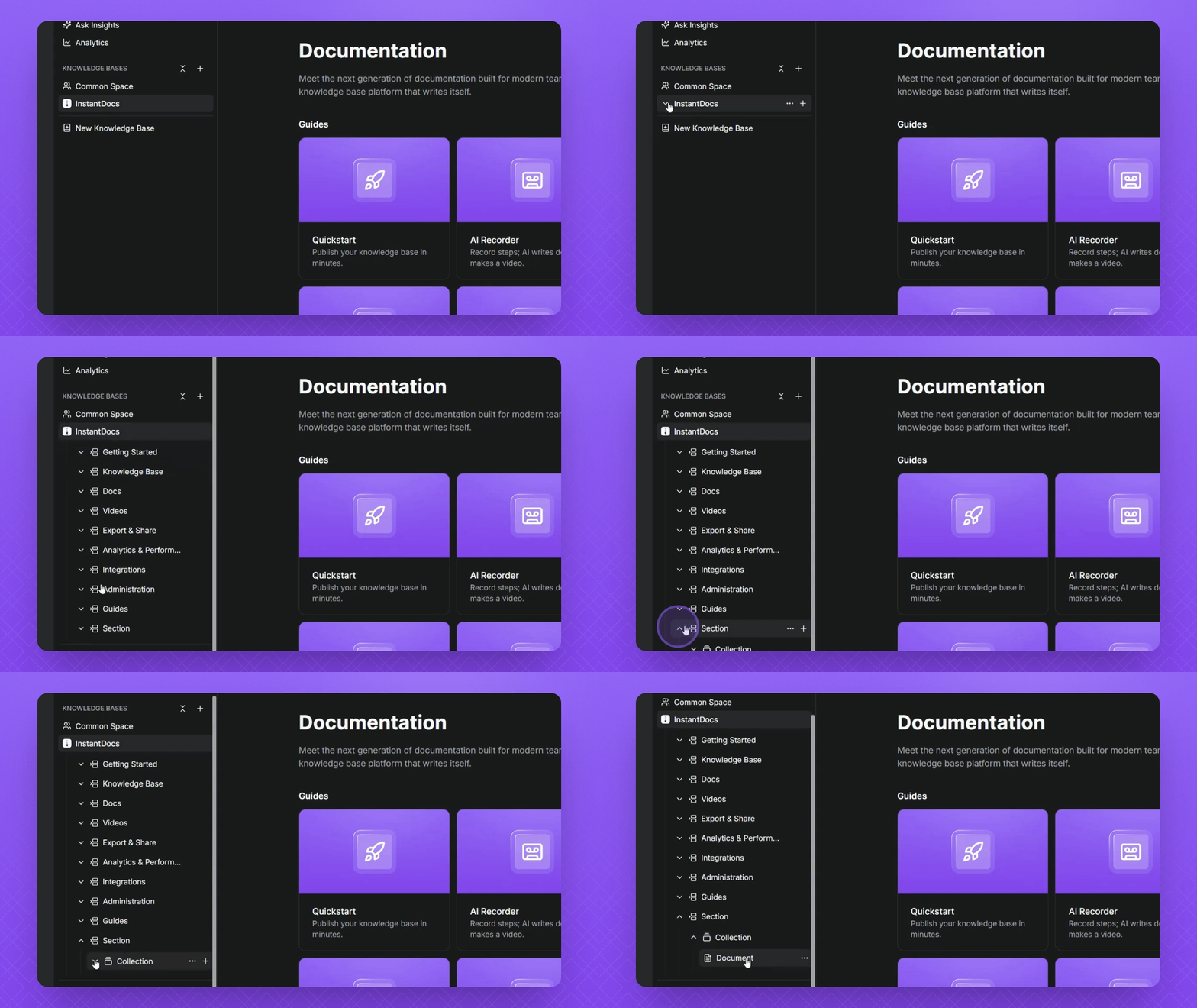
Click the drop down arrow on your Knowledge Base to expand it.
Hover over the Doc, click the three dots, then click Move to Trash.
The Doc will be moved to the Trash, where it can be restored or permanently deleted.
Step 2: Understand Trash Behavior
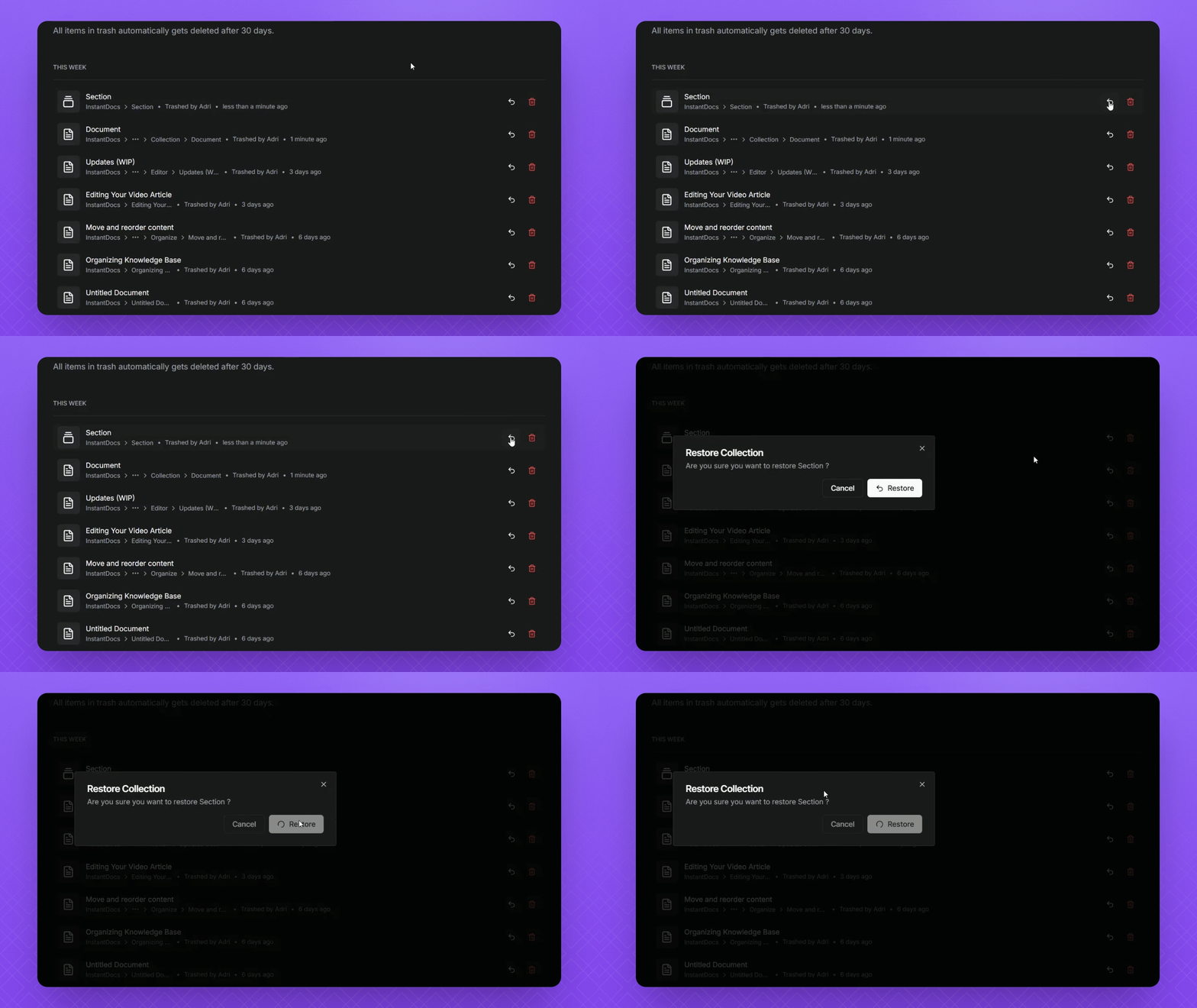
Once an article is in the Trash, it remains accessible from Trash folder.
Items in the Trash will be automatically deleted after 30 days.
You can restore or delete items from the Trash at any time within those 30 days.
Step 3: Delete a Section or Collection
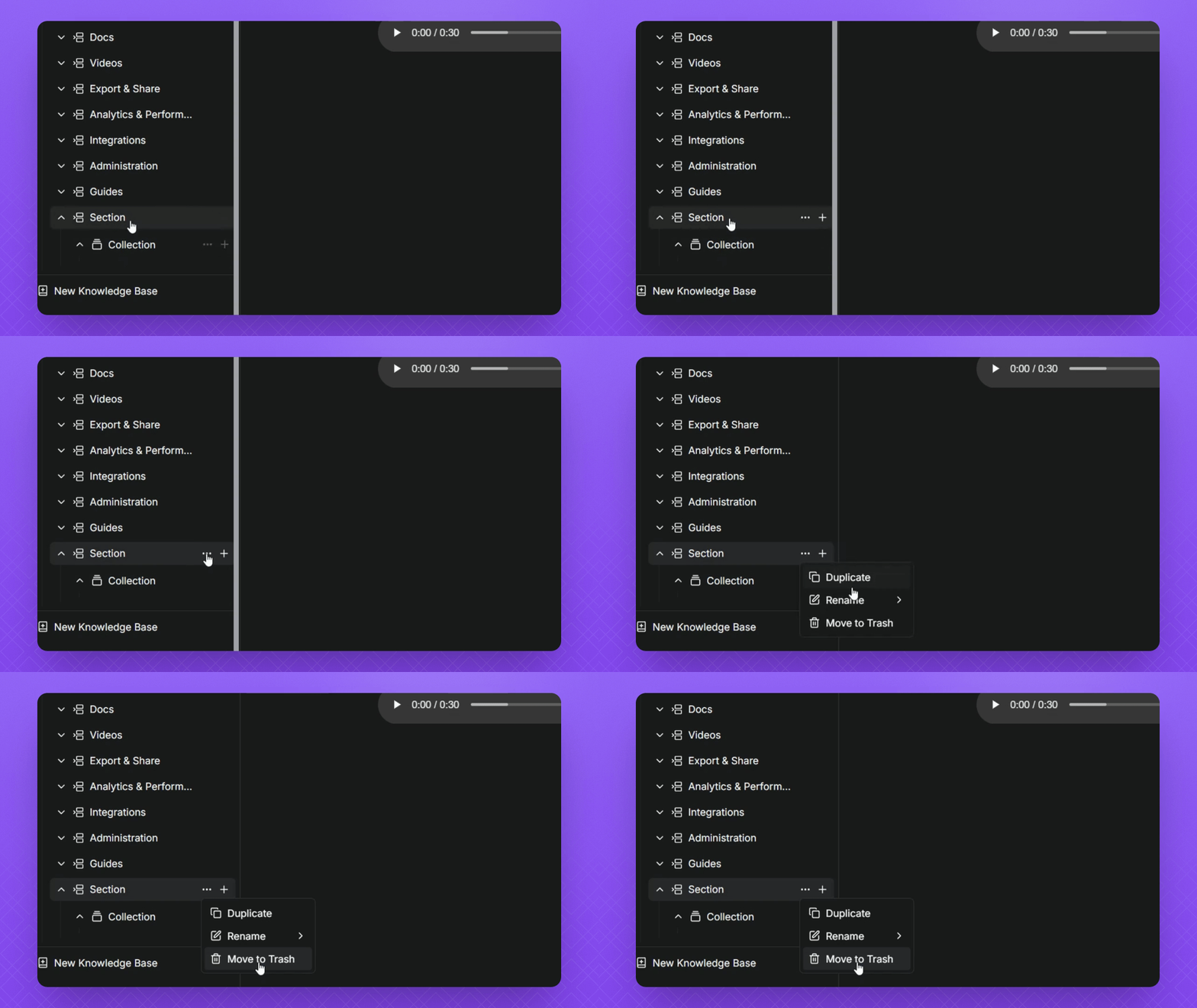
To remove a section, click the three dots next to it, then select Move to Trash.
Notice that moving the section also removes its associated collection.
Step 4: Restore Deleted Items
Navigate to your Trash folder.
Click the Restore button next to the item you wish to restore.
The restored item will return to its original location, including all its contents.
Items will be restored exactly where they were located before deletion.