TL;DR
Let's Do It Together!
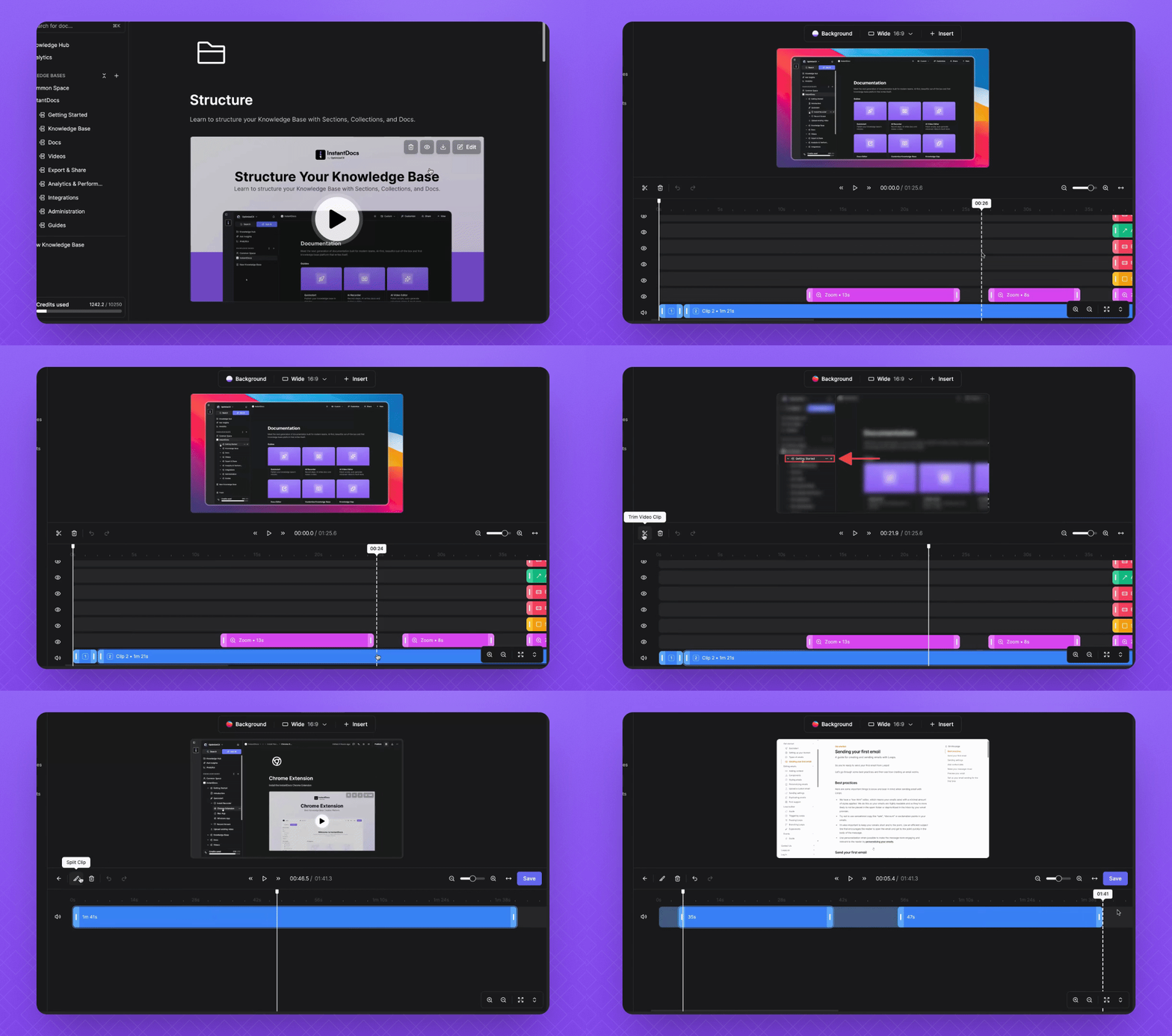
1. Edit Video Clips
Click the Edit button in the top right to access the Edit menu and Timeline.
To trim a clip, click on it and then click the trim button.
Click where you want to split the video and then click Split Clip.
Drag to adjust the length of the video.
Once satisfied, click Save to apply your changes.
2. Generate Voiceover
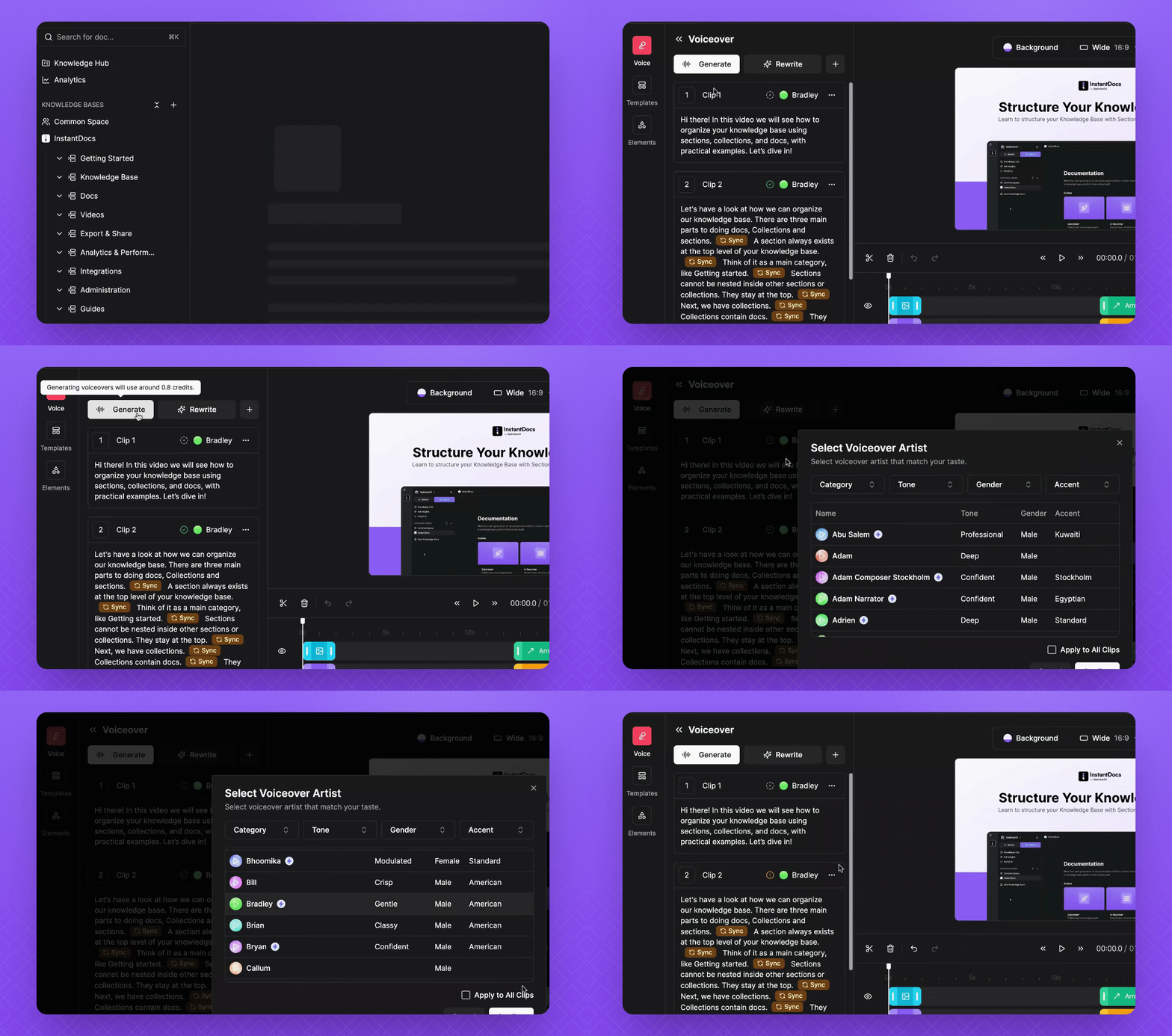
To generate voiceover, first change the voice you want to use.
Click on the desired voice and then click Apply to All clips followed by Confirm.
Click Generate in the top left corner to create your voiceover.
Look for the green check mark indicating the voiceover is Complete.
3. Manage Voiceover Clips
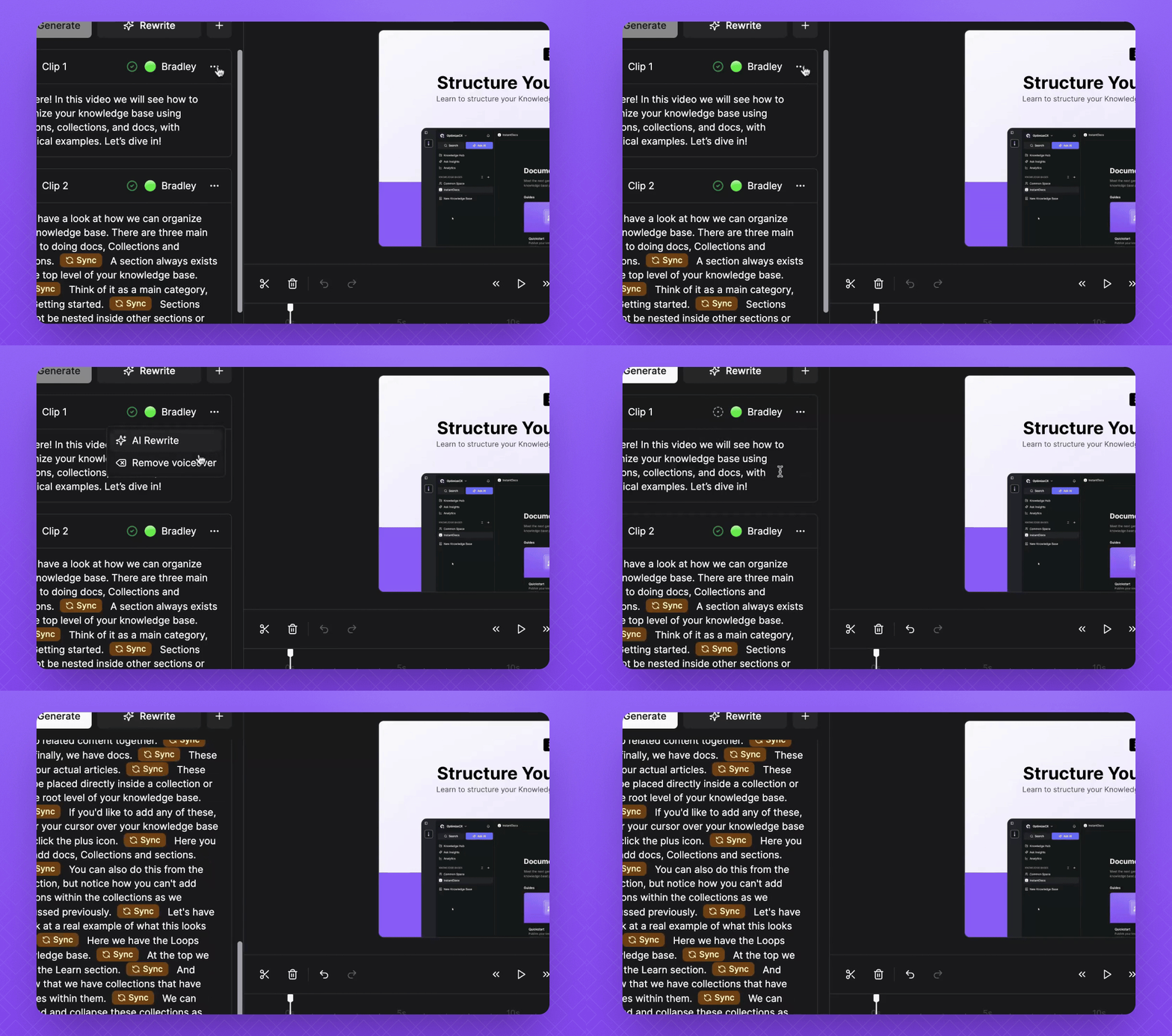
If you need to delete a voiceover for the intro and/or outro, click the three dots in the top right and select Remove Voiceover.
To delete an entire video clip, click on the clip and then hit the Bin button in the timeline.
Click the Undo button to revert any changes.
4. Adjust Zoom Settings
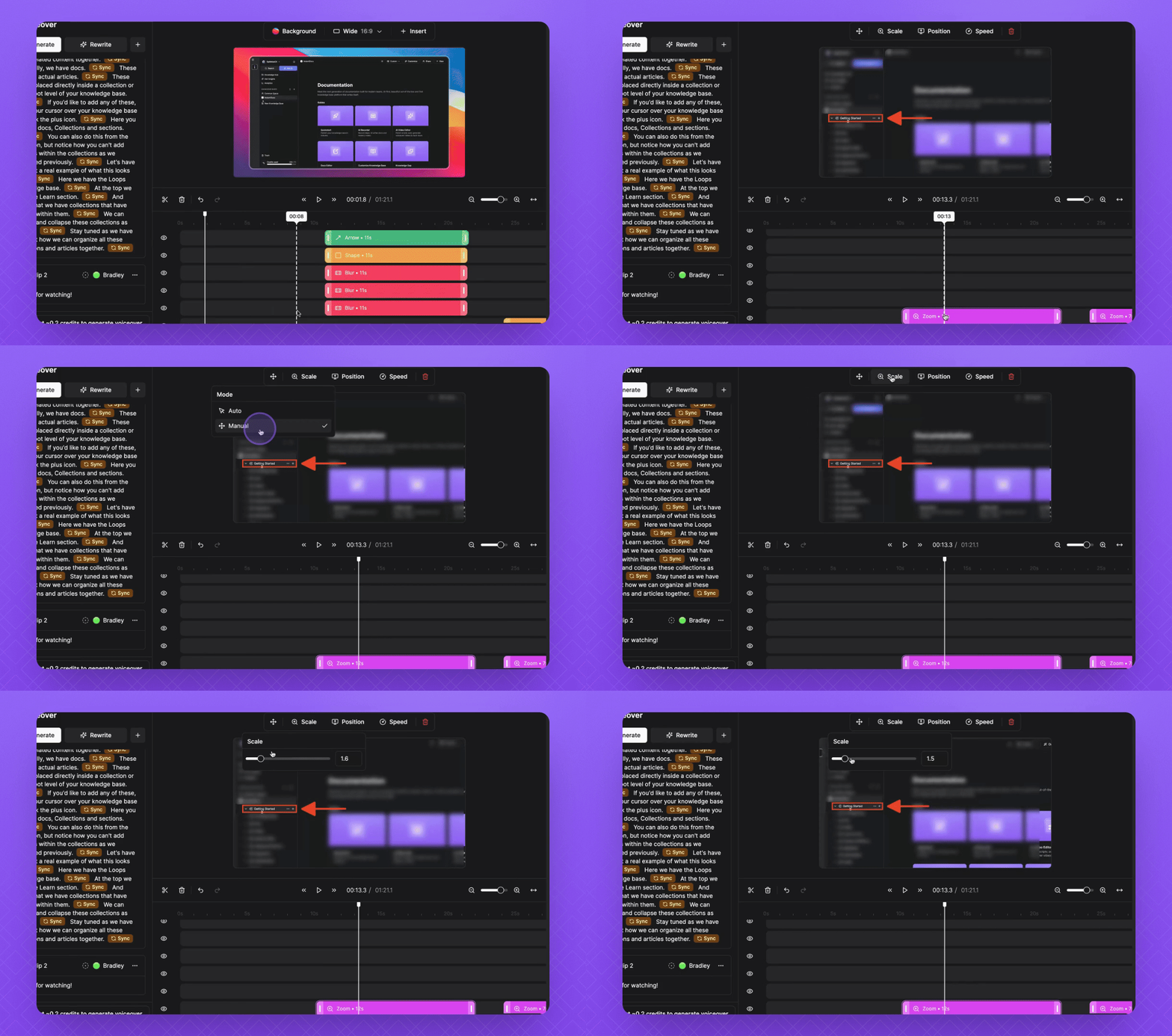
To fix zoom issues, click on the zoom setting and ensure it's set to Manual.
Adjust the zoom level by zooming in or out as needed.
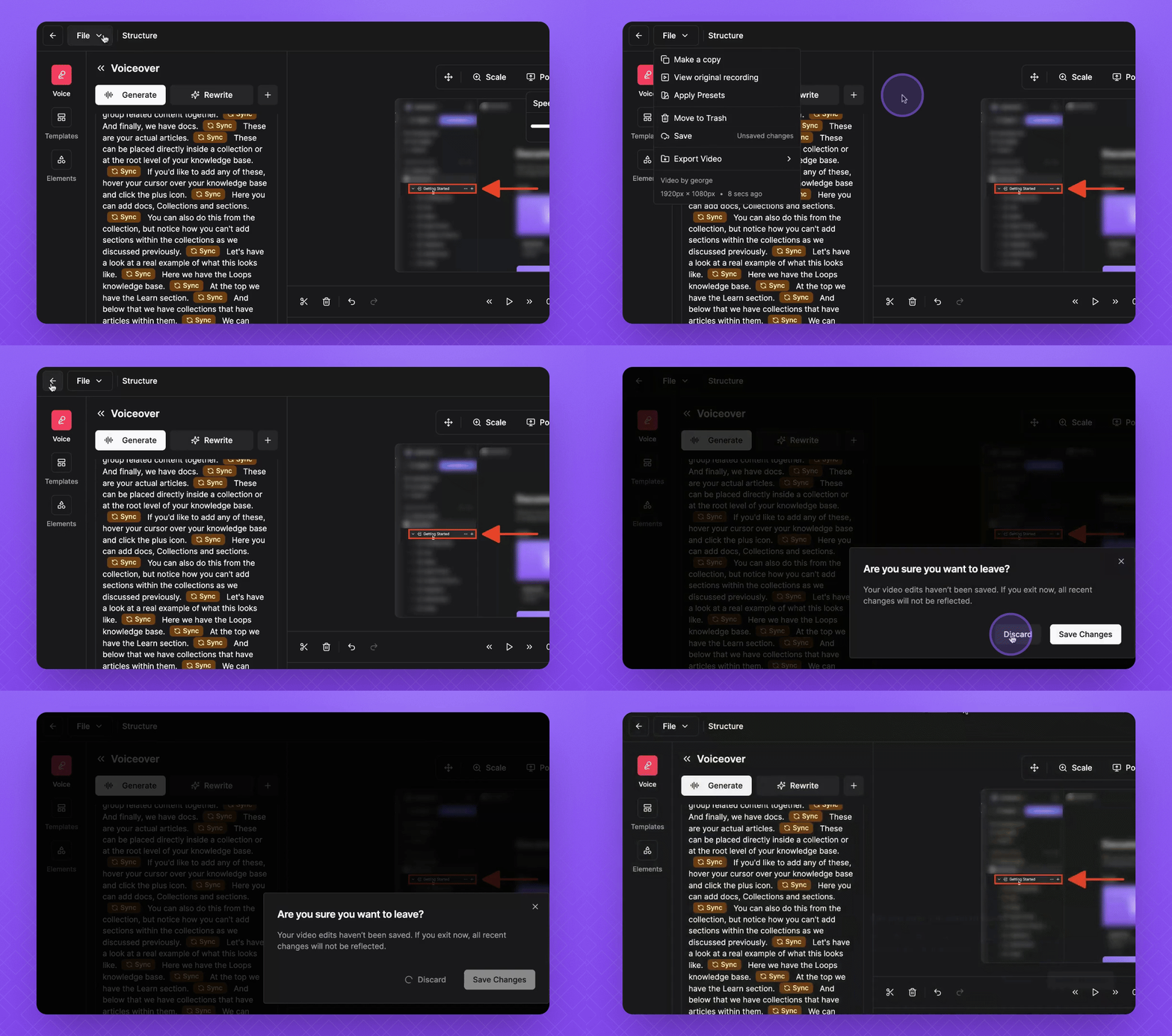
5. Save or Discard Changes
To save your changes, click File Save.
If you want to discard changes, click the Back button and choose Discard.