Let's do it together!
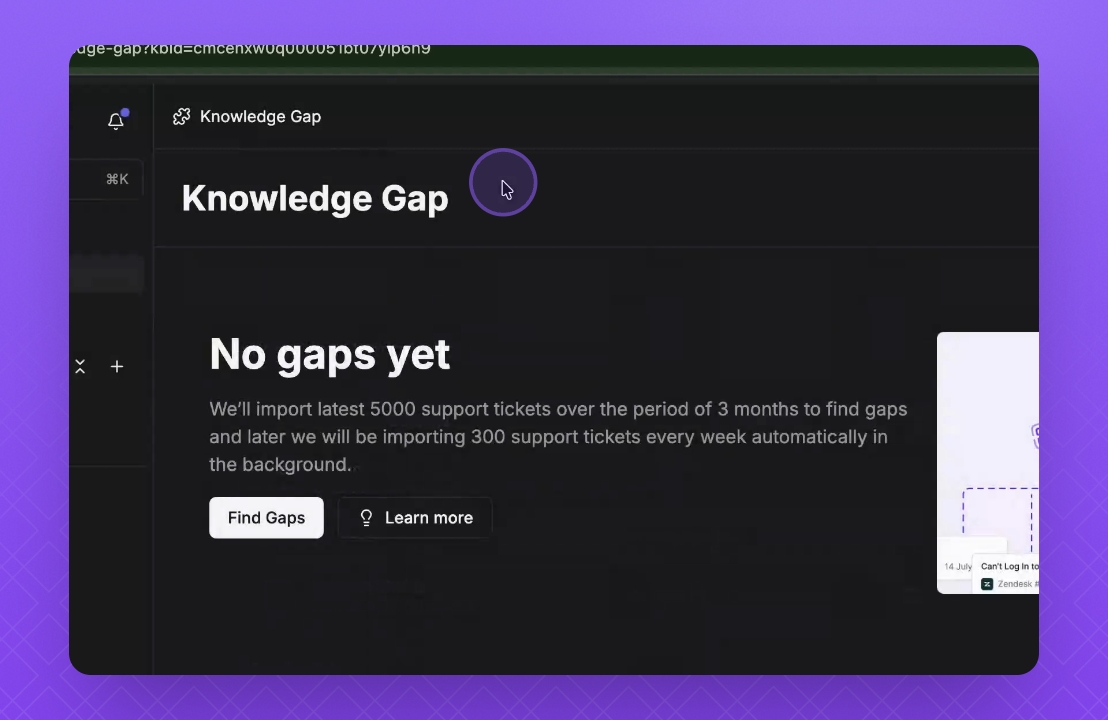
Step 1: Access Knowledge Gap
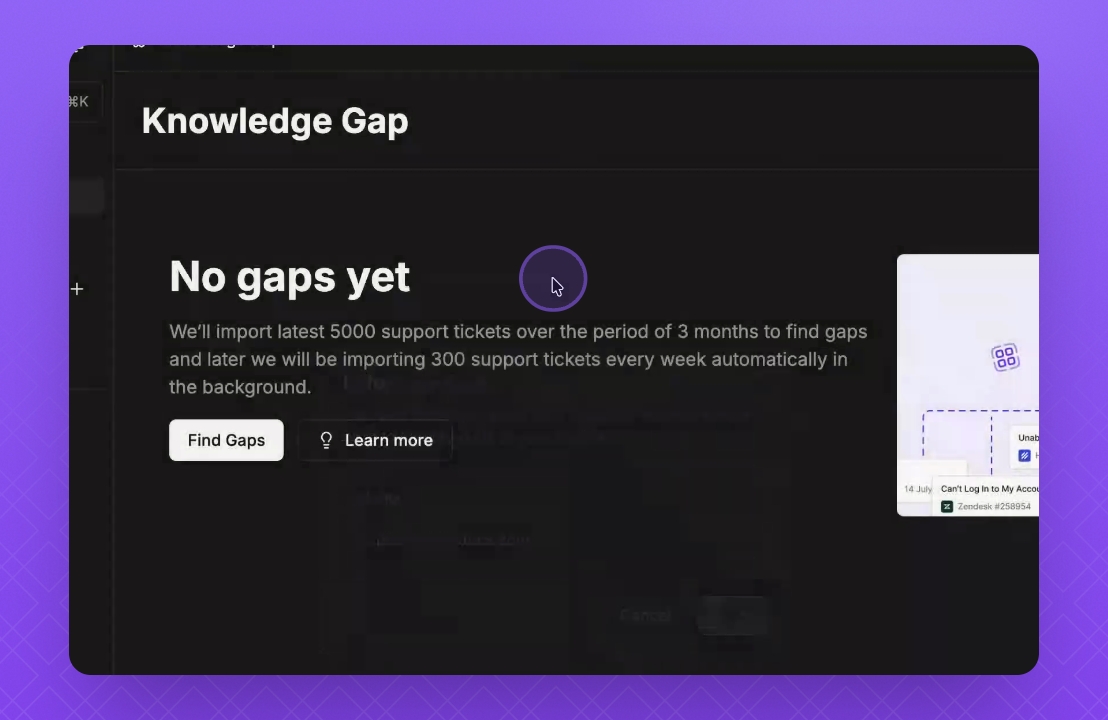
Go to the Knowledge Gap in Instant Docs and click on Connect.
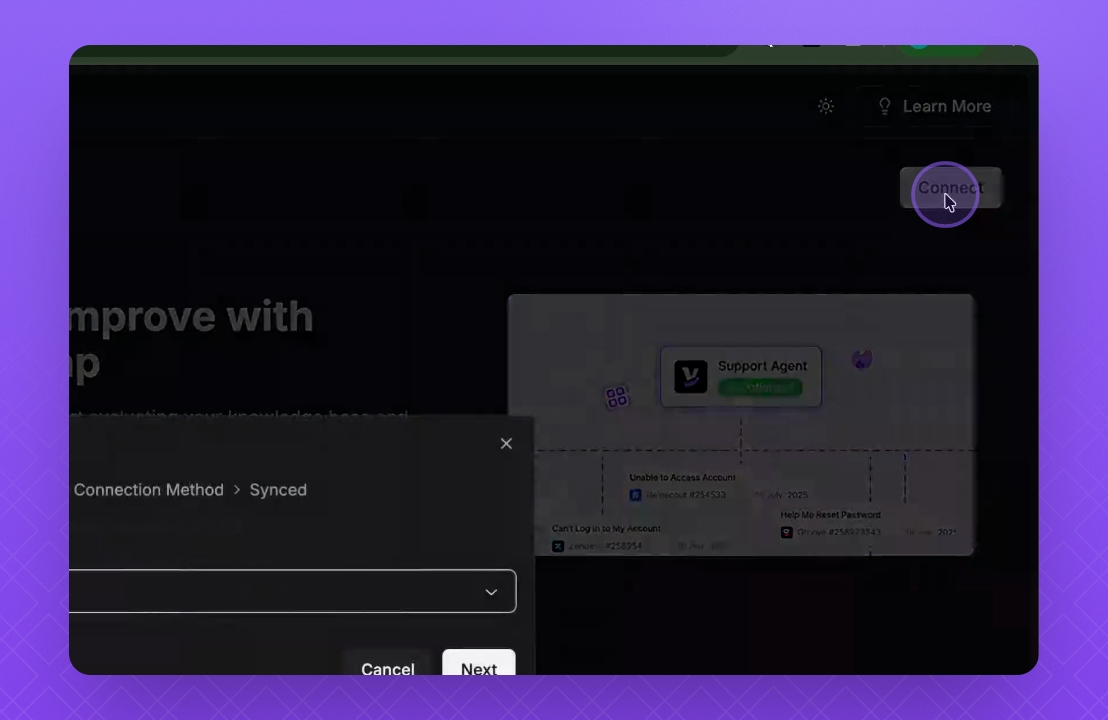
Step 2: Select Knowledge Base
Select your Knowledge Base and click Next.
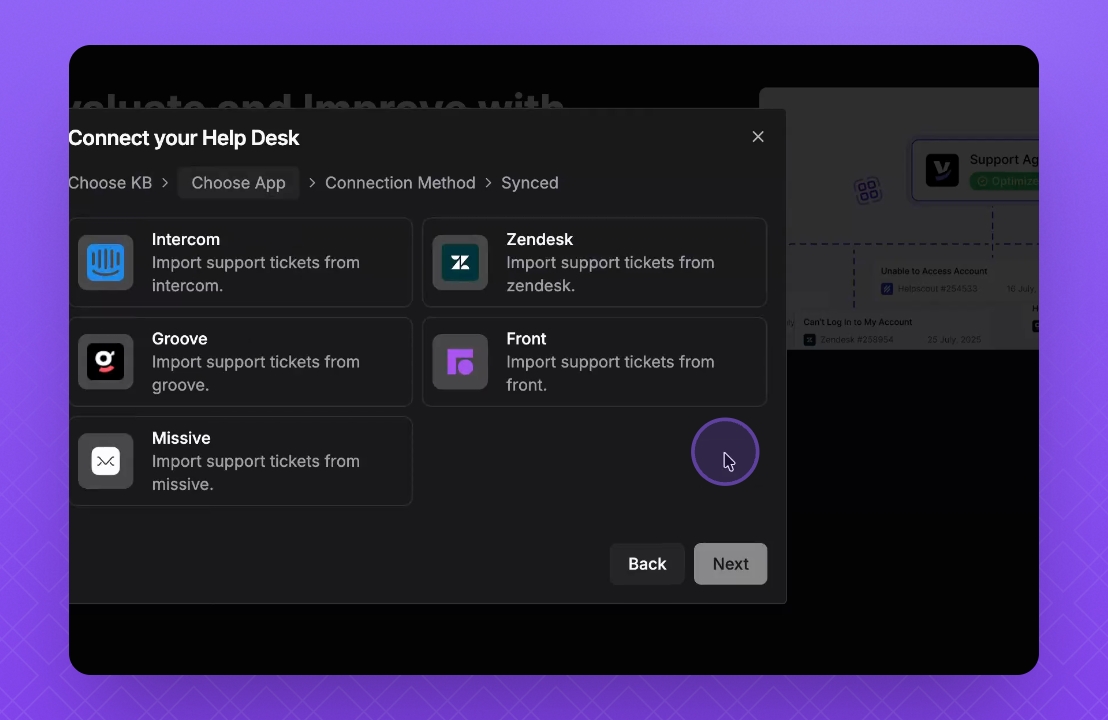
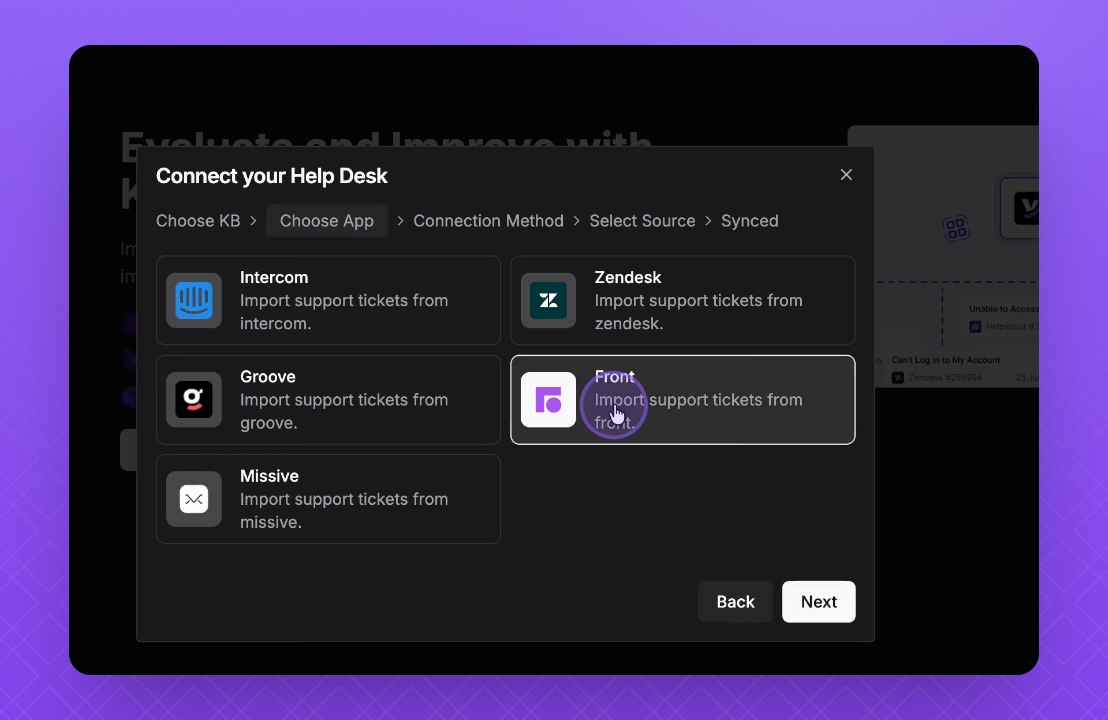
Step 3: Choose Front Tab
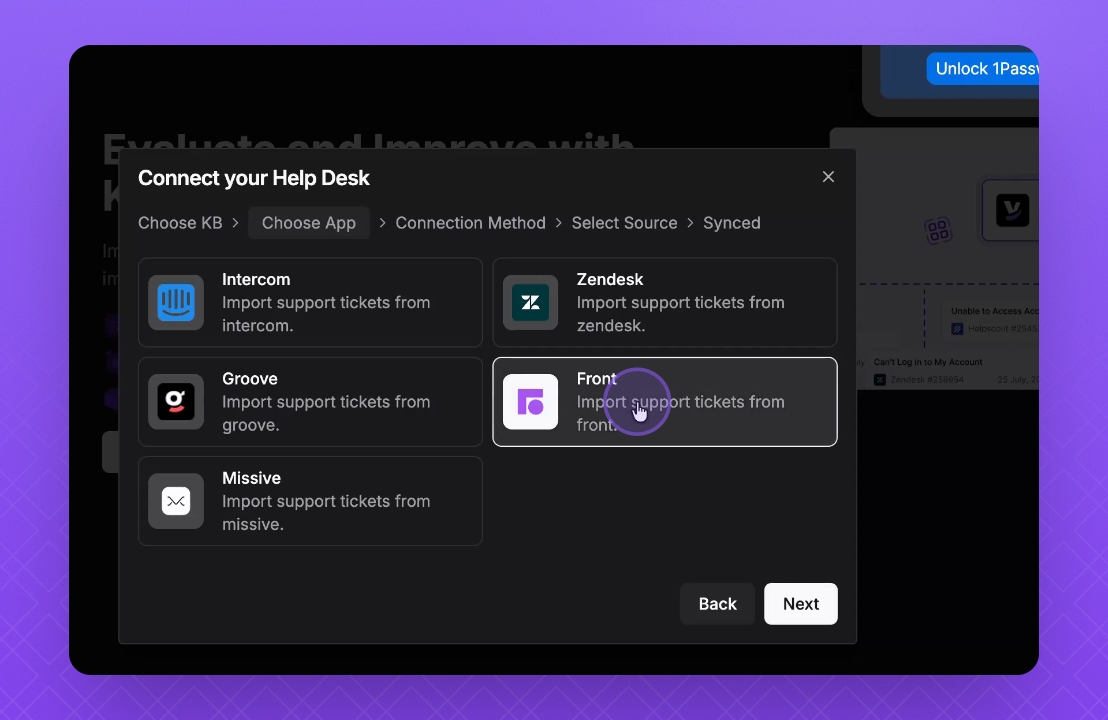
Choose the Front tab and click Next.
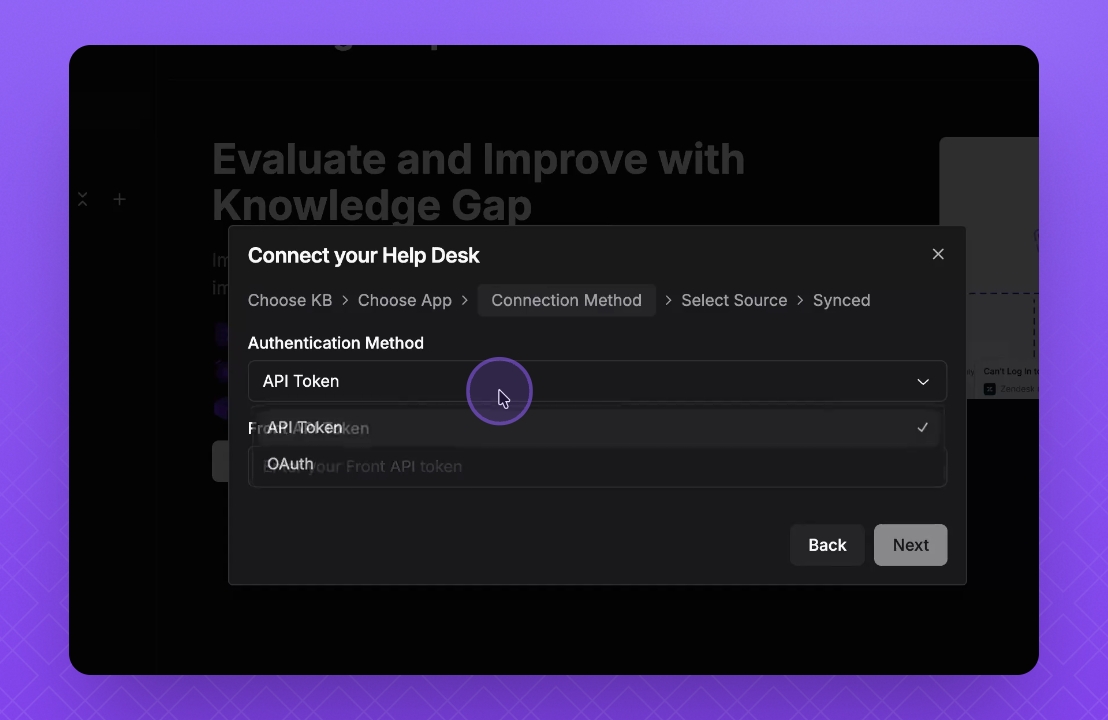
Step 4: Choose API Token Method
Select API Token for connection.
Step 5: Create API Token
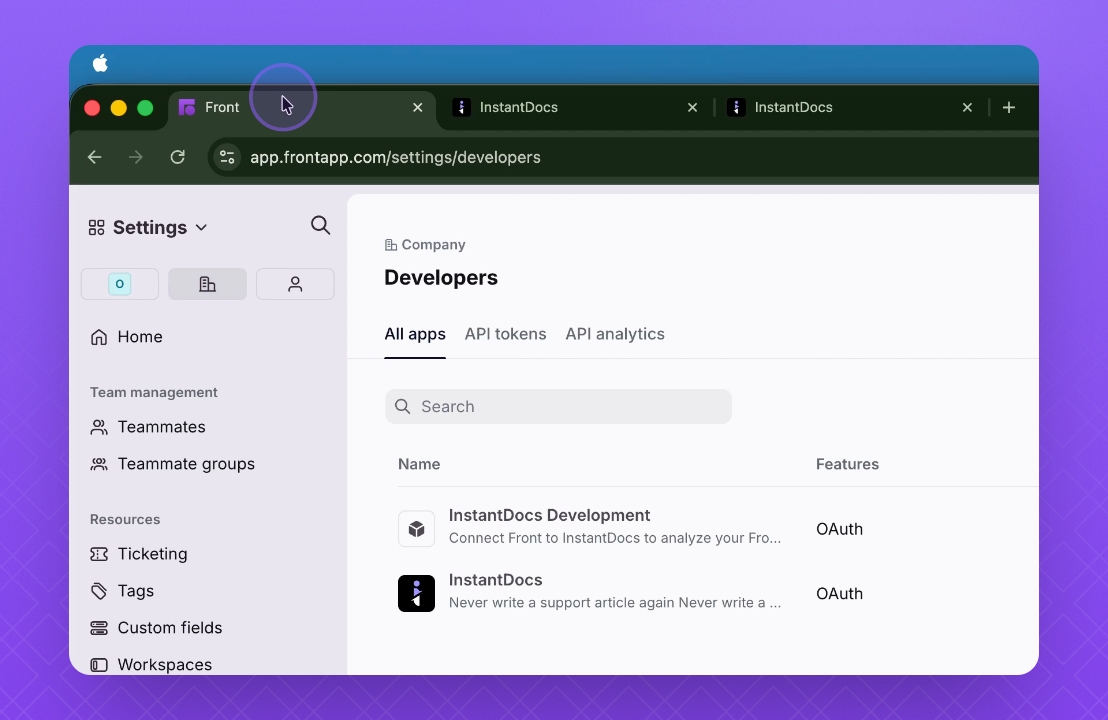
Go to your Front dashboard, navigate to Developer Settings, and select API Tokens. Create a new token.
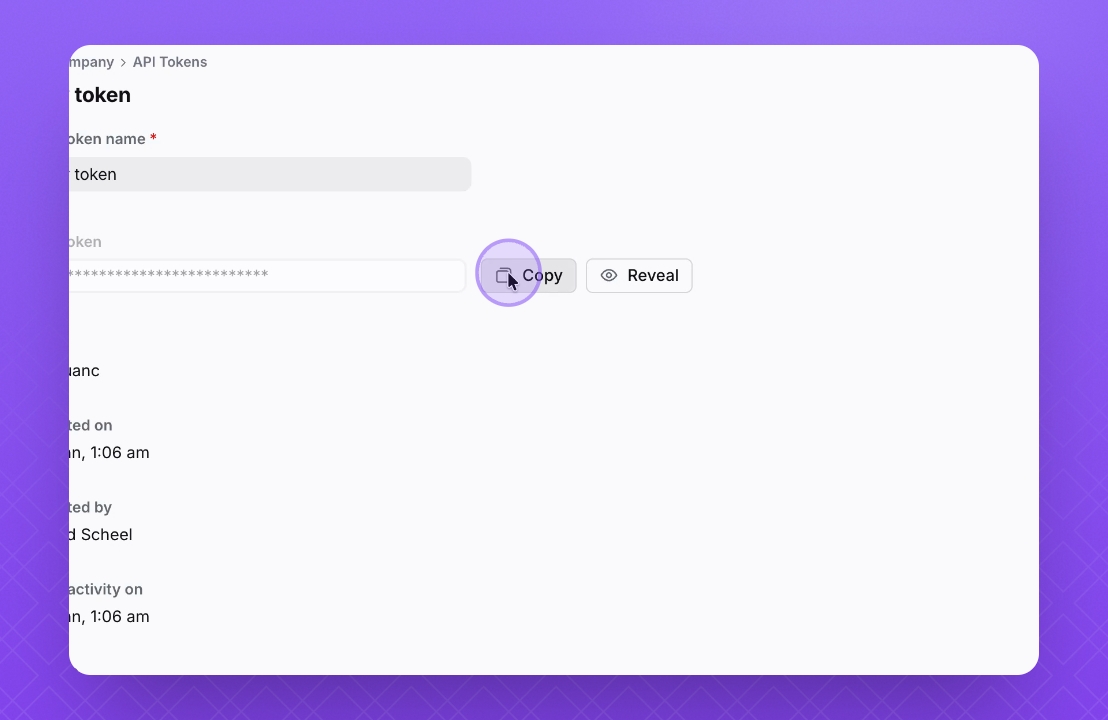
Step 6: Copy API Token
Copy the API token using the copy button and paste it in Instant Docs, then click Next.
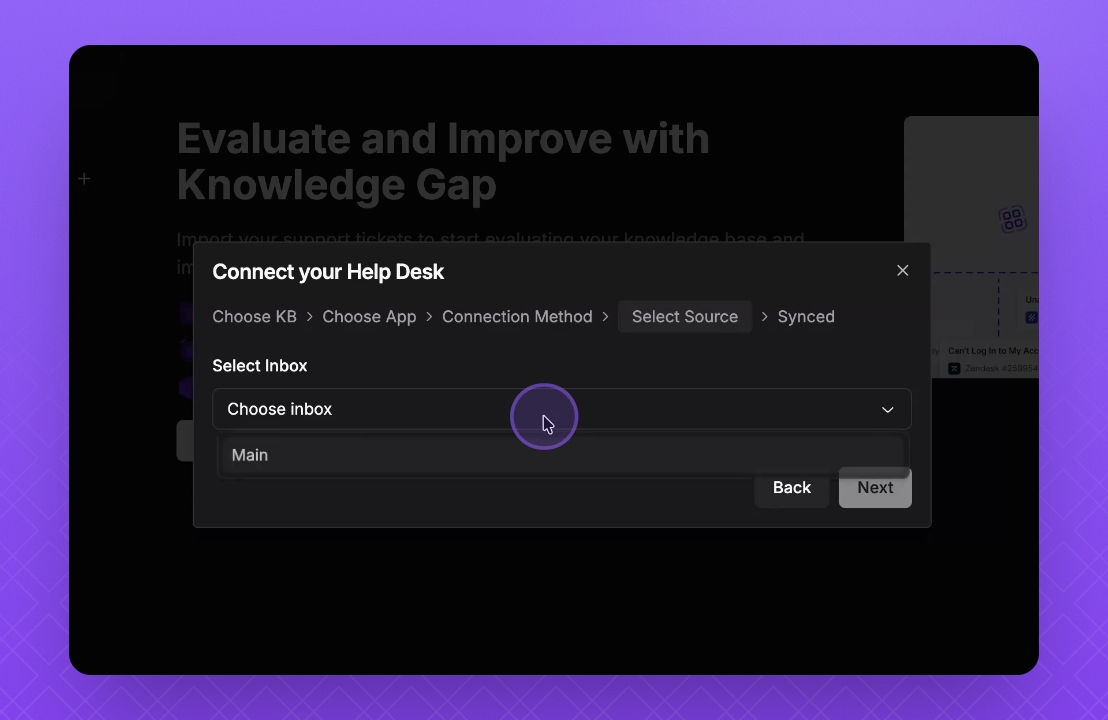
Step 7: Verify Connection
Your Front app is now connected to Instant Docs, and the inbox will be populated from the Front app.
Step 8: Start Finding Gaps
Click Next to begin finding gaps related to your inbox.
Step 9: Choose OAuth Method
Select OAuth integration by clicking on the connect button and then Next.
Step 10: Authorize OAuth
Click on Front, choose OAuth, and click Next. Authorize the access request.
Step 11: Complete OAuth Flow
After authorization, you will be redirected back to the initial page, confirming that the OAuth flow is completed.
Step 12: Verify Integration
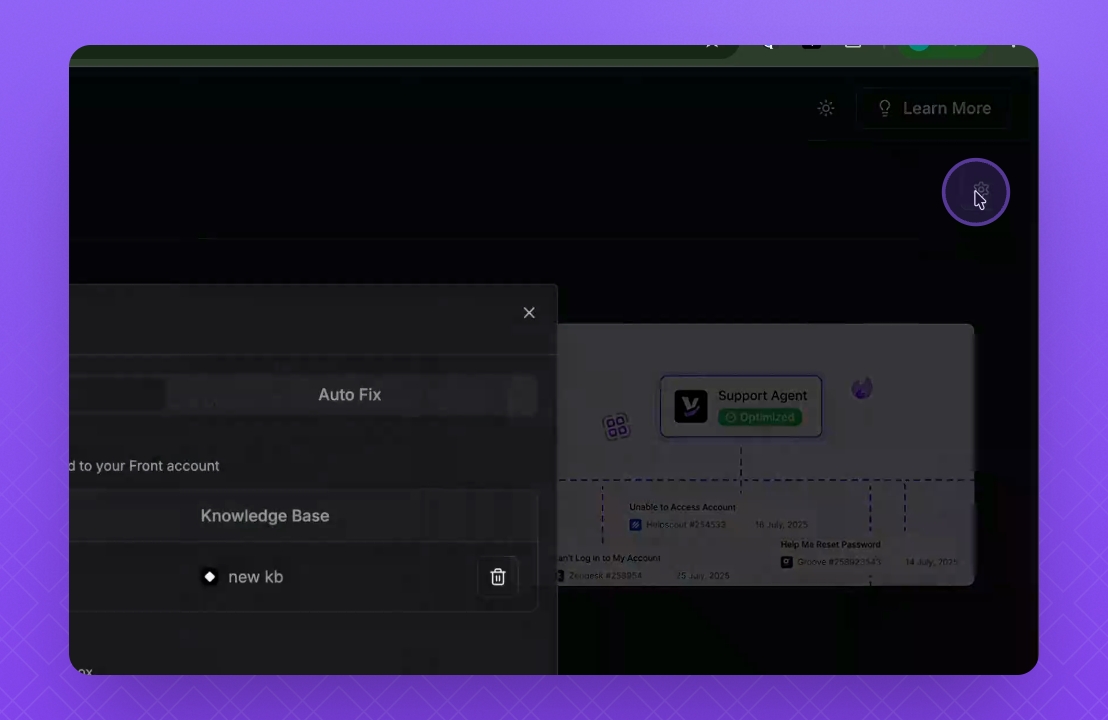
Check the connected account and verify that your inbox is visible.
Step 13: Start Finding Gaps
You can now start finding gaps using the integration.