

TL;DR
1
Find content
Locate the content you wish to duplicate.
2
Click three dots
Hover over the content, click the three dots, then select "Duplicate"
3
Confirm duplication
All content will be copied with an indicator.
Let's Do It Together!
Step 1: Locate the Content
Identify the content you want to duplicate in your Knowledge Base.
Click the three dots next to the content.
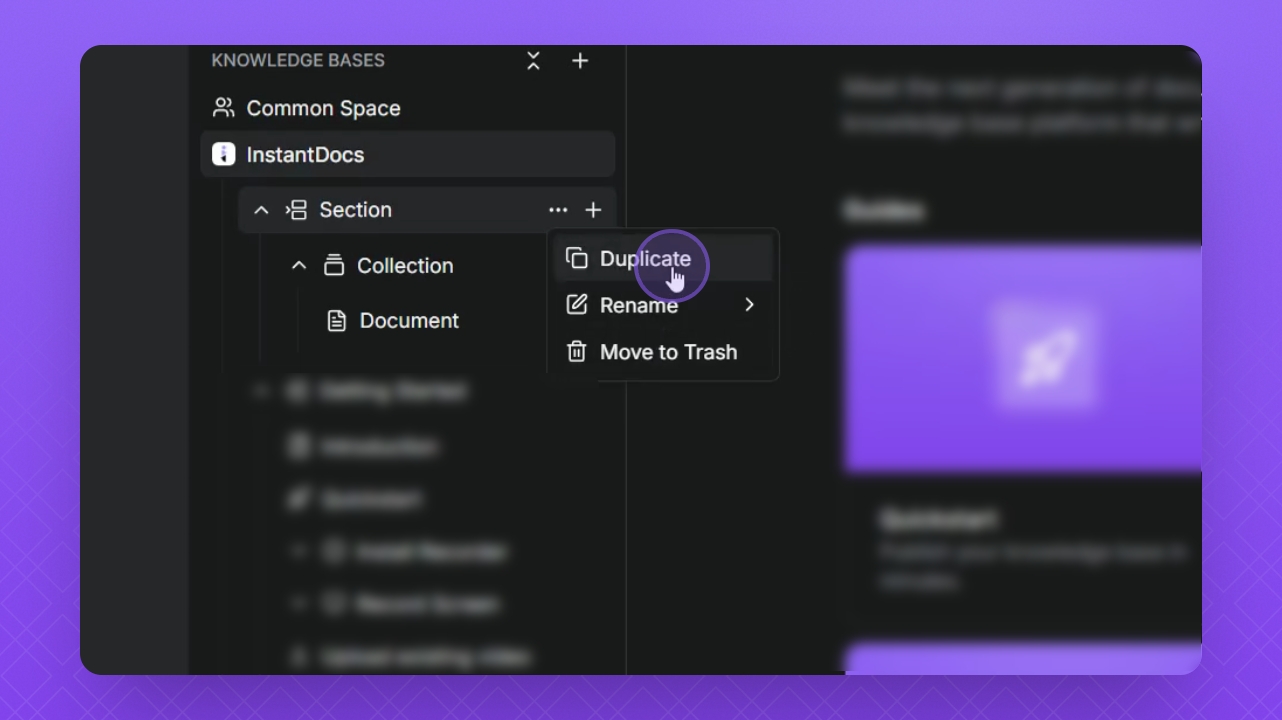
Step 2: Duplicate the Content
Select Duplicate from the dropdown menu.
Observe that the section and all its contents are duplicated.
A copy indicator will appear in the title of the content.
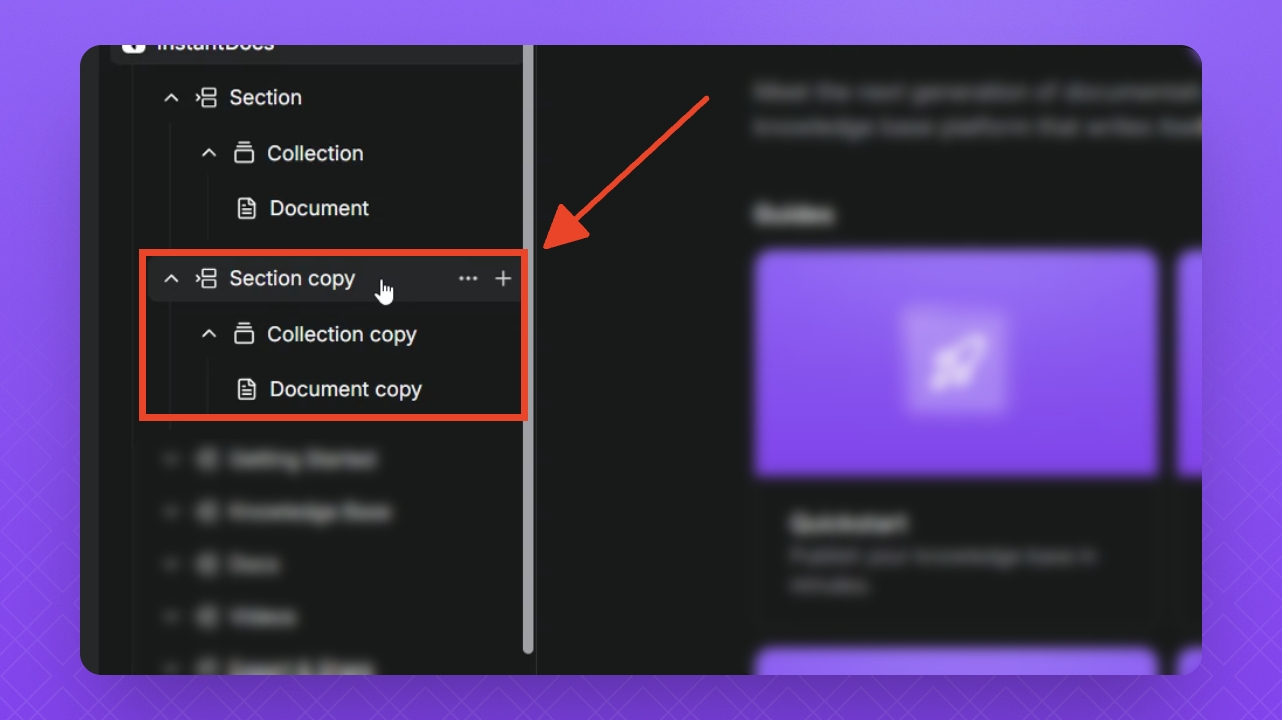
FAQ
Can I duplicate a Doc in my Knowledge Base
Yes. Click the three dots next to the Doc and select Duplicate. A copy will be created with a copy indicator in the Doc title.
Can I duplicate entire Sections or Collections?
Yes. When you duplicate a Section or Collection, all content inside it will also be duplicated as well.
Where does the duplicated content appear?
The duplicate appears directly below the original content in the Knowledge Base.
Can I move duplicated content to another Knowledge Base?
Yes. Drag and drop the duplicated Doc, Section, or Collection into the desired Knowledge Base.