TL;DR
Click your Workspace name and select Settings to find Integrations.
Paste your API key in InstantDocs and verify it.
Create a new Knowledge Base and import your Notion files.
Let's Do It Together!
1. Access Integration Settings
Click your Workspace name and the dropdown menu.
Click Settings.
Under the Features tab, find Integrations.
Click Integrations.
2. Connect Notion
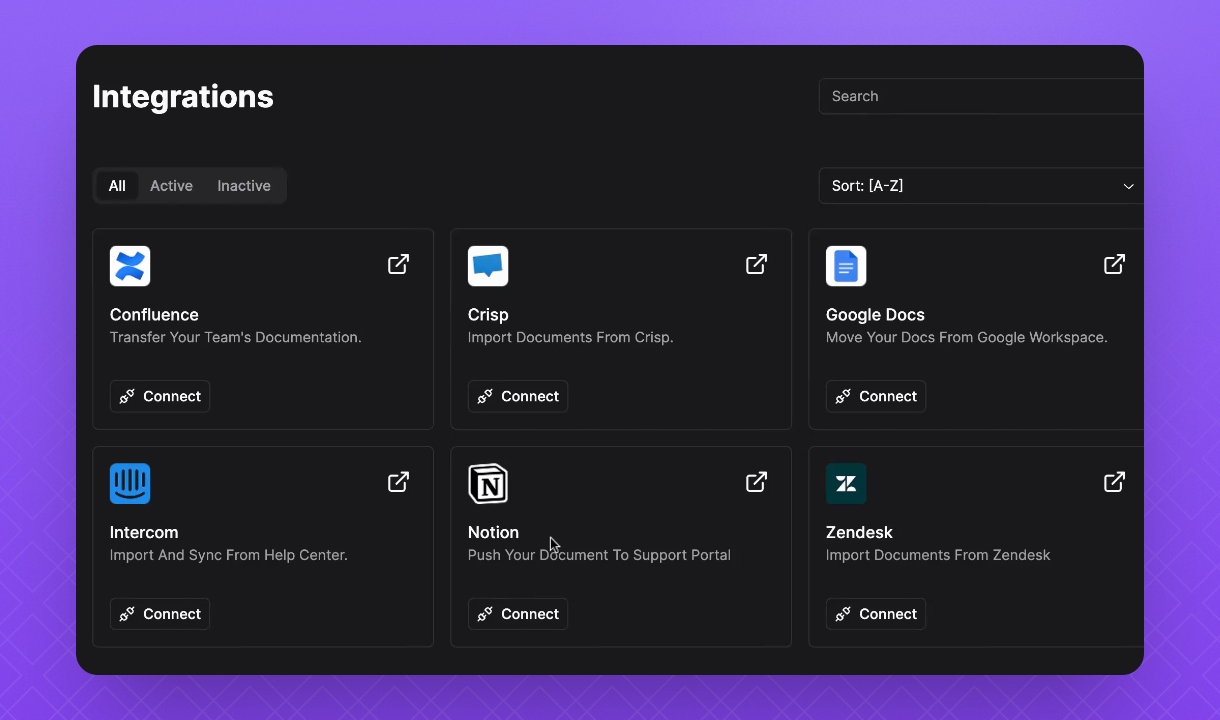
Select Notion and click Connect.
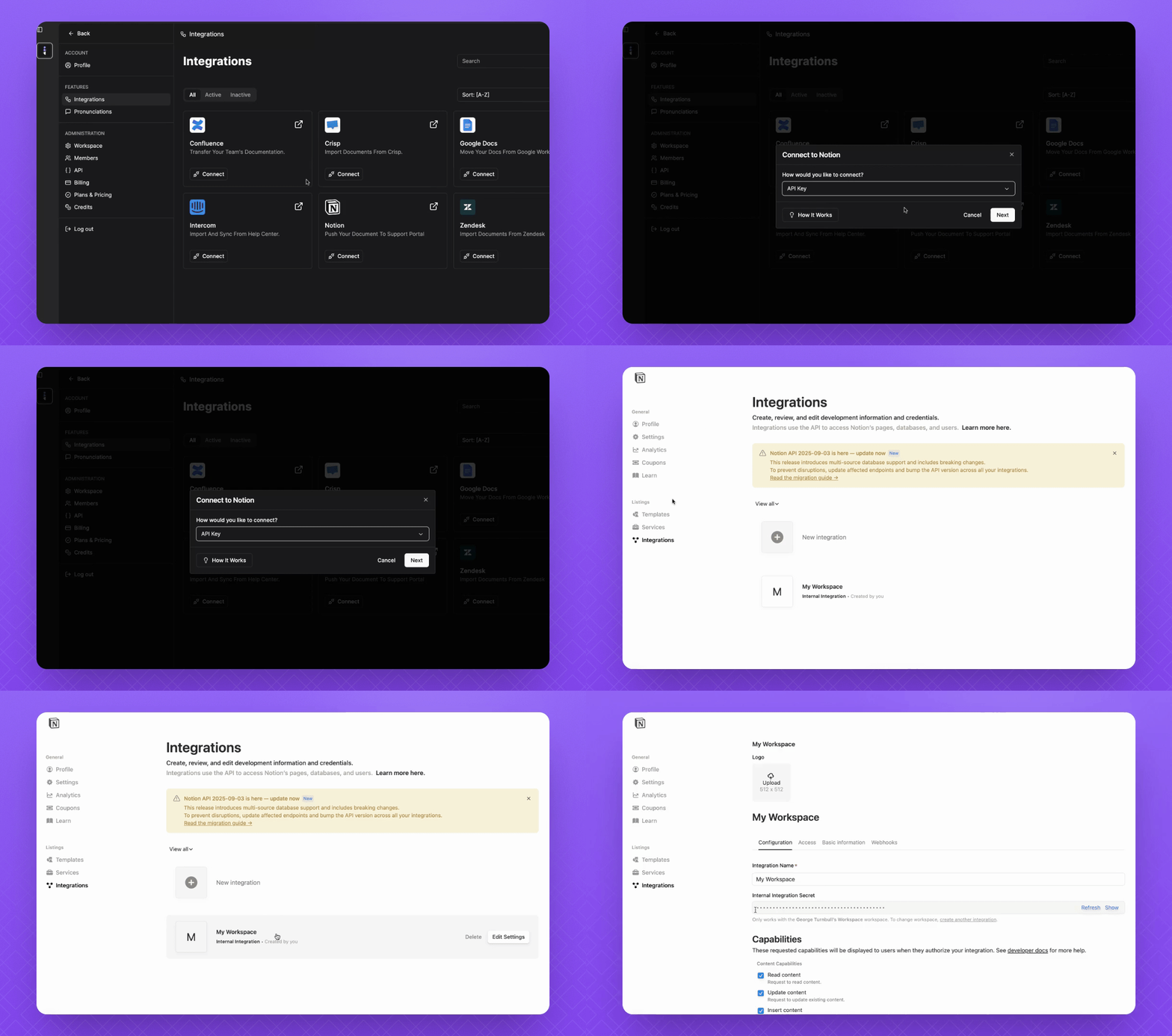
Go to your Notion developer portal and find your API key under the Integrations tab.
Click on the integration you want, then copy the internal integration secret to get your API key.
Press show to view and copy the API key.
3 Paste and Verify API Key
Return to your InstantDocs account.
Click Connect on Notion, then Next.
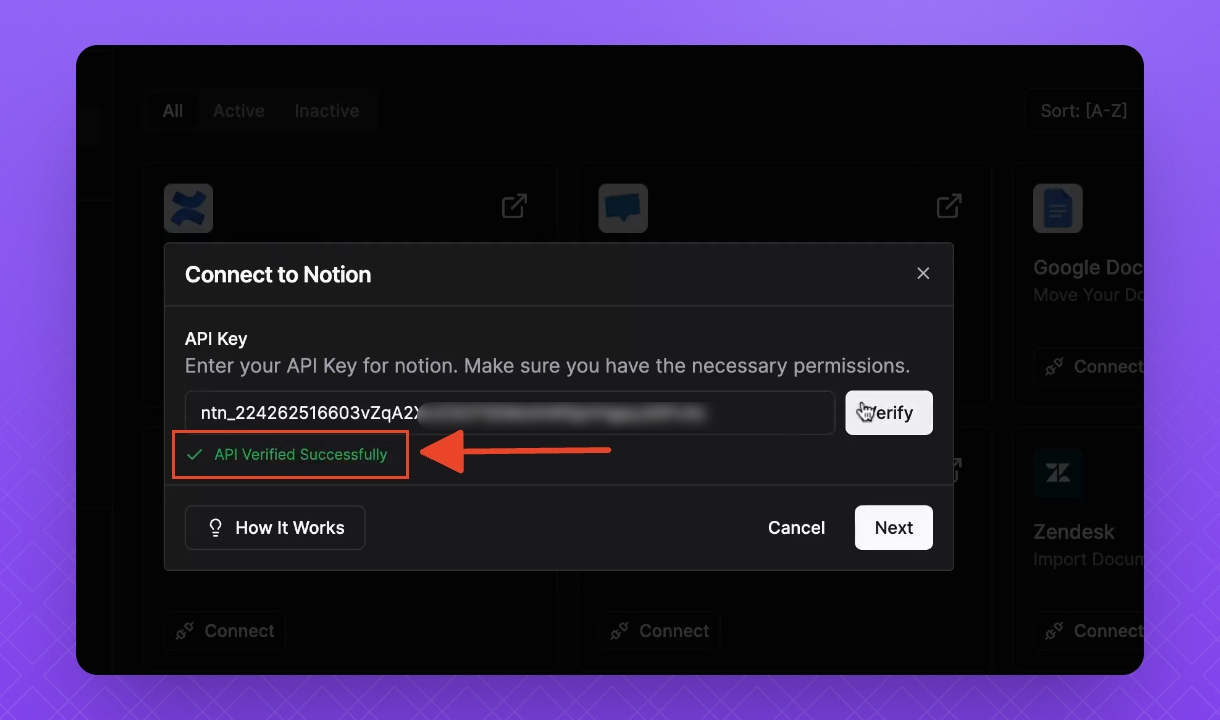
Paste your API key and click Verify.
Once verified, click Next.
4. Import Your Notion Workspace
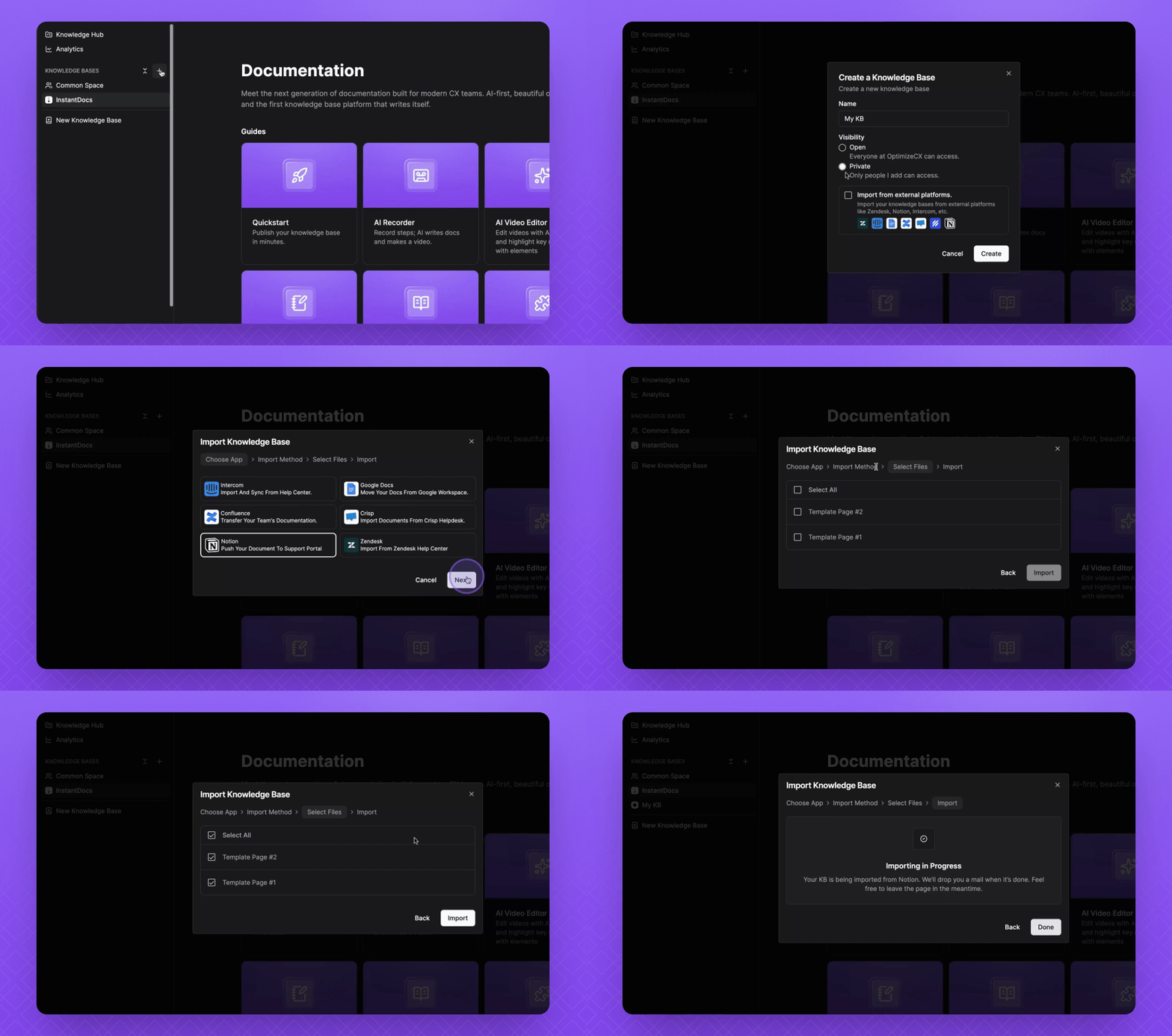
Hover over Knowledge Bases and click the + icon.
Give your Knowledge Base a name and select visibility.
Click Import from external platforms, then Create.
Select Notion and click Next.
Select the files to upload and click Import.
Click Done once the import is in progress.
5. Confirm Import Completion
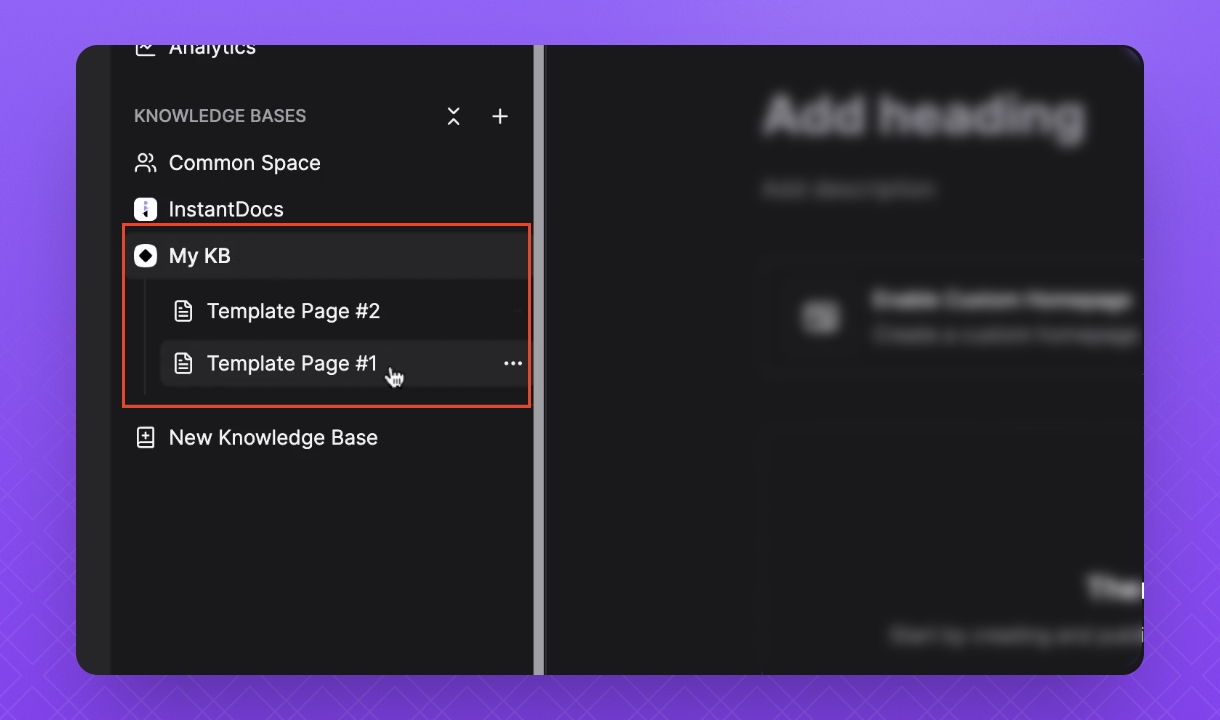
Check that your new Knowledge Base is finished uploading.
Click the dropdown to see the pages uploaded from Notion.