TL;DR
Paste token in InstantDocs and click Verify.
Create a new Knowledge Base and import your Confluence files.
Let's Do It Together!
1. Access Integration Settings
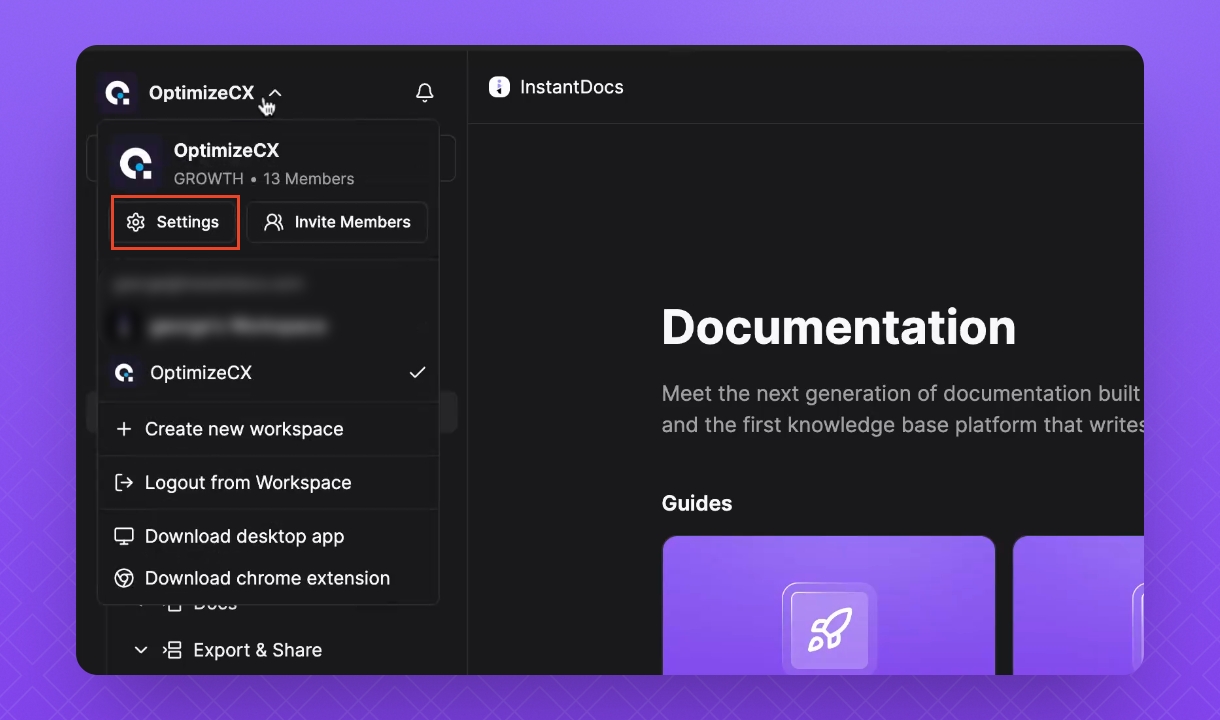
Click on the Workspace name.
Click Settings.
Find the Features section and click Integrations.
2. Connect to Confluence
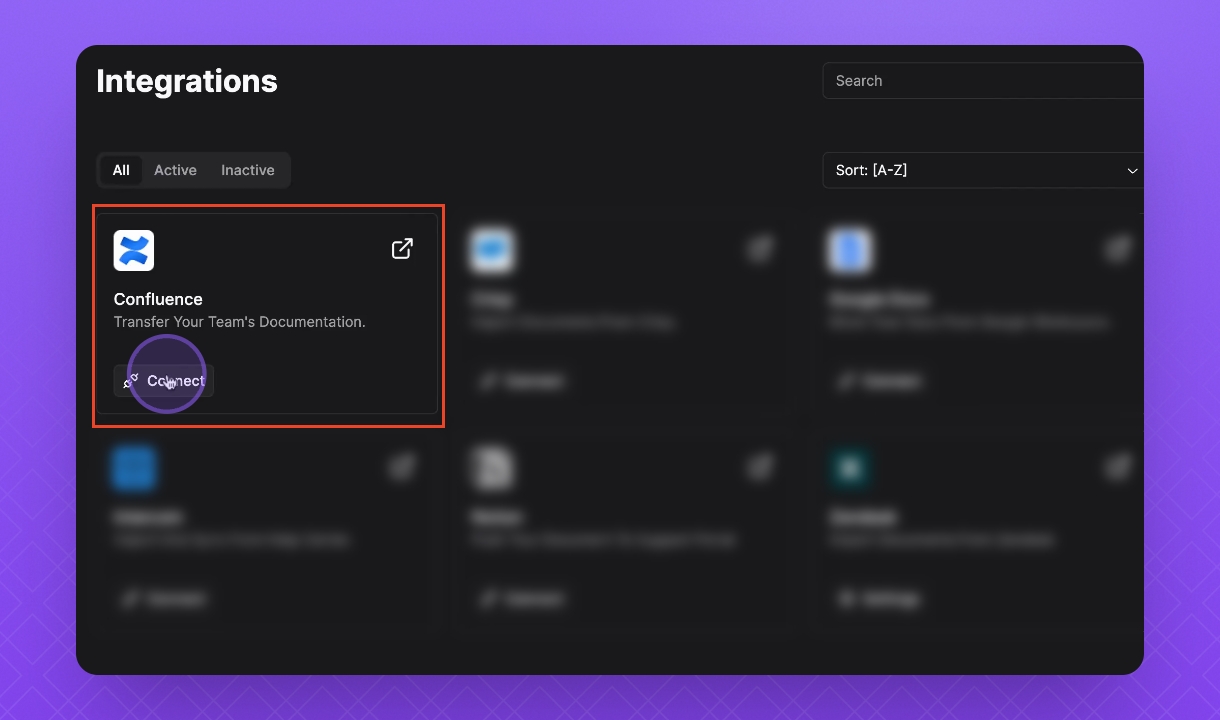
Click Connect under Confluence.
Click Next.
3. Retrieve API Token
Go to your Atlassian account to retrieve your Confluence email Domain API token key.
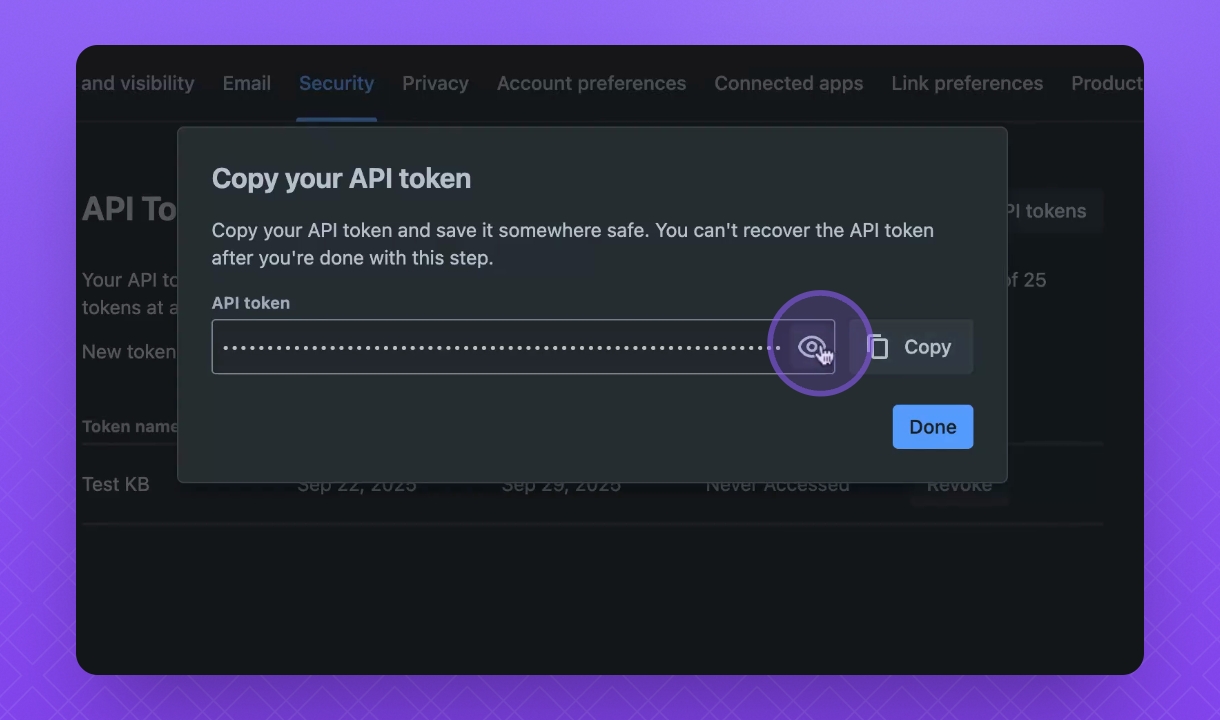
Under Security, create an API token.
Press View and copy the token.
4. Verify API Token in Instant Docs
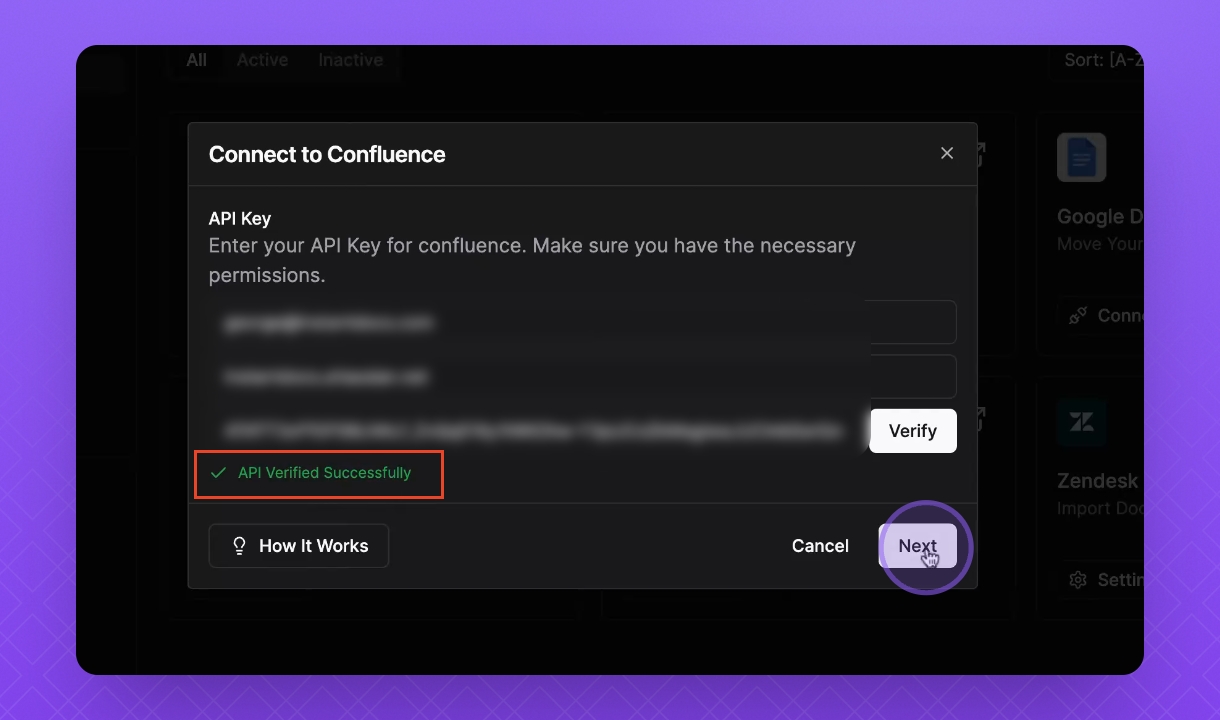
Go back to InstantDocs and click Verify.
Once verified, you will see a green check mark and the words API verified successfully.
Click Next.
5. Import Data from Confluence
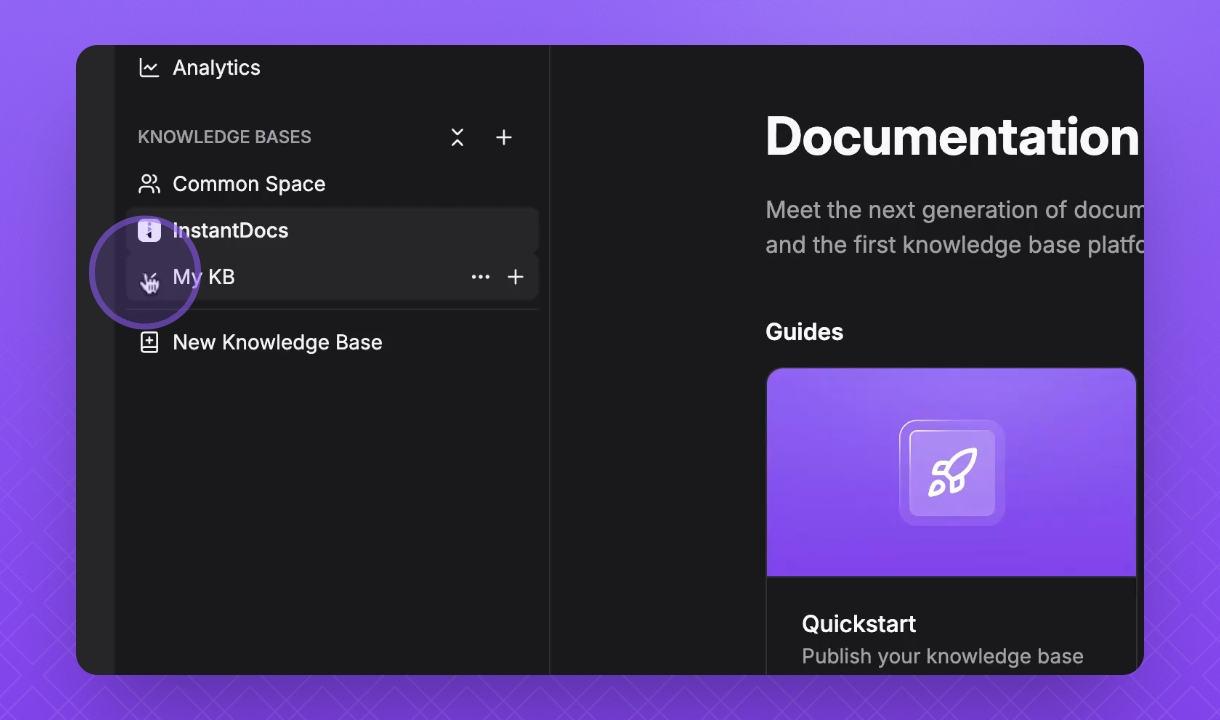
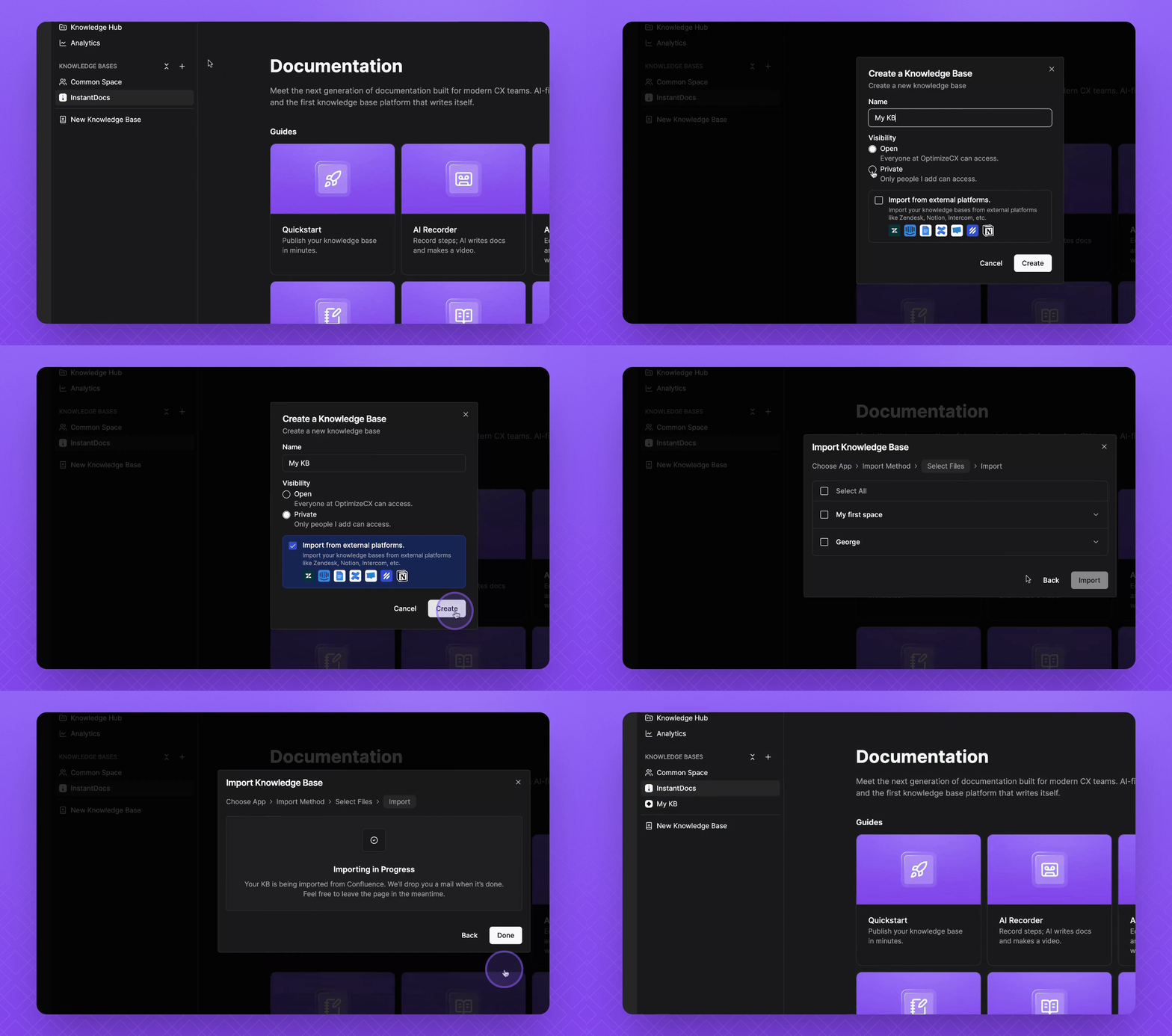
Hover over your Knowledge Bases and click the + icon.
Give your Knowledge Base a name, decide on the Visibility, and click Import from external platforms.
Click Create.
Select Confluence, then click Next.
Select the files you would like to add, then select Import.
Once files begin importing, click Done.
7. View Your Knowledge Base
After importing, you can view your new knowledge base with all of your documents ready to go.