

TL;DR
Send an invitation
To send an invitation:
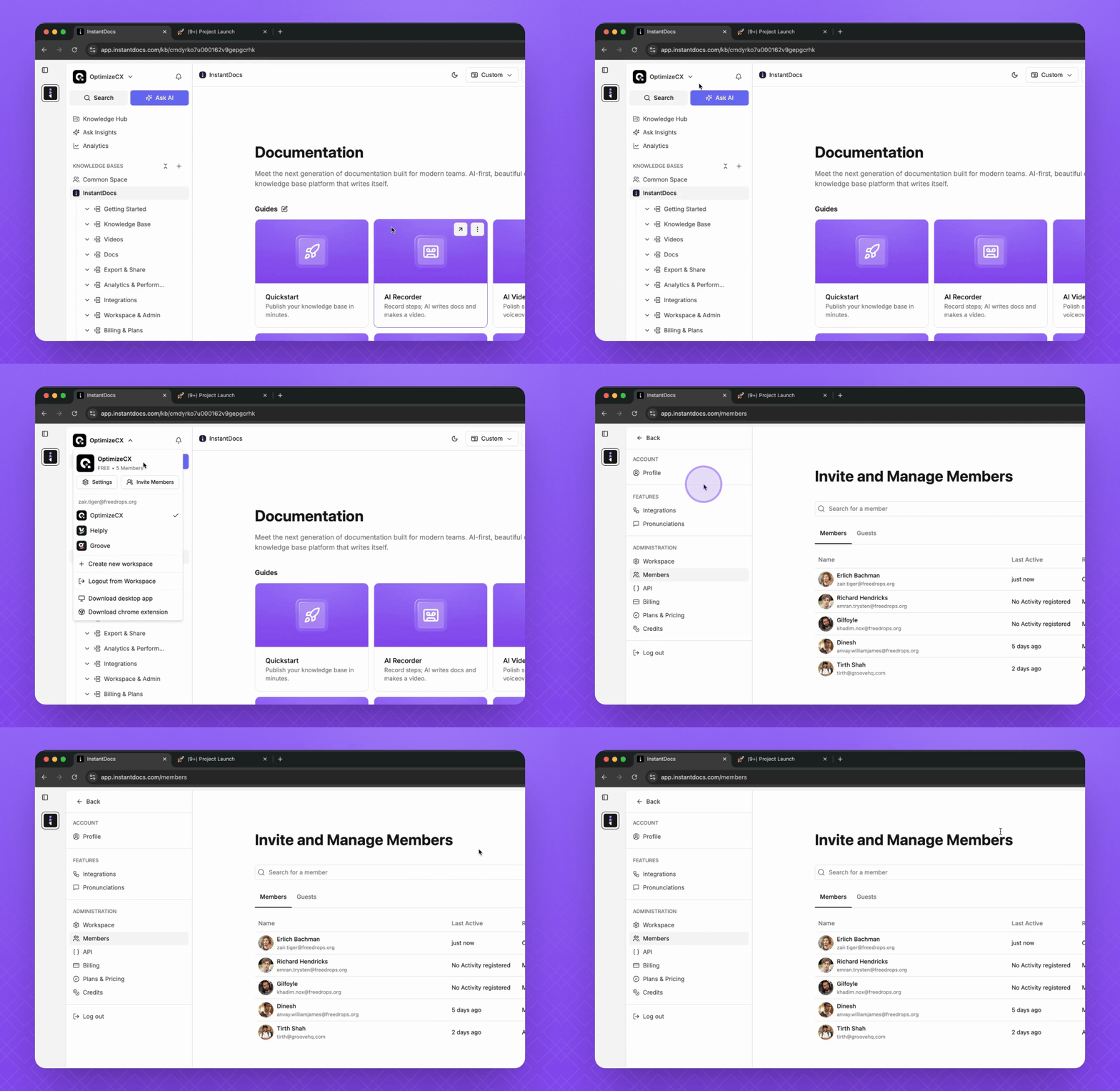
Step 1: Access the Invite Members Option
Click on the Workspace.
Click on Invite Members.
You will be redirected to the invite and manage members page.
Step 2: Enter Email Addresses
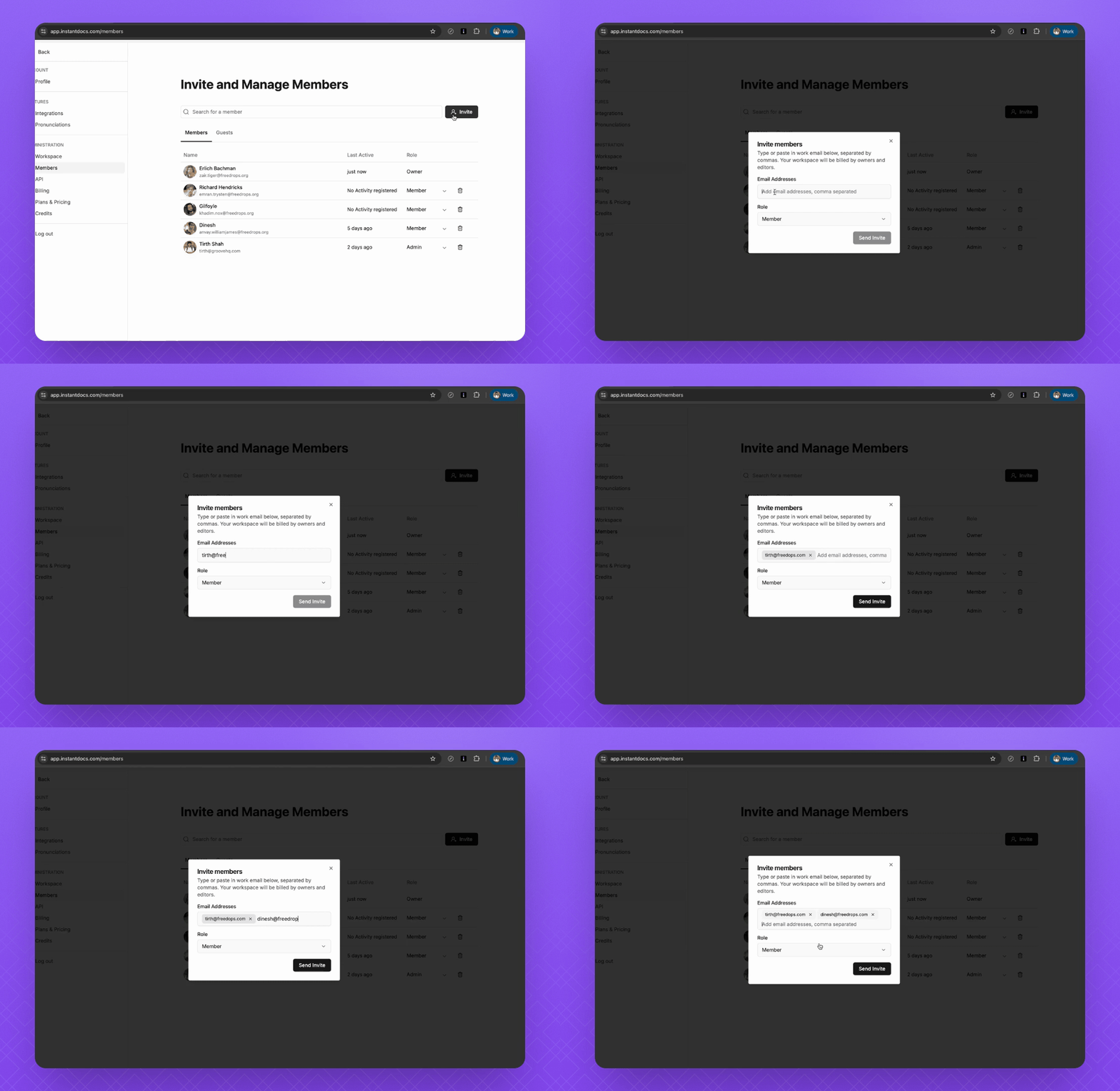
Click on the Invite button.
Type the email addresses of the members you want to invite.
Separate multiple email addresses using either a space or a comma.
Emails are now ready to be sent for invitations.
Step 3: Set Roles and Send Invites
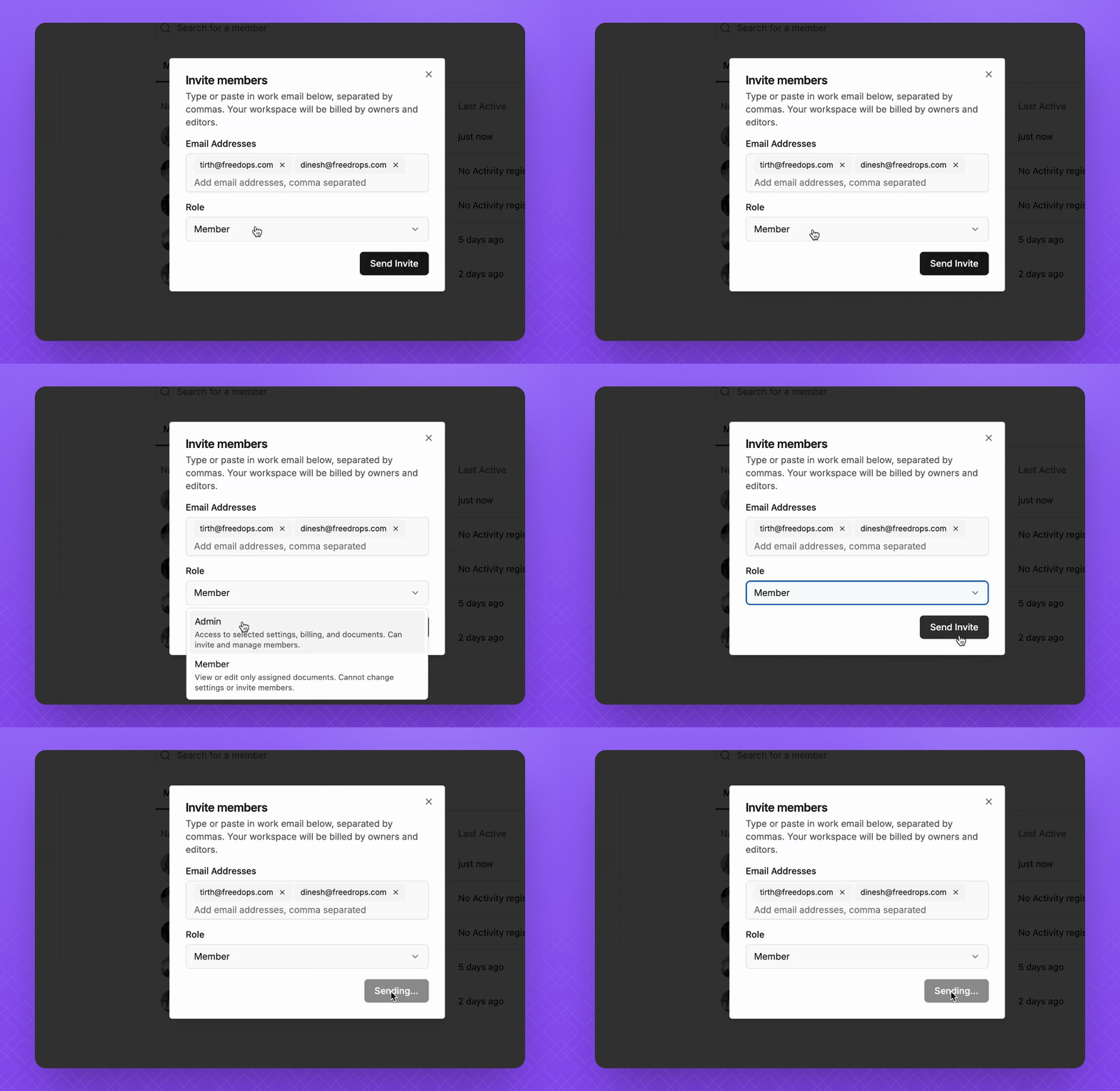
Change the roles if necessary by selecting either Admin or Member.
Click on the Send Invite button to send the invites.
The invites will be sent to the provided email addresses.
Approved email domains
To save time from manually inviting new members, Admins can add allowed email domains. Once set up, anyone with the matching email domain can join the Workspace without an invitation or approval. This is only designed to streamline the joining process and does not prevent users from creating new workspaces with that domain email.
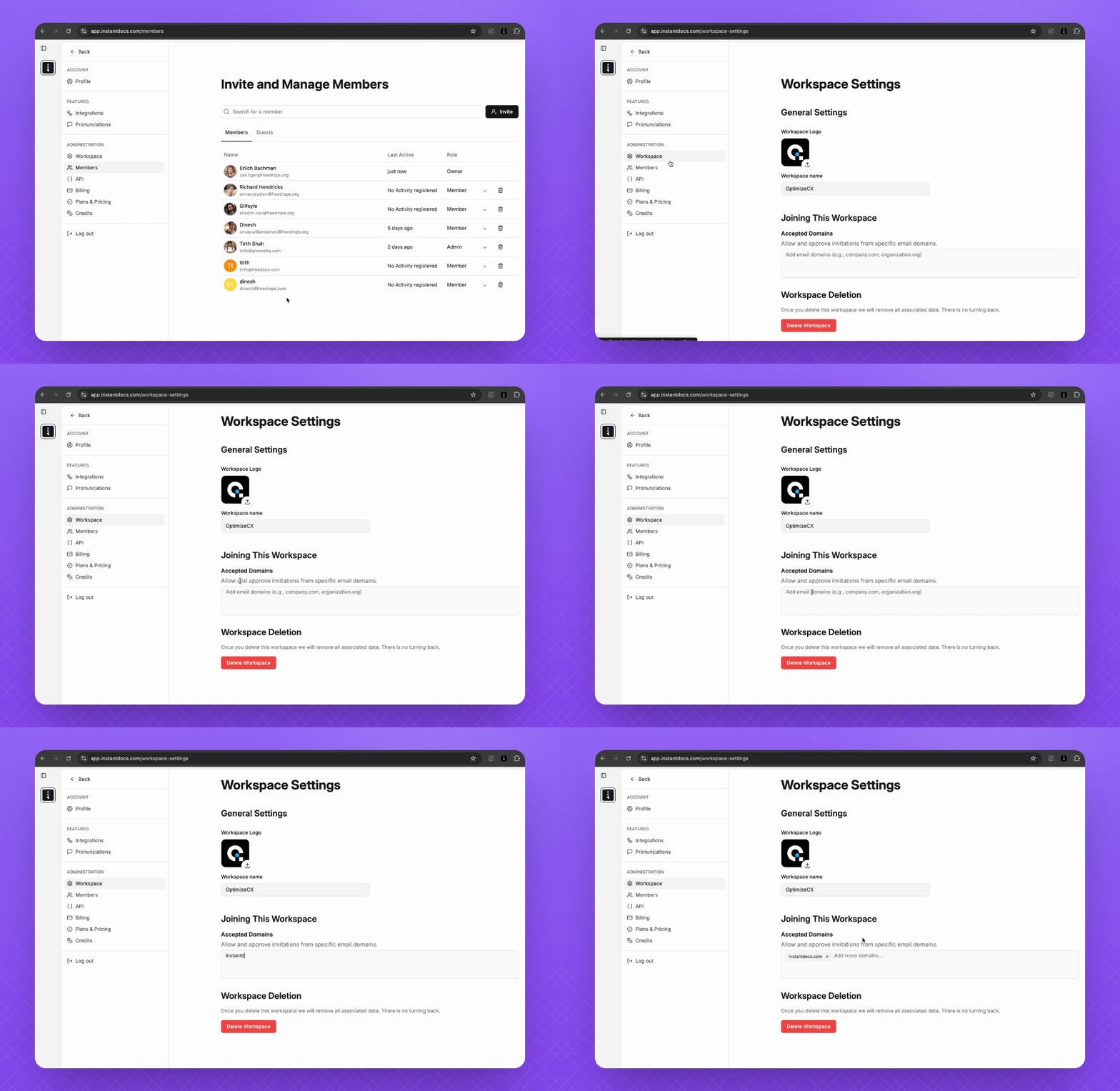
To add allowed domains:
In the Workspace administration section, add the domains for easier joining.
For example, add instantdocs.com.
This allows users with matching domains to join the Workspace directly.
For members with existing accounts, logout and login again. The Workspace with the allowed email domain should show up under available workspaces.