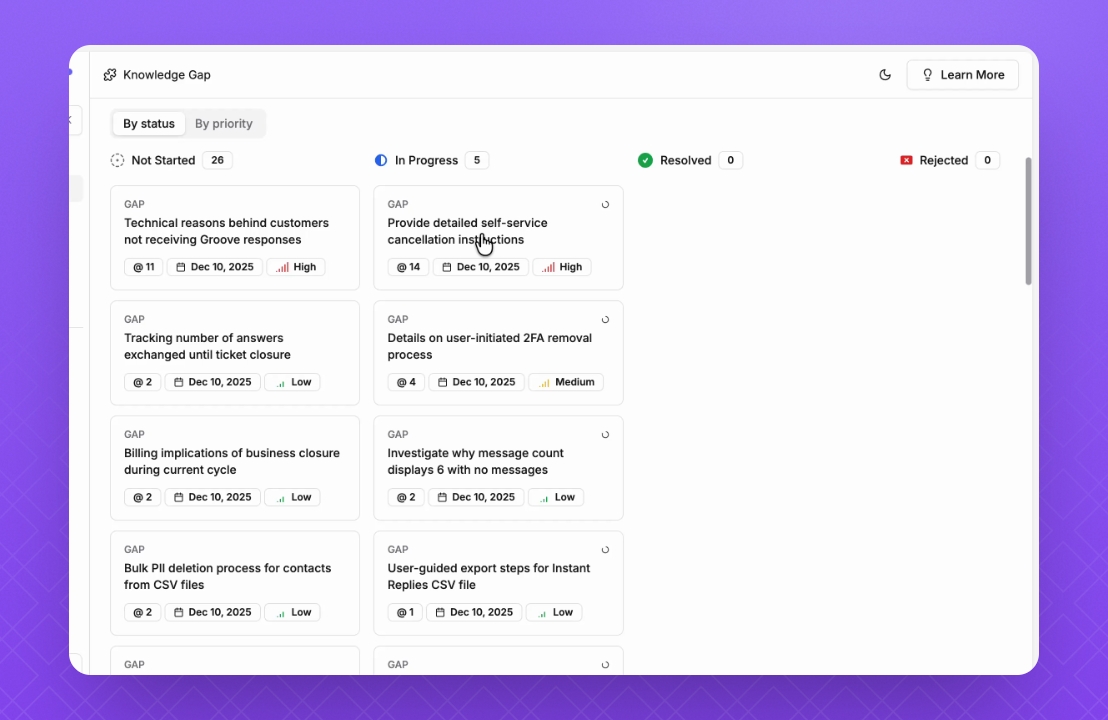
TL;DR
Let's Do It Together!
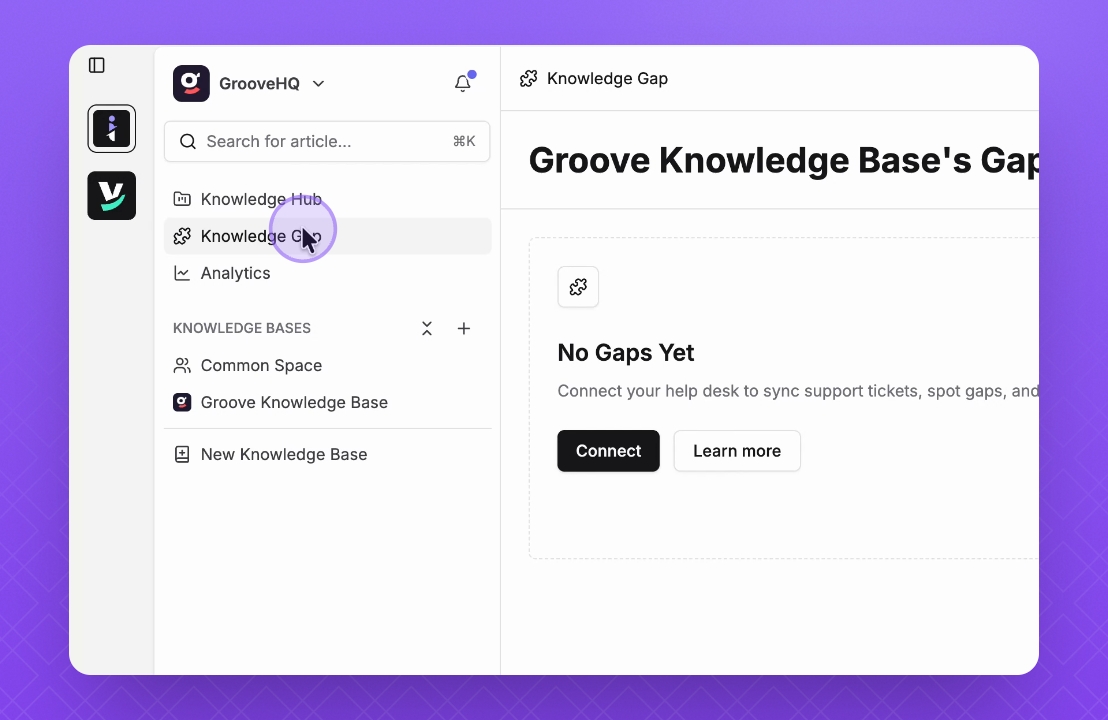
Step 1: Access Knowledge Gap
Click on the Knowledge Gap feature to get started.
You will be redirected to the Knowledge Gap page.
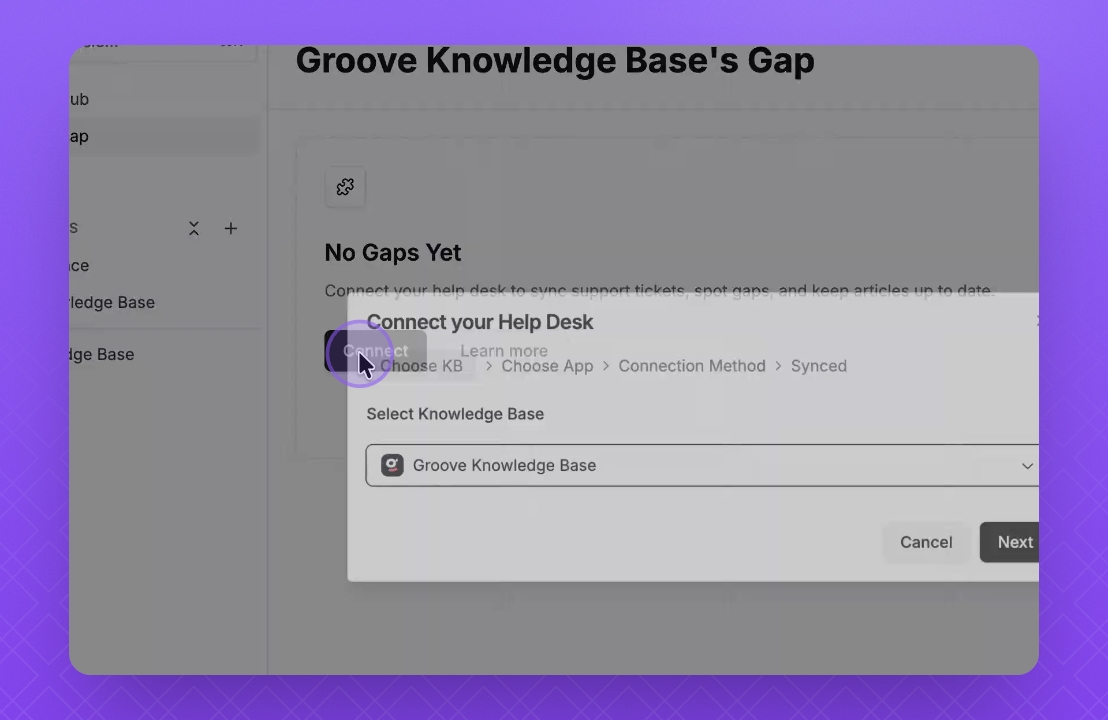
Step 2: Connect Help Desk
Click on Connect to link your help desk.
Connection options will be presented.
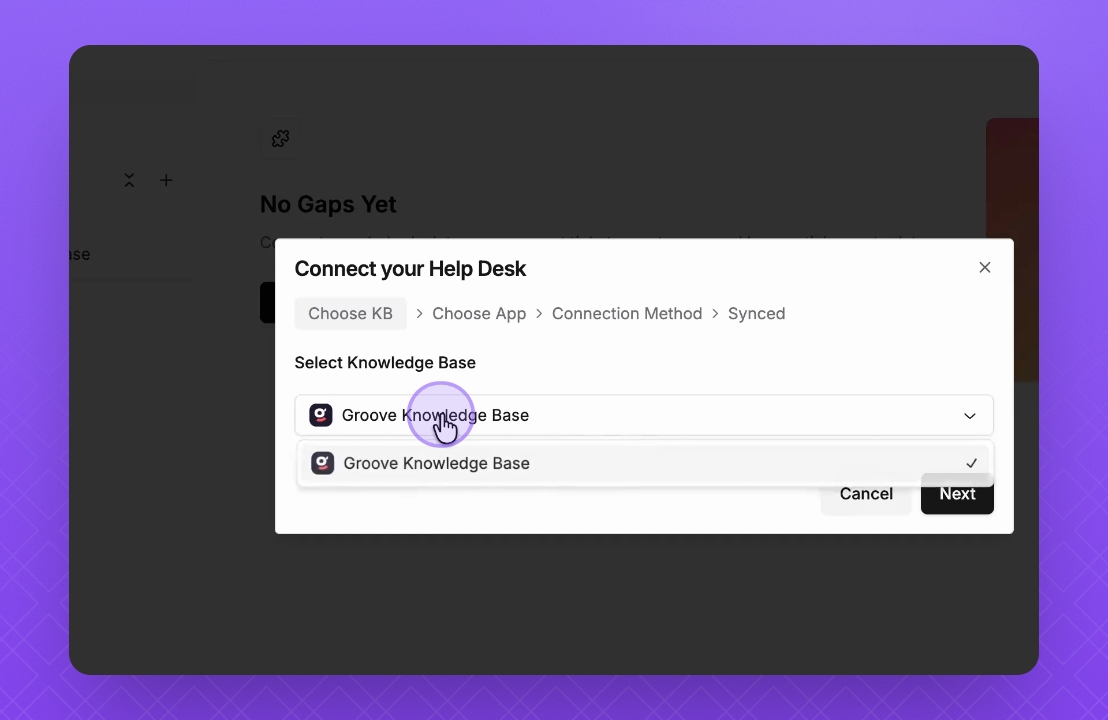
Step 3: Select Knowledge Base
Choose the knowledge base for which you want to run the Knowledge Gap.
Step 4: Proceed to Next
Click Next to continue.
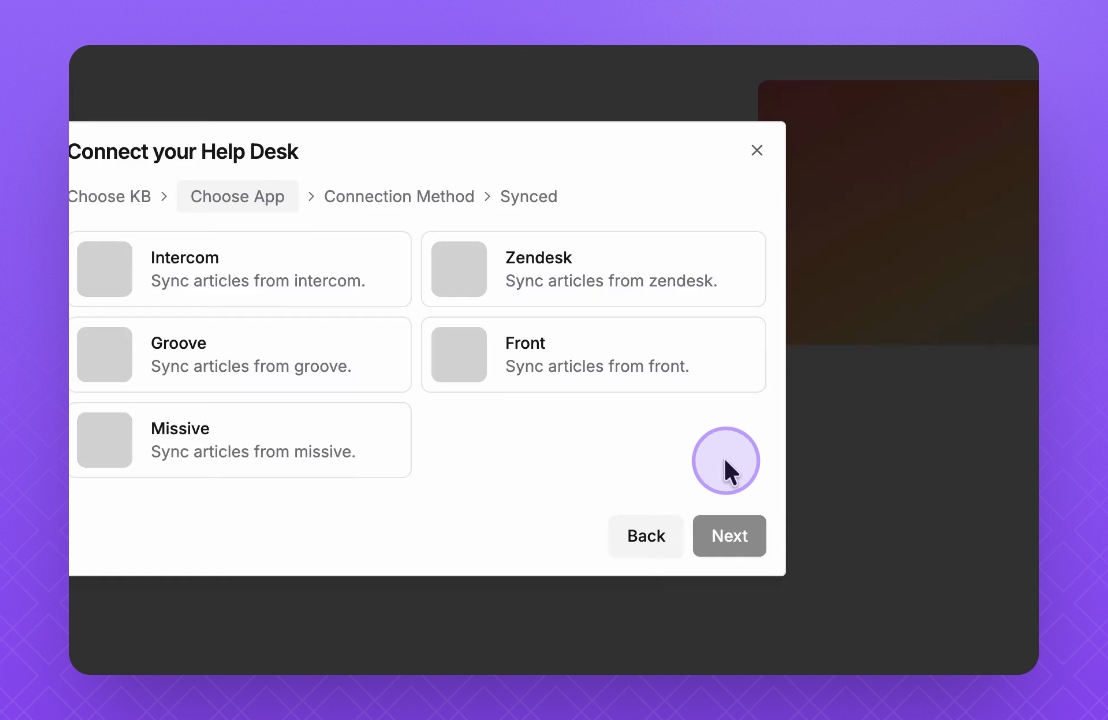
Step 5: Select Help Desk
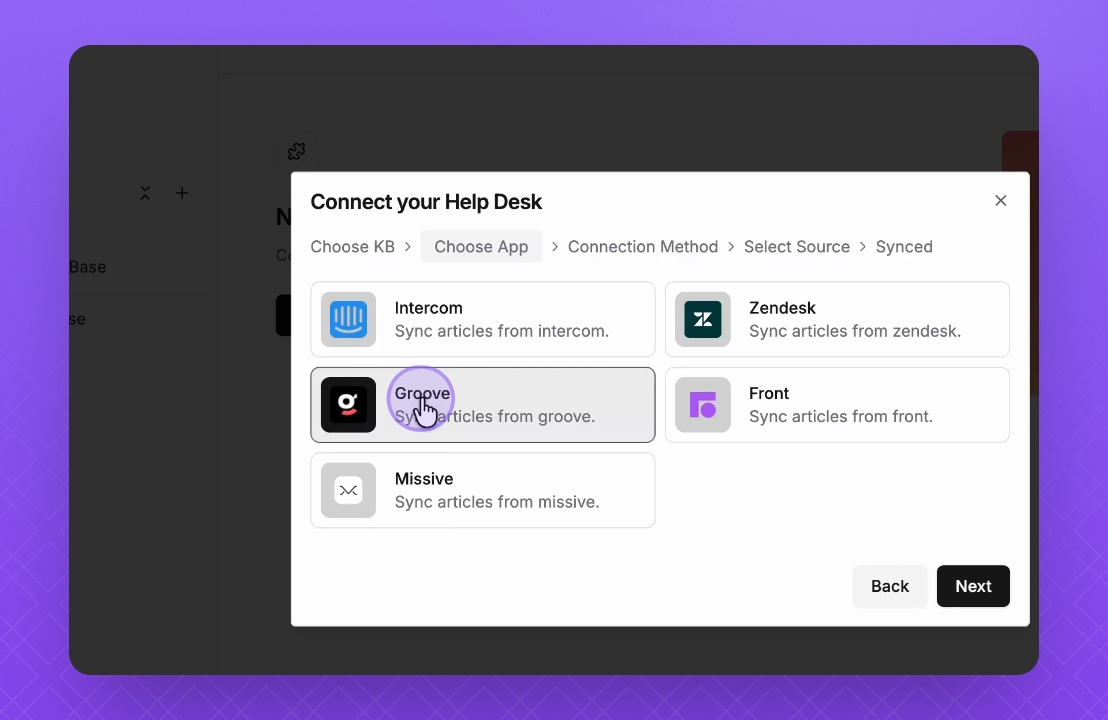
Select the help desk you are currently using.
For this instance, we will choose Groove.
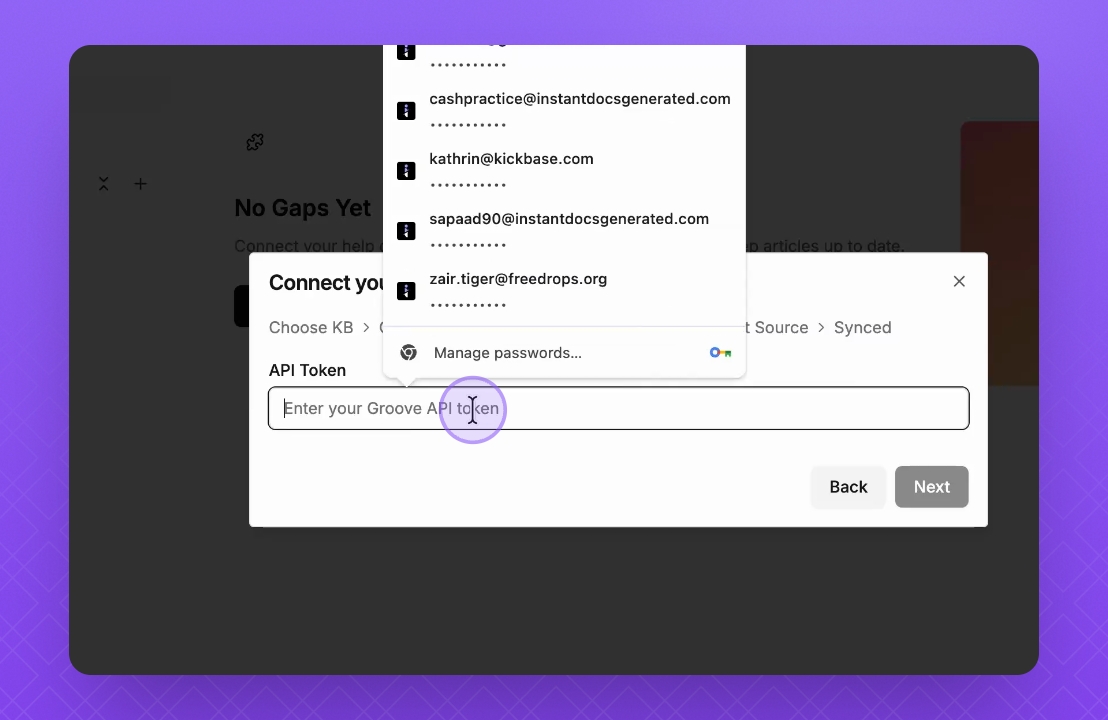
Step 6: Enter API Token
Enter the API token for the selected help desk.
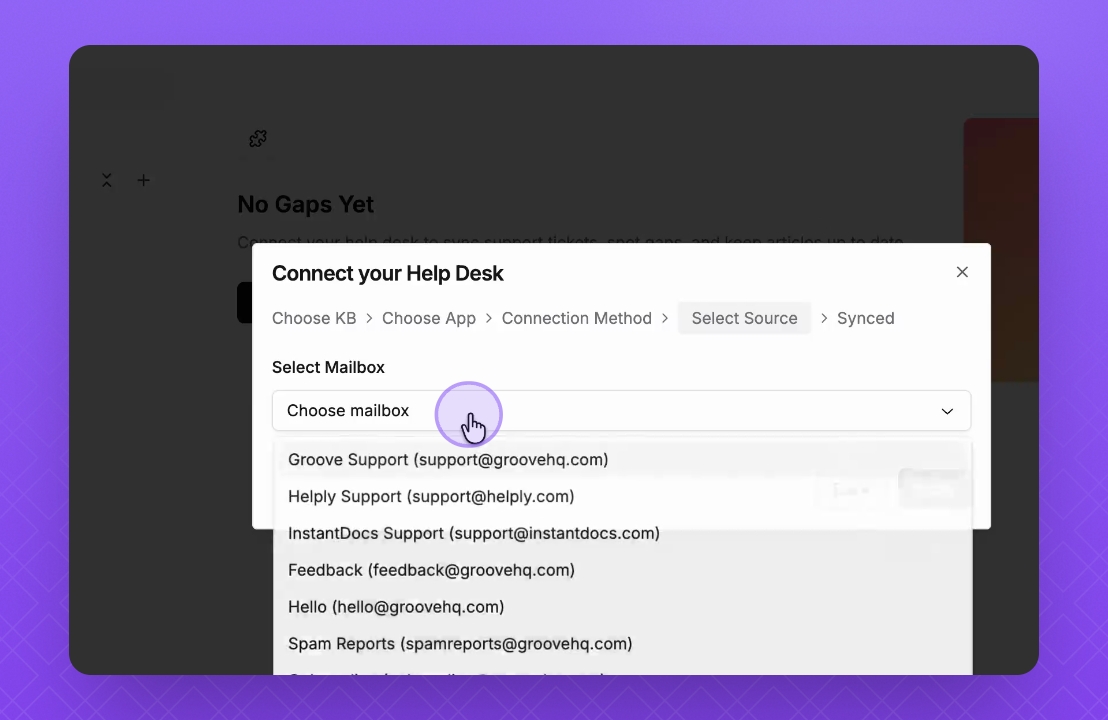
Step 7: Select Mailbox
Select the mailbox from which tickets will be used to identify gaps.
We will select Groove Support.
Step 8: Start Gap Search
Click on Find Gaps to start identifying gaps.
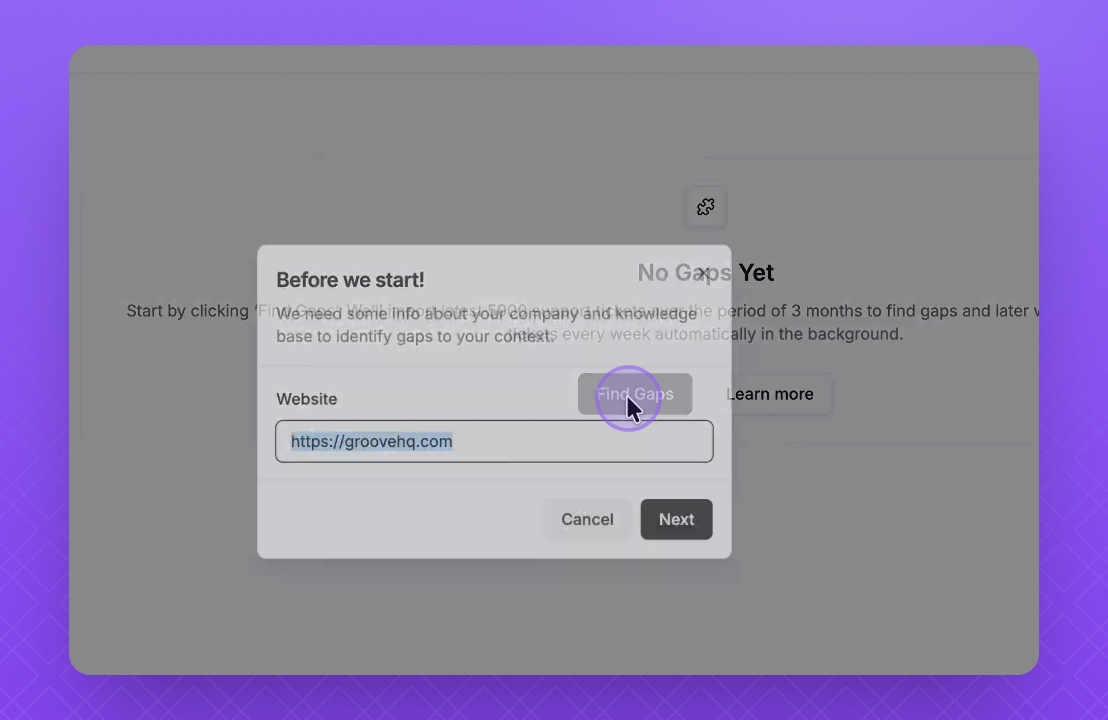
Step 9: Enter Website
Enter your website associated with the products.
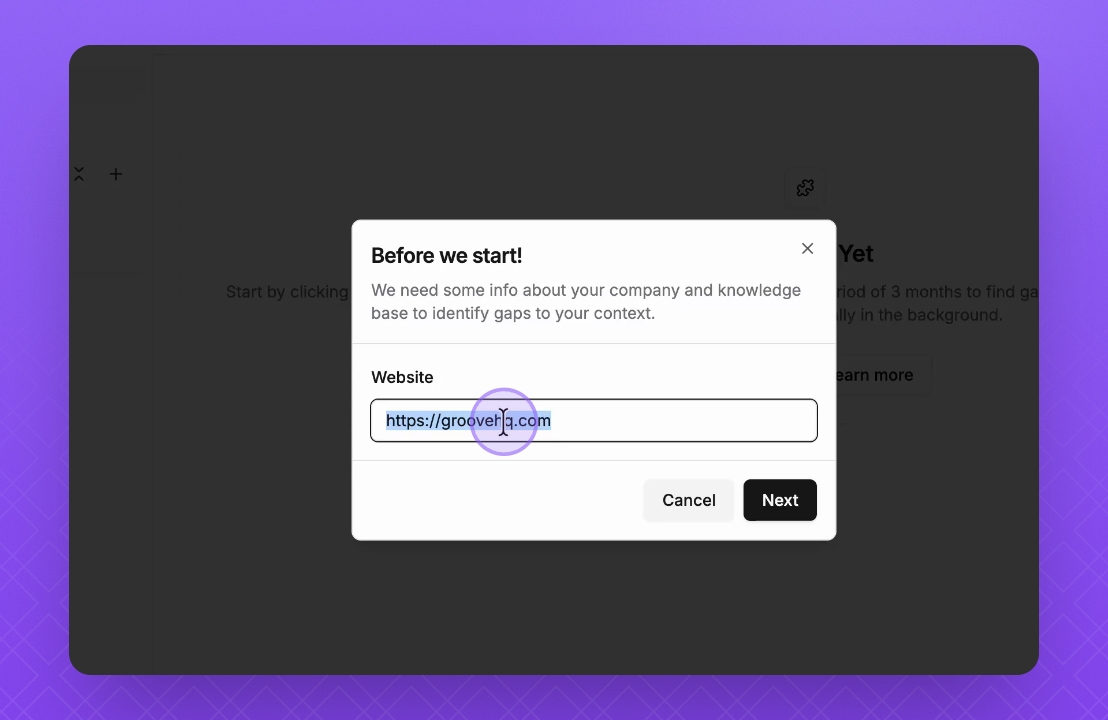
Step 10: Process Tickets
It will automatically begin by processing the first 100 tickets and identifying gaps. Once that’s complete, it will proceed to analyze all 5,000 tickets. You can see the real-time progress too.
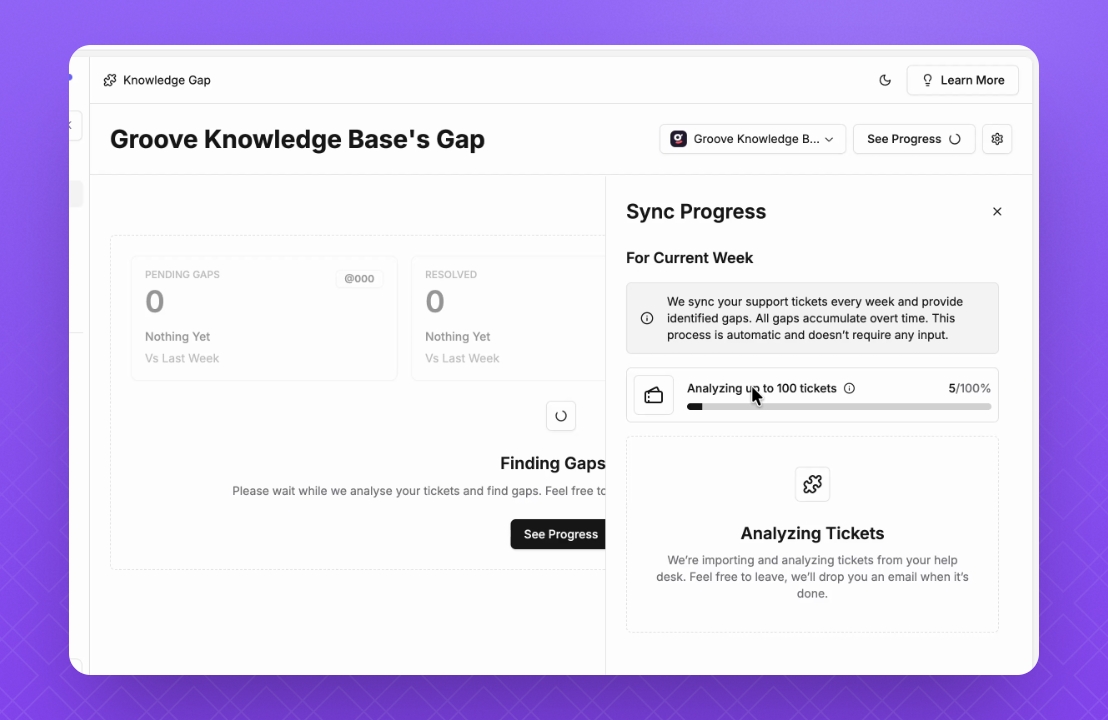
Step 11: View Gap
Monitor the gaps being generated from the analyzed tickets.