TL;DR
Change snapshots from images to GIFs, and adjust the syling.
Click Change Styling.
Let's Do It Together!
Step 1: Select Knowledge Base
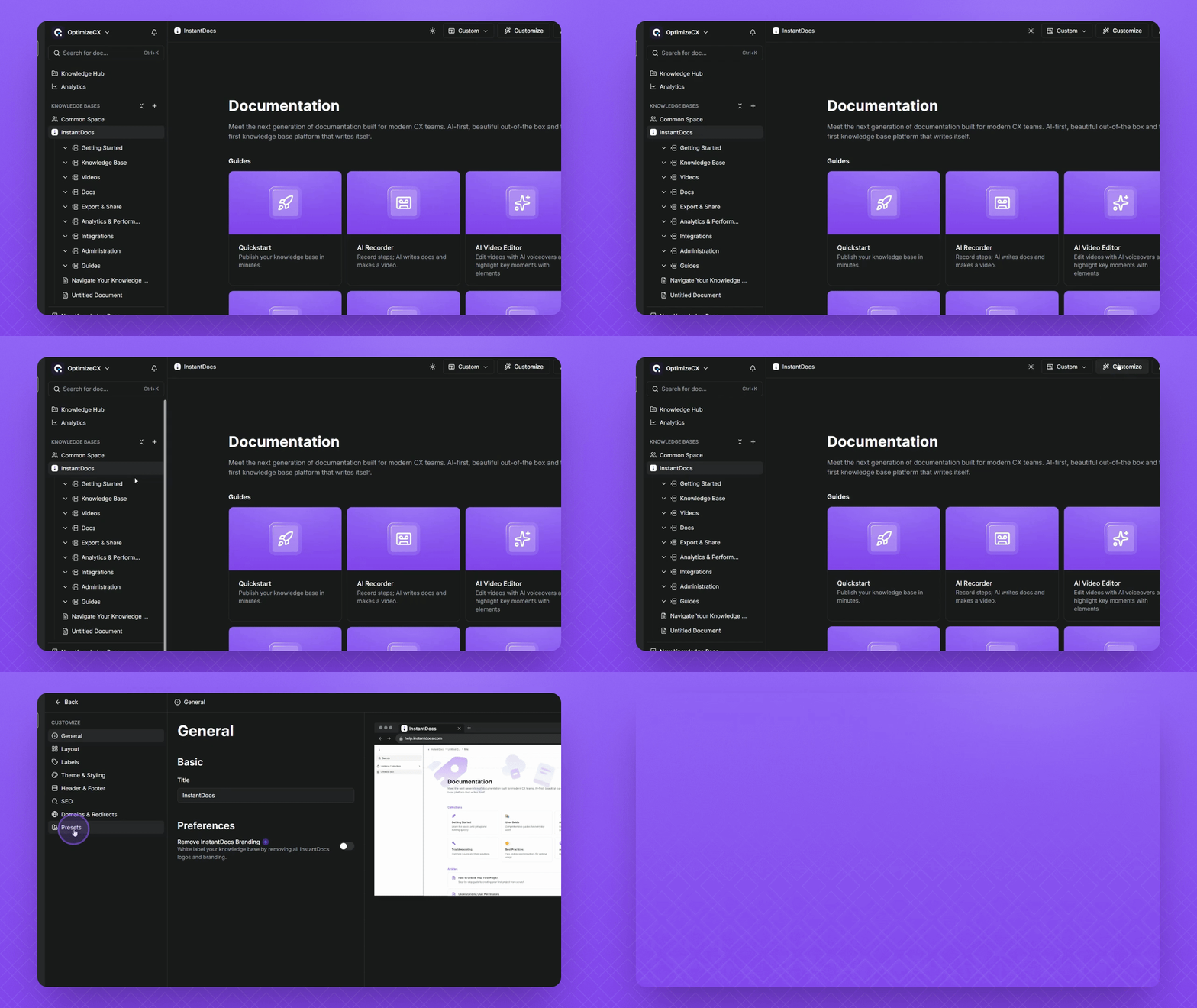
First, select your knowledge base.
Then click Customize in the top right.
Then select Presets.
Step 2: Adjust Snapshots
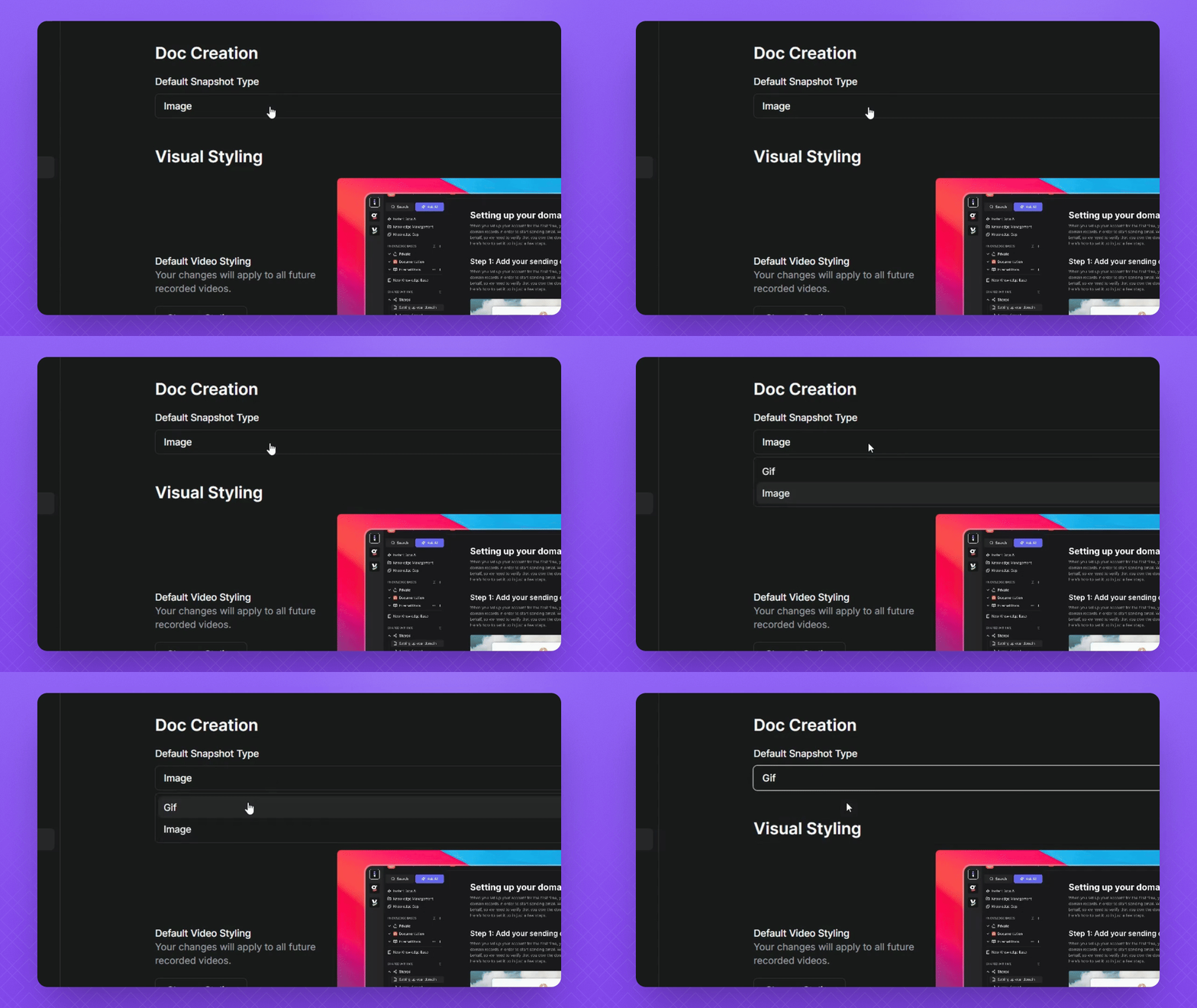
Adjust snapshots from images to GIFs.
This will automatically apply all snapshots to gifs.
Step 3: Change Video Styling
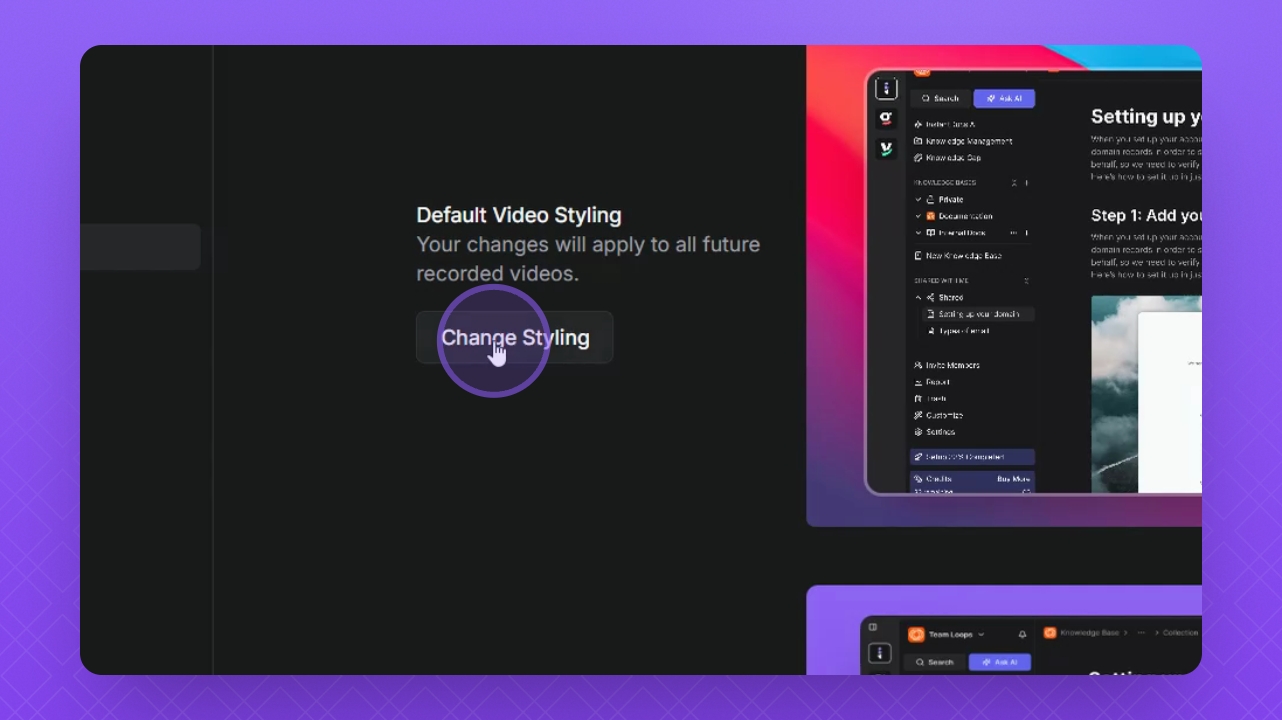
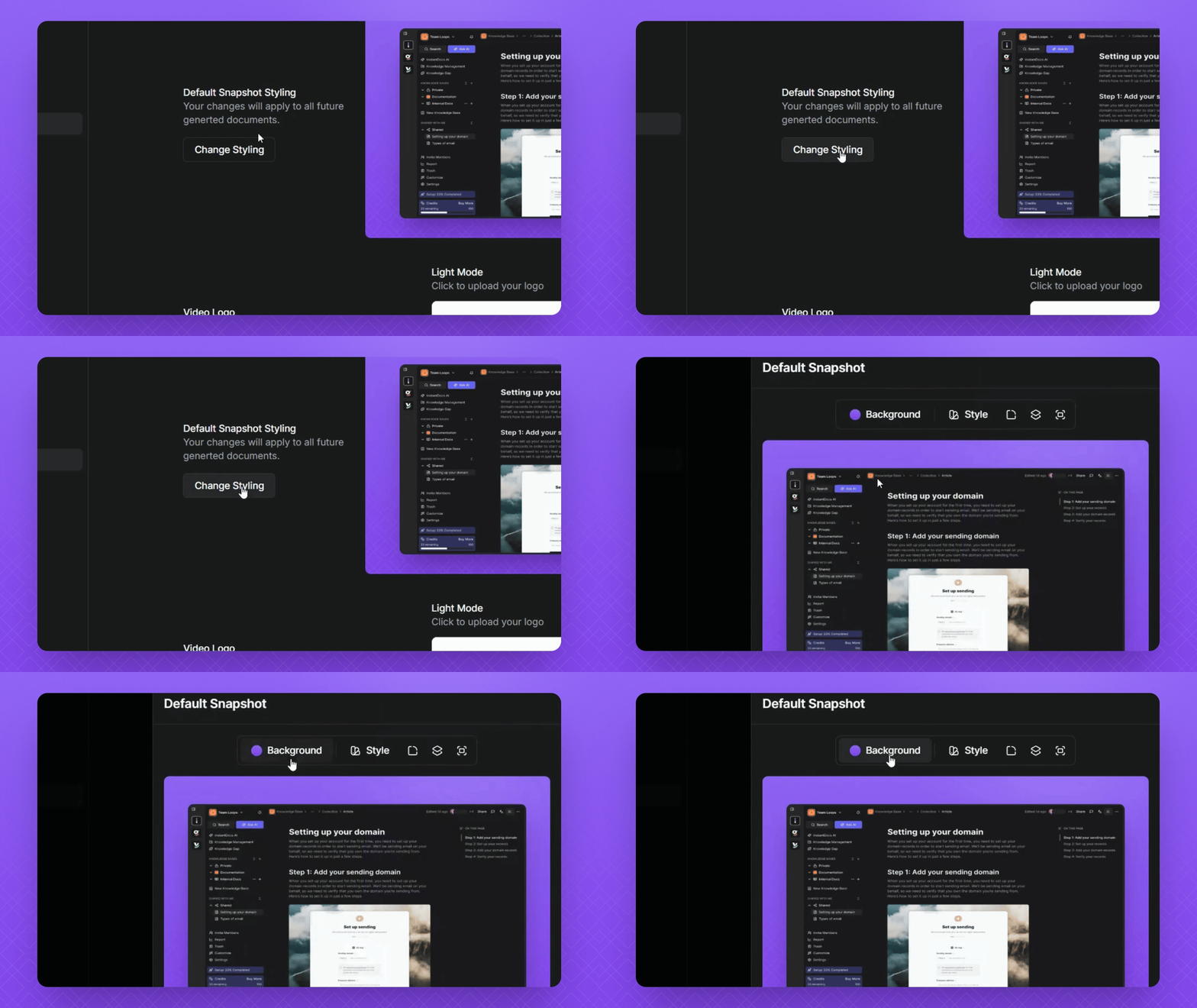
Click the Change Styling button to access editing options.
Step 4: Change Snapshot Styling
Click the Change Styling button for Snapshots.
Use the toolbar to access styling options for Snapshots.
Step 5: Add Video Logo
Scroll down to add a video logo if needed.
Click the Logo button and upload an image from your device.
Step 6: Apply Voiceover Artist
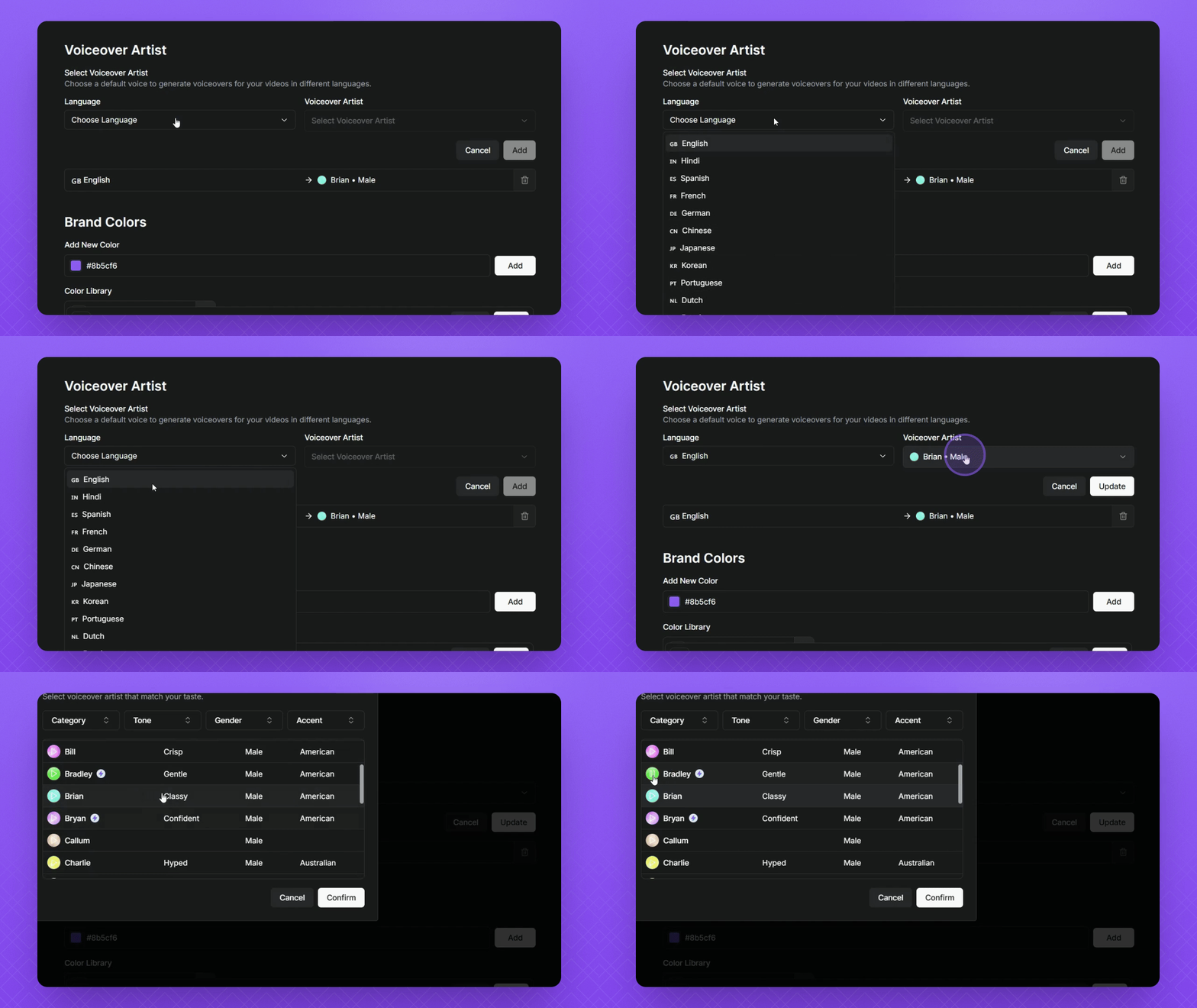
Click the Choose Language option to filter by language.
Search for the desired voiceover artist.
Click the Play button next to the name to preview.
Click the name, then select Confirm.
Remember to hit the Update button to apply changes.
Step 7: Change Branding Color
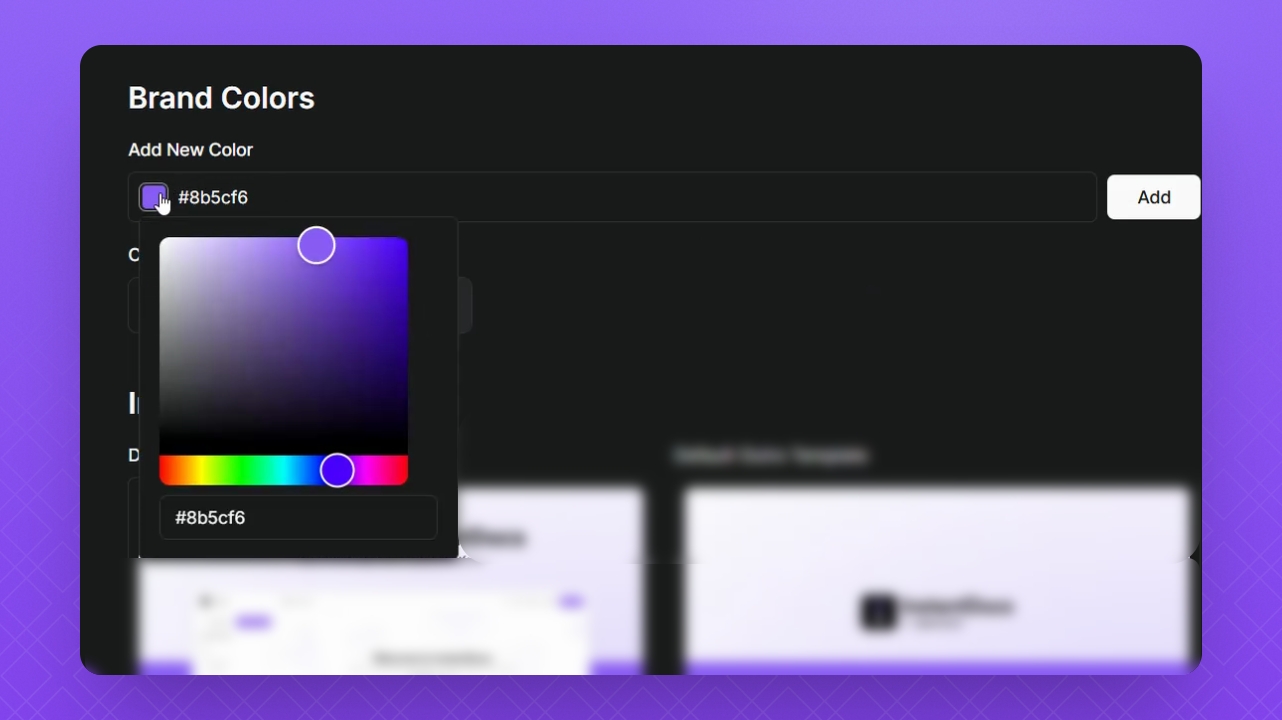
Select the color change option from the color wheel.
Change your branding color as needed.
Step 8: Select Intro and Outro Templates
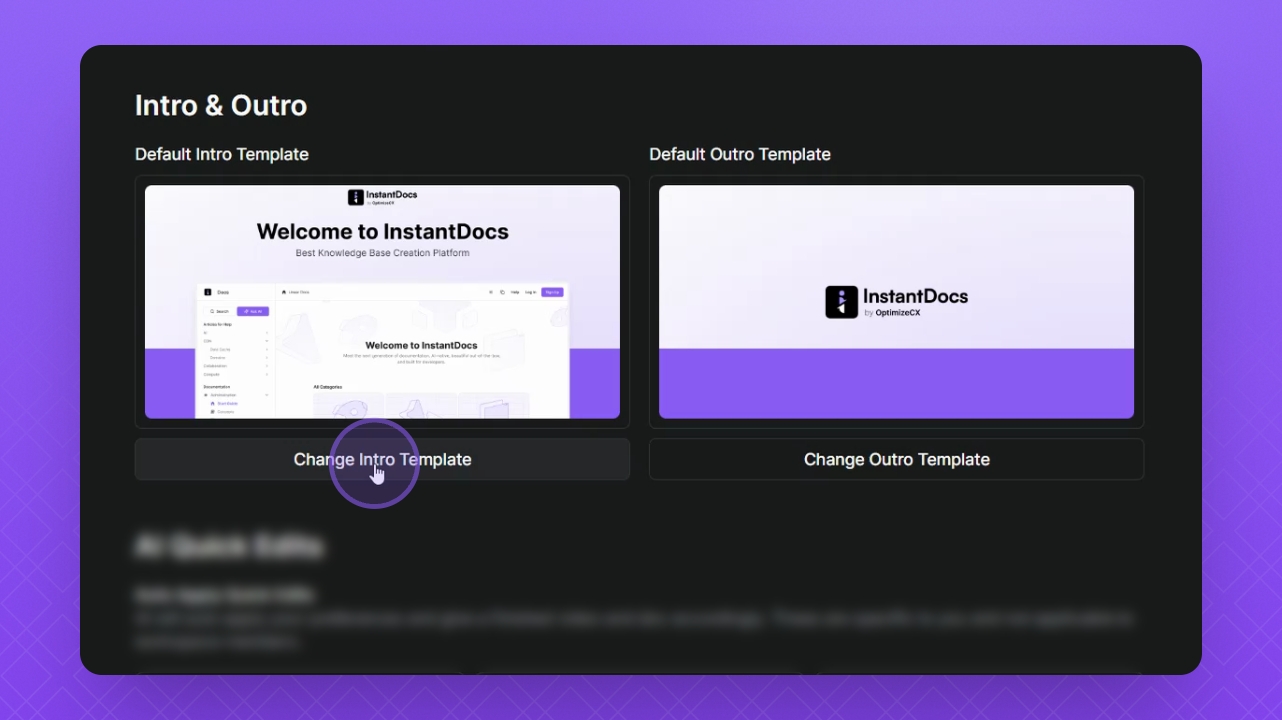
Select buttons to choose from different templates available.
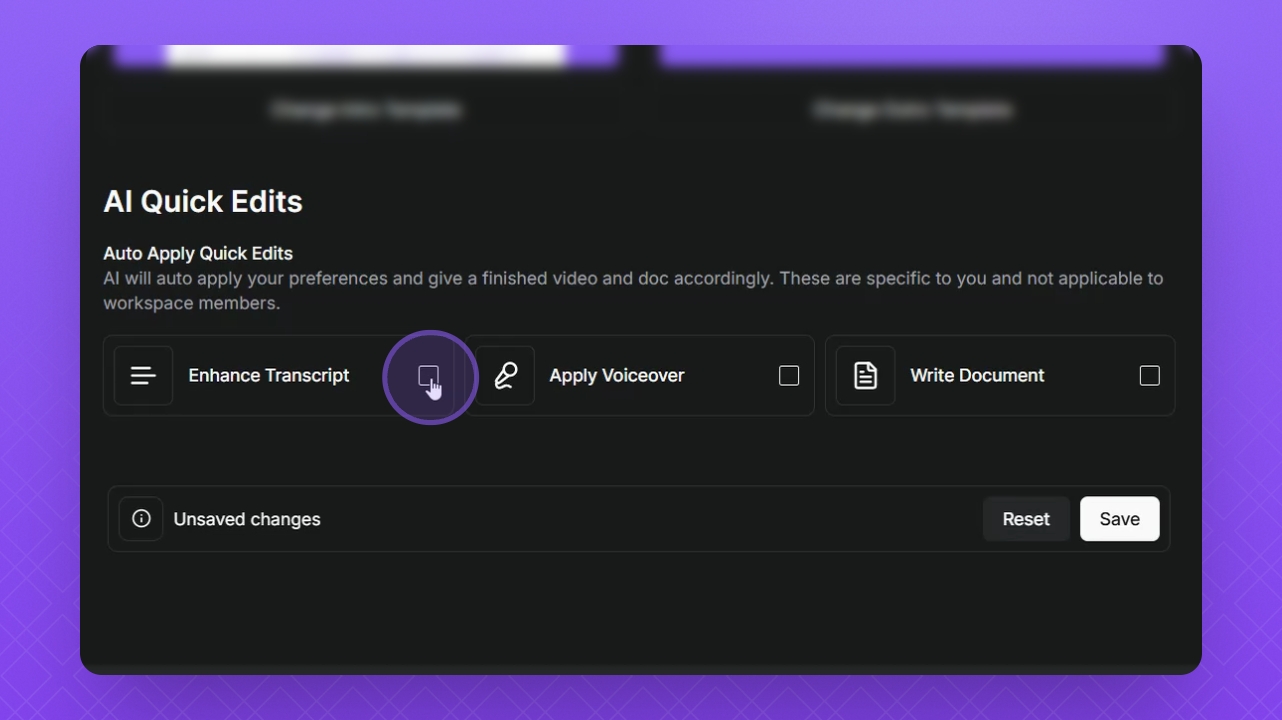
Step 9: AI Quick Edits
Select options for AI Quick Edits to apply to your video.
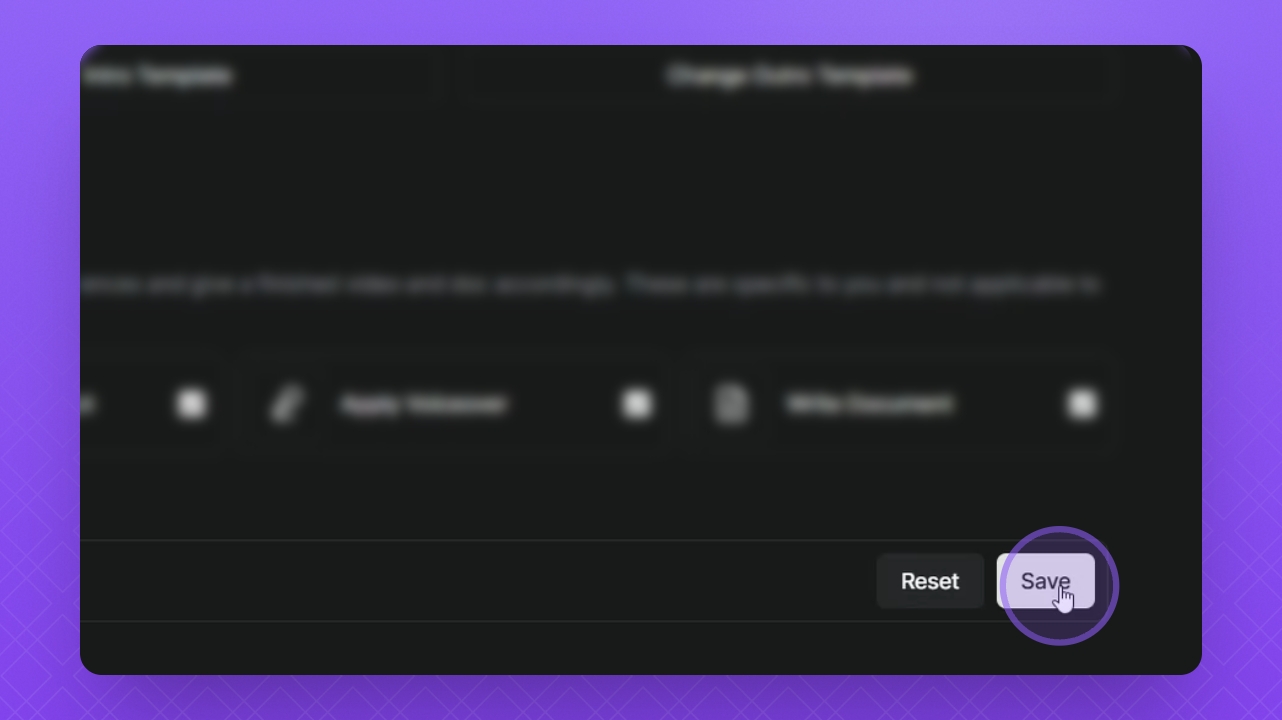
Step 10: Save Changes
Click Save to save your changes.
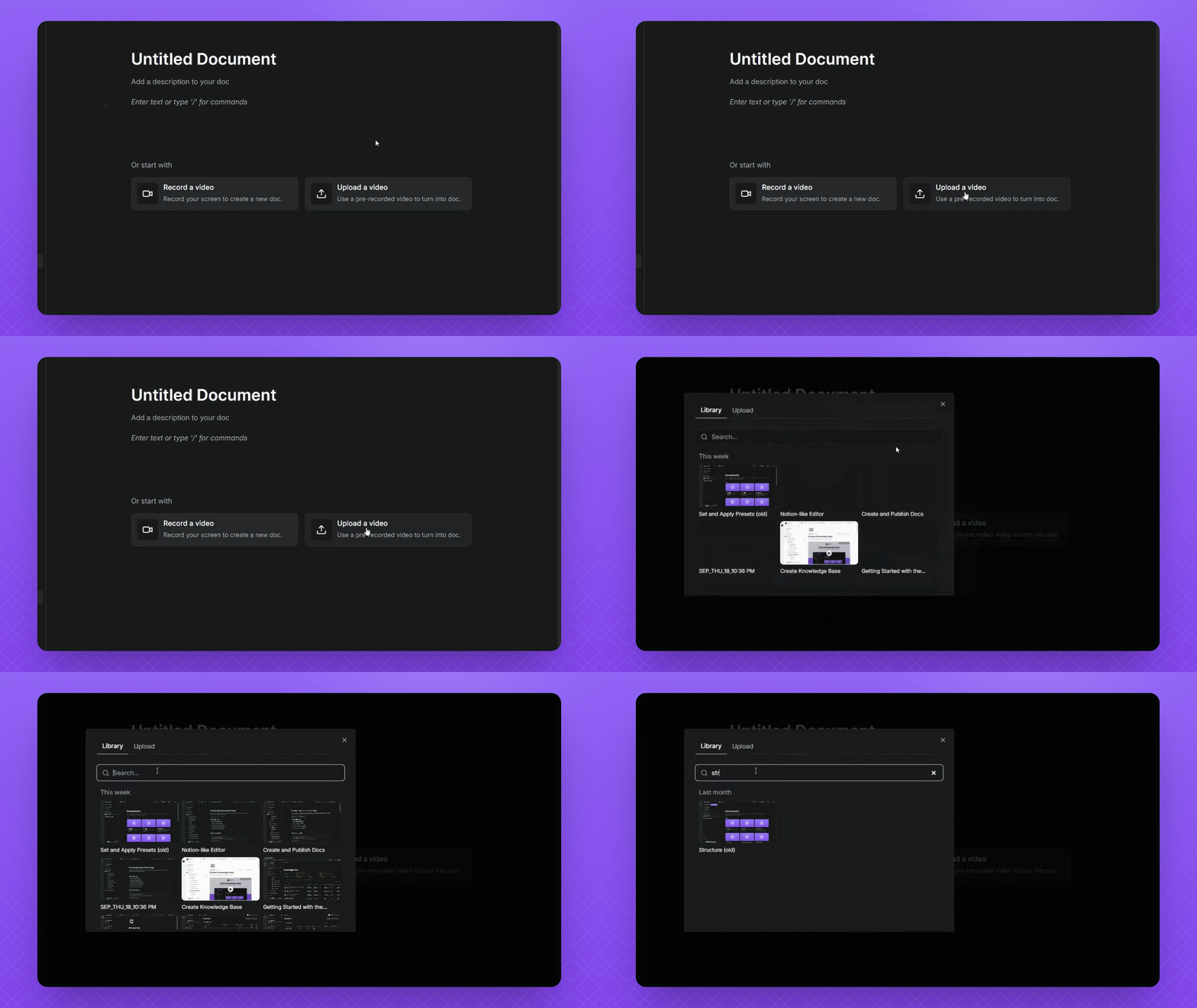
Step 11: Preview Your Setup
Preview your setup by uploading a video.
Select the Upload Video button, search for your Doc Video, hover over it, and click Add.
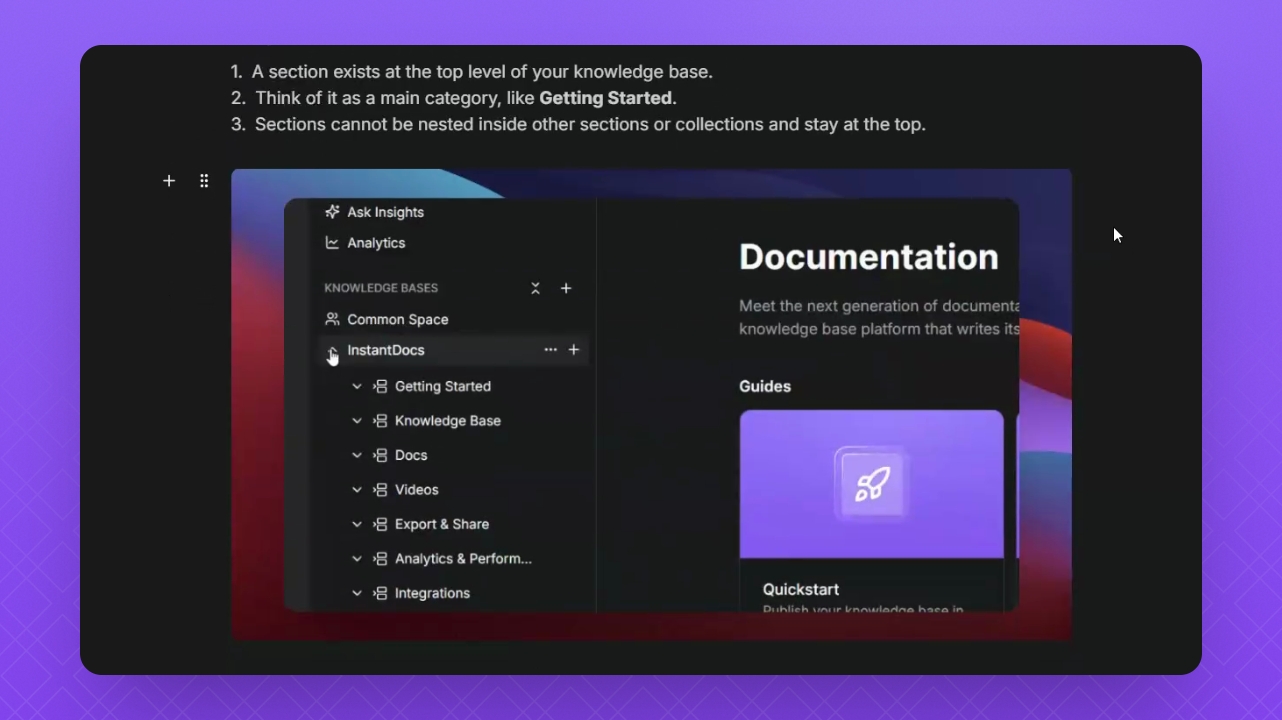
Step 12: Check Preset Application
Check how the presets have been applied.
Scroll down to see snapshots turned into GIFs and the background changed.
Step 13: Apply Presets to existing Docs
Select an existing doc.
Click the three dots in the top right corner, then select Apply Presets.
Click Continue to apply the presets.
Step 14: Edit Existing Videos
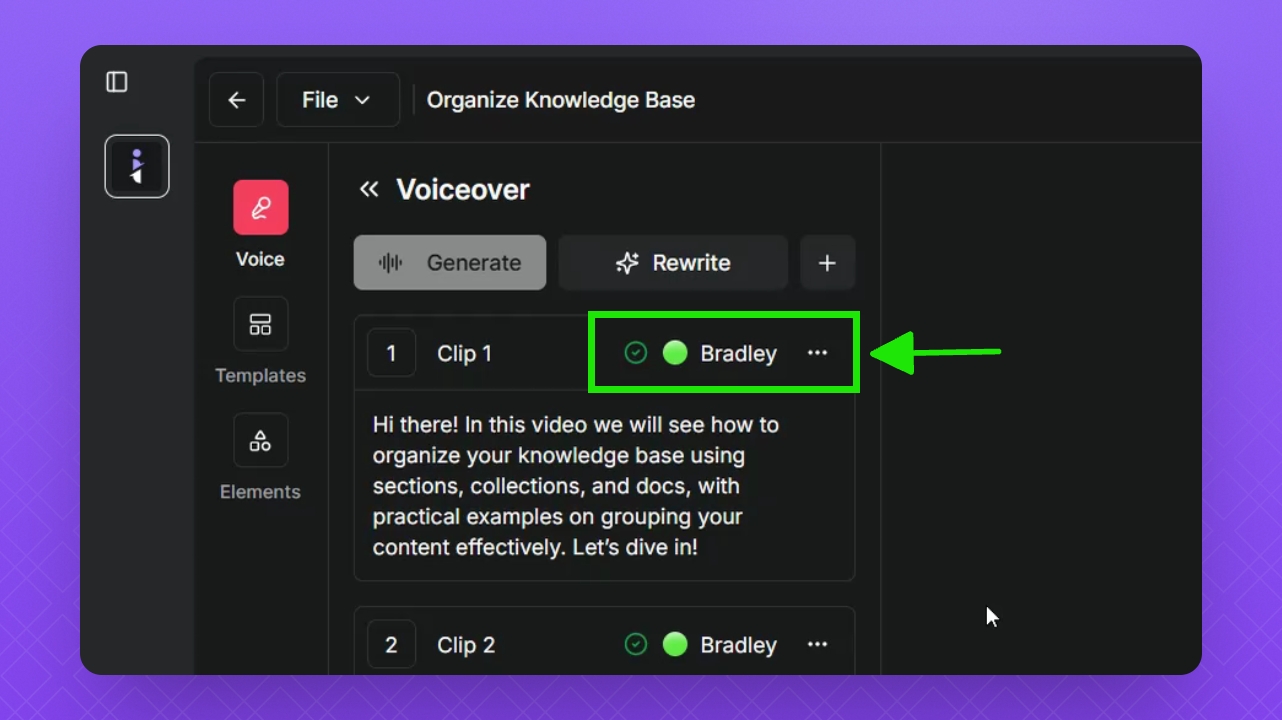
Hover over your video window, click Edit, then click the File button.
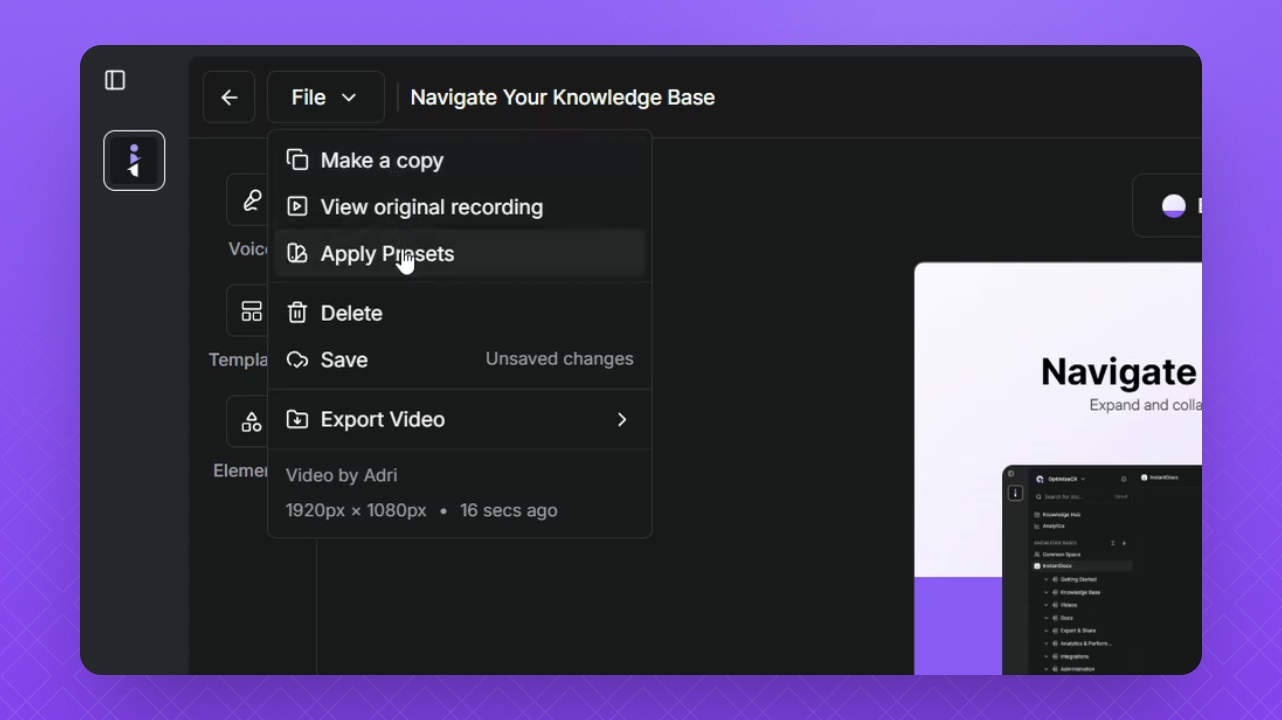
Select Apply Presets to apply changes.