TL;DR
1
Select Article
Choose the article from your knowledge base.
2
Insert Related Cards
Scroll down and click Insert to add related articles.
3
Choose Card Type
Select Default, or Feature.
4
Add Articles
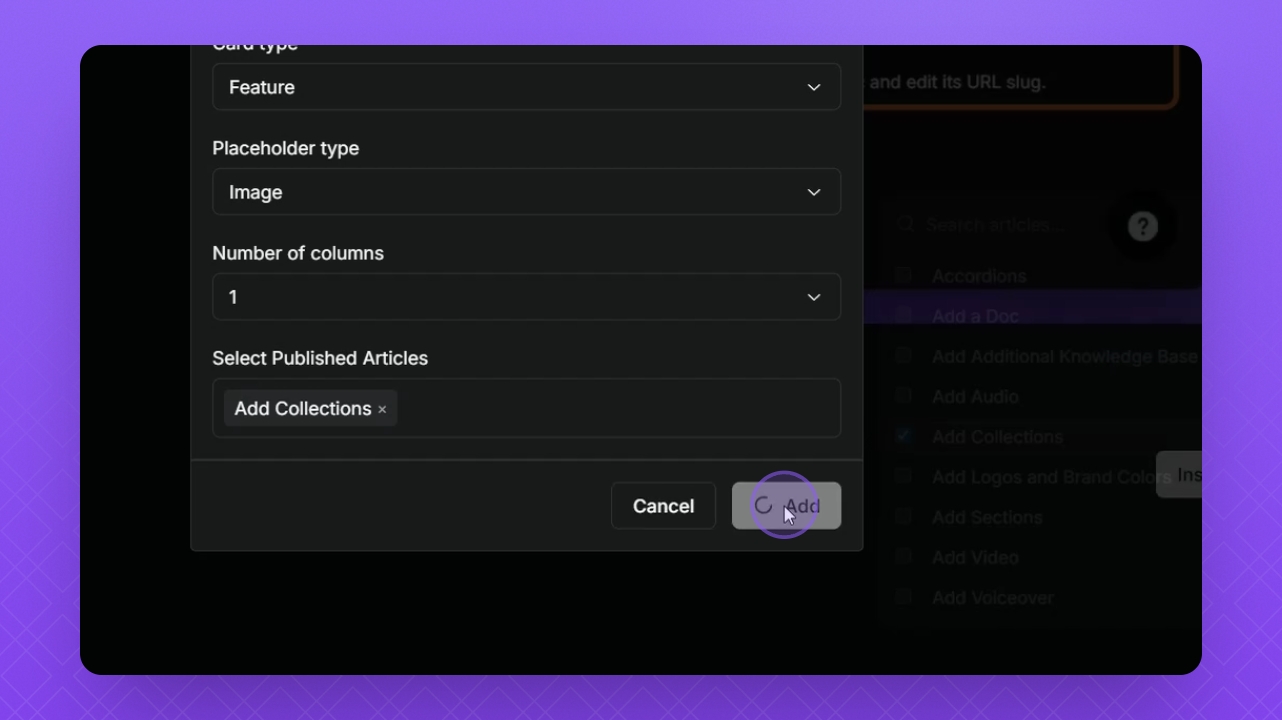
Select and click Add to include articles.
5
Preview and Publish
Click Preview to see live changes.
Let's Do It Together!
Step 1: Select Article
Select the article in your knowledge base list.
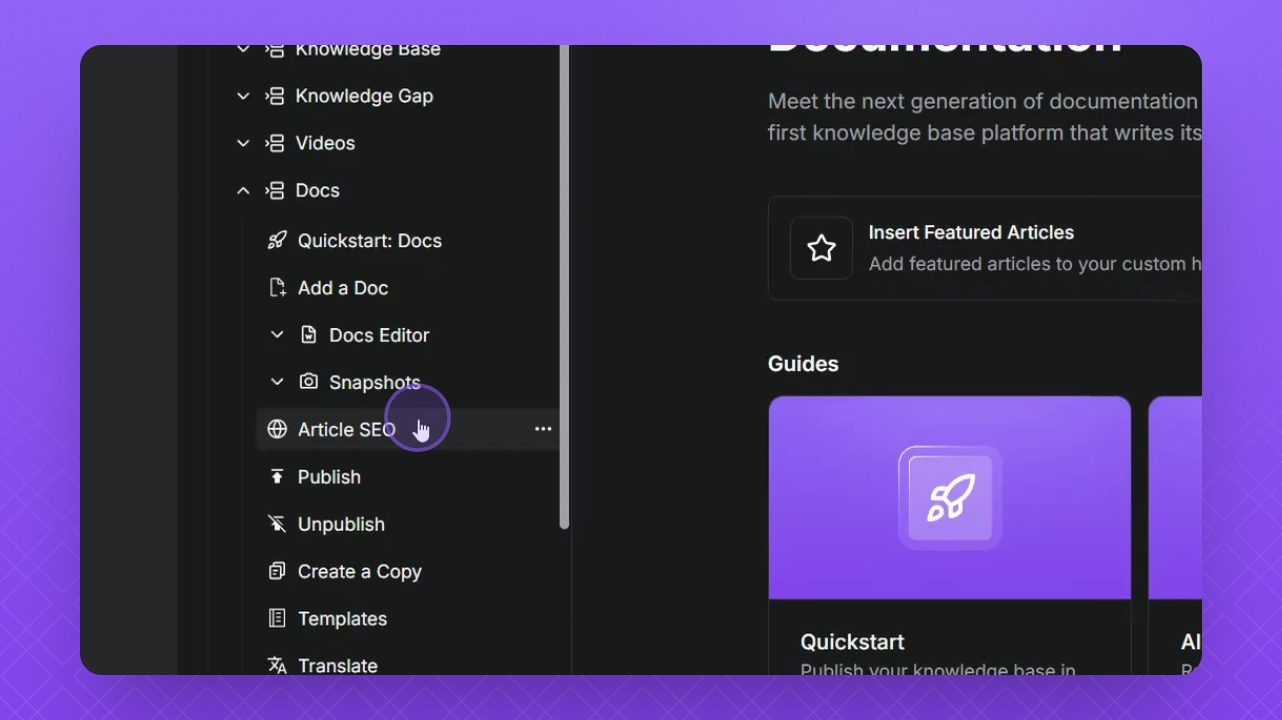
Step 2: Scroll to Bottom
Scroll to the bottom of the article.
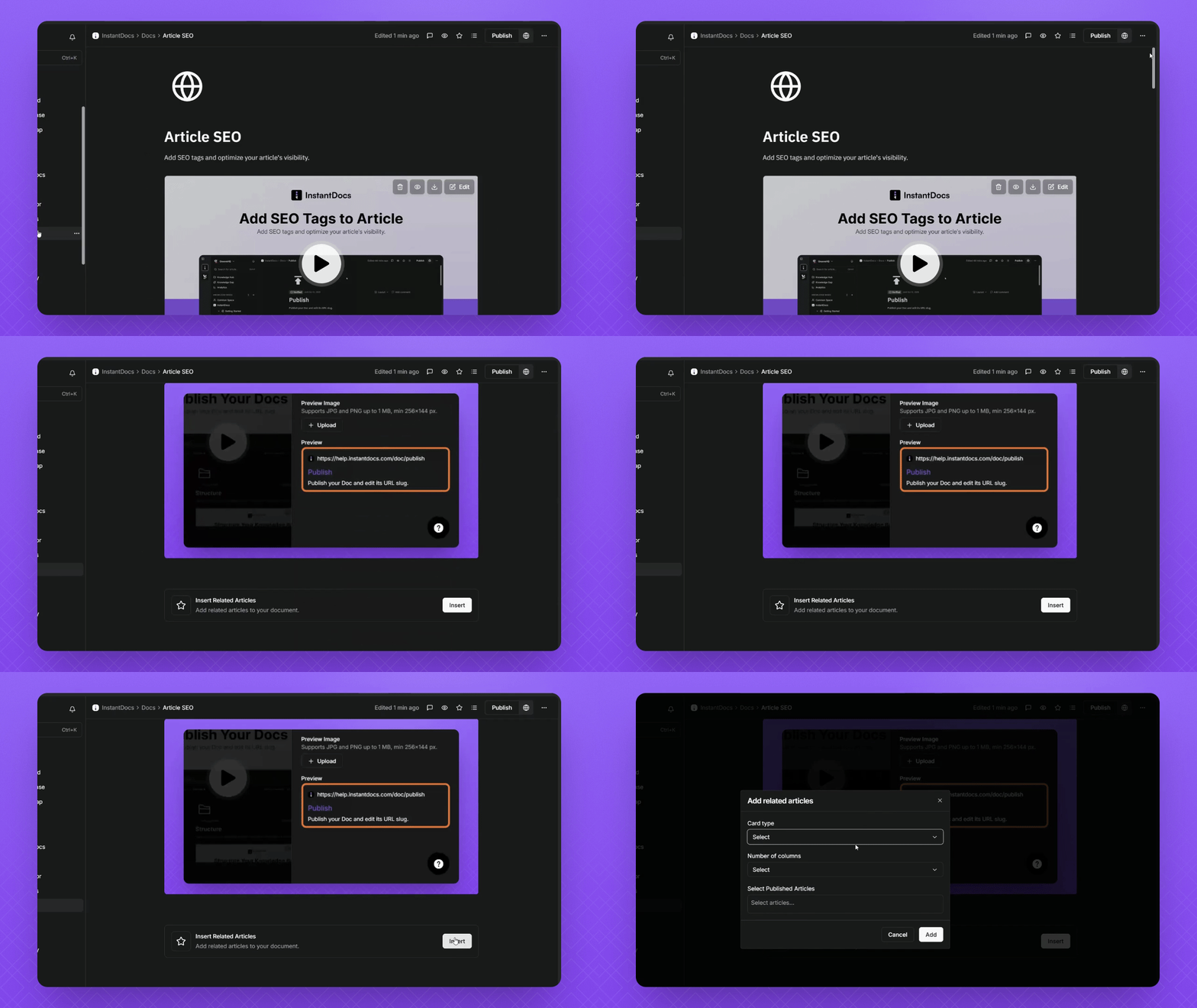
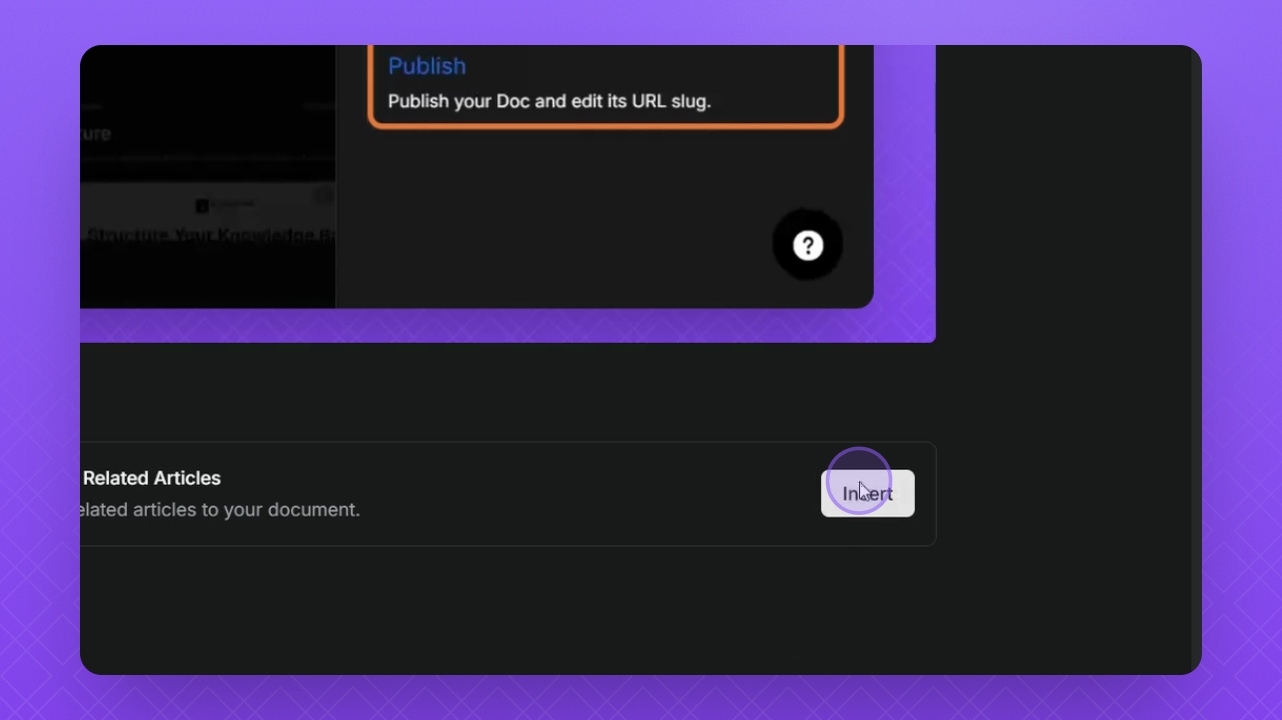
Step 3: Click Insert
Select the Insert button.
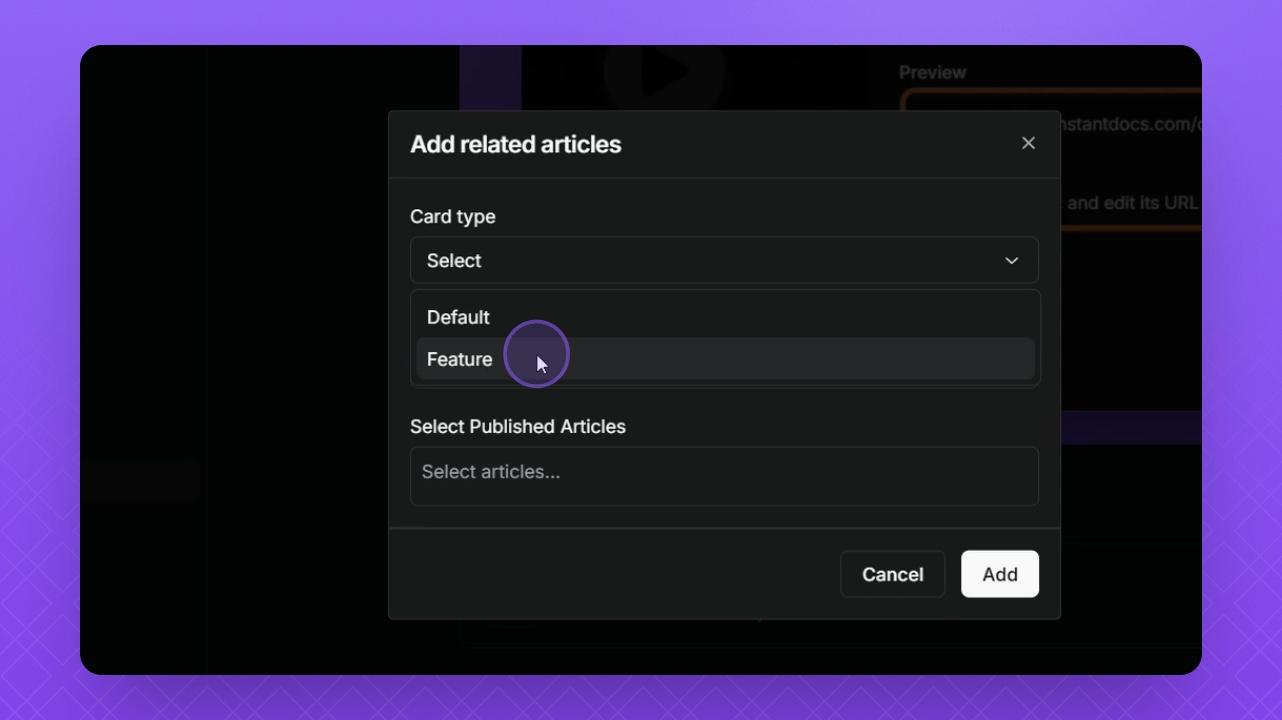
Step 4: Choose Card Type
Select your card type from the options provided.
Note: Default cards for related articles let you display the article icon, title, and description, while Feature cards include all of that plus the option to upload your own custom design for a more personalized look.
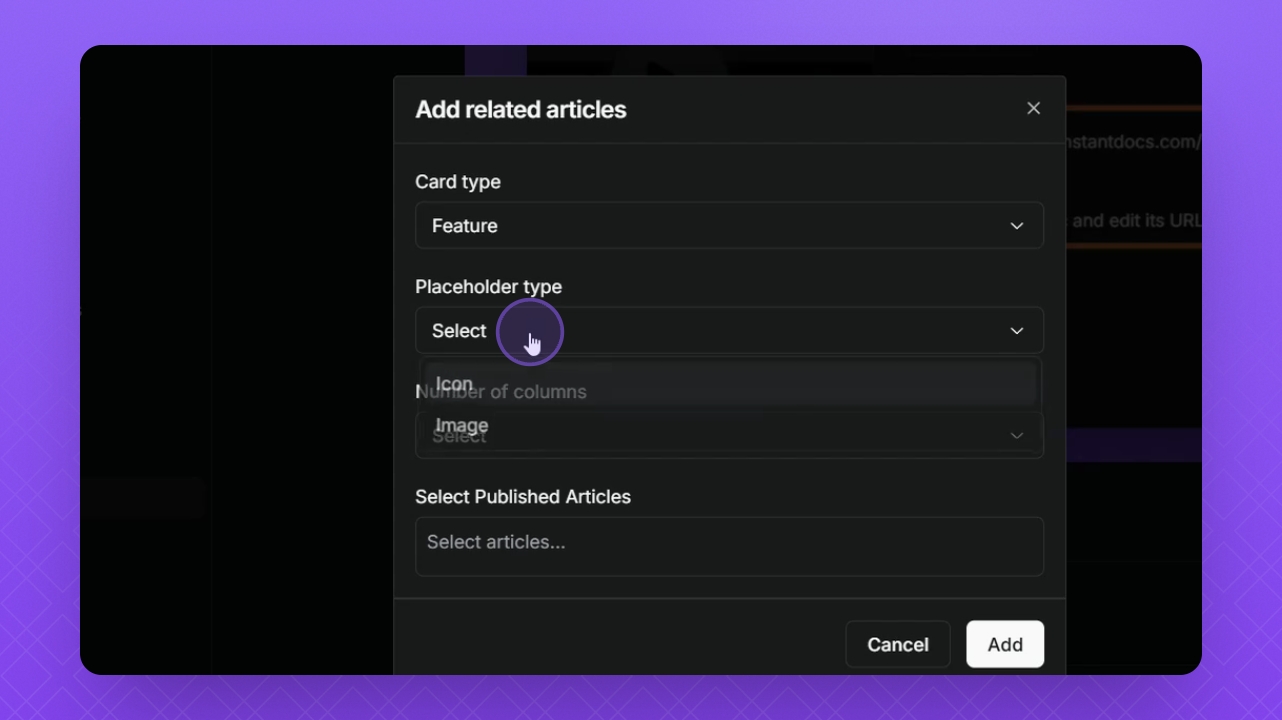
Step 5: Choose Placeholder Card Type
Select the Placeholder card to display an icon or upload your own custom image.
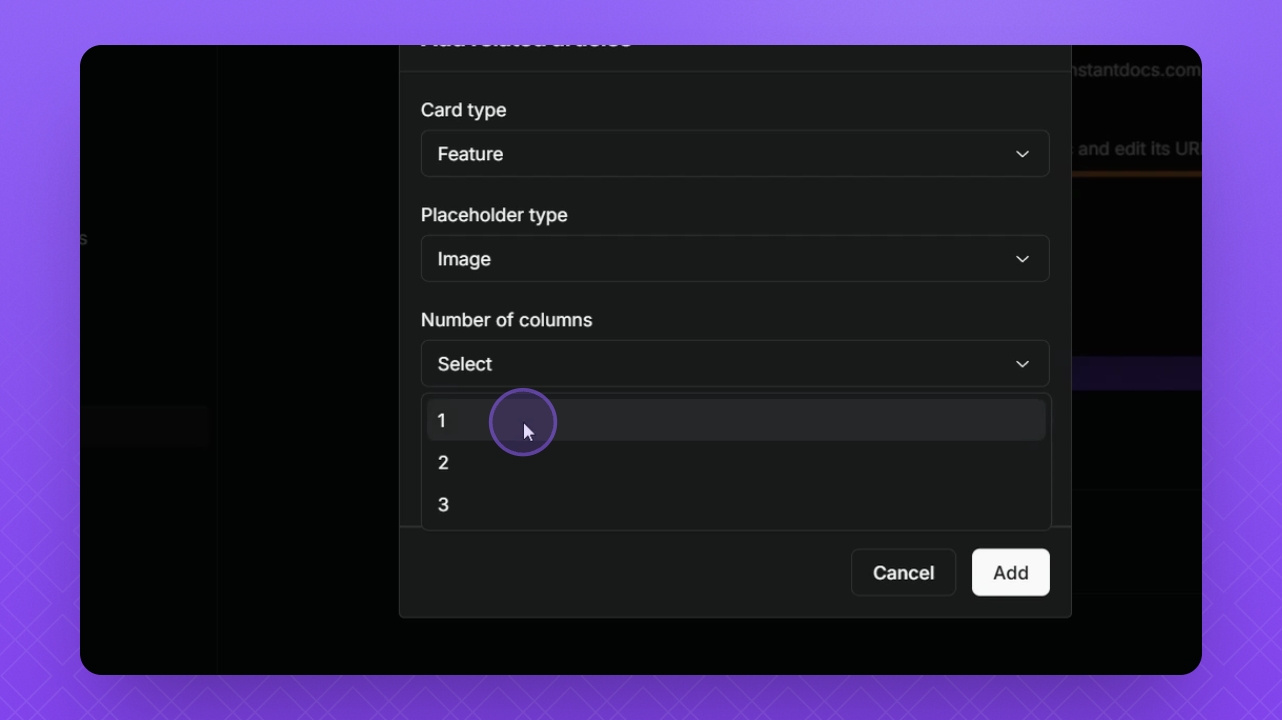
Step 6: Select Columns
Select the number of columns for your card.
Tip: Select a single column for your related articles so they load horizontally instead of formatting vertically.
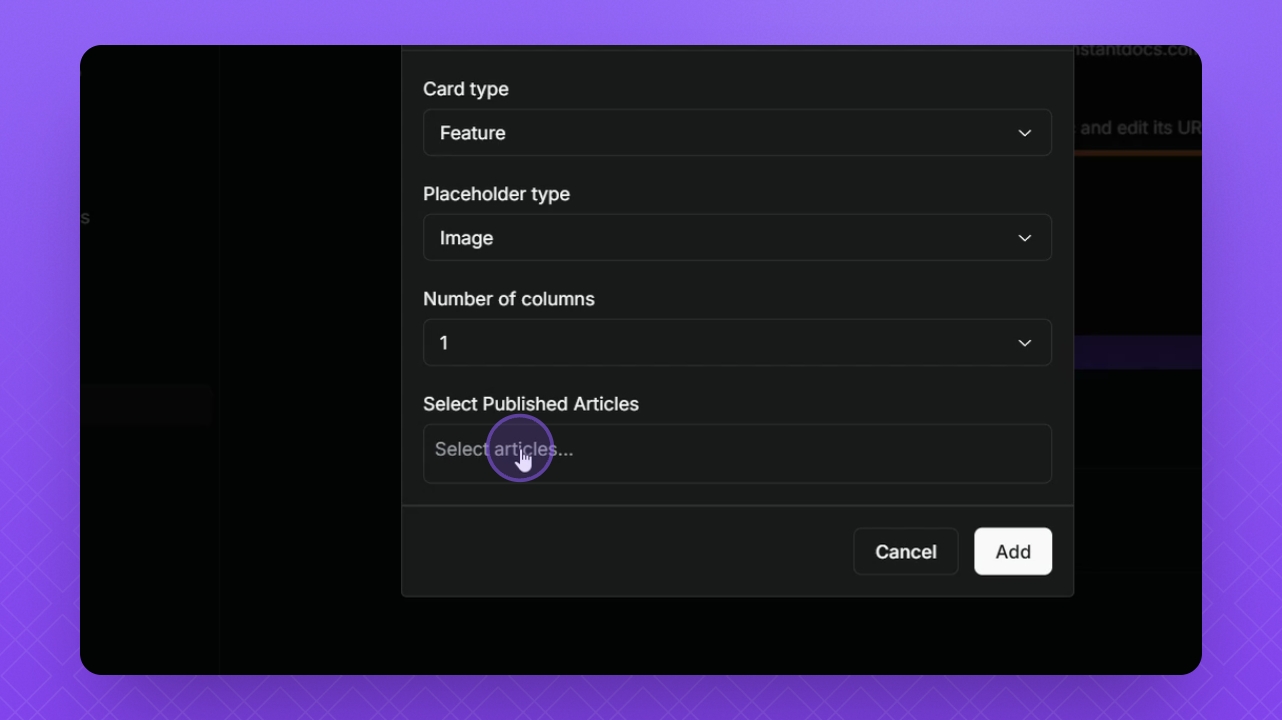
Step 7: Select Published Articles
Select the published articles to add to your documentation.
Step 8: Click Add
Click the Add button to include your selected articles.