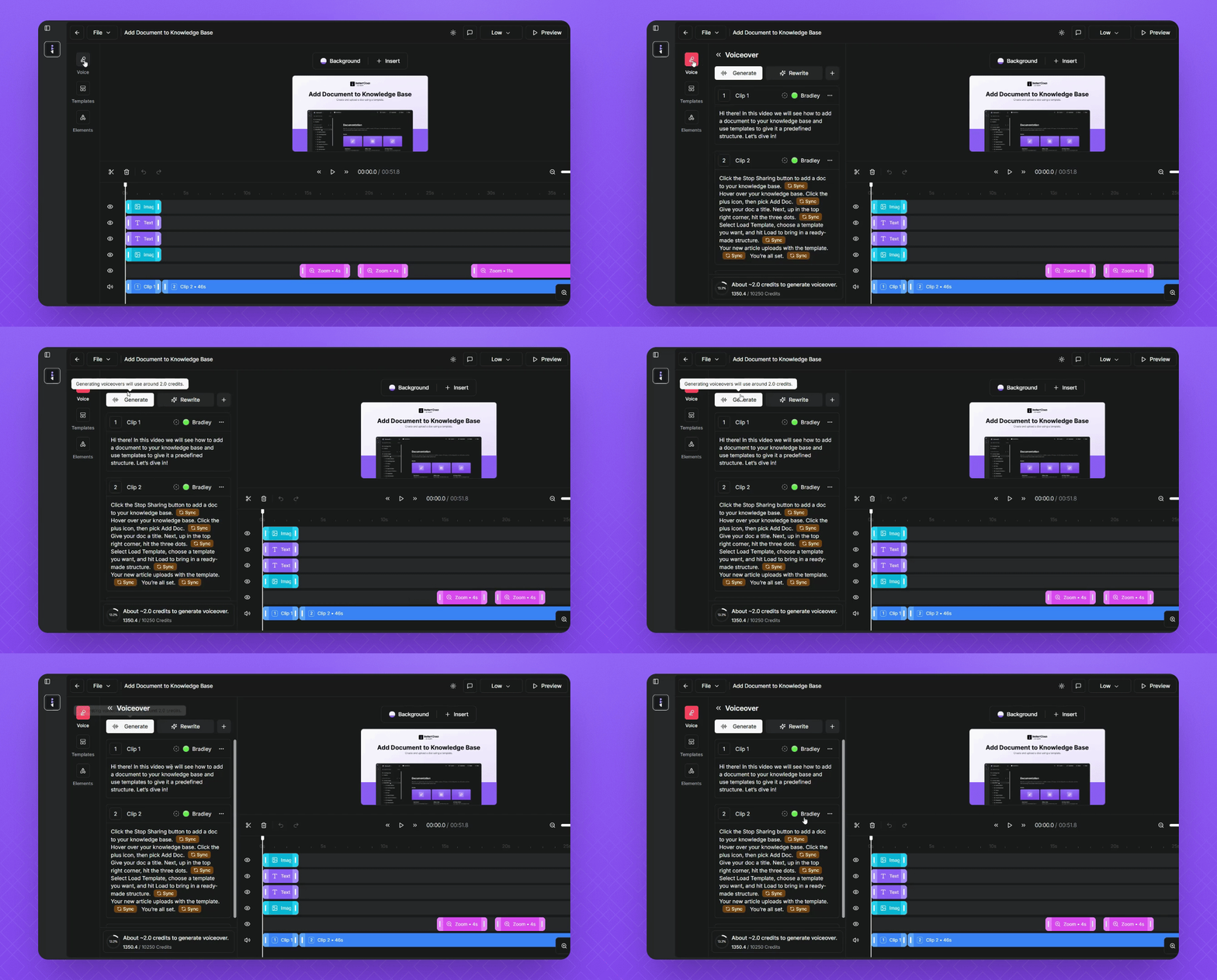
TL;DR
Let's Do It Together!
Step 1: Open the Recorder
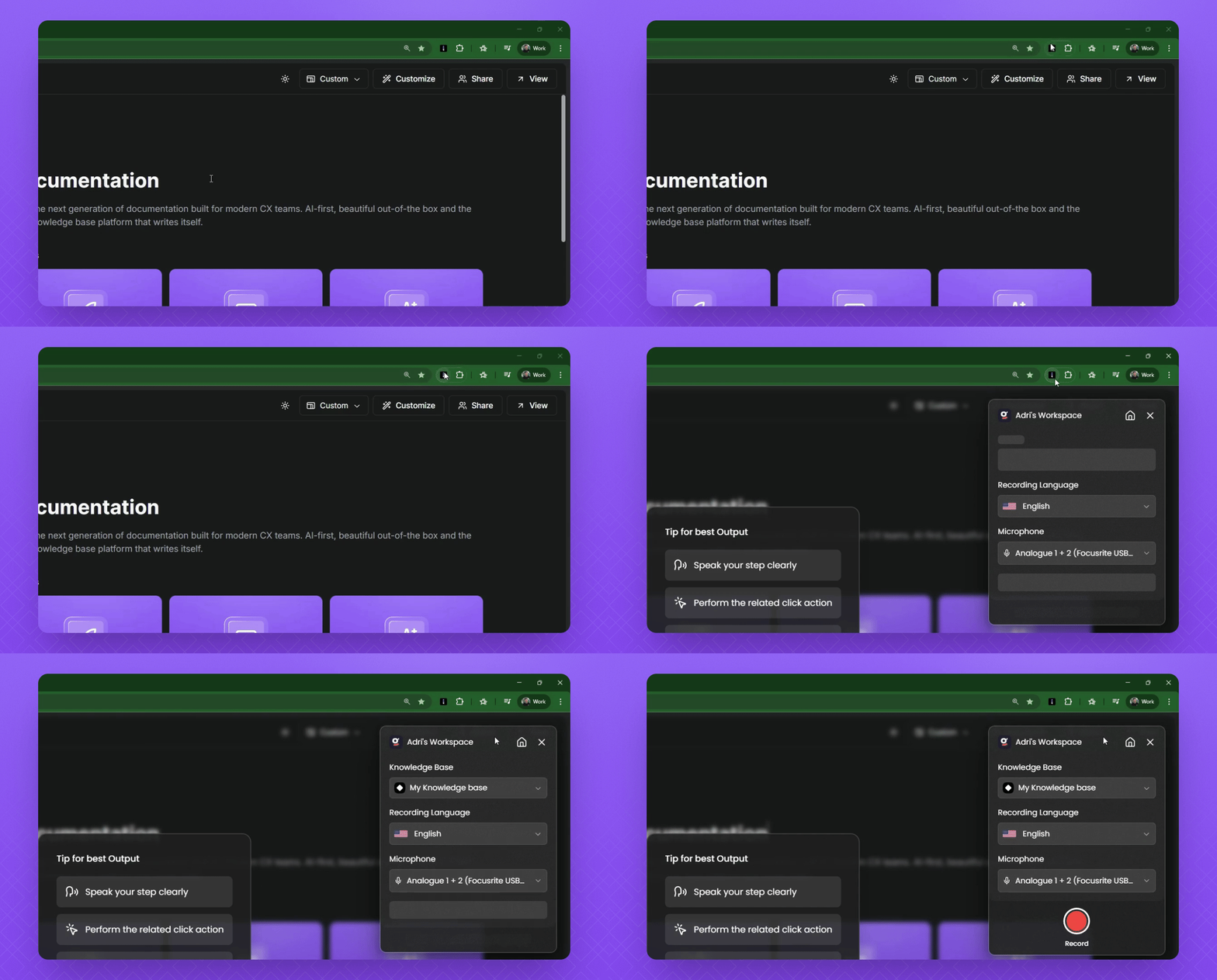
Ensure you have the Instant Docs browser extension installed.
Select the extension to open your Recorder window.
Step 2: Set Up Recording Preferences
Click the Workspace button to choose your workspace.
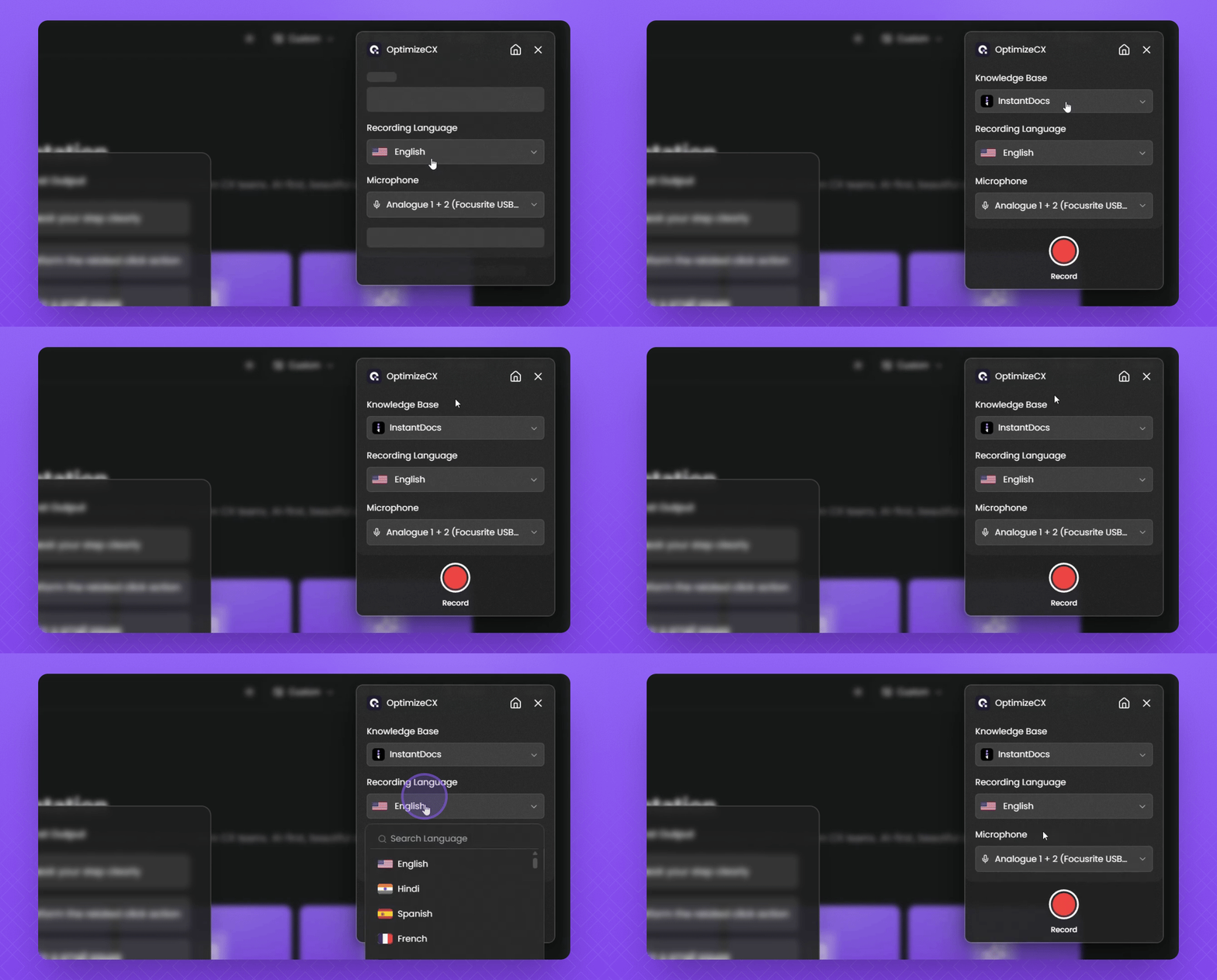
Select the Knowledge Base Dropdown to determine where articles will be generated.
Select the Recording language dropdown for your desired language.
Choose the Microphone dropdown to select your recording device.
Your recording preferences are now set.
Step 3: Start Recording
Click the Record button to begin.
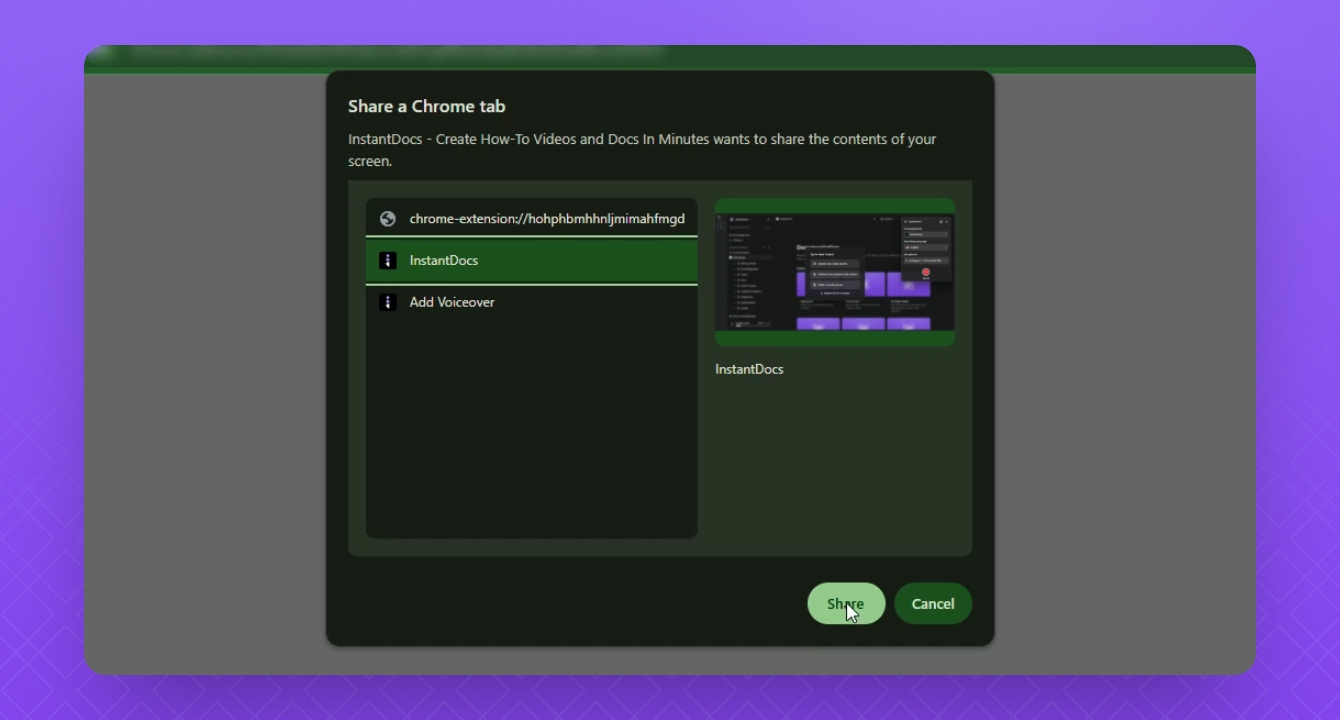
Select the tab to record from.
Click Share when the countdown starts.
You are now recording your video.
Step 4: Pause and Resume Recording
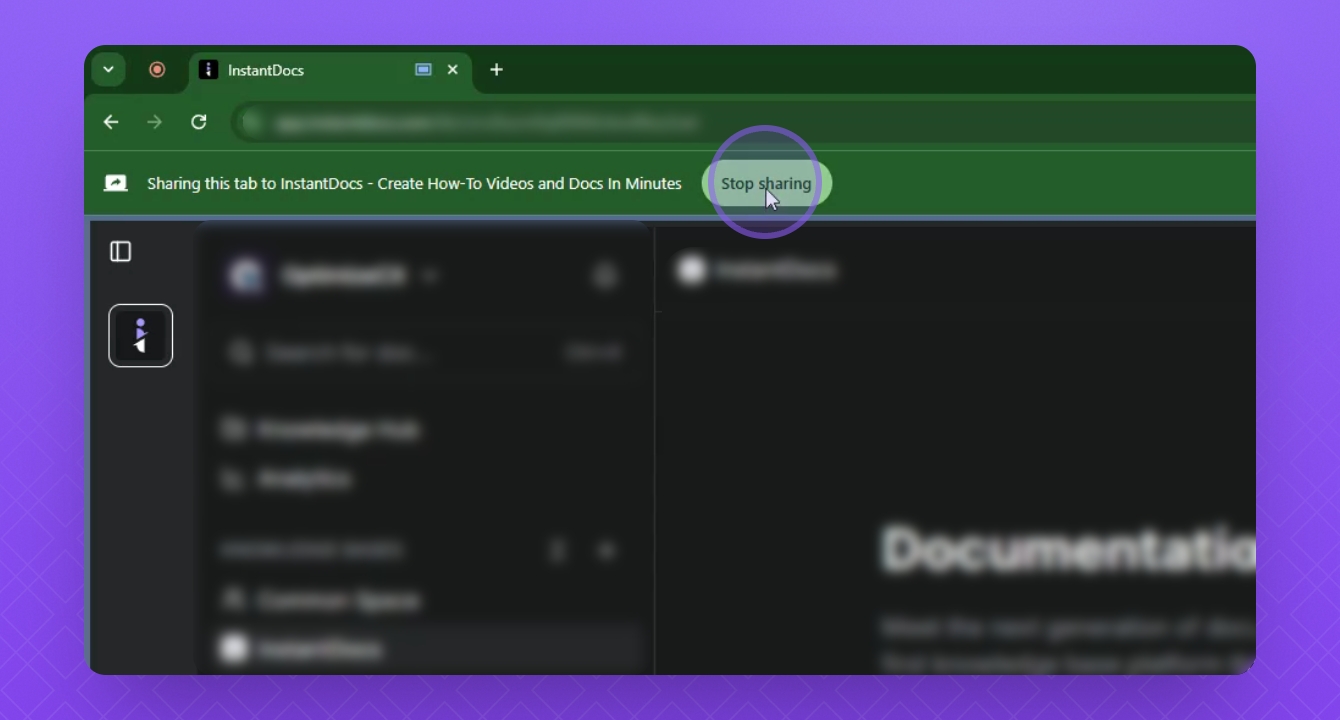
Click the Stop Sharing button or extension to pause recording.
Make any necessary changes in your browser before resuming.
Click Resume to continue recording.
Recording has resumed successfully.
Step 5: Finish and Upload
Click the Finish button to complete the recording.
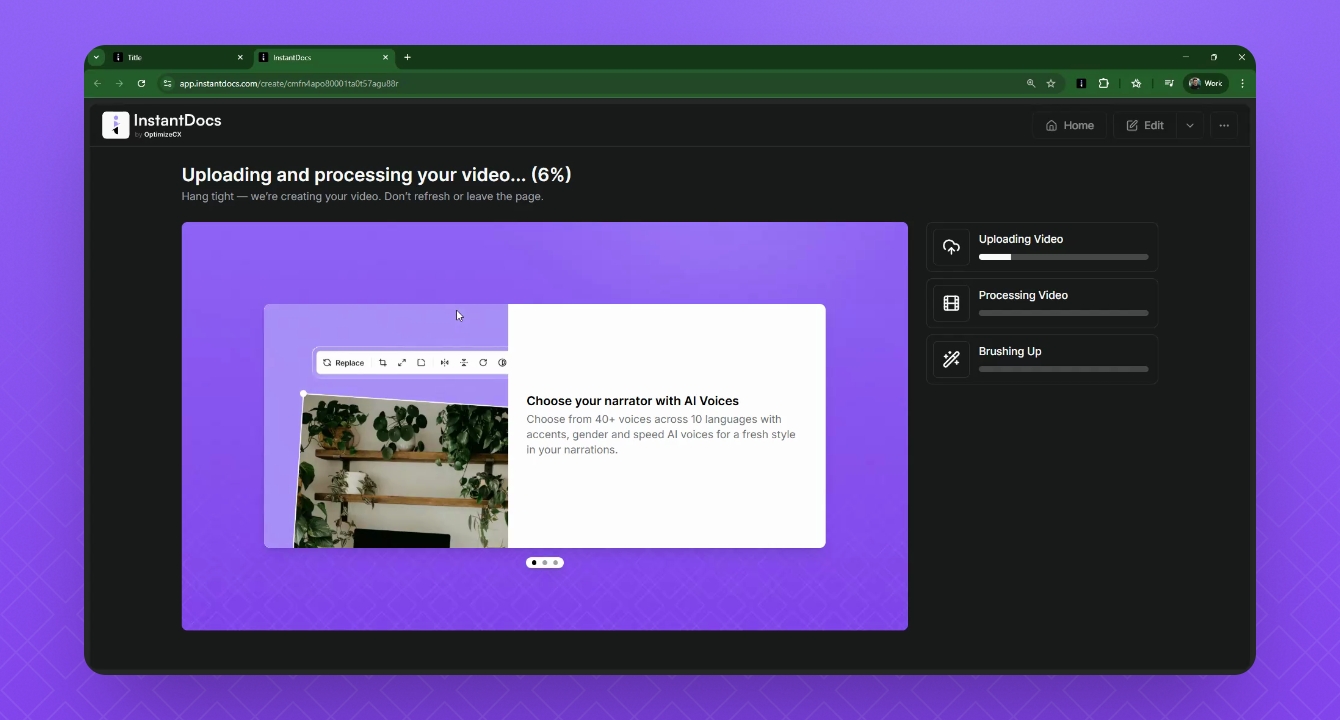
Your recording will begin uploading and generating.
Your article is now being generated based on the recording.
Step 6: Edit Your Snapshots & Videos
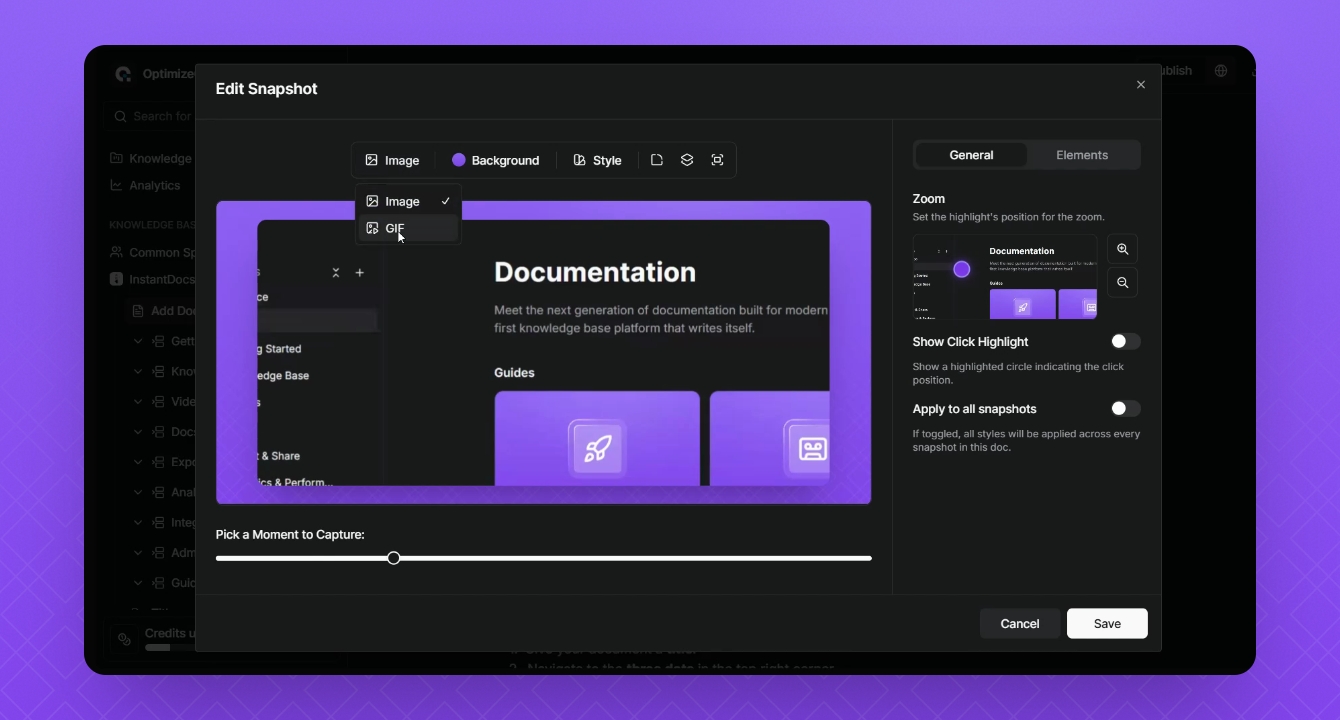
Hover over the snapshot window and click the Edit button.
Click the Image button to turn it into a GIF if desired.
Save your changes and scroll up to the Video window.
Step 7: Add AI Voice Voiceover
Hover over the video window and click Edit.
Select the Voice button, pick a voice name, and preview it.
Once satisfied, click Generate to create the voiceover.
Your video is now complete with an AI voiceover.