TL;DR
Let's Do It Together!
Step 1: Edit Video Elements
Click on the video elements you want to edit.
Use the toolbar above the Video Preview area to make changes.
This allows you to adjust zoom and shape clips as needed.
Step 2: Trim Video Clips
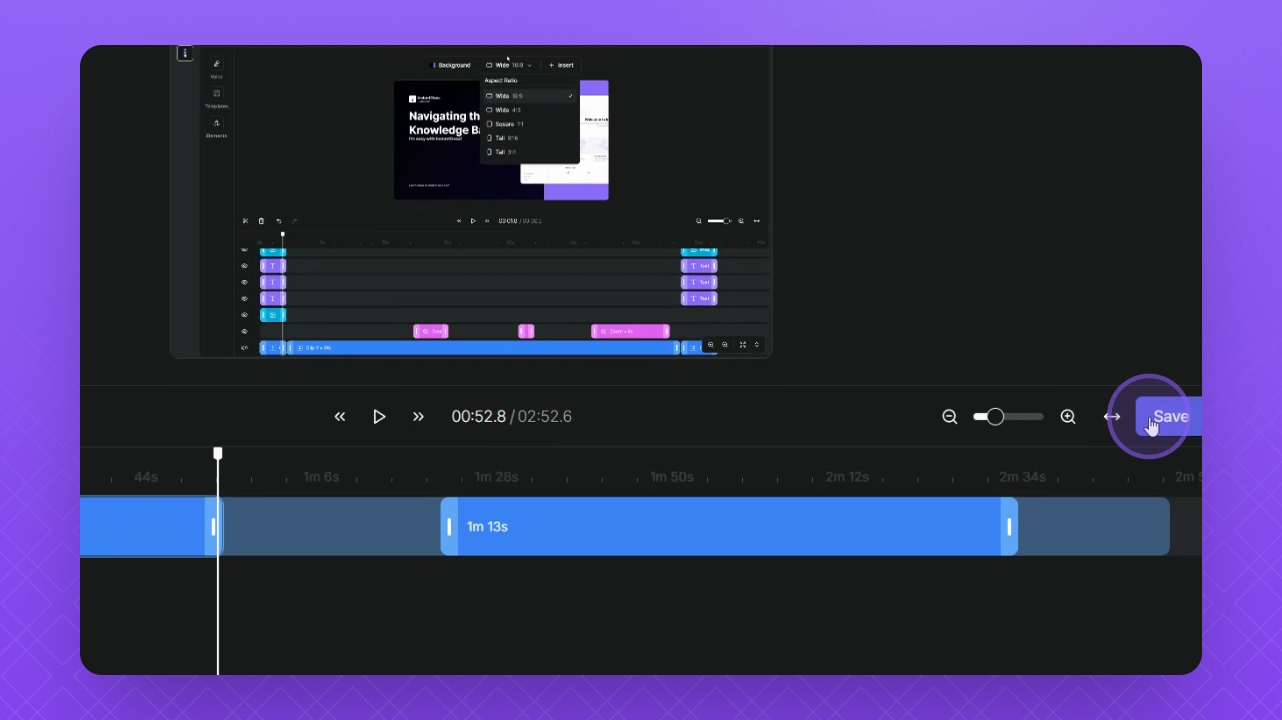
Click the main clip to trim it.
Select the Trim Video Clip button.
Click the Split Clip button to split the video if needed.
Drag the sides of the clip to edit its length.
Click the Save button to save your changes.
Or click the Back button to discard your changes.
Step 3: Delete Clips or Elements
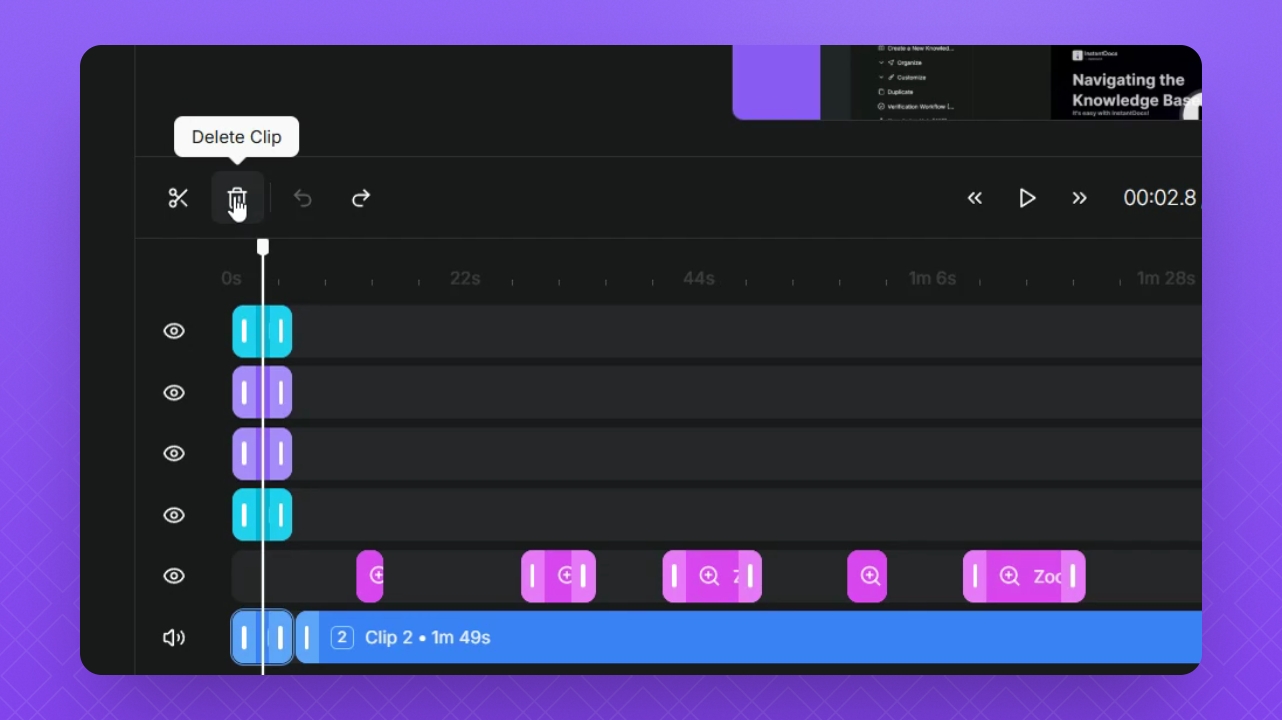
Click the element or clip you want to delete.
Select the Trash button or press Delete on your keyboard.
Step 4: Use Keyboard Shortcuts
Windows Undo & Redo: Ctrl + Z and Ctrl + Y
Mac Undo & Redo: ⌘ + Z and ⌘ + Y
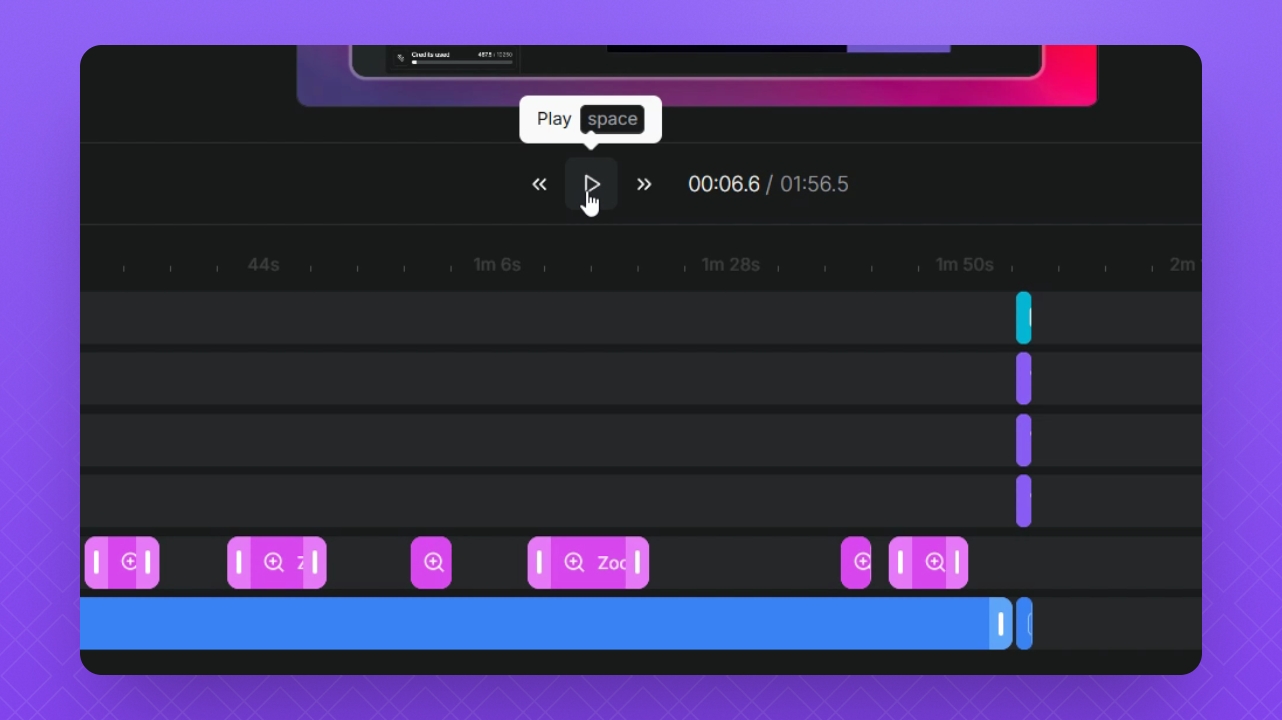
Press Alt S to skip to the beginning of the video.
Press the spacebar to play or pause the video.
Press Alt E to skip to the end of the video.
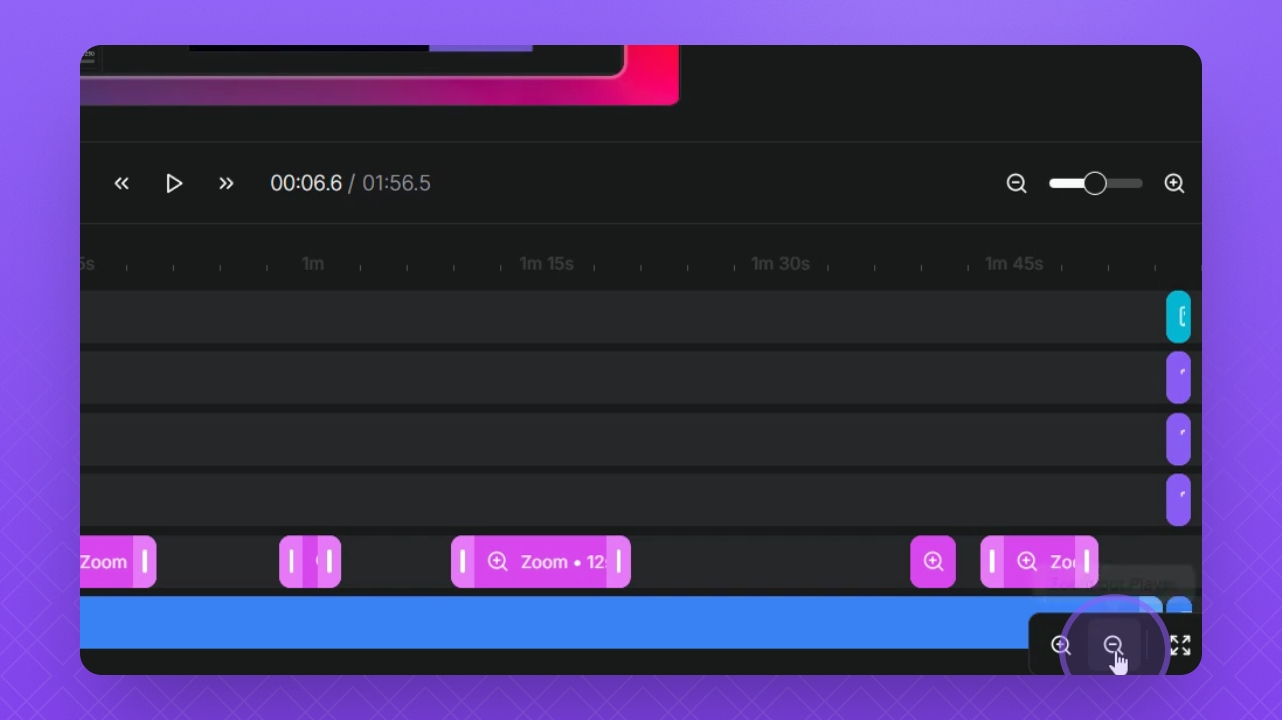
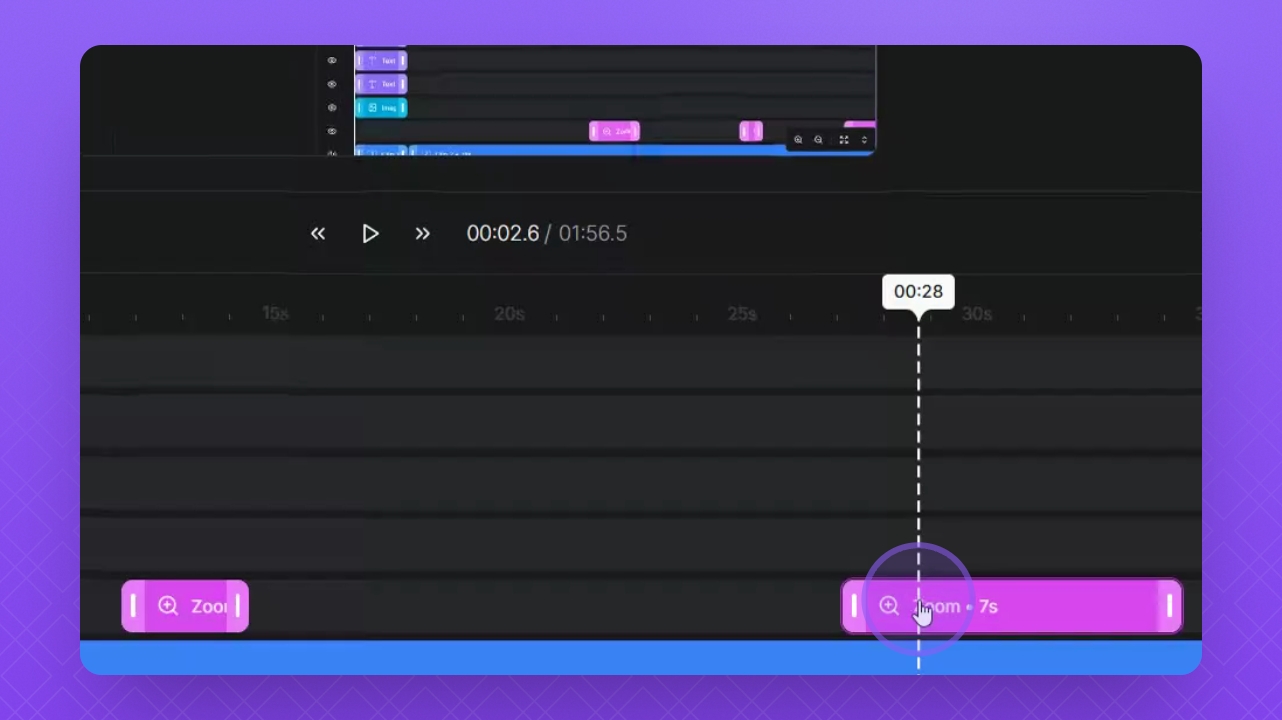
Step 5: Adjust the Timeline View
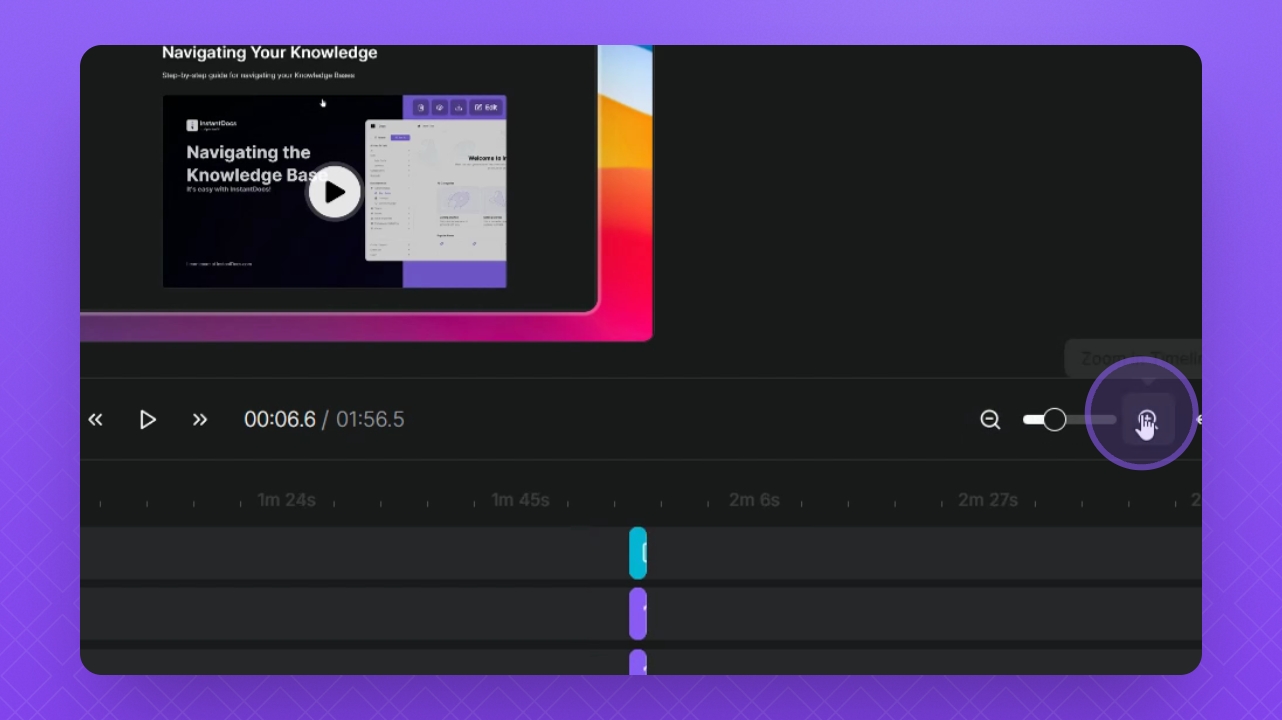
Use the Zoom In and Zoom Out buttons to adjust the Timeline section.
Drag the slider to make adjustments.
Click the Fit Timeline button to fit the entire Timeline into view.
Step 6: Manage Video Preview
Expand or minimize the Video Preview window using the options below.
Collapse the Timeline area to increase the video window size.
Click Full Screen to preview in full screen mode.
Click the 👁️ button on the left to hide the Timeline bar if needed.