

TL;DR
1
Verify Document
Hover above the article and click "Verify Document"
2
Change Verify Status
Scroll down, to assign a Doc owner, or mark as Verify, Outdated, or Requested.
Let's Do It Together!
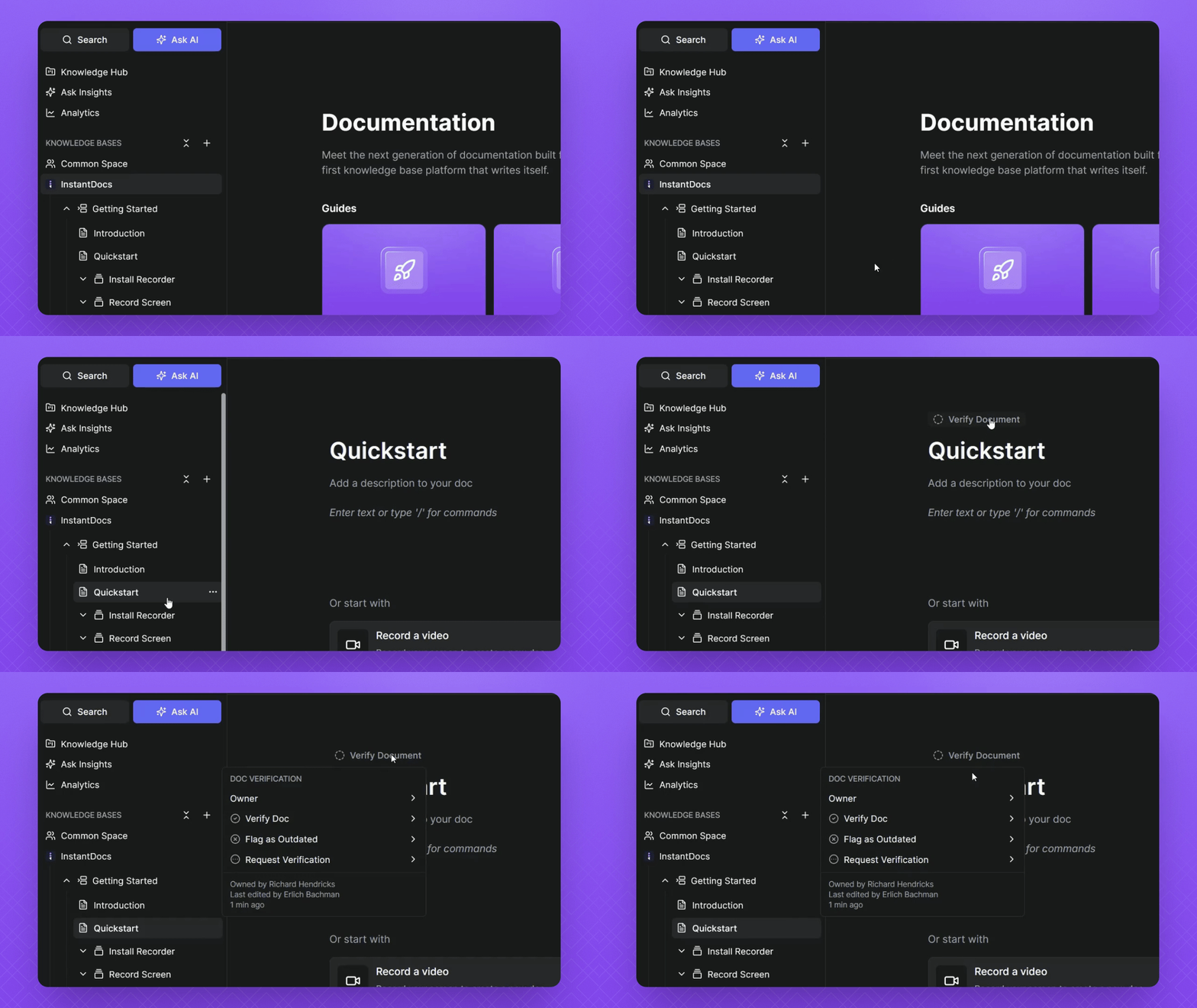
Step 1: Assign Doc Owner
Open an article and hover your mouse cursor above it.
Click Verify Document.
Assign the article to a person as the owner for verification.
NOTE: The Doc owner must be part of your workspace to be assigned as the owner
Step 2: Request Verification
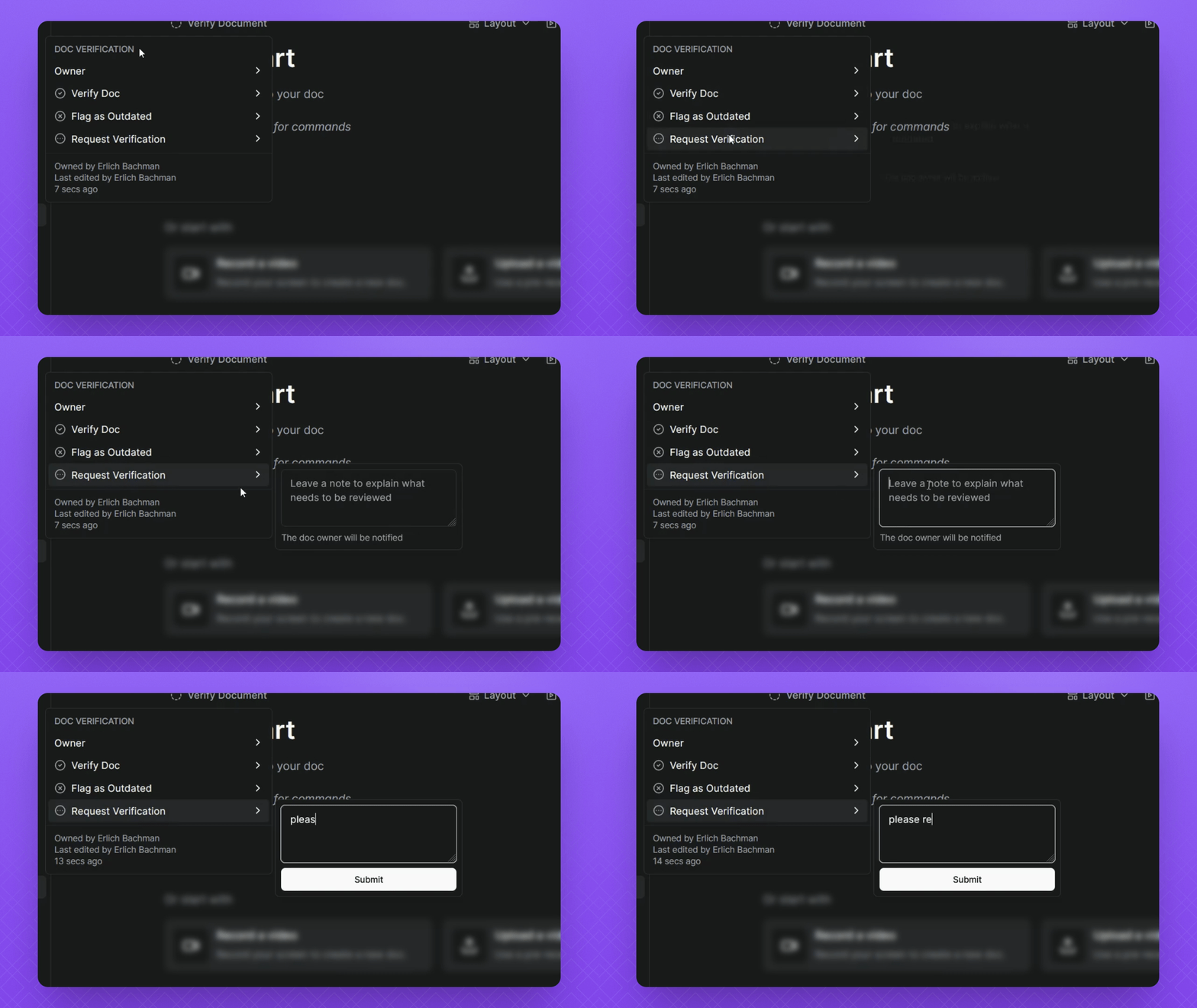
Scroll down to request verification.
Leave a comment explaining the request.
Submit the request to notify the new owner.
The new owner will receive a notification to review the document.
Tip: Notifications appear in the bell icon in the top-left corner of the page.
Step 3: Verify the Document
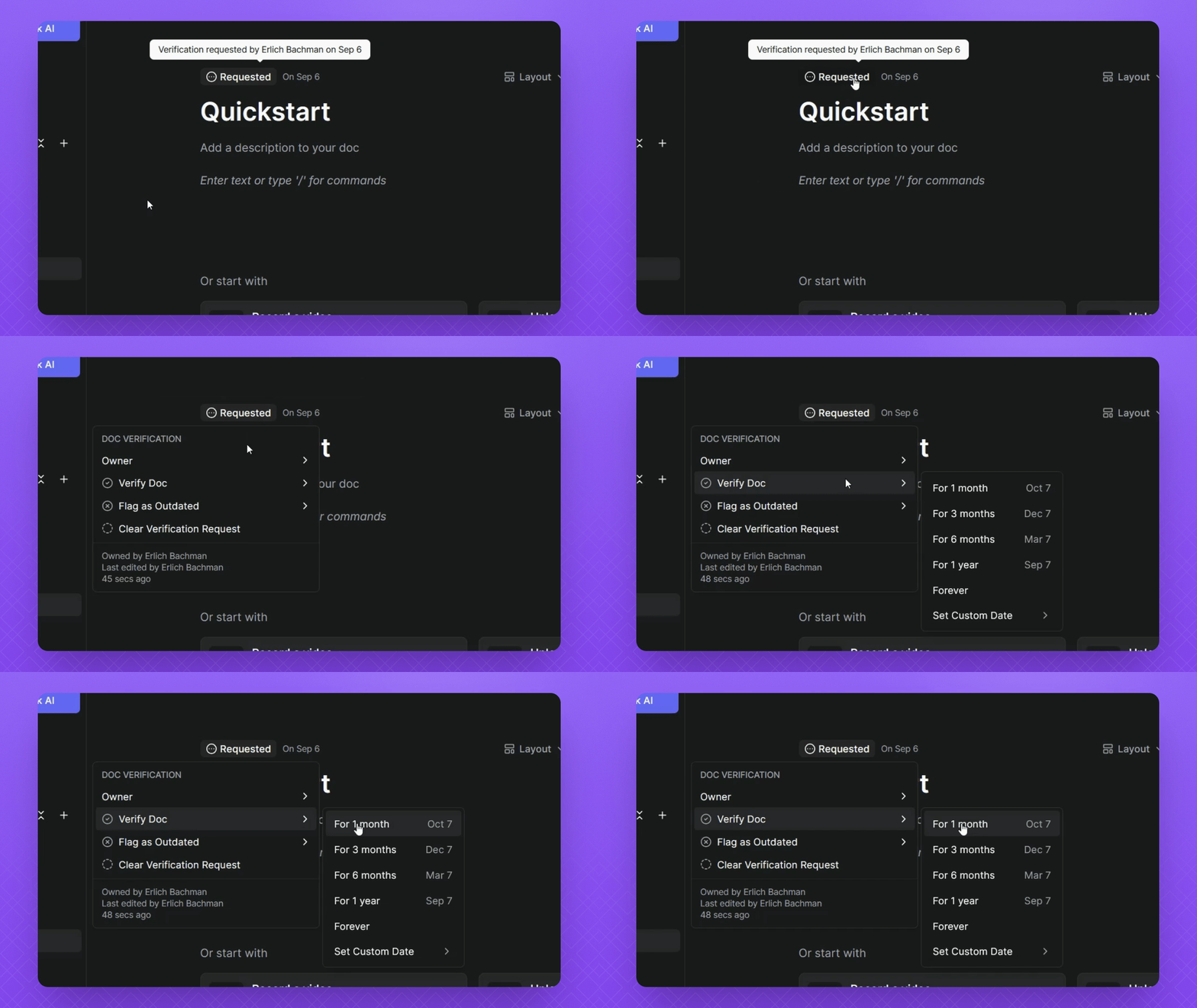
As the owner, review the Doc.
Click on the requested status, hover over Verify Doc, and select an option.
You can choose to temporarily or permanently verify the document.
Set a custom date if needed, or verify for one month.
Step 4: Flag Docs as Outdated
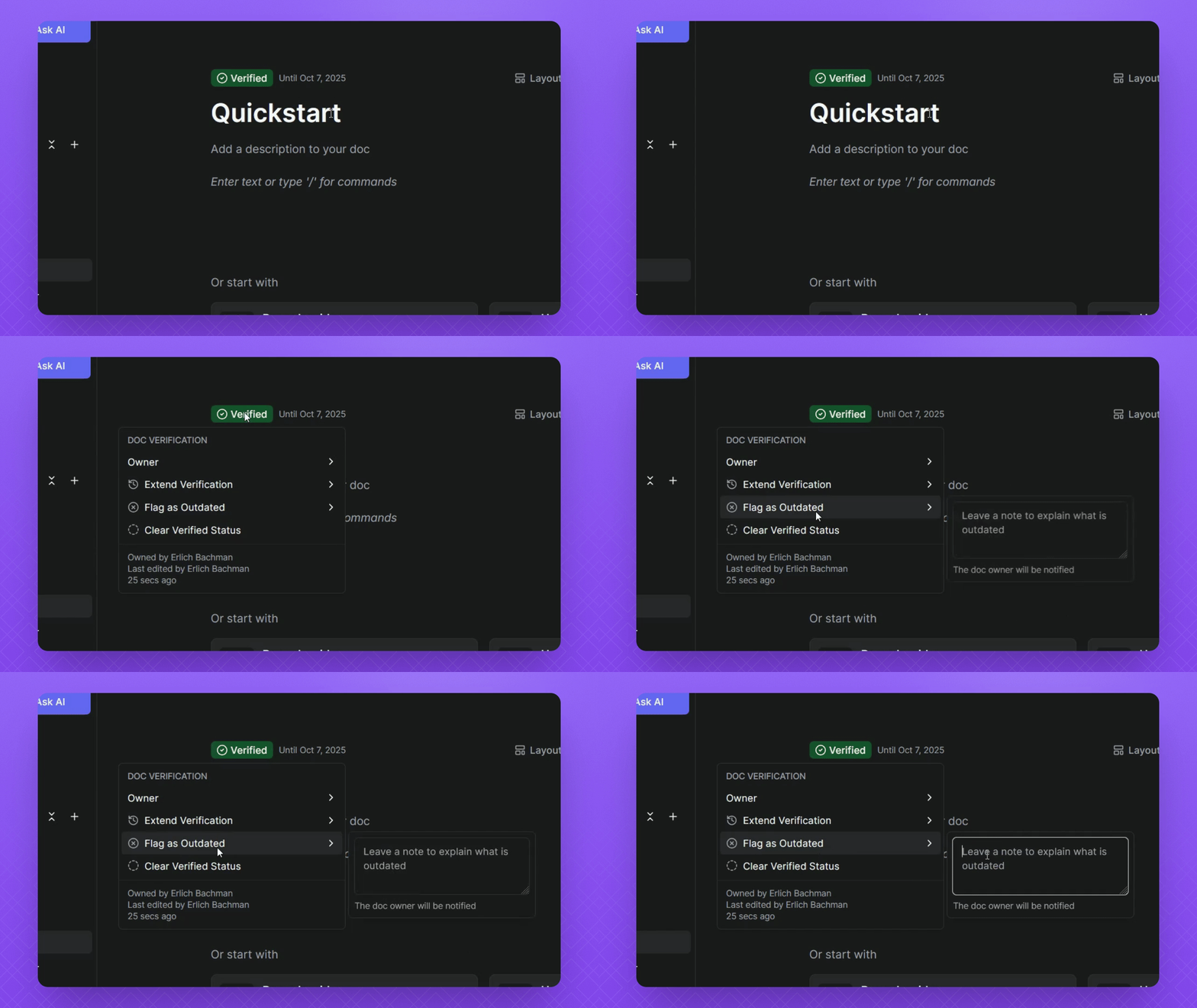
If the Doc is out of date, click the Verify Document button.
Hover over Flag as outdated.
Leave a comment and click Submit.
This will notify the owner that the document needs reviewing again.
Troubleshooting
Why can't I assign a owner to the Doc?
Ensure the owner is part of your workspace.
FAQ
Can multiple owners be assigned?
No, each document can only have one owner at a time.
What if the document is verified but outdated?
Flag it as outdated to prompt a review.
Where does the owner get the notifcations?
Notifications appear in InstantDocs under the bell icon at the top left of the page.
Does InstantDocs provide any automated tools for the verification process, such as checking links, spelling, grade level, or suggesting related articles?
Currently, our status feature is a manual process. Users can mark docs as Verified, Outdated, Expired (applies if a temporary verification has expired), or Requested, but these statuses must be applied manually. There is no automatic verification.
Here is what you can do:
- You can apply the status to a doc yourself
- You can use global comments on docs with any combination of statuses to collaborate with your team
- You can use the Knowledge Hub to filter documents by status and access them directly from the filtered lists
Here is what is not currently supported:
- Automatic checks like broken link validation, spelling or grammar analysis, or grade level assessments
- Automatic suggestions for related articles
- Any form of automated content verification