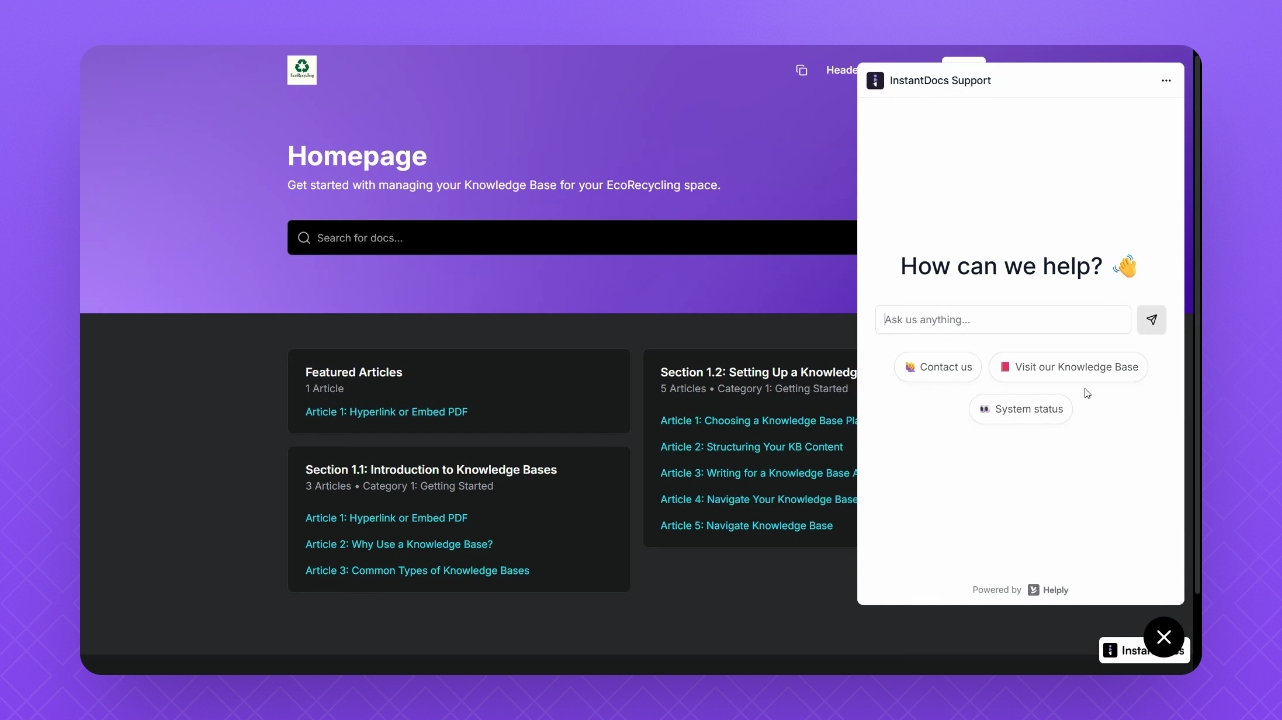
TL;DR
1
Open Helply
Open your Helply account.
2
Copy the Code
Click the Launch button and Copy the Code.
3
Open InstantDocs
Access your InstantDocs Knowledge Base settings.
4
Paste and Save
Paste the code in the Body Tag and save.
5
Preview Widget
Test the Helply widget by previewing your InstantDocs Knowledge Base.
Let's Do It Together!
Step 1: Launch Helply
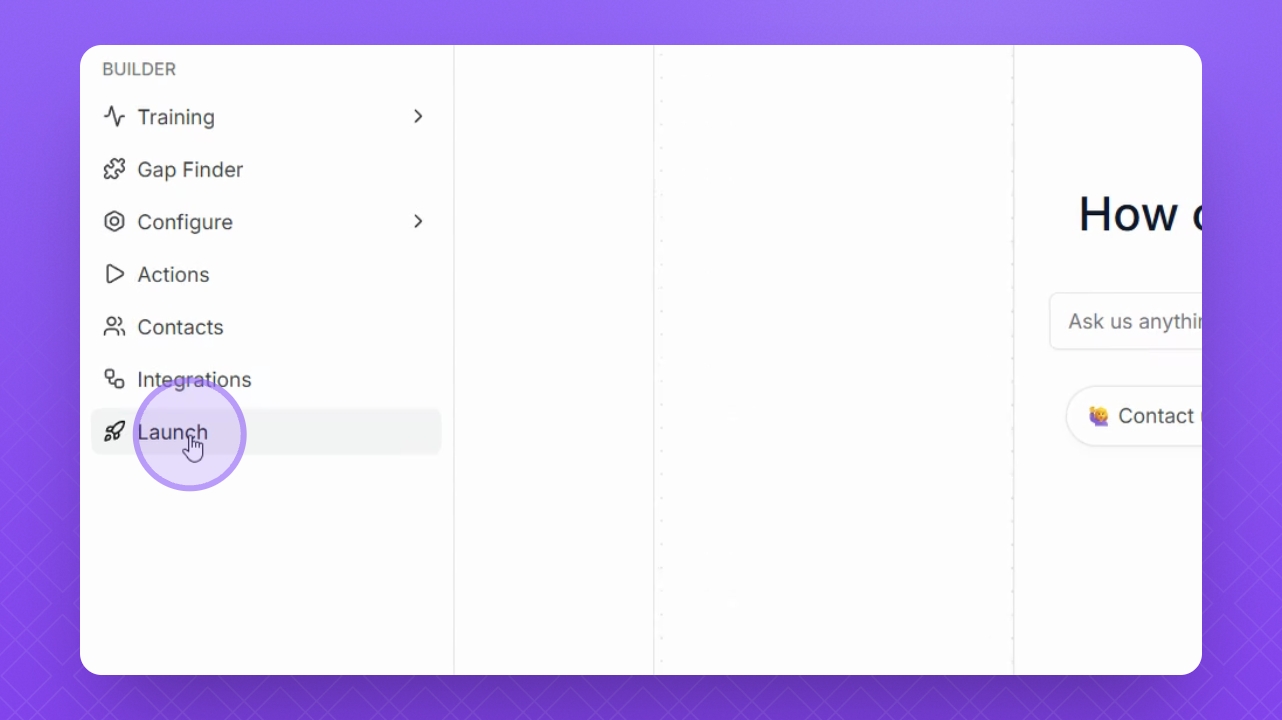
Navigate to the left-side Panel in your Helply account.
Click the Launch button.
Step 2: Copy the Code
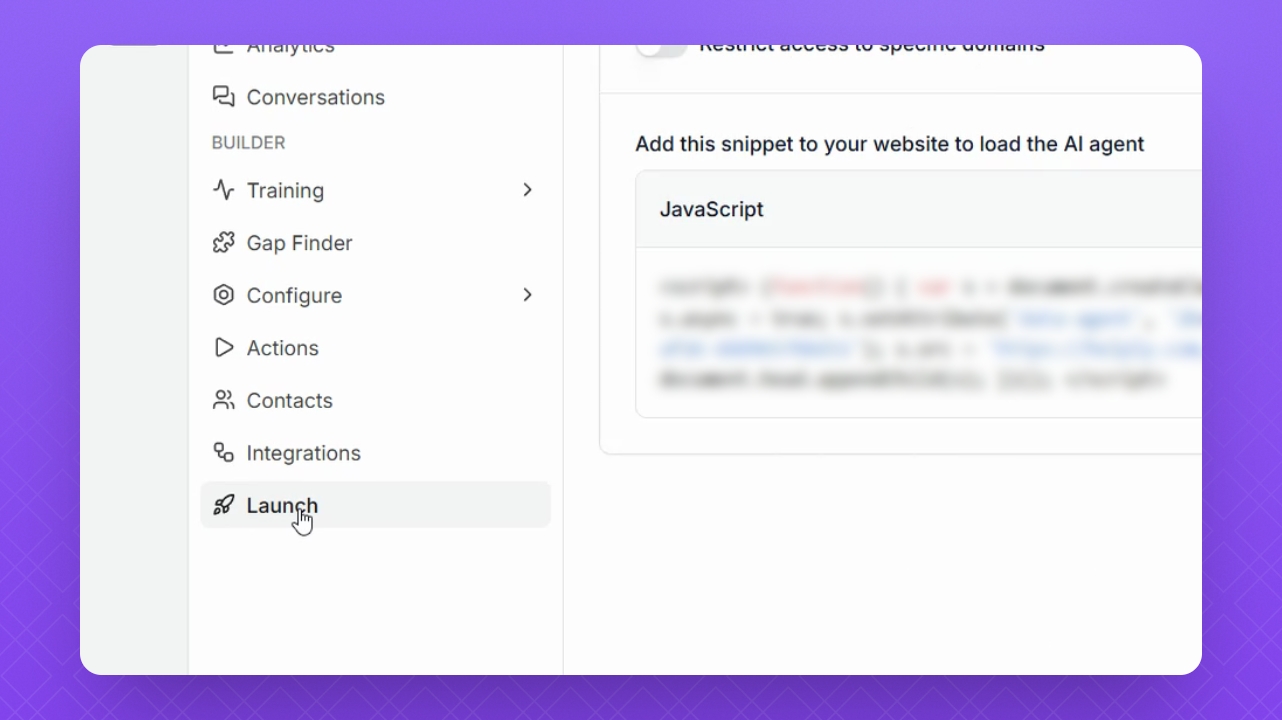
Click the Copy Code button.
Step 3: Access Knowledge Base Settings
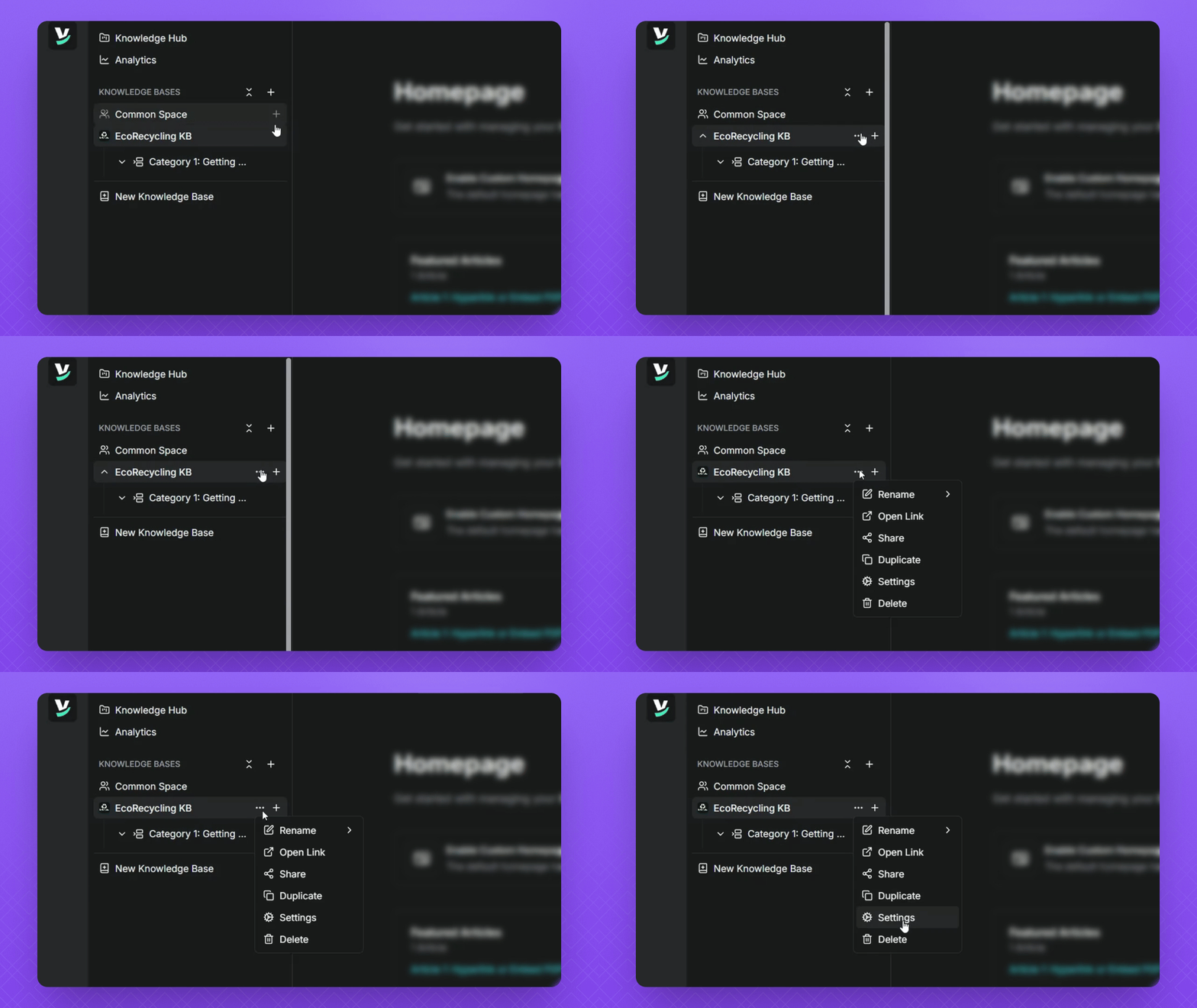
Navigate to your InstantDocs Knowledge Base.
Hover over your Knowledge Base name and click the three dots.
Select Settings.
Step 4: Paste Code and Save
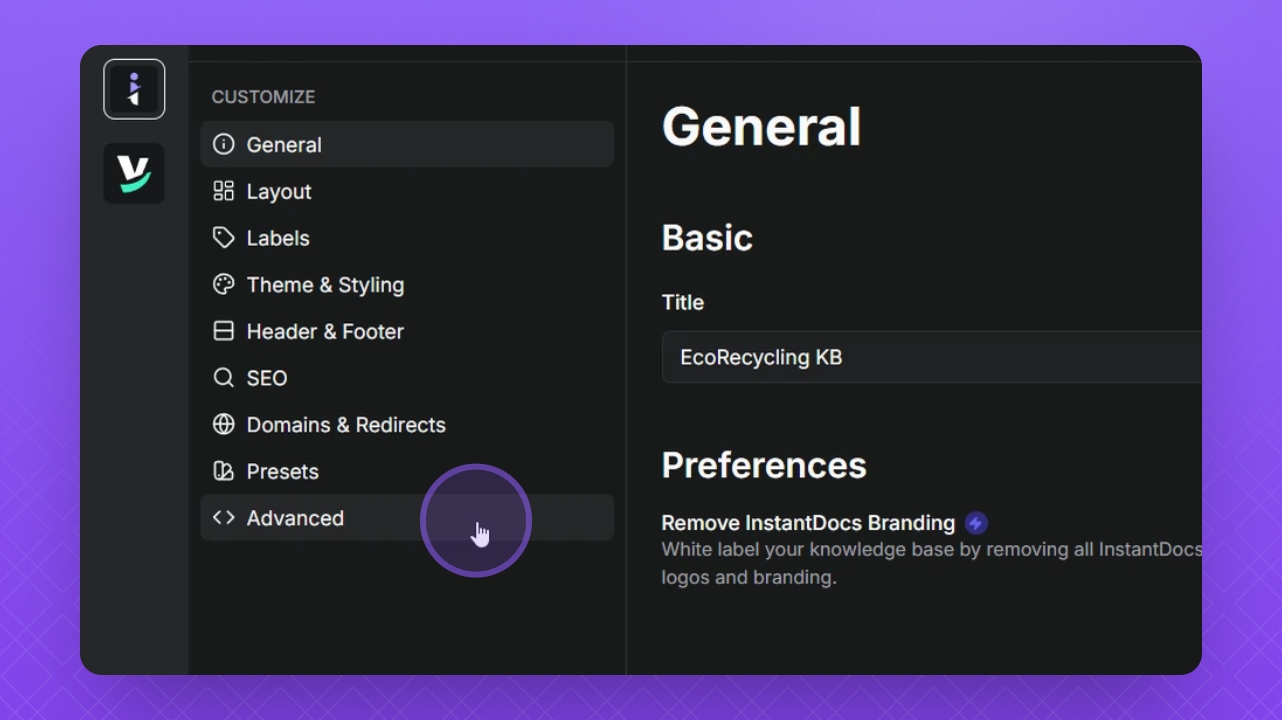
Click Advanced.
Paste the code into the Body Tag section.
Click the Save button.
Step 5: Test the Widget
Test and preview your Knowledge Base.
Check if the Helply widget is loaded and ready for action.