

TL;DR
1
Open Article
Locate and open the article you want to edit in your workspace.
2
Select Text
Highlight the text to reveal the editing toolbar.
3
Modify Text
Use the toolbar to edit headings, lists, alignment, and styling.
Let’s Do It Together!
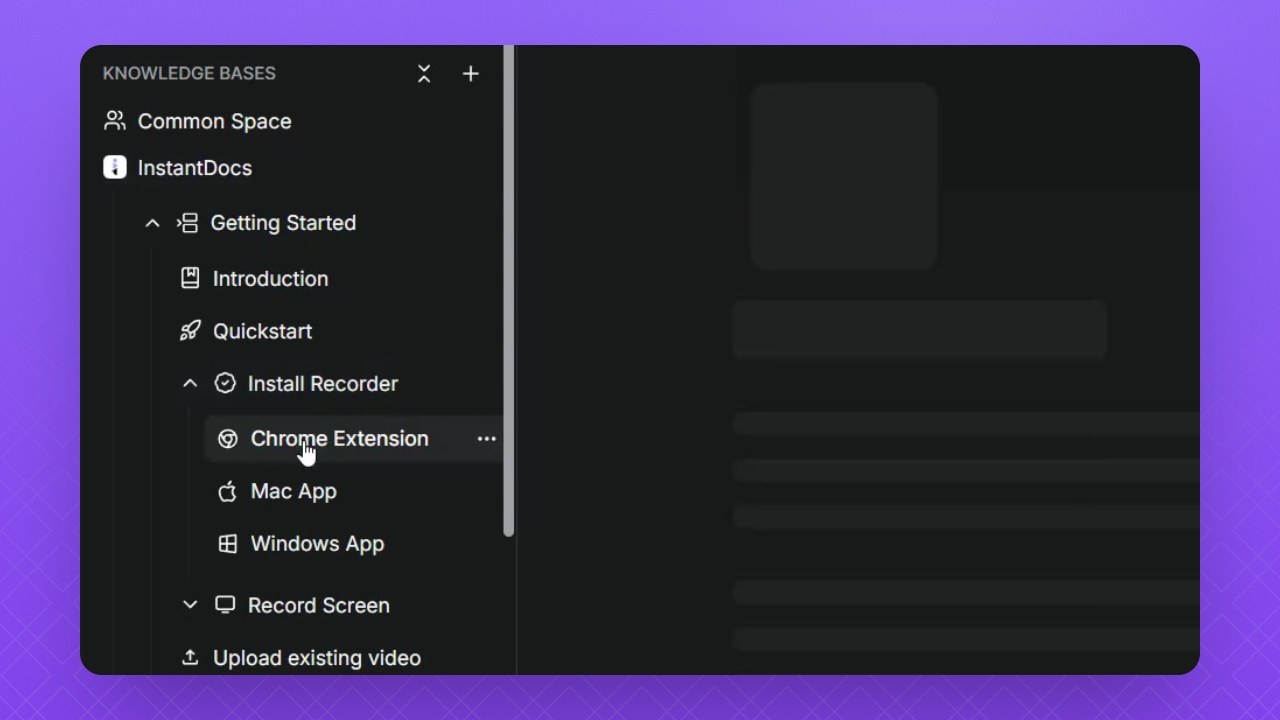
Step 1: Open the article
Open the article where you want to edit the text.
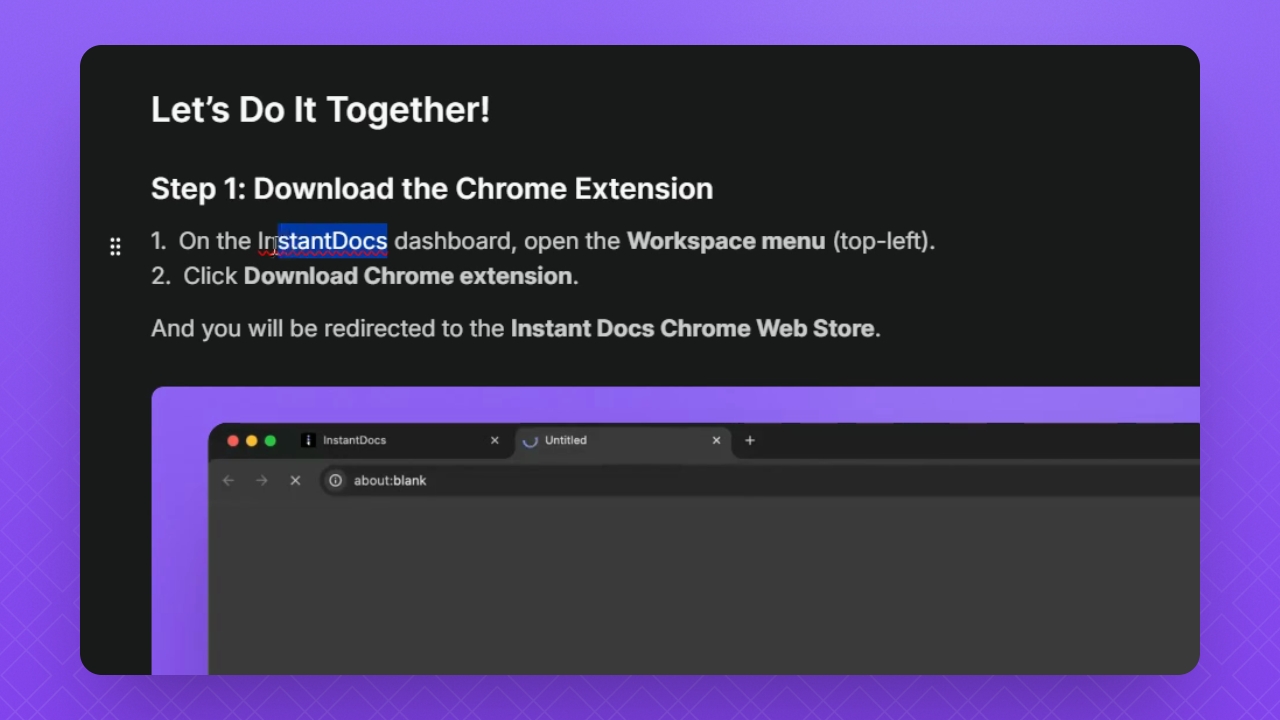
Step 2: Select the text
Highlight the text you want to edit and confirm the editing toolbar appears.
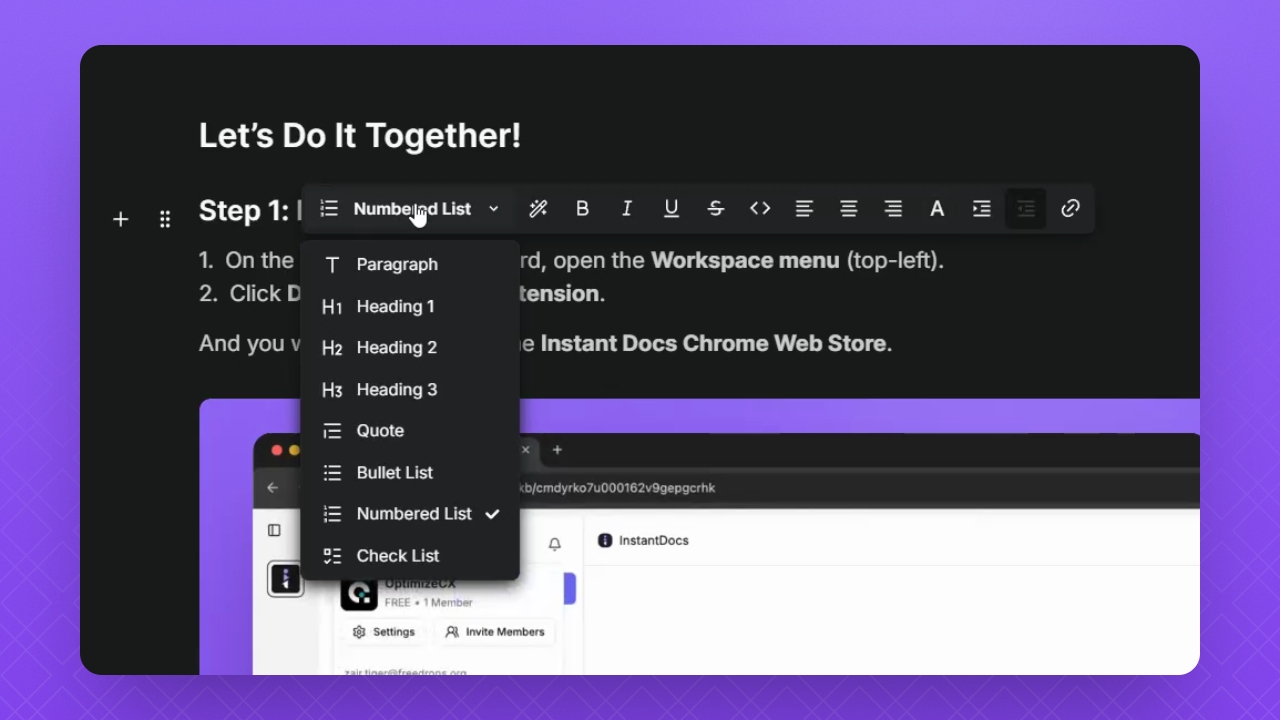
Step 3: Use the editing toolbar to format your text
Format headings, lists, text, alignment, rewrite text with AI, insert hyperlinks, and more.
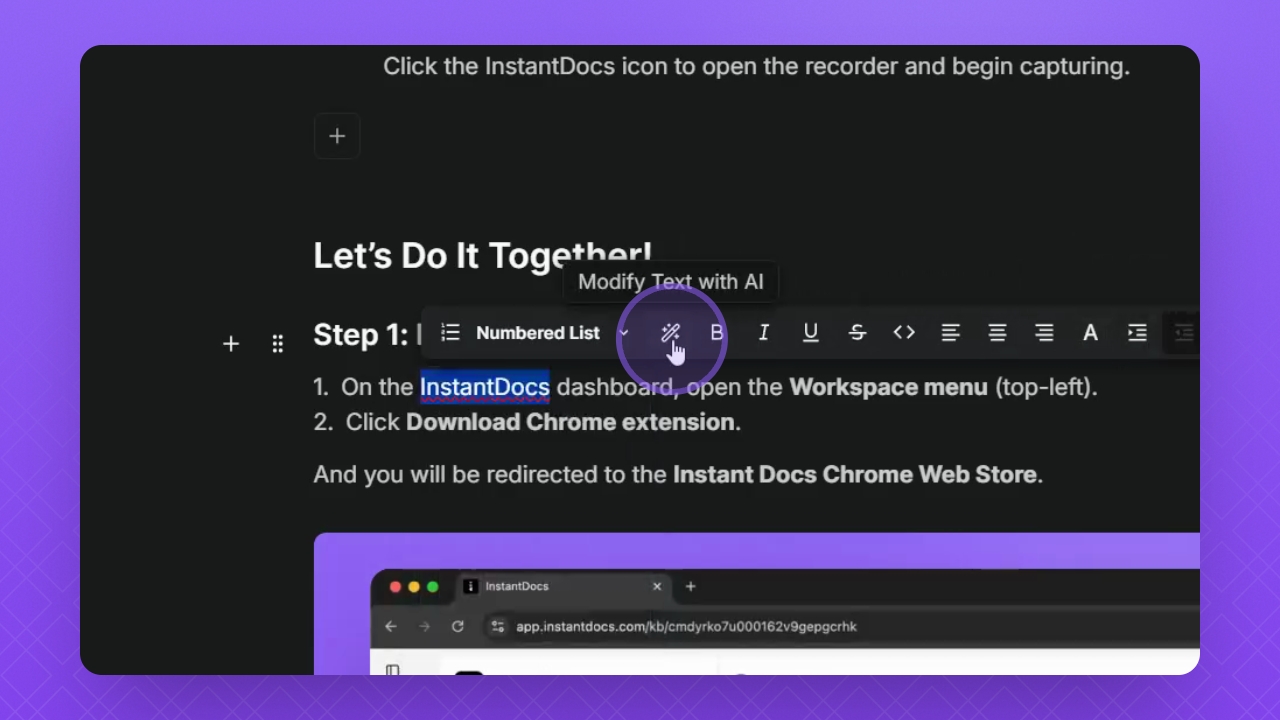
Step 4: Modify Text with AI
If you wish, you can click the Wand icon in the toolbar to enhance the text using AI.
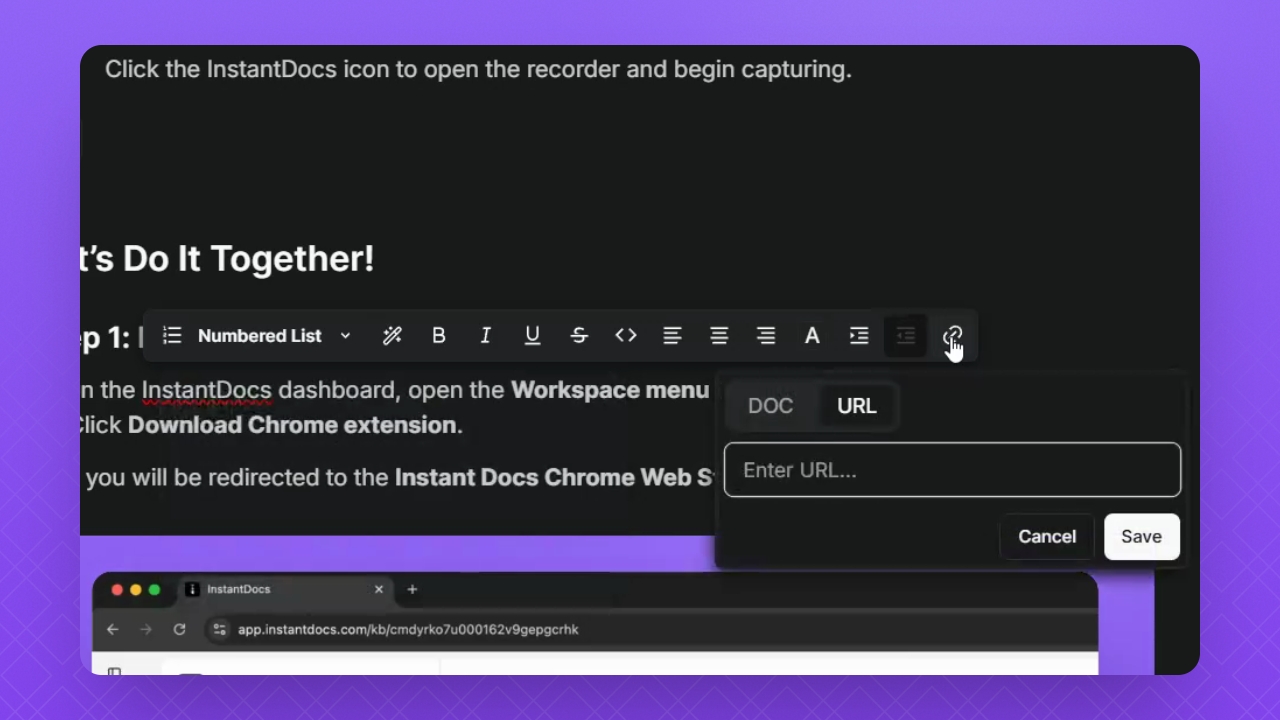
Step 5: Add a link
To incorporate a link into your text, simply click the Create Link button from the inline editing toolbar.
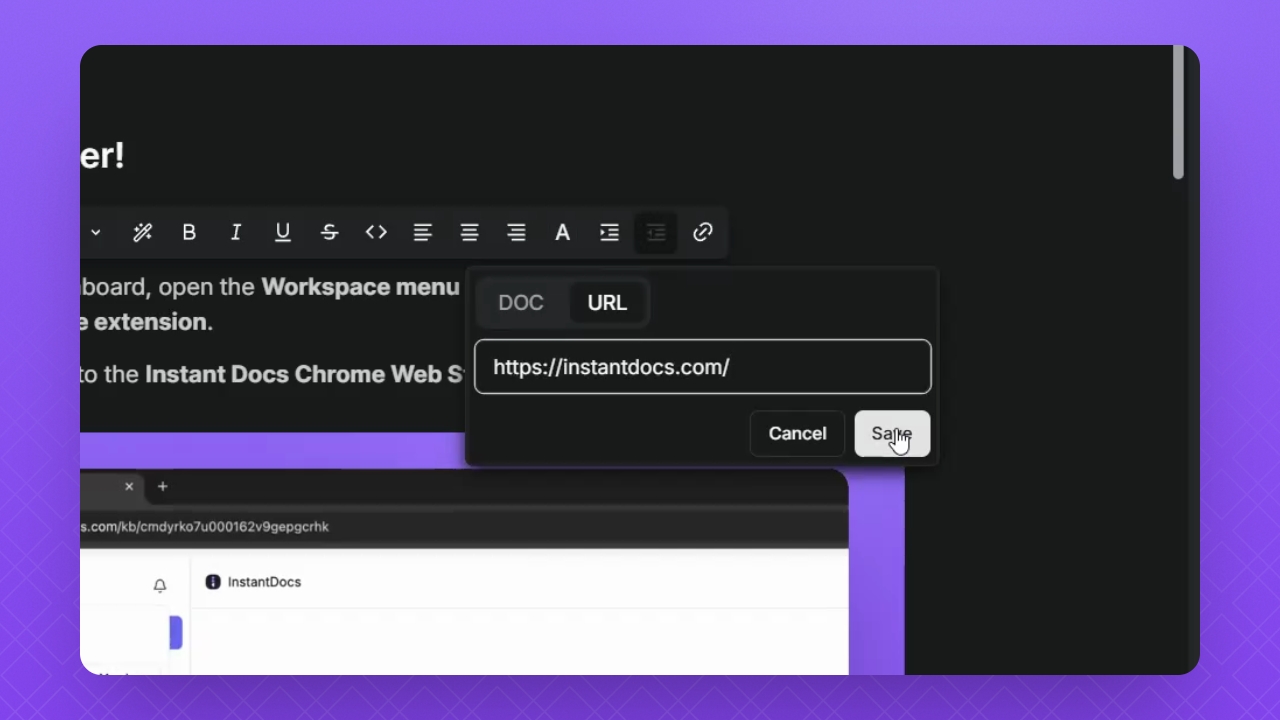
Step 6: Save the link
After copying your link, paste it into the URL section, and then click Save.
FAQ:
Can AI help me edit my article text?
Yes! When highlighting your text, click the "Wand" icon in the toolbar and enter a prompt to enhance the text using AI. Remember to click the "Modify text with AI" button to initiate the prompt.
How do I remove a hyperlink from my article?
Click the hyperlink in your Doc editor and select the "Remove Link" button