TL;DR
Click the Dark and Light mode button in the top-right corner.
Click Edit on the video, click the Dark and Light mode button in the top-right corner.
Let's Do It Together!
1. Toggle Light and Dark Mode in the Private Knowledge Base Editor
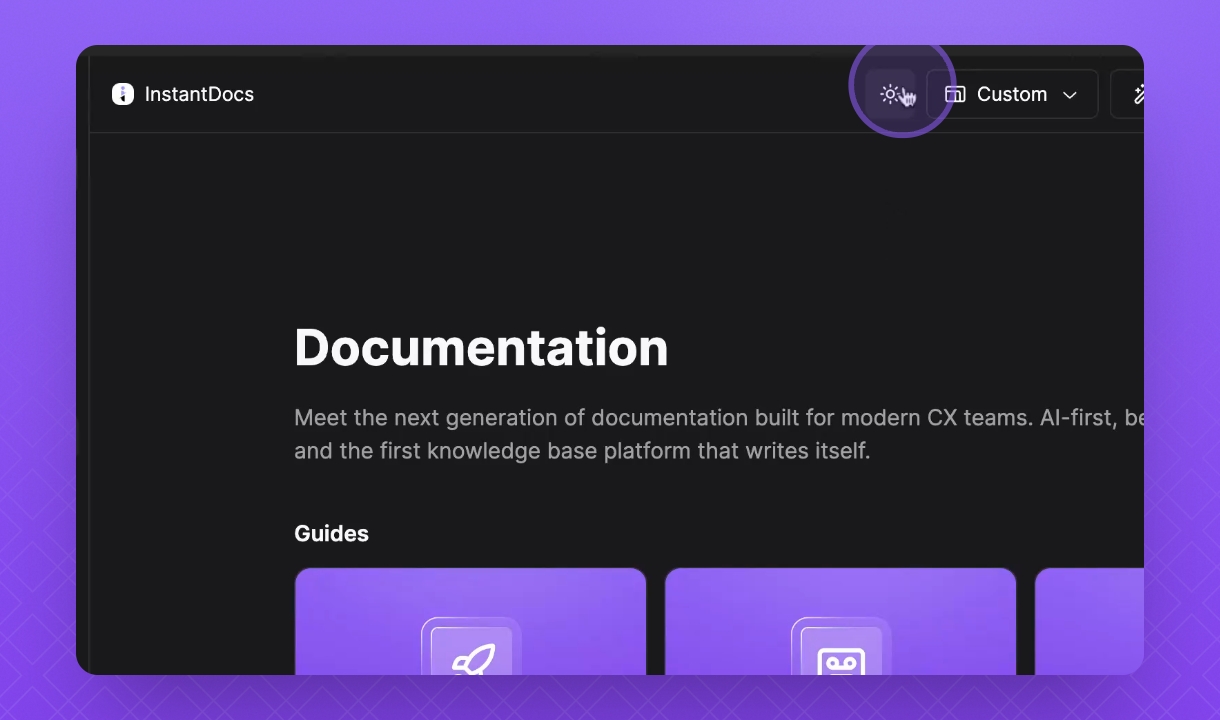
In the Homepage or Doc Editor areas, click the Dark and Light mode button in the top-right corner of the page to switch to Light or Dark mode.
Click the button again to switch back to Dark mode.
You can now easily switch between Light and Dark modes in the Editor.
2. Toggle Light and Dark Mode in the Video Editor
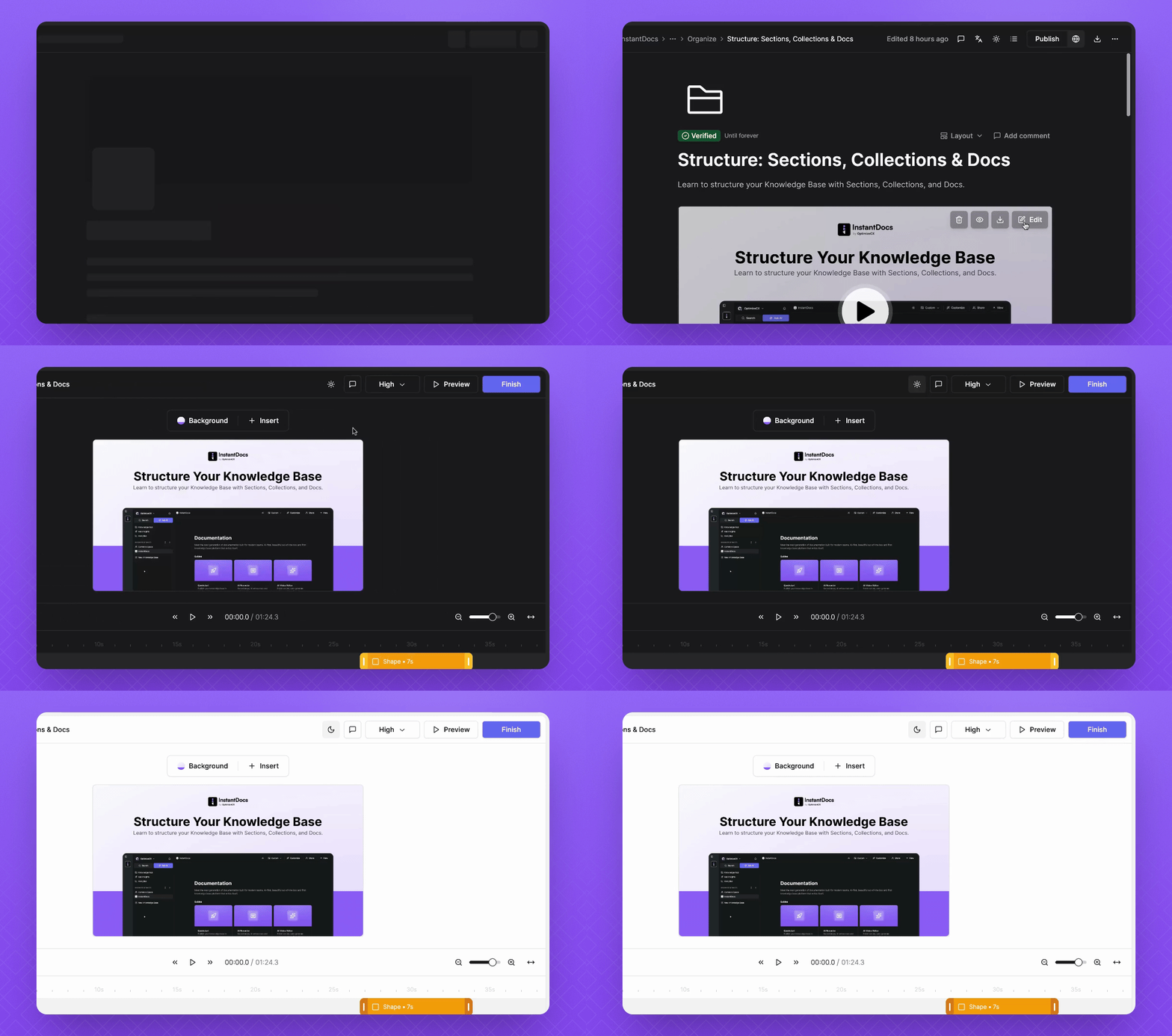
Go to your Video and click Edit.
In the Video Editor, click the Dark and Light mode button in the top-right corner of the page to switch to Light or Dark mode.
Now you can adjust the mode in the Video Editor as well.
3. Customize Light and Dark Mode for the Public Knowledge Base
Click the three dots to access customization options.
Click Customize to open the settings.
Head to Theme and Styling.
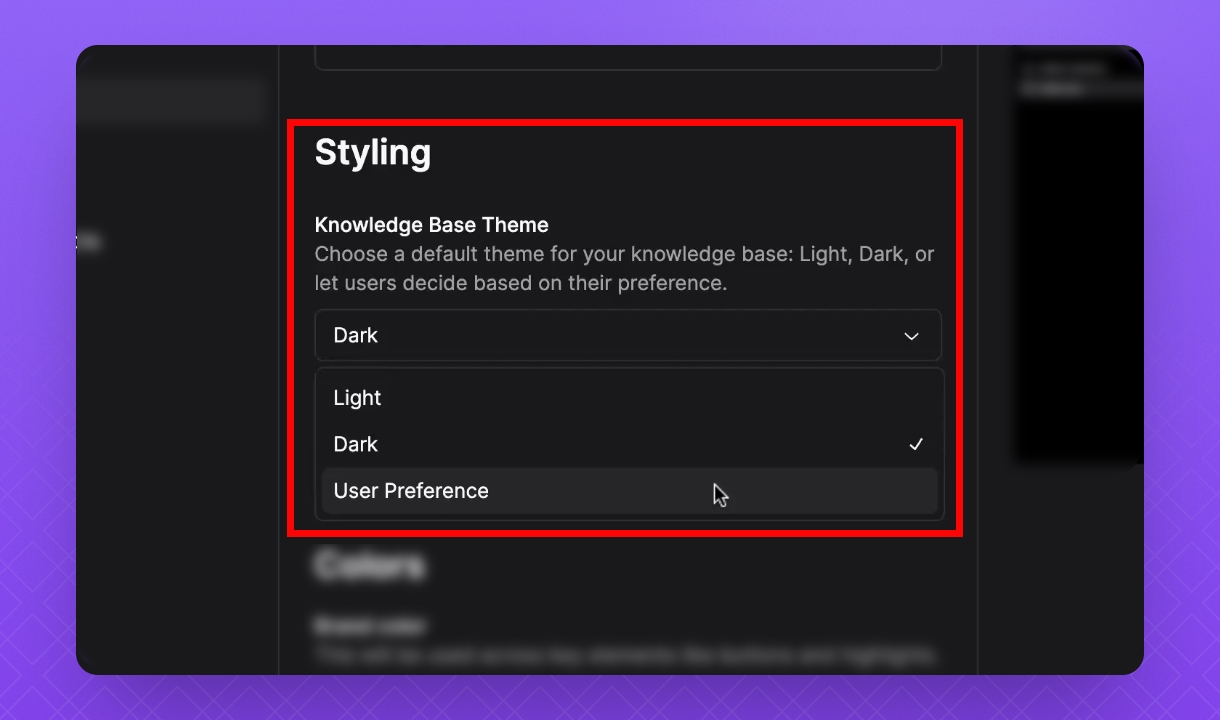
Scroll down to find Knowledge Base Theme under Styling.
Click the dropdown to select Light, Dark, or User Preference.
You can now set a preferred theme for your entire Knowledge Base.