

TL;DR
1
Select field and + icon
Open a field and click the + icon to start.
2
Choose Snapshot
Click Snapshot to capture a moment.
3
Edit snapshot
Use the pencil icon to access the Snapshot editor
4
Customize snapshot
Adjust the Snapshot moment captured as needed.
Let's Do It Together!
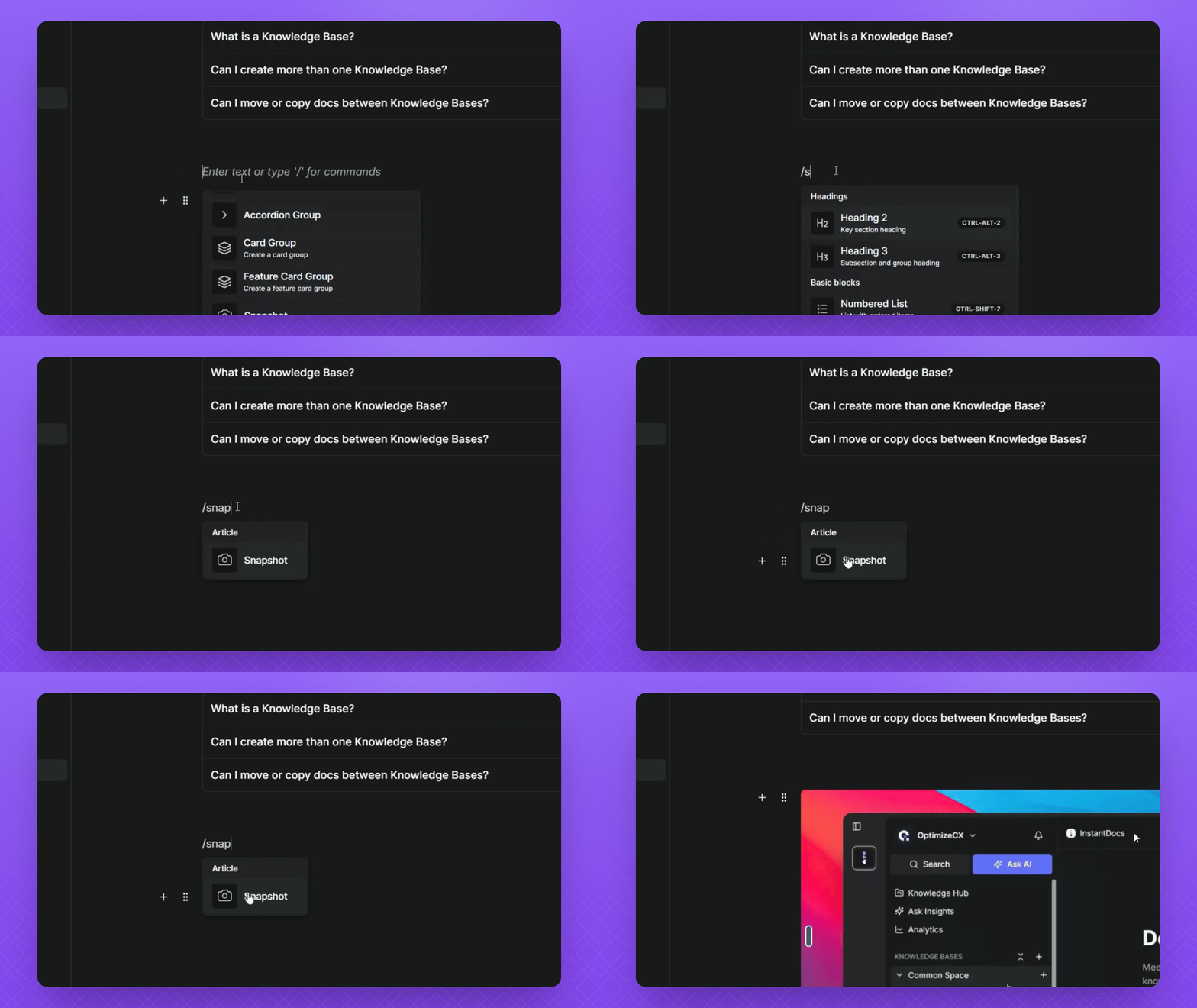
Step 1: Access Snapshot Feature
Select an open field in your Doc.
Click the + icon.
Scroll down to Snapshot or enter Snapshot in the search.
Click on Snapshot once it's available.
A screenshot of the video article will now be captured.
Step 2: Edit Your Snapshot
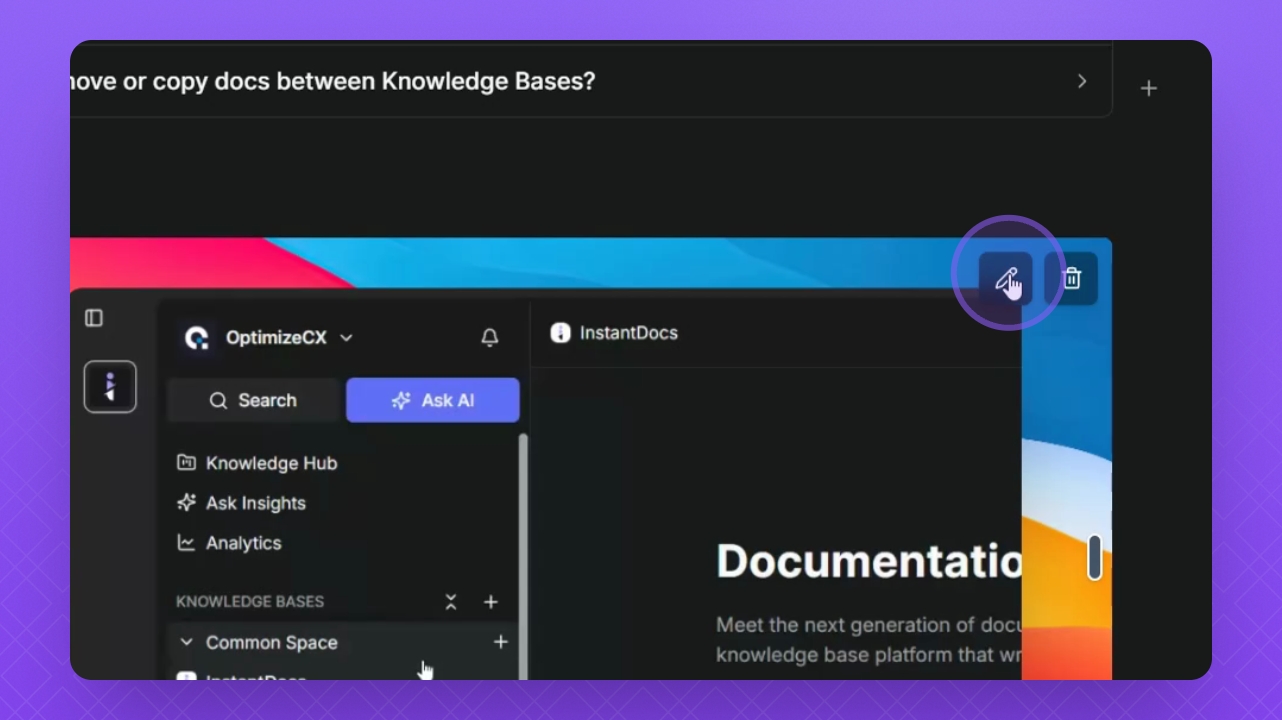
Click the pencil icon in the top right corner to edit the snapshot.
Use the slider at the bottom right to pick a moment.
Navigate through the video and adjust zoom as needed.
Step 3: Customize Your Snapshot
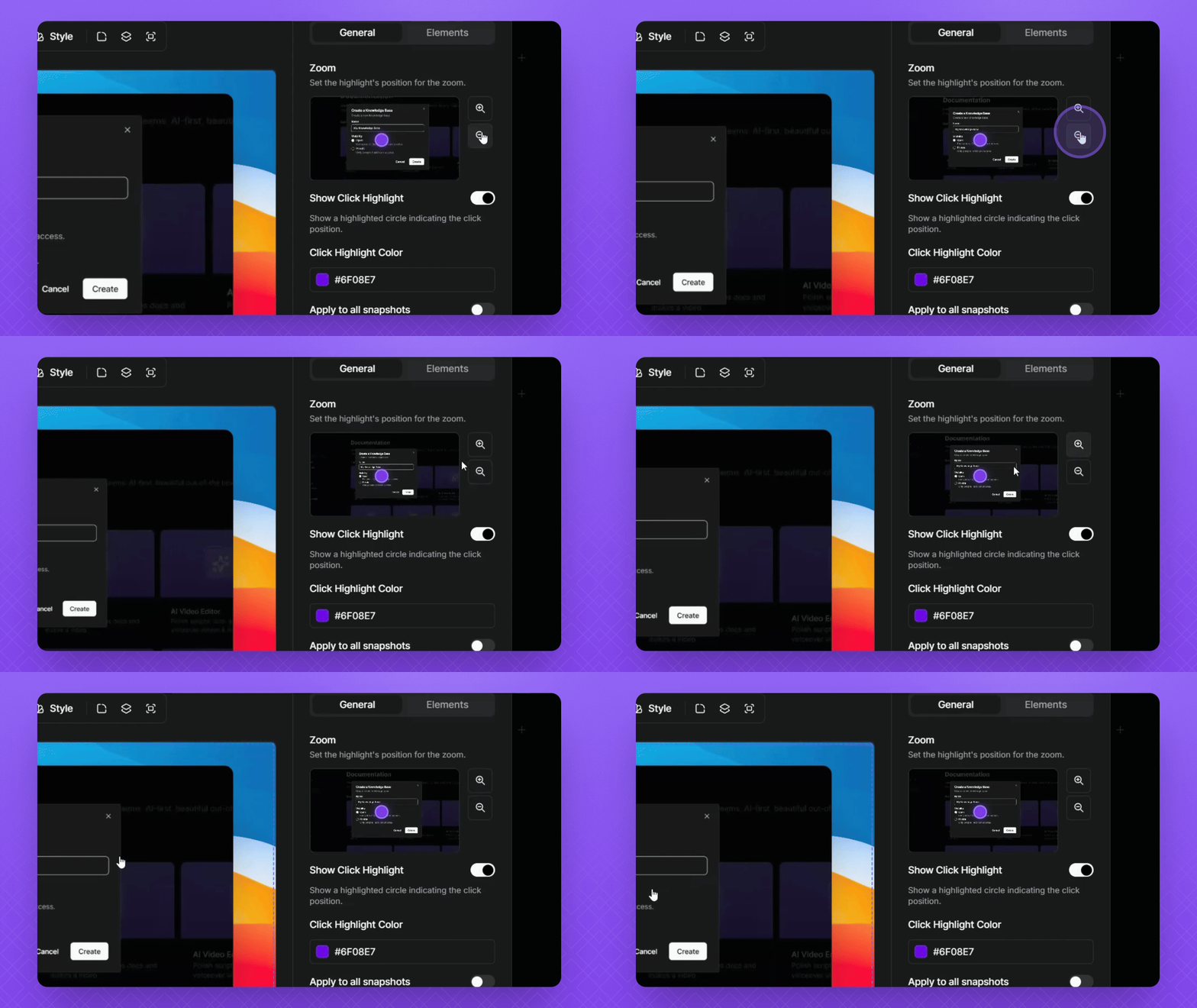
Make necessary adjustments to capture the desired moment in your video article.
FAQ
What are Snapshots?
Snapshots are still images or GIFs captured from your recorded videos that you can insert directly into your Doc.
How do I insert a Snapshot?
Select an open field, click the + icon, scroll to find Snapshot, or type /Snapshot, then click it.
Can I edit a Snapshot after adding it?
Yes. Click the pencil icon in the top right to edit the Snapshot.
How do I adjust the Snapshot’s moment or focus?
Use the slider in the Snapshot editor to select the exact frame and move the focal point to adjust the zoom area. You can also zoom in or out for precision.
Why should I use Snapshots instead of screenshots?
Snapshots are built-in and let you capture frames from your video article directly, eliminating the need for manual screenshots and external editing.