TL;DR
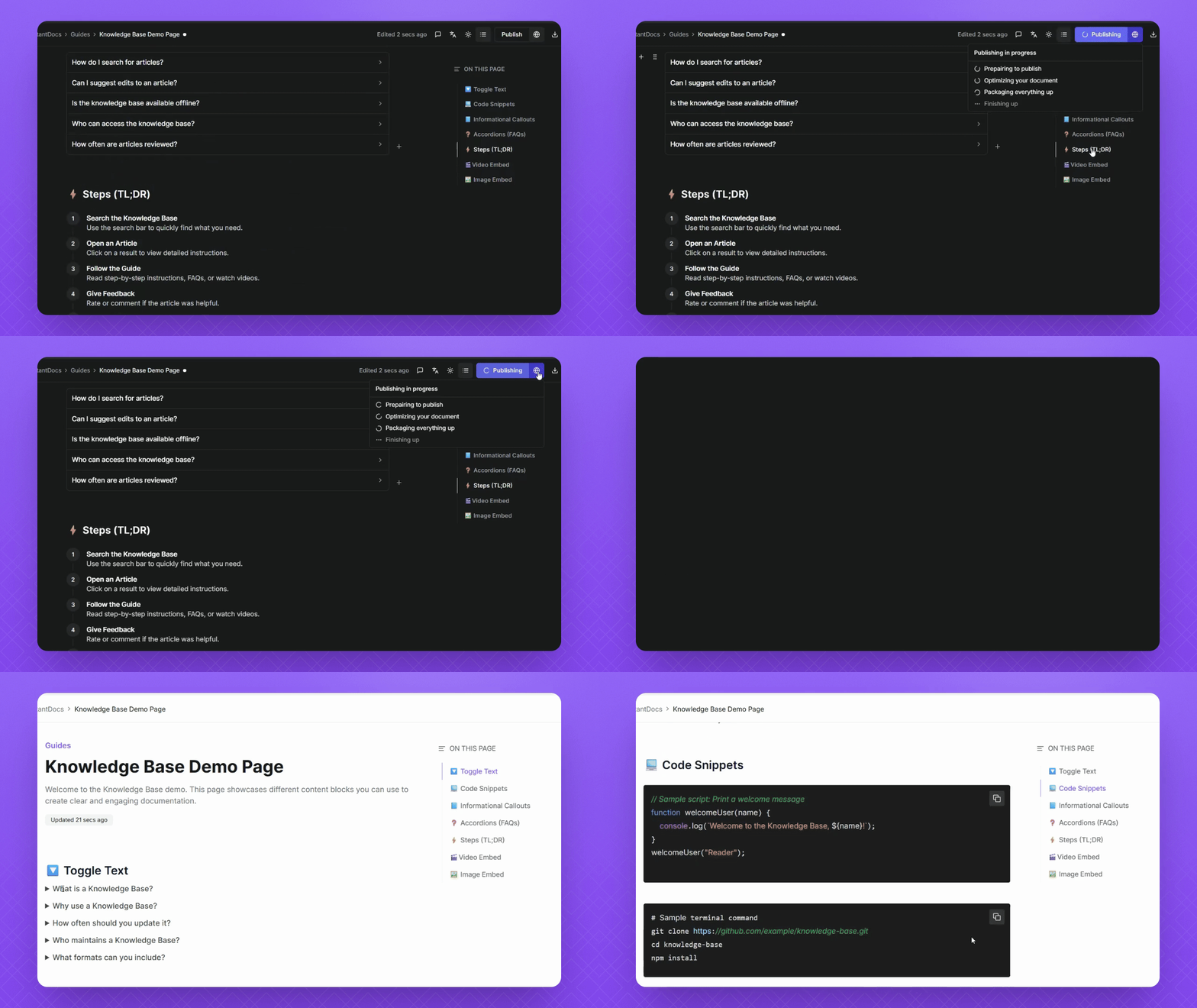
Preview your Doc and publish it.
Let's Do It Together!
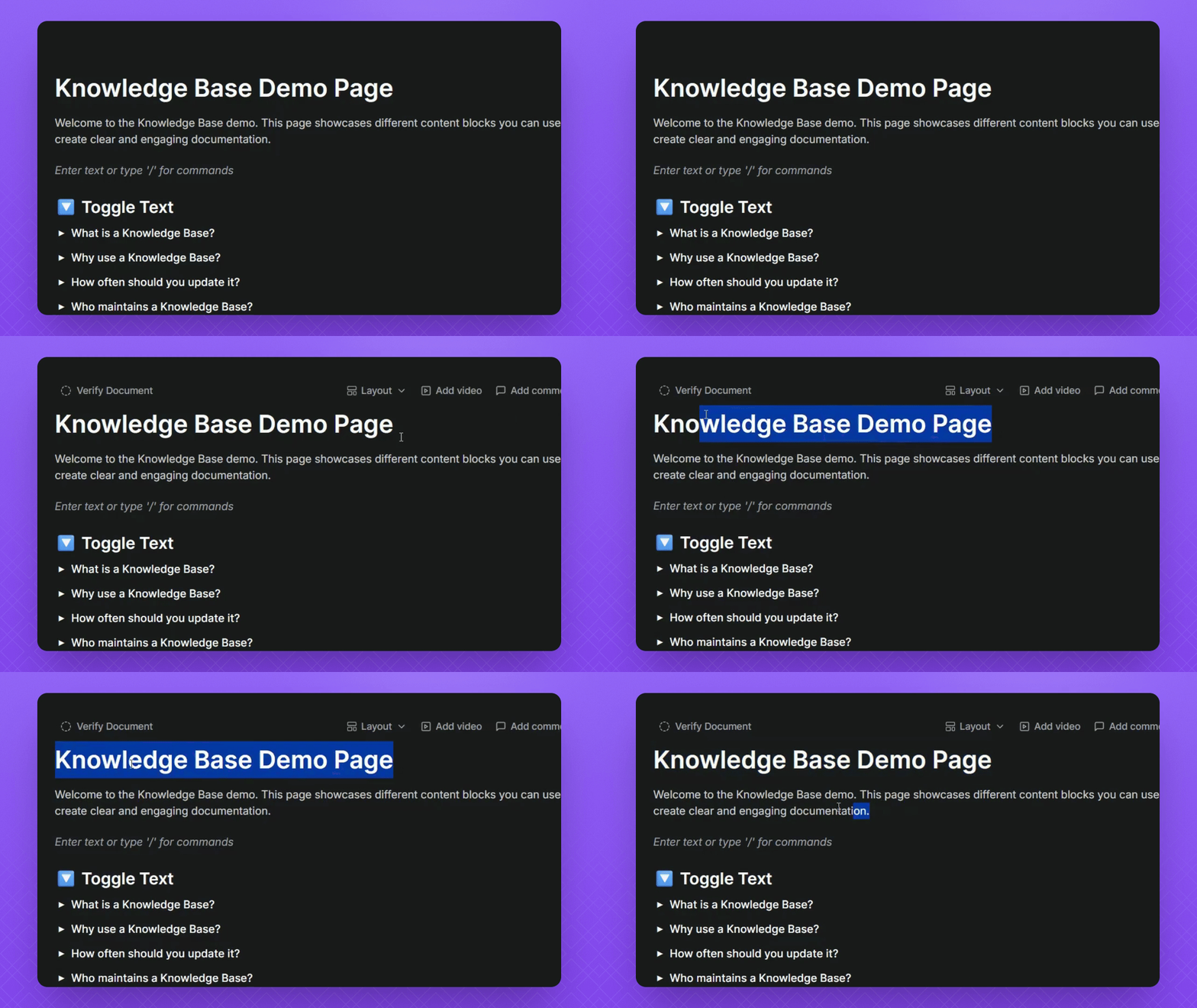
Step 1: Add Title and Description
Remember to add a title and description to your doc.
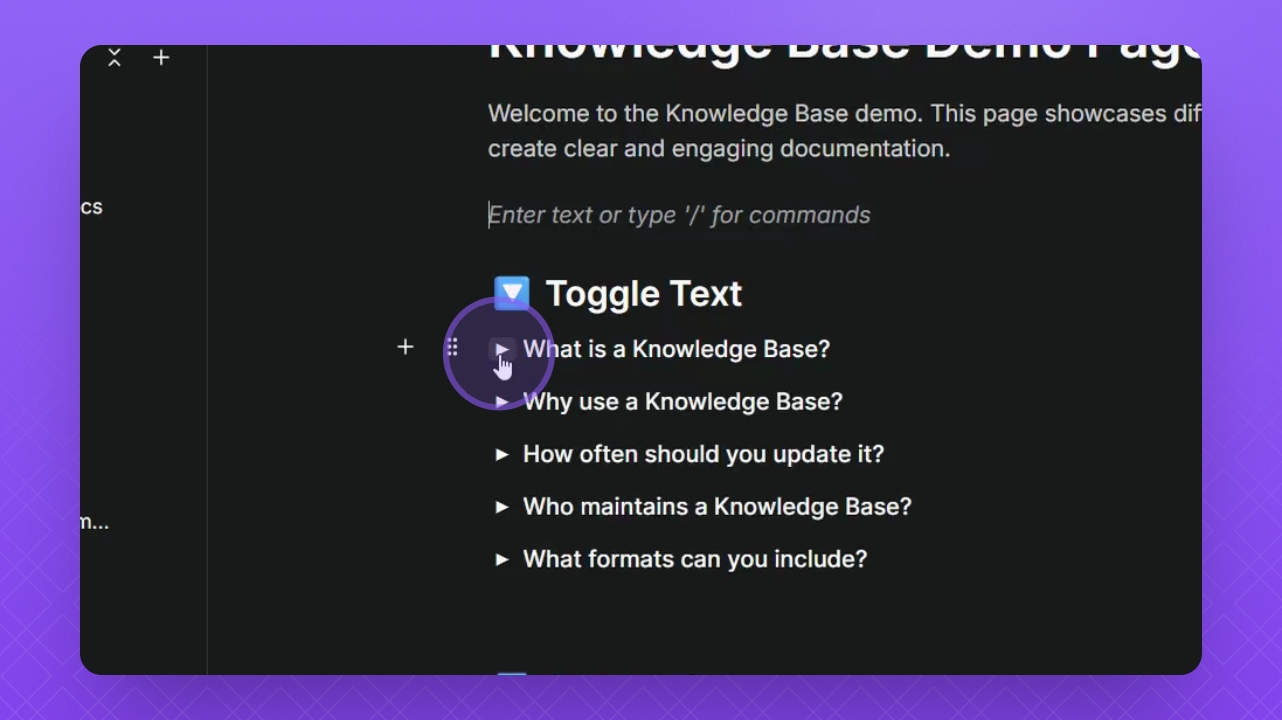
Step 2: Use Toggle Text
Click on the arrows to expand or collapse Toggle Text.
This helps keep your Doc clean and organized.
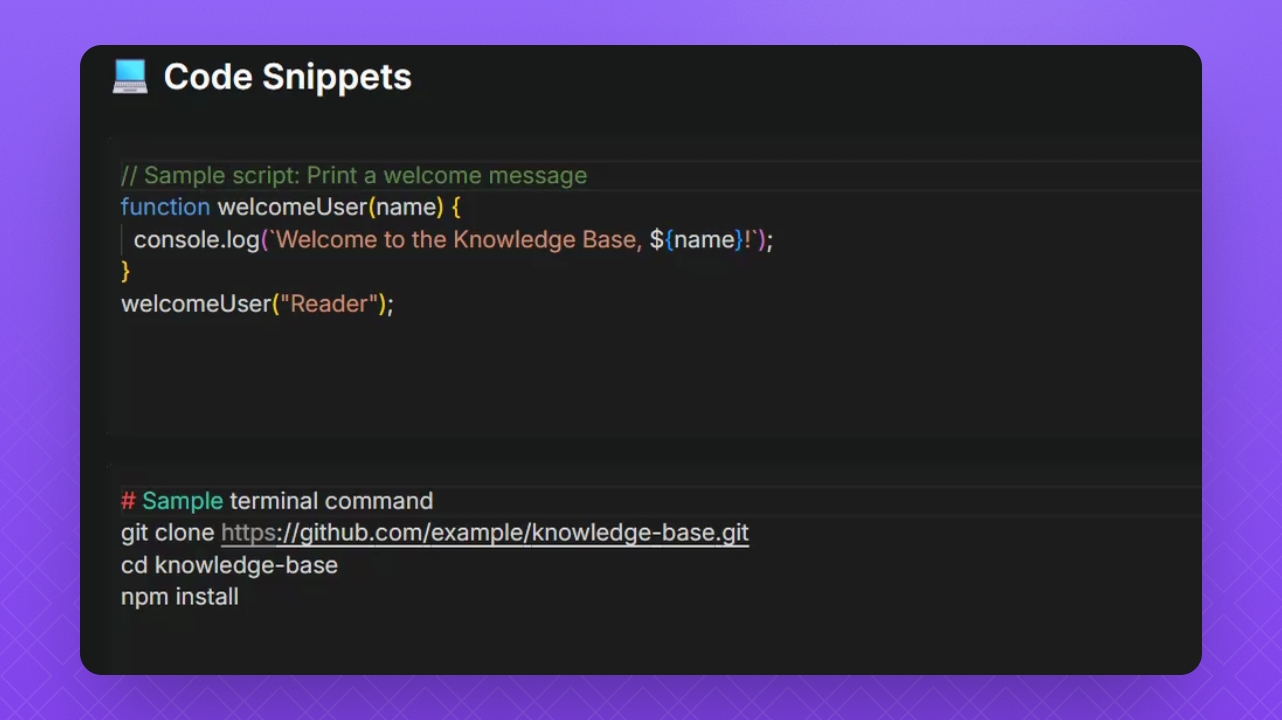
Step 3: Add Code Snippets
Use code snippets for technical documentation in any programming language.
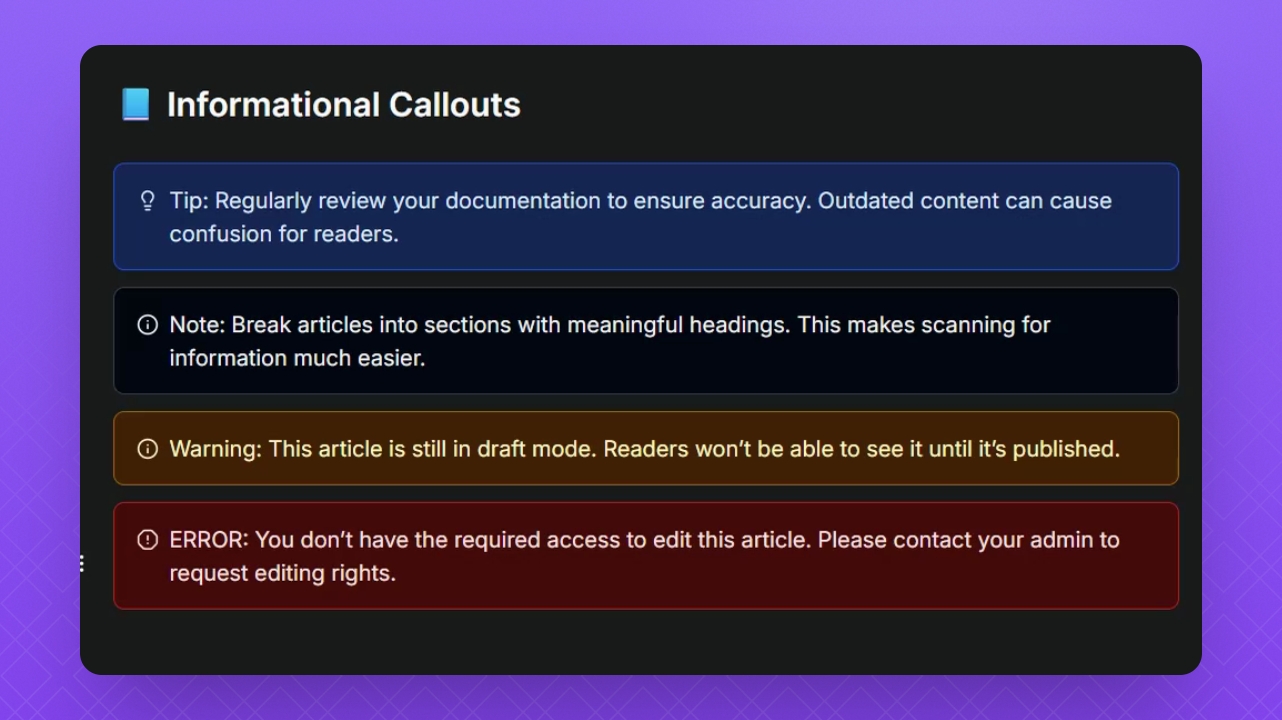
Step 4: Create Informational Callouts
Highlight key details, tips, or warnings using Informational Callouts.
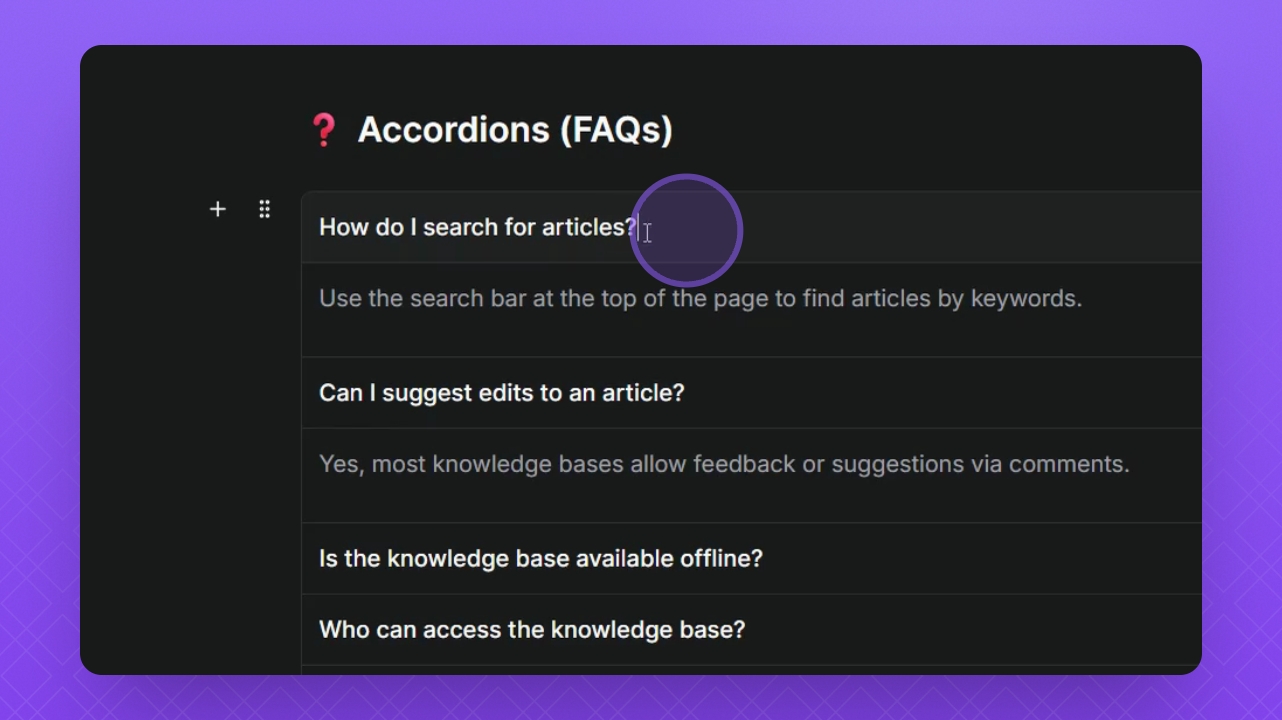
Step 5: Implement Accordions
Add questions in the title and answers in the description for FAQs.
Click the drop down arrows to expand or collapse.
You can add more fields or remove them using the plus and cross icons.
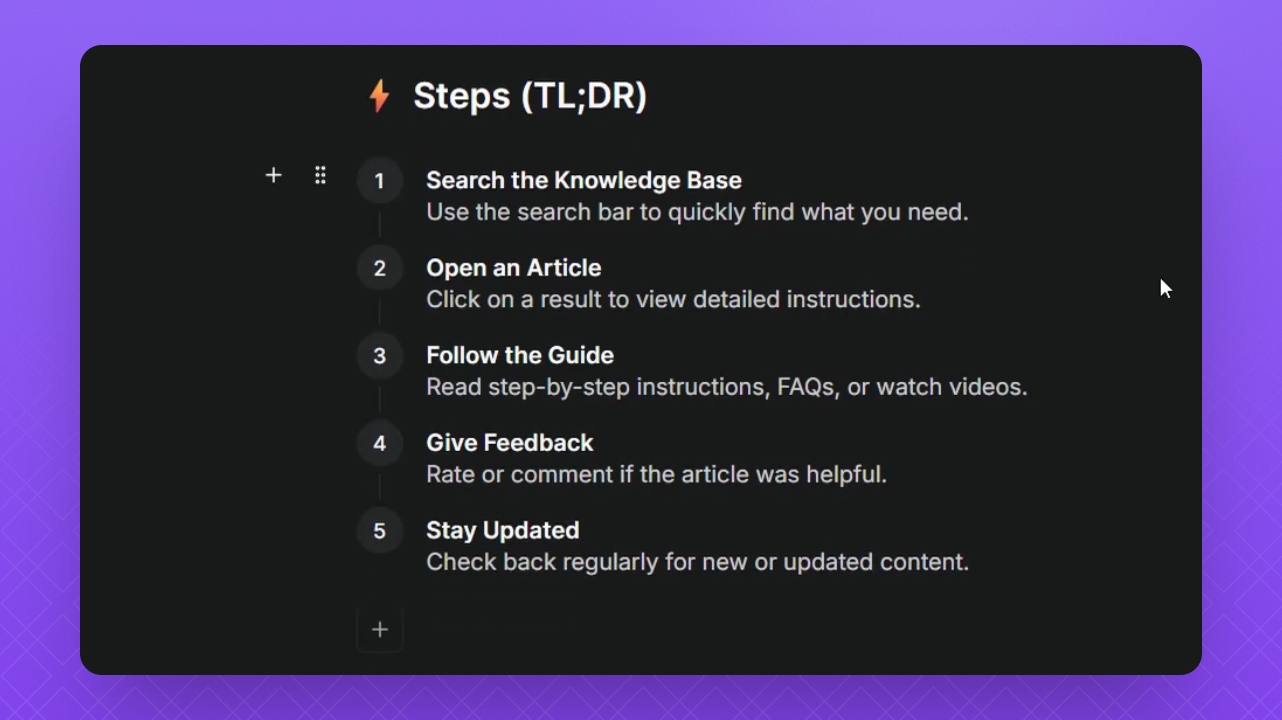
Step 6: Add TLDR Section
Utilize steps to create summaries for your docs.
Step 7: Embed Videos
Click the play button in the embedded YouTube video to access normal playback options.

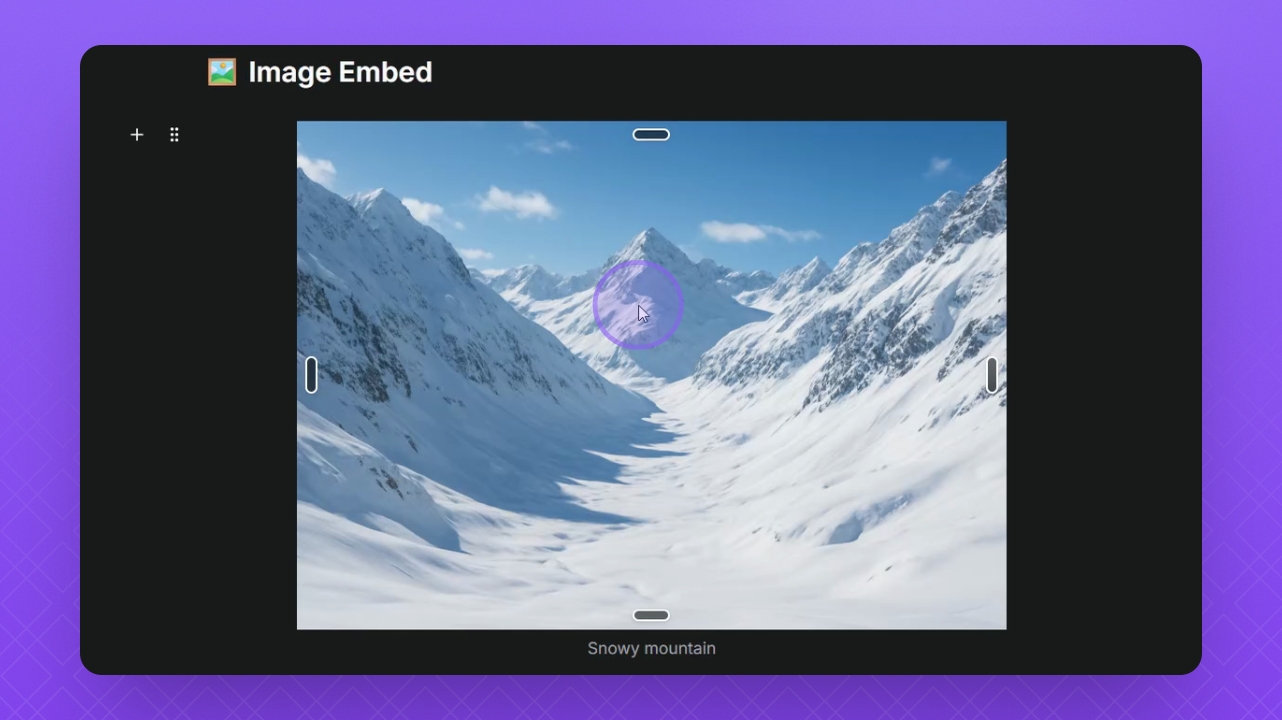
Step 8: Embed Images
Click on the image to highlight the toolbar, allowing caption addition and image replacement.
Use the Align buttons to position your image as needed.
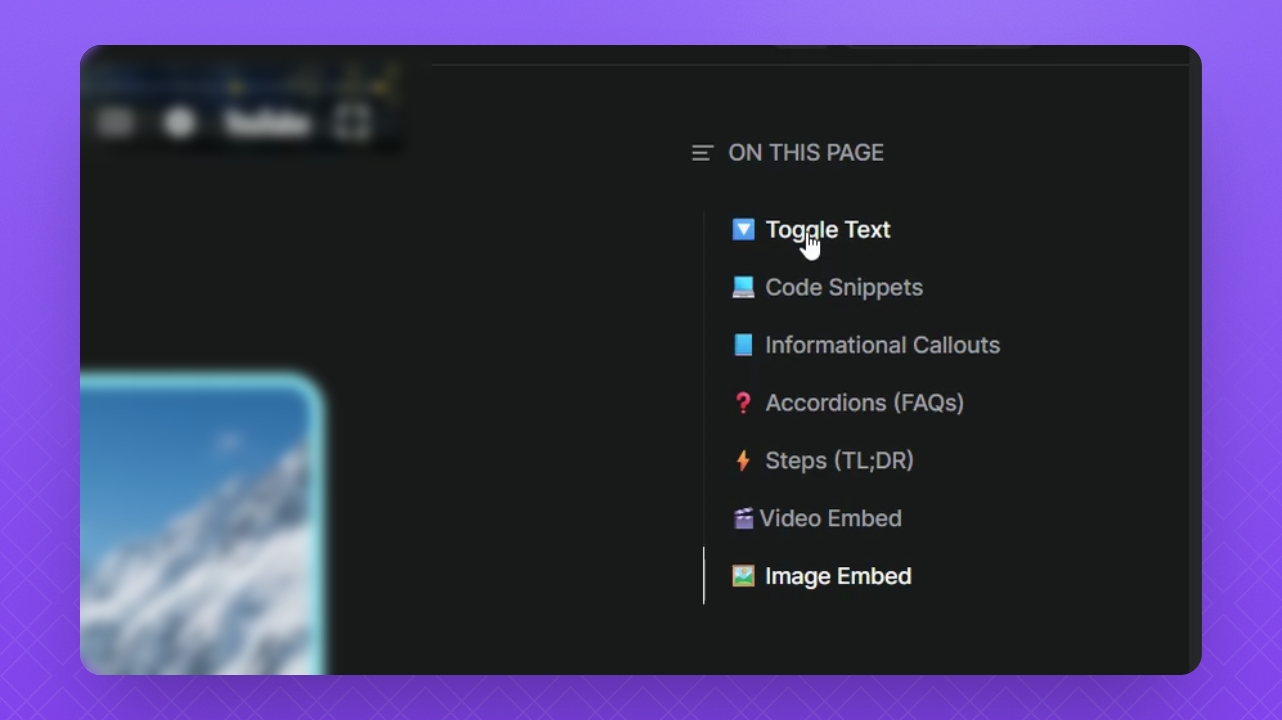
Step 9: Add Table of Contents
Click the Table of Contents button to enable it for your Doc.
Step 10: Add Content to Doc
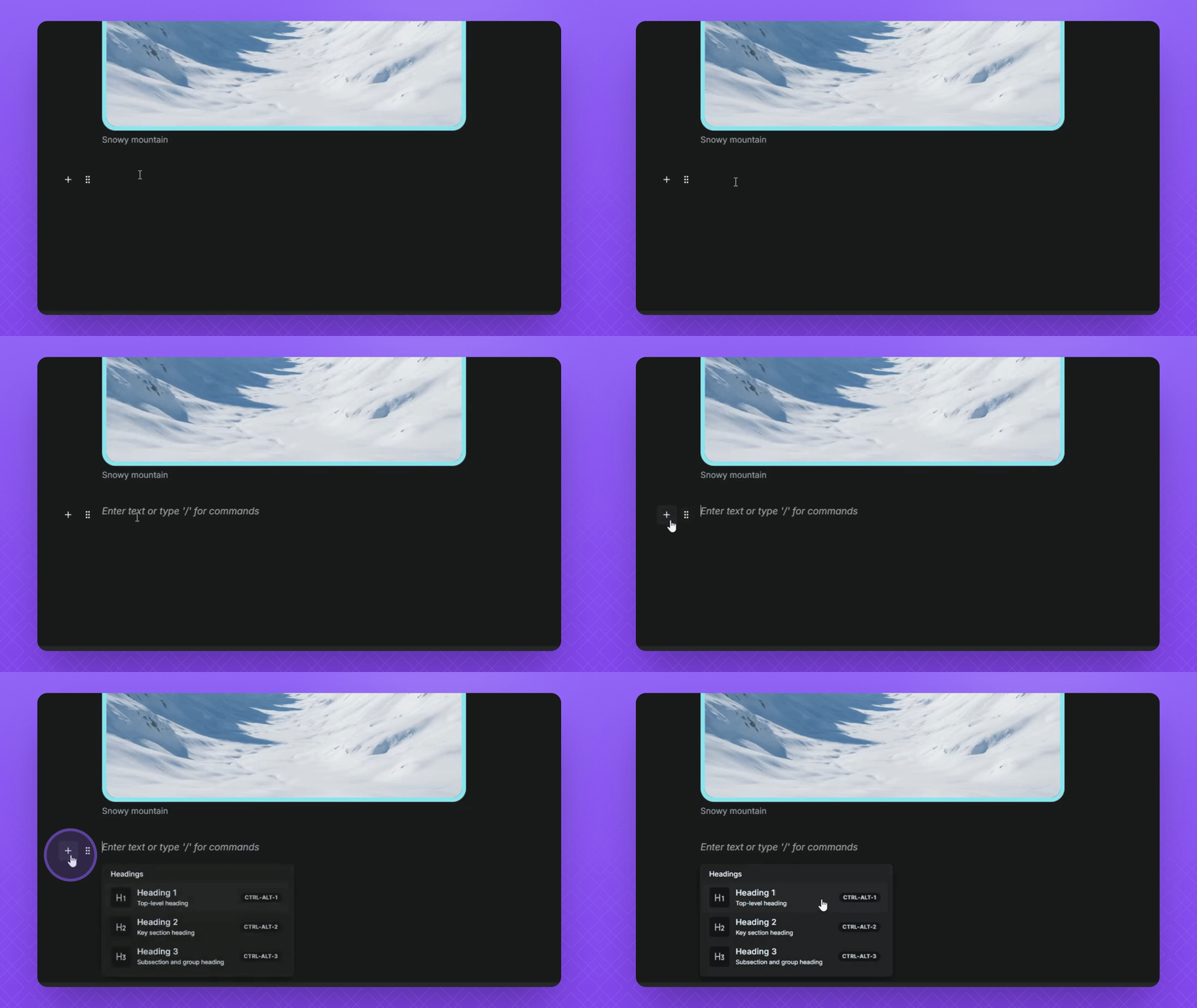
Click below to select an open field and add content.
Alternatively, type Forward slash and search for what you need.
Step 11: Preview and Publish
Click the Publish button to save changes.
Then click the globe icon to preview the public version of your Doc.