TL;DR
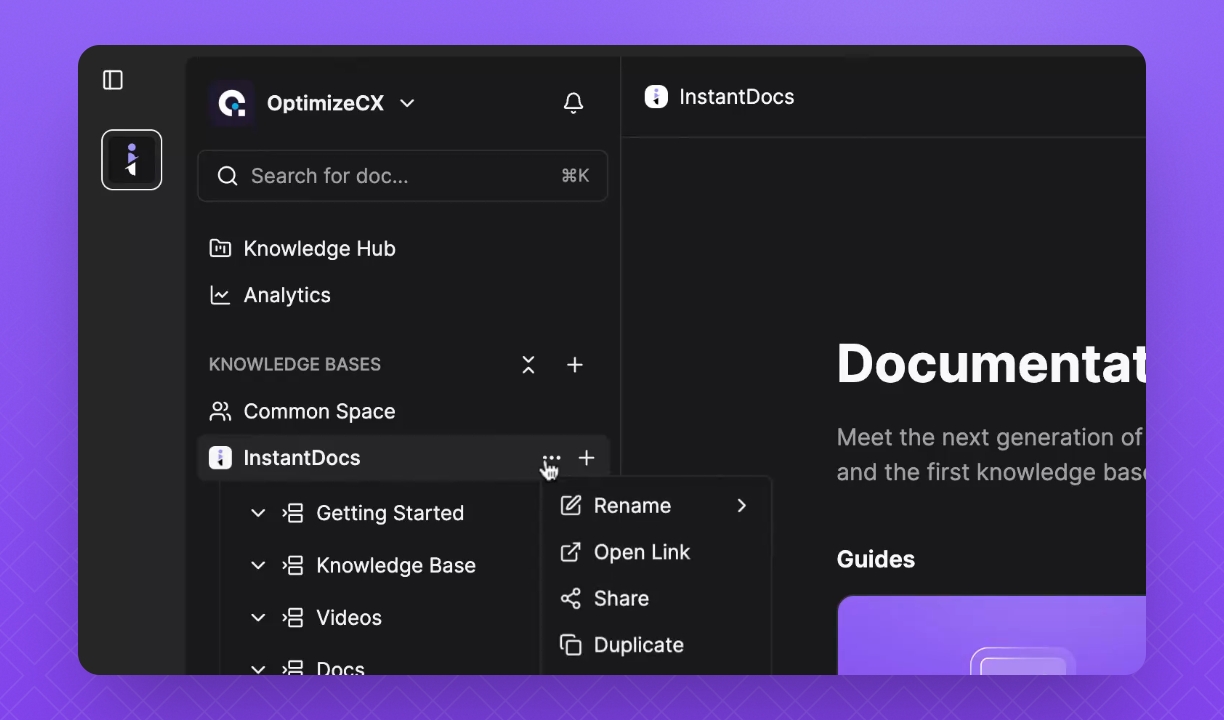
Hover over your Knowledge Base and click the three dots, then Settings.
Let's Do It Together!
1. Access Settings
Hover over your Knowledge Base and click the three dots.
Click Settings.
2. Modify Presets
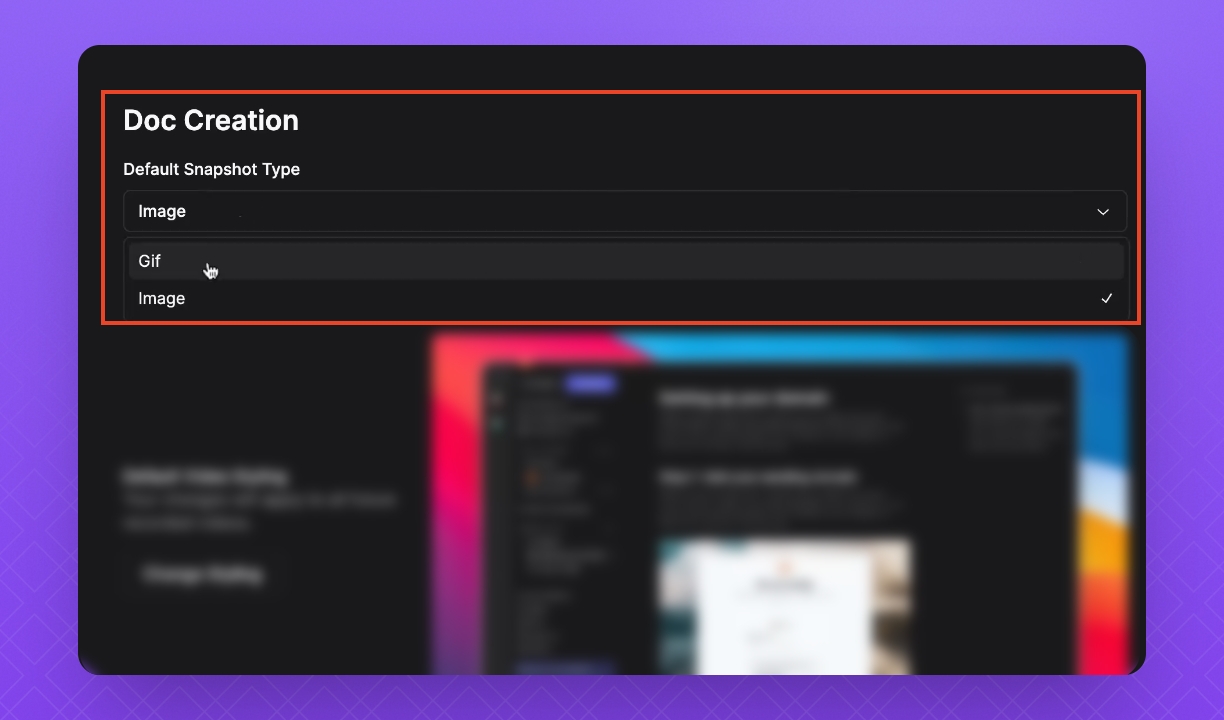
In the Knowledge Base Settings, click Presets.
Change your default snapshots from images or GIFs.
Now you can choose whether your Doc is generated with Images or GIFs.
3. Change Video Styling
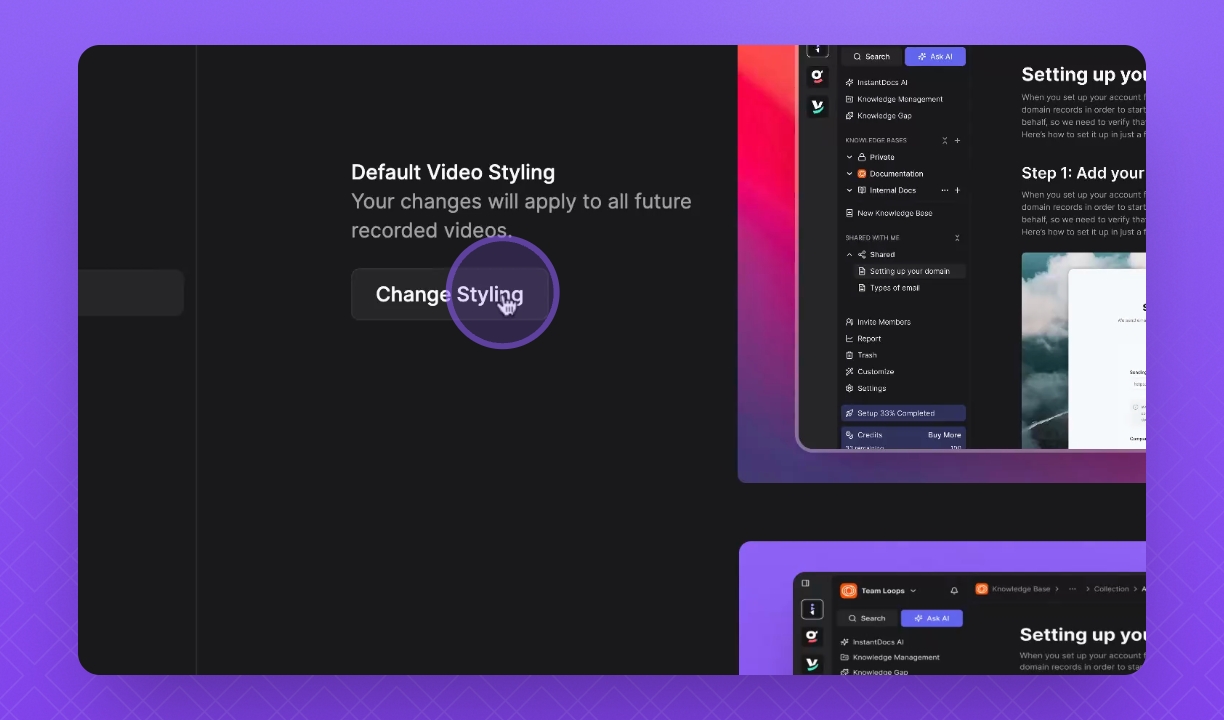
Click Change Styling to access the styling toolbar.
Modify the background, style, border stroke, round corner, shadow, and padding.
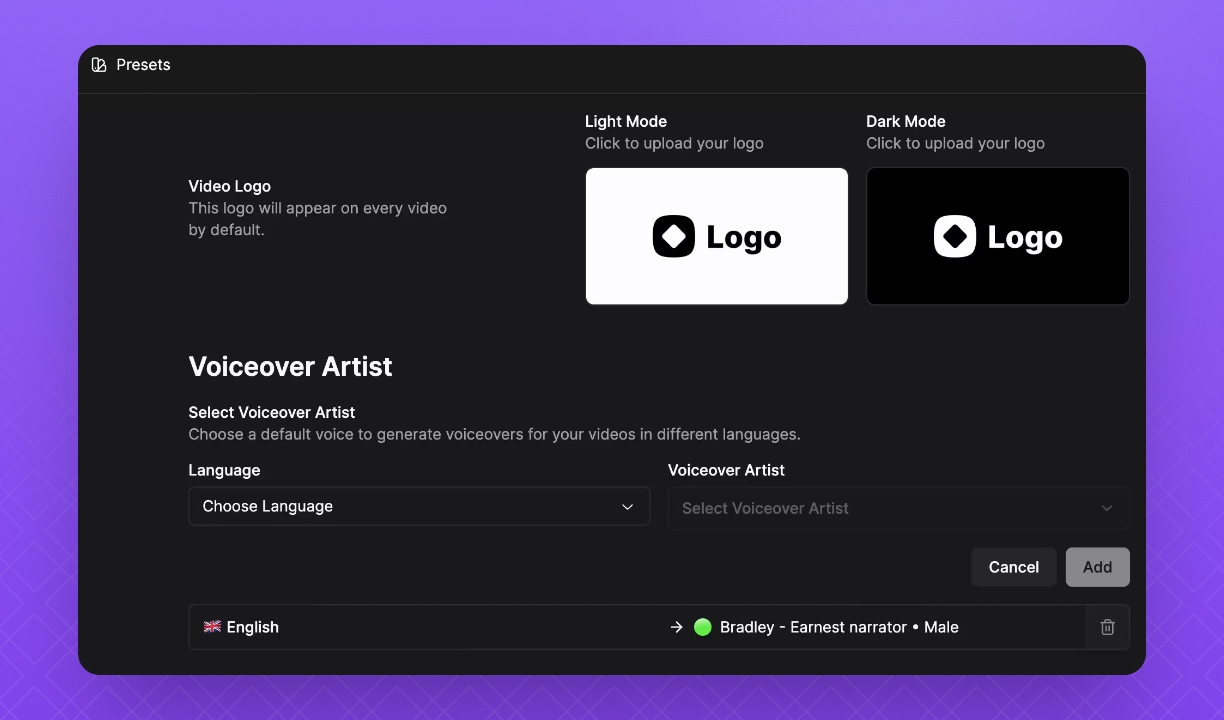
4. Upload New Logos and Voiceover
Upload new video logos for automatic inclusion in every recorded video.
Edit your voiceover artist by choosing the language and voice option.
Click Confirm and then Update to save changes.
5. Customize Brand Colors
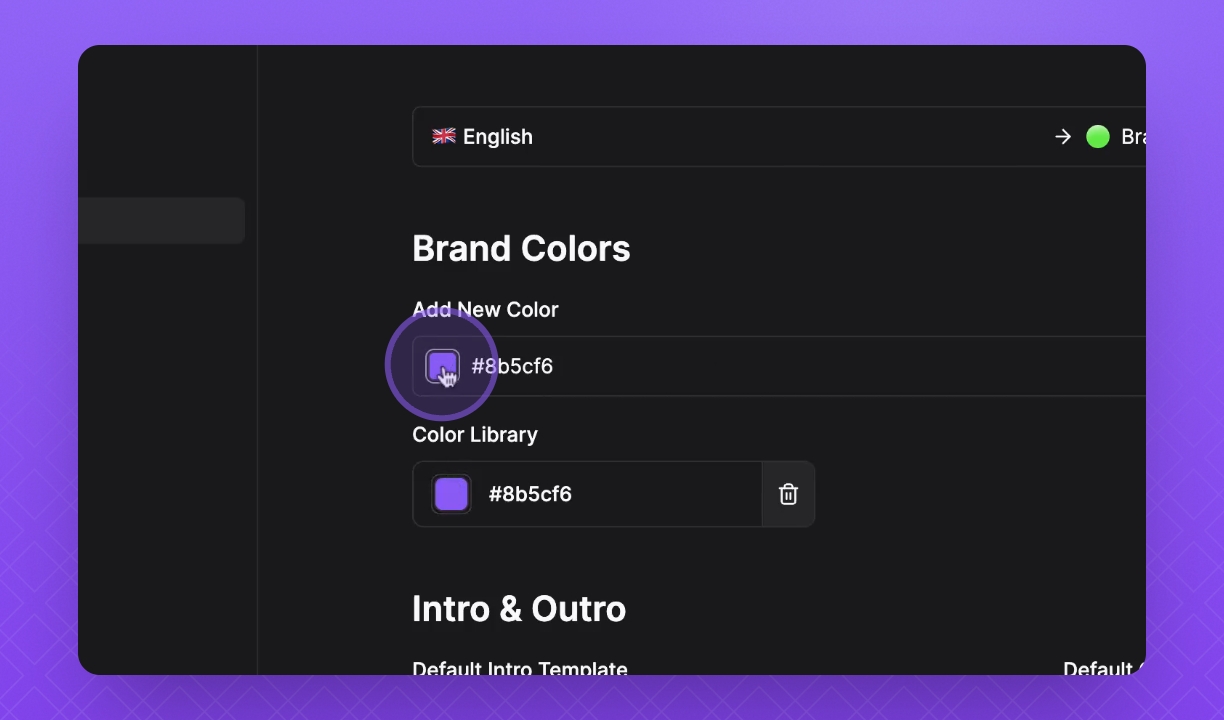
Add new brand colors by clicking on the color and changing as needed.
6. Update Intro and Outro Templates
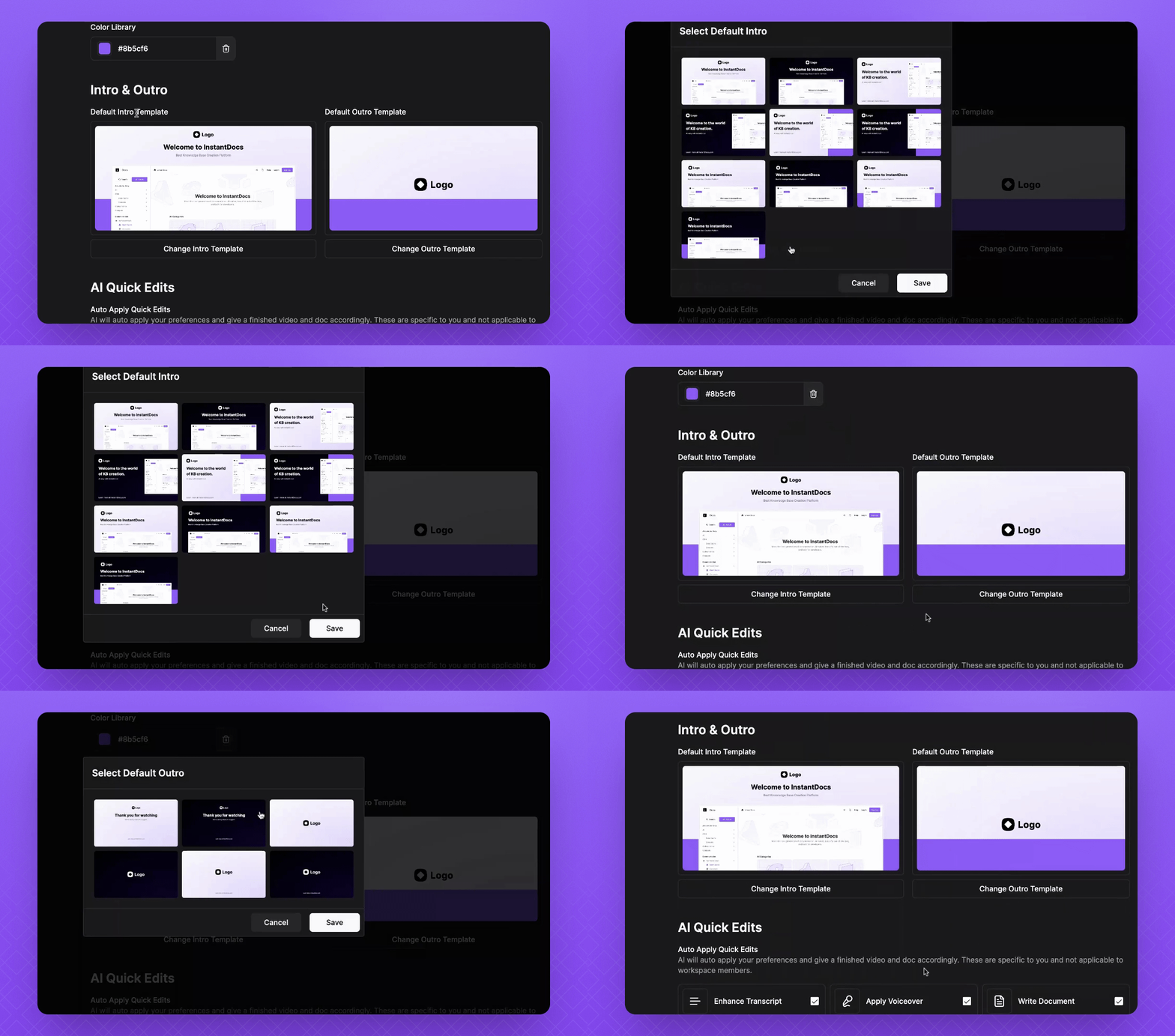
Click Change Intro Template and select your desired option.
Click Save once you have made your selection.
Repeat for the Outro Template.
Click Save now.
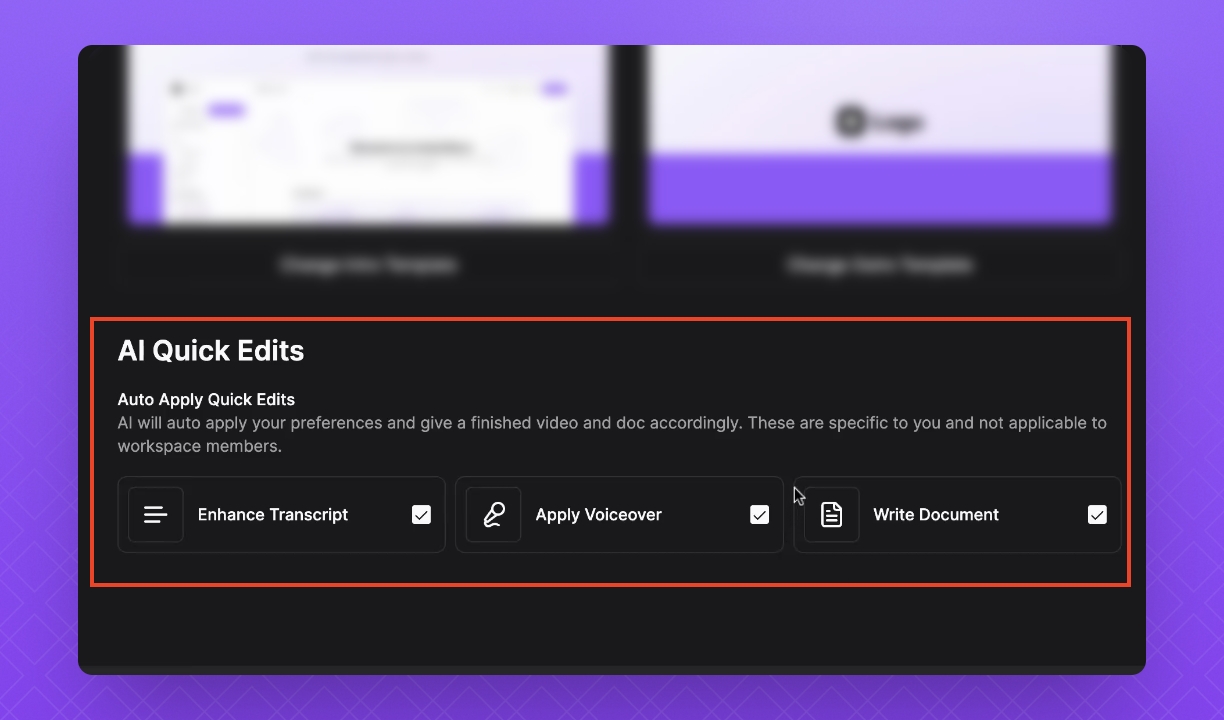
7. Enable AI Quick Edits
Access the AI Quick Edits section.
Choose to enhance your transcript which is the audio taken directly from your screen recording.
You can choose to automatically apply an AI voiceover.
Also choose to have it write your Docs automatically, creating a timeline, content, and snapshots.
This step is crucial for creating Docs effectively.