TL;DR
Access your Groove account settings through your profile icon.
Go to the Widgets tab and click edit.
Preview your InstantDocs Knowledge Base to test the Groove widget.
Let's Do It Together!
Step 1: Access Groove Settings
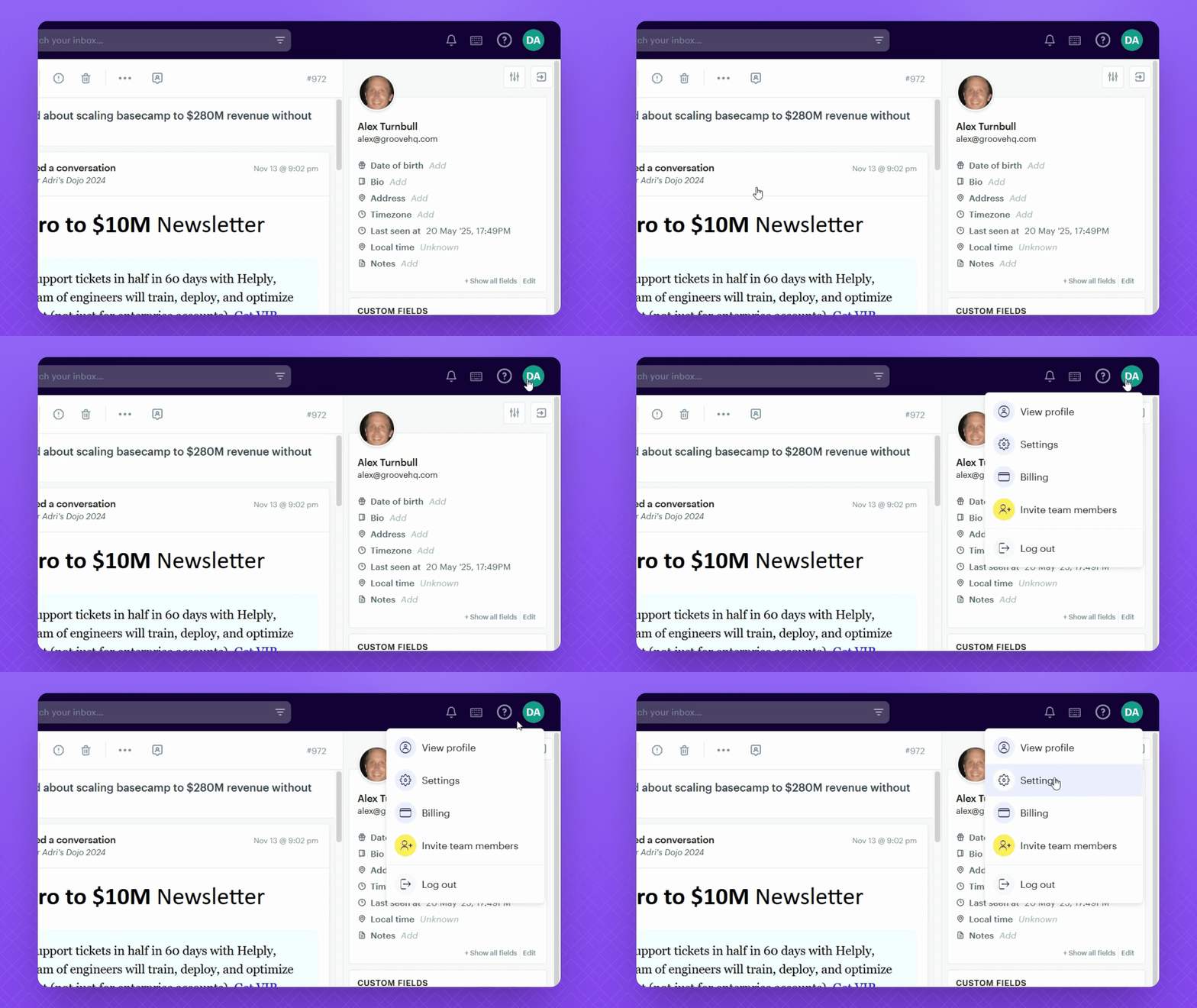
Click your Profile icon within your Groove account.
Select Settings.
Step 2: Edit the Widget
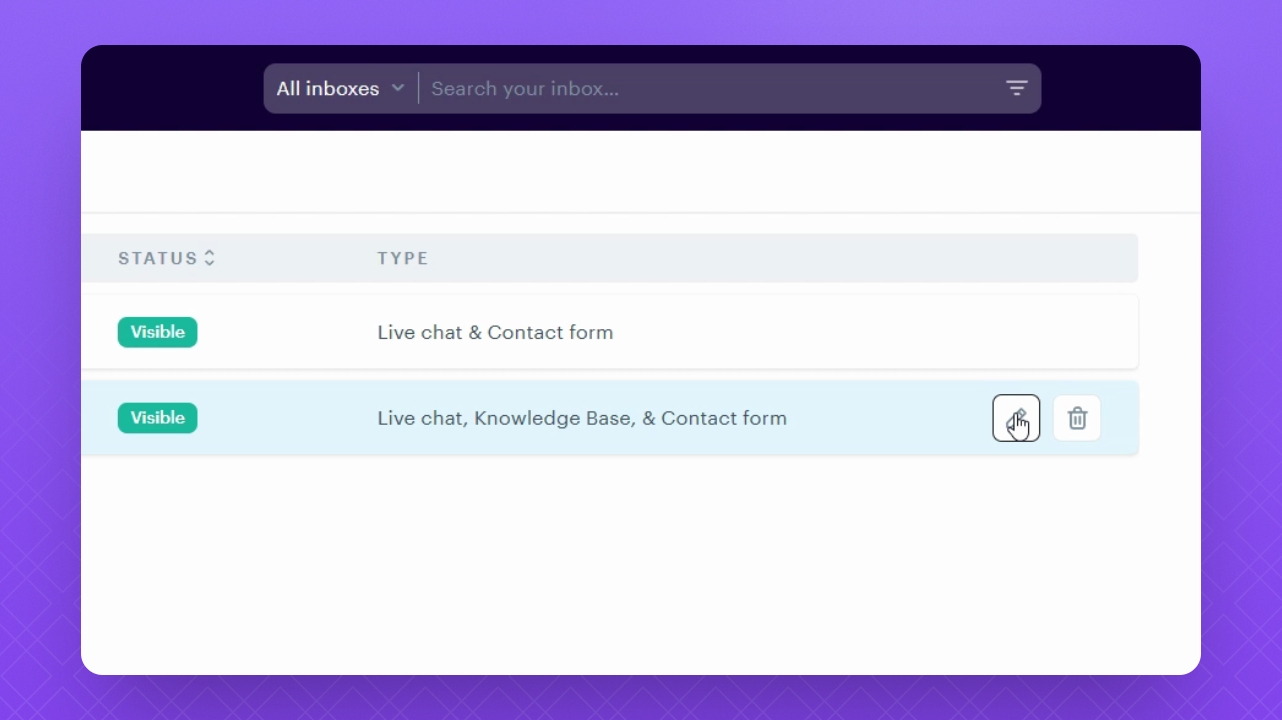
Navigate to the Widgets tab in the left side panel.
Click the Edit button for the widget you'd like to install.
Step 3: Configure the Widget Code
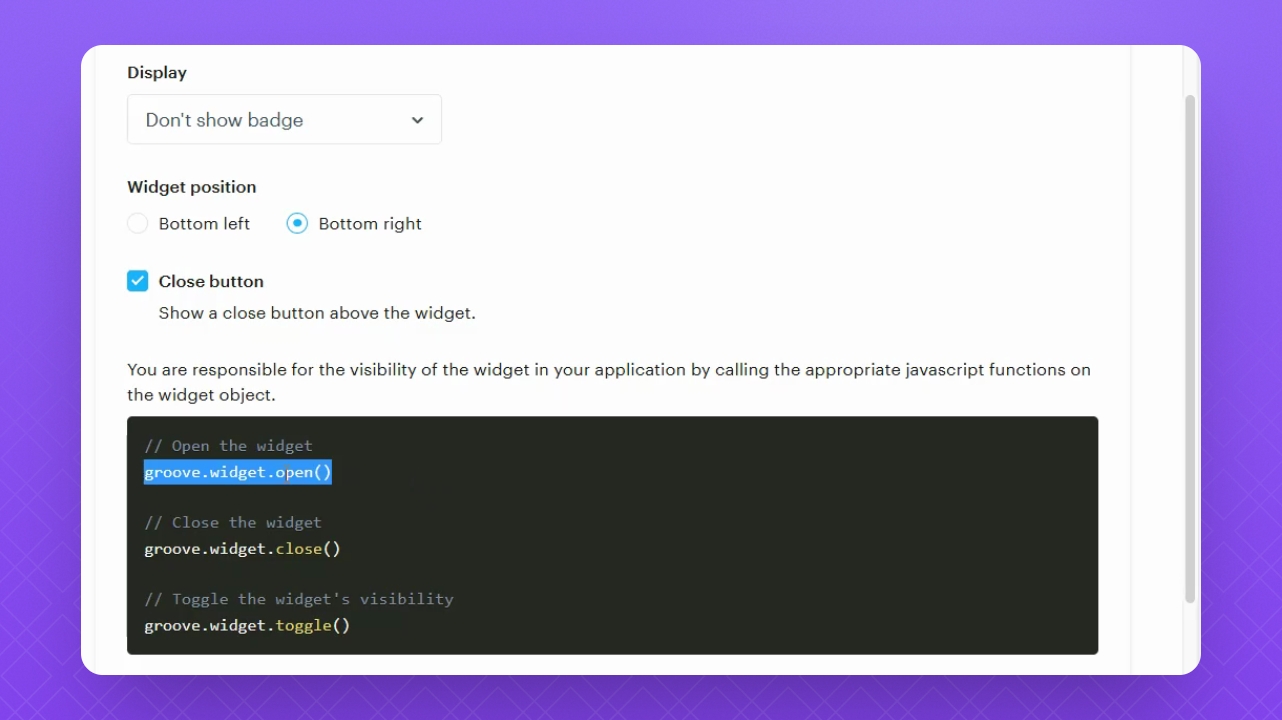
If using the button style "Don't Show Badge", copy the relevant code to ensure the widget opens.
For example, add the "groove.widget.open()" snippet before the script break in your Widget code.
Your widget will now open on the page if set up correctly.
Step 4: Publish Changes
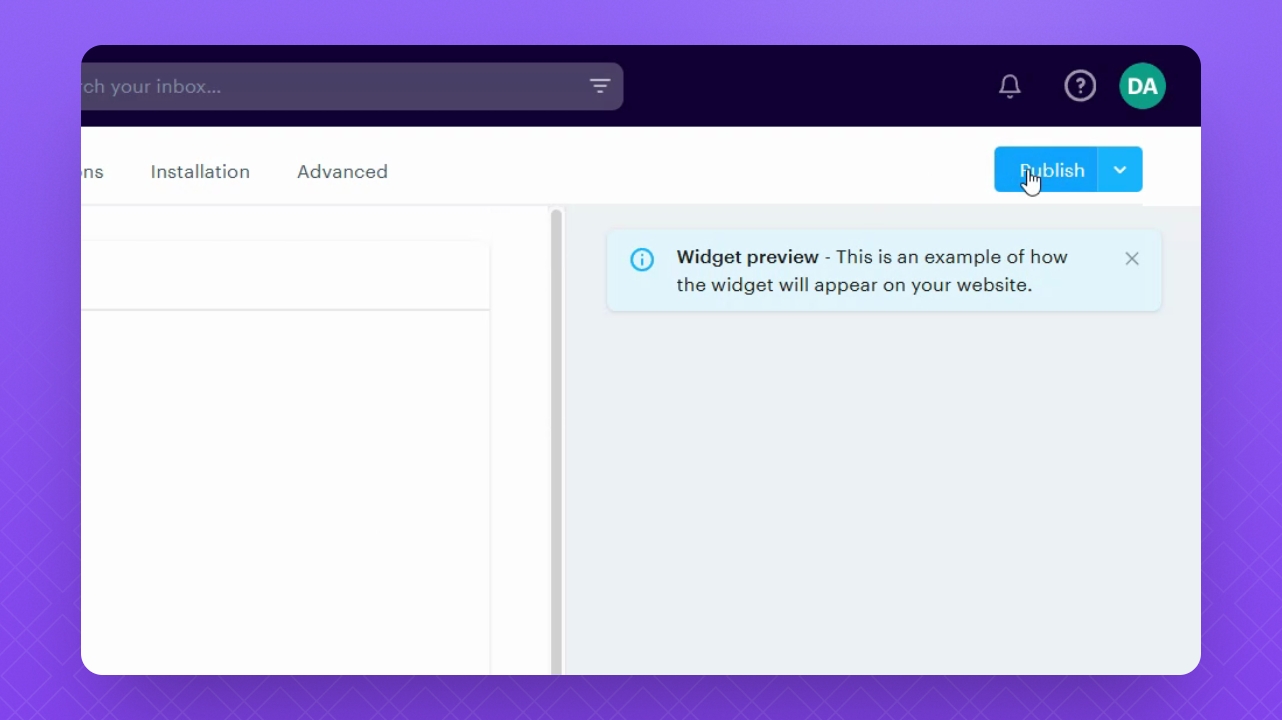
Click the Publish button to make any widget changes live on your InstantDocs Knowledge Base page.
Step 5: Obtain Widget Code
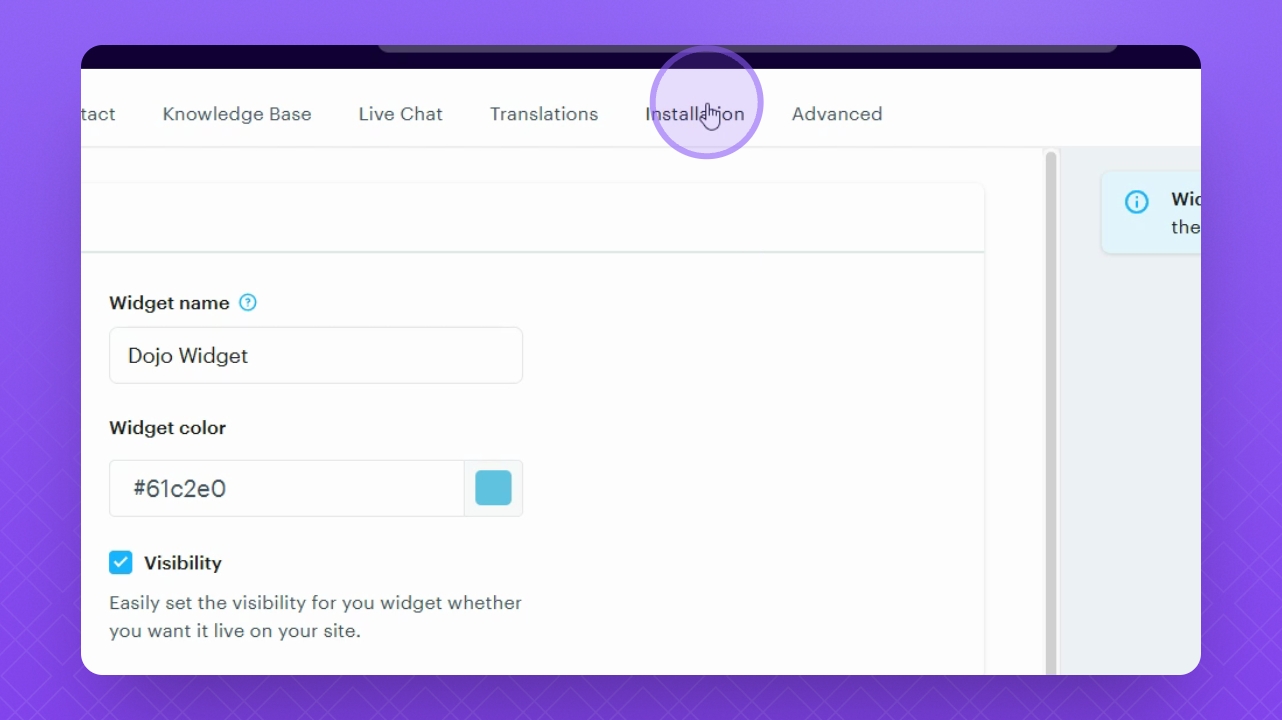
Click the Installation tab.
Click the Copy Code button.
Step 6: Navigate to Instant Docs
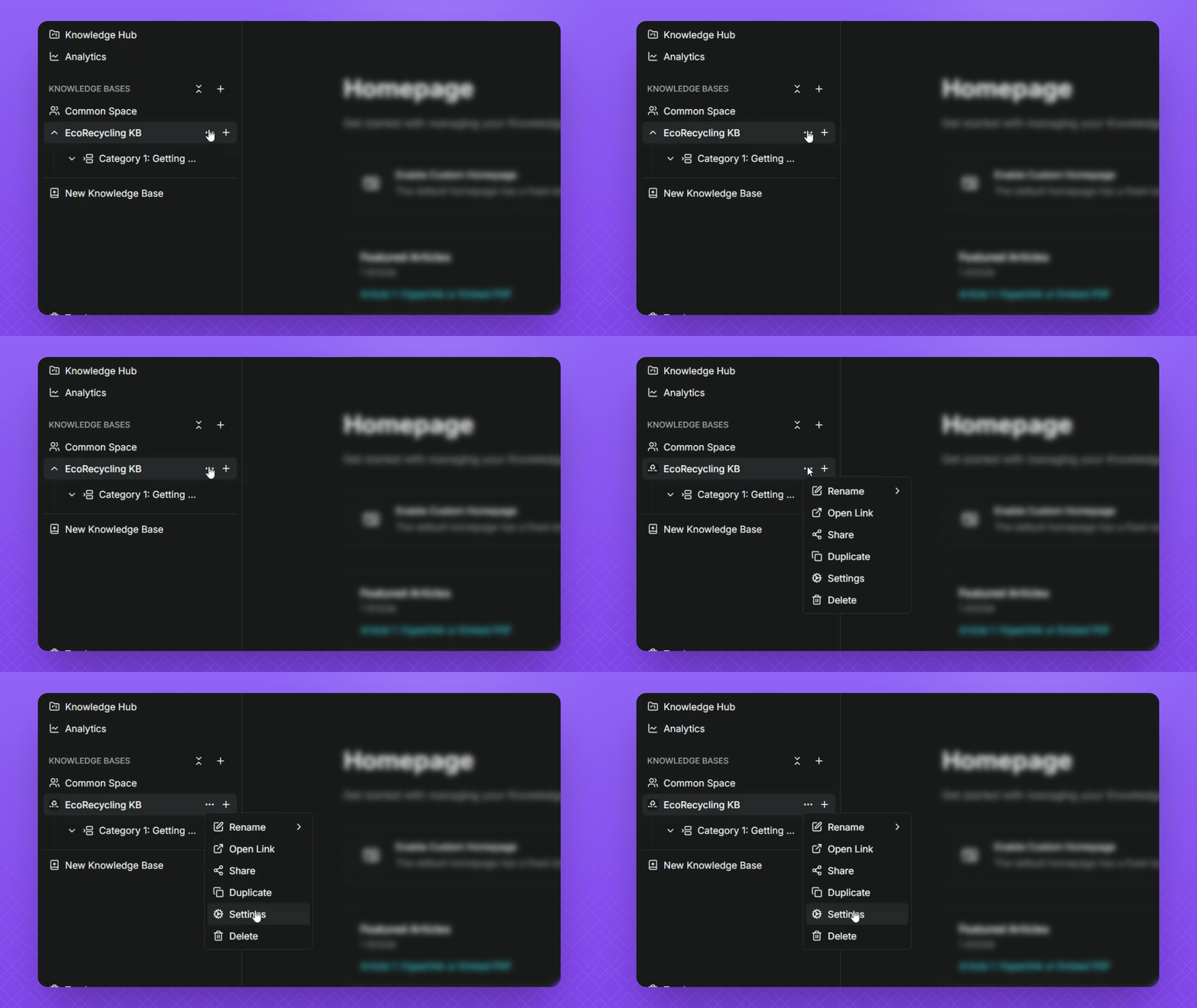
Hover over your Knowledge Base name.
Click the three dots, then select Settings.
Select the Advanced tab.
Enter your Widget installation code within the Body Tags section.
Step 7: Save Changes
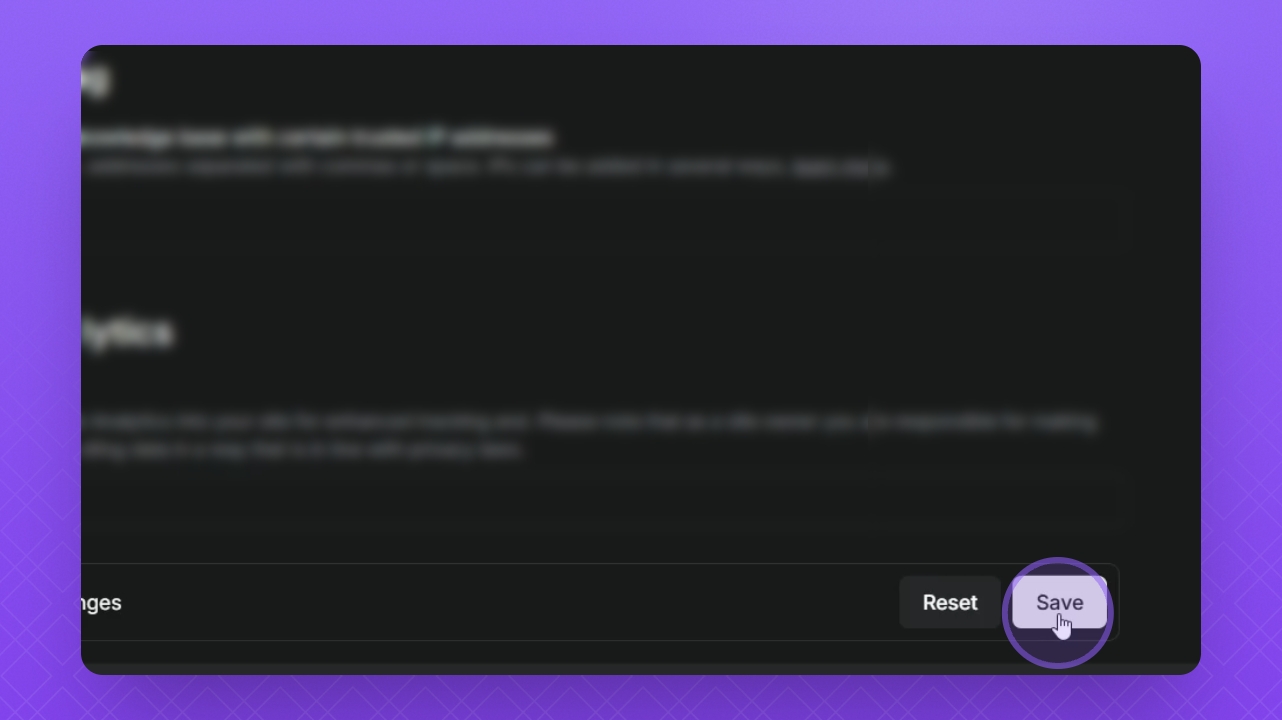
Click Save Changes.
Step 8: Preview Your Knowledge Base
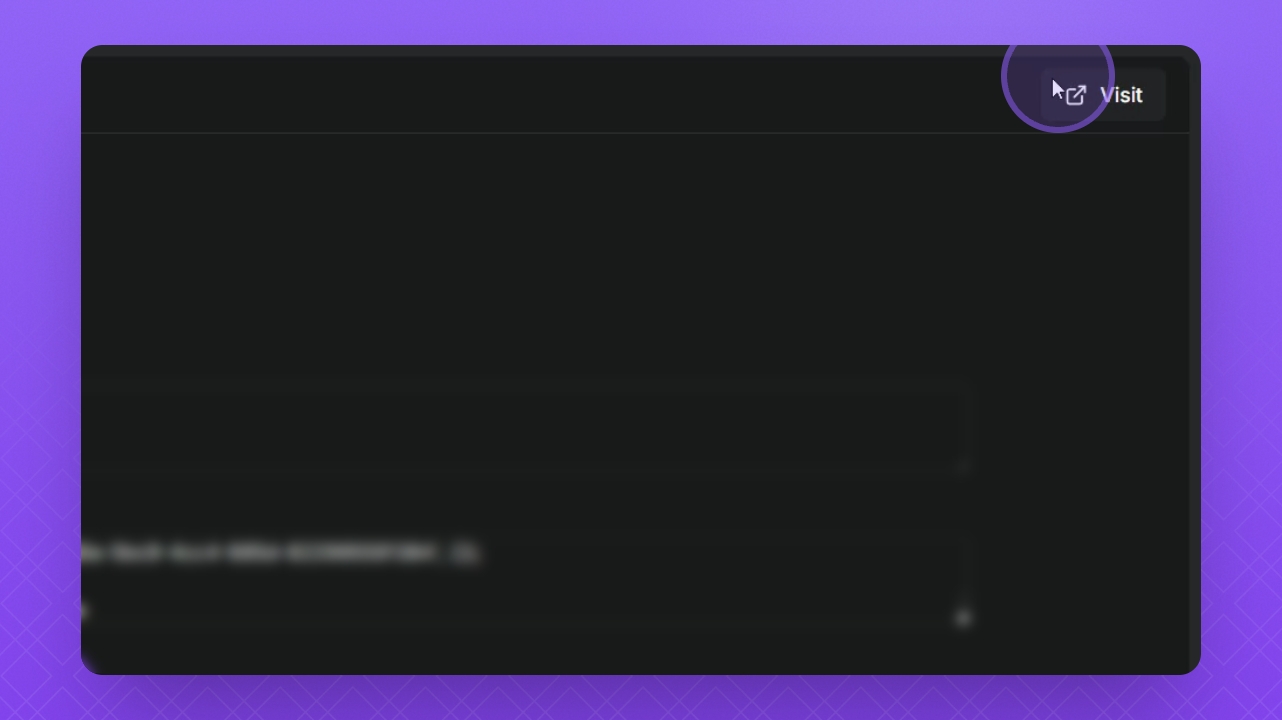
Click the Visit button in the top right corner.
Check the bottom right corner for your widget.
Click the widget to test its functionality.
Your Groove Widget is now live within your Instant Docs account.