

TL;DR
1
Access Share options
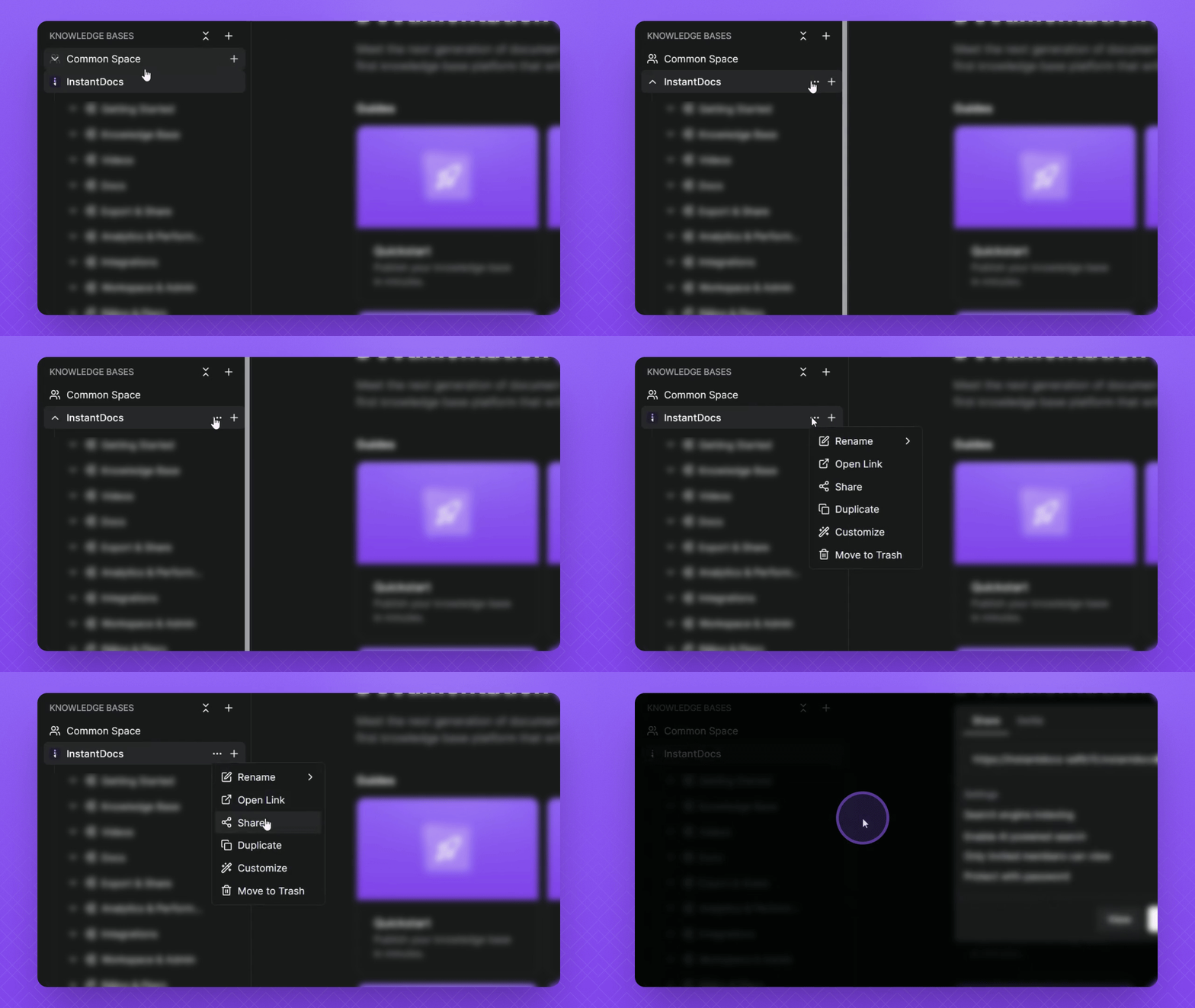
Hover over your knowledge base, click the three dots, then select Share
2
Configure visibility
Enable search indexing or invite-only based on your needs.
3
Set password protection
Use password protection on its own, or alongside invite access if desired.
4
Test your settings
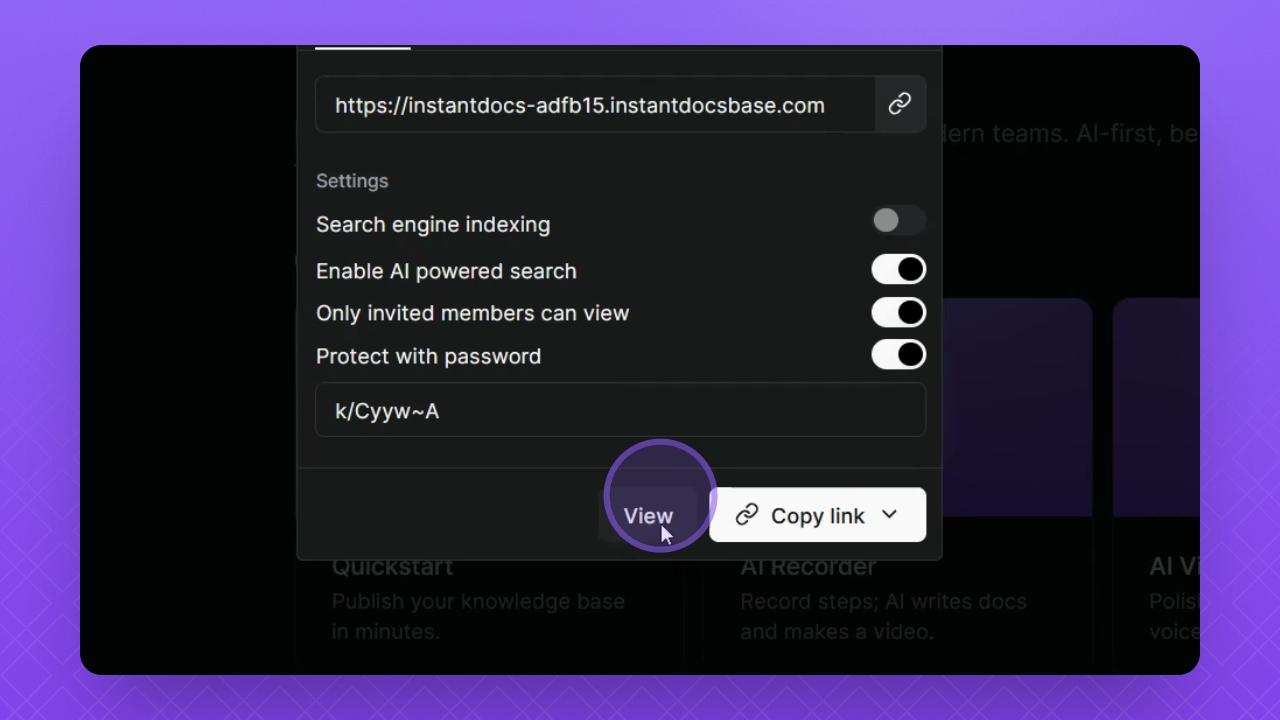
Click View to see access restrictions in action.
Let's Do It Together!
Step 1: Access Share Options
Hover over your knowledge base.
Click the three dots, then select Share.
Step 2: Configure Visibility Settings
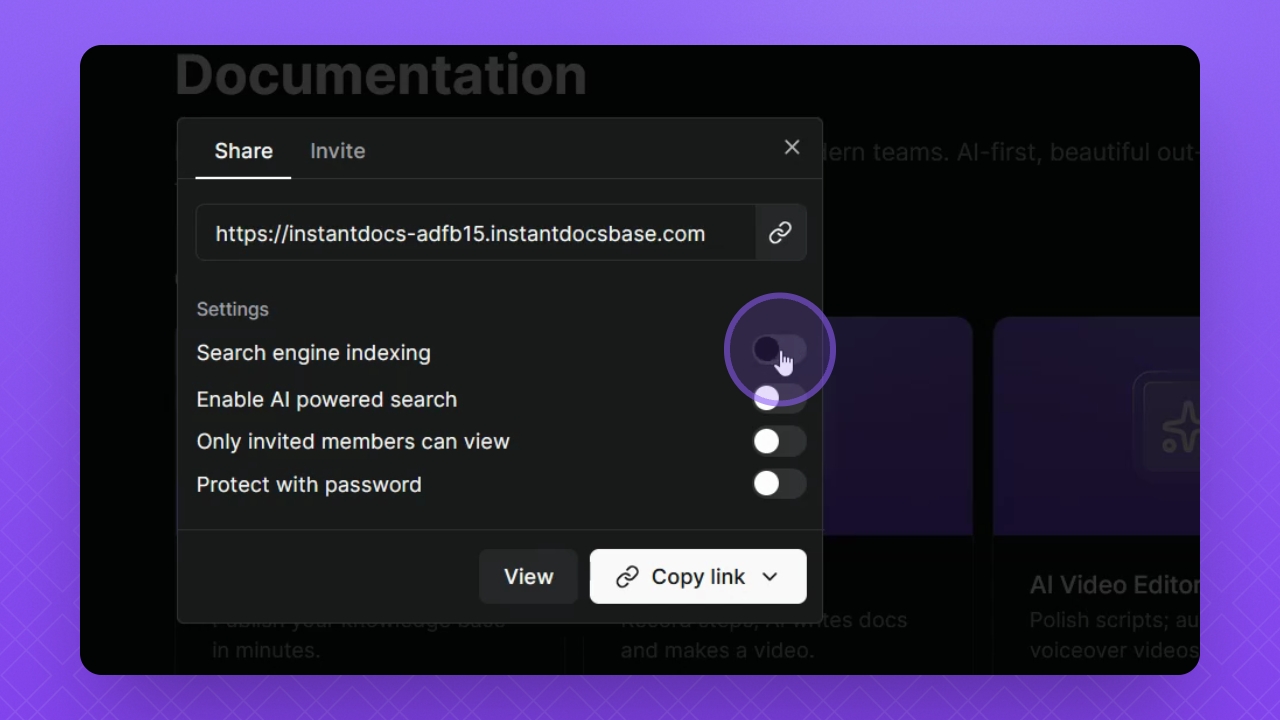
Enable Search engine indexing to make your knowledge base visible to customers and search engines.
Select Invite Members only to restrict access to invited users.
Toggle the options as needed for your use case.
Based on your selection, configure whether search indexing is enabled or disabled.
Step 3: Set Password Protection
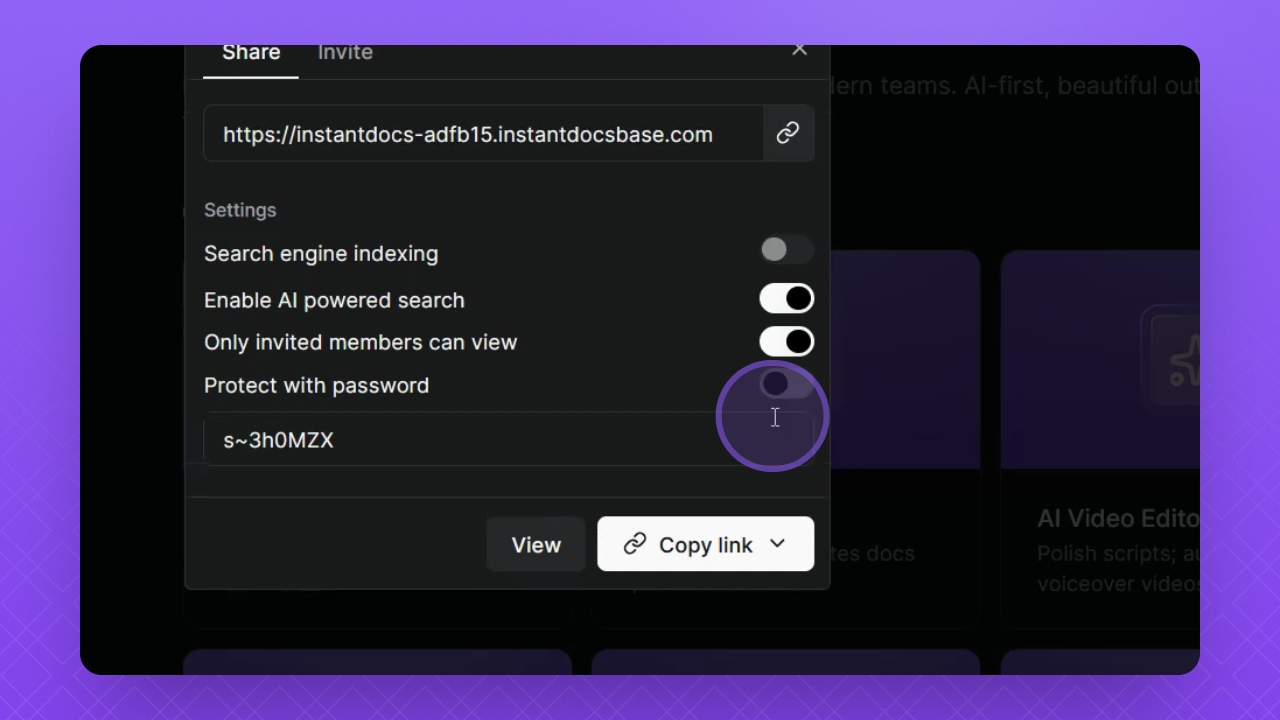
Choose the Protect with Password option if you require password protection.
Anyone with a link can view the knowledge base but need a password now to view it.
Change the password if needed; it will be generated at the bottom.
Password protection can also be used alongside the "Only invited members can view" setting for a extra layer of security, but is is not required.
Step 4: Test Your Settings
Click the View button to generate a public view of your knowledge base.
You will see that only invited users can access the knowledge base based on your settings.
Troubleshooting
Password not working
Verify that the password entered matches the generated password.
FAQ
What is search engine indexing?
It allows your knowledge base to be found via search engines and public link.
Can I combine password protection with invite-only access?
Yes, you can enable both for a extra layer of security.