

TL;DR
1
Access Knowledge Base Settings
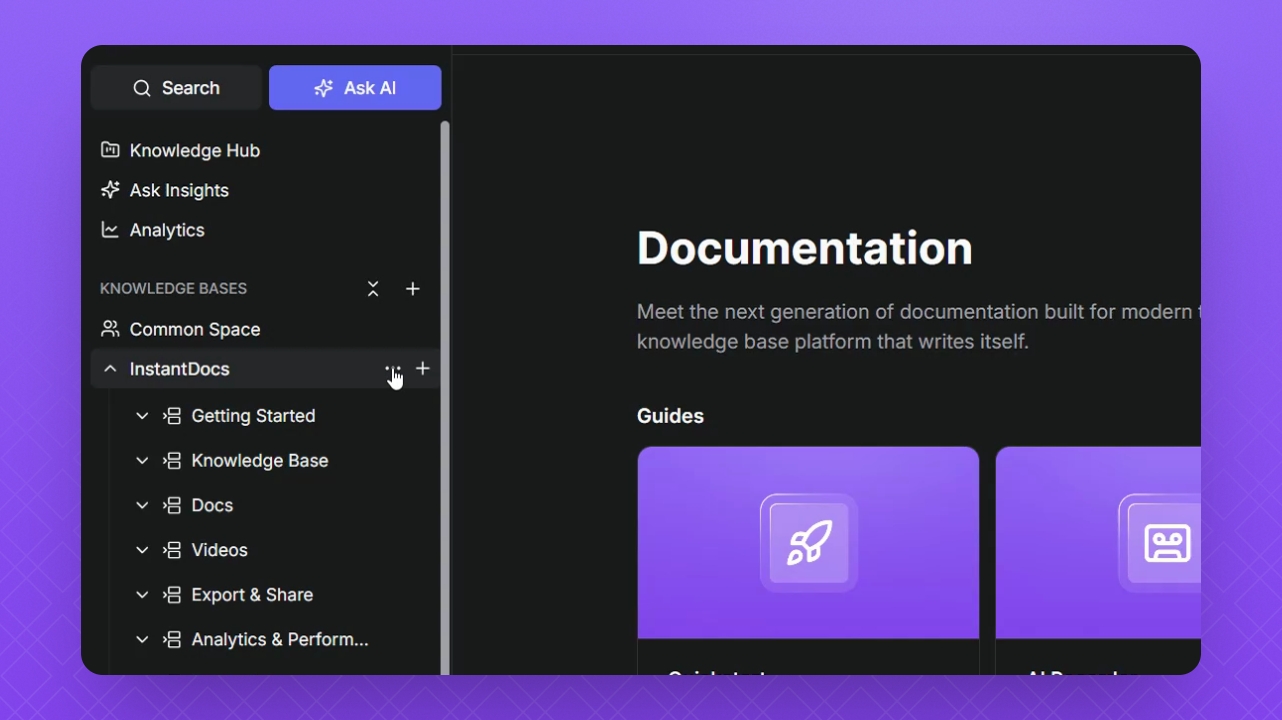
Hover over your knowledge base, click the three dots, and select Settings
2
Edit header and footer
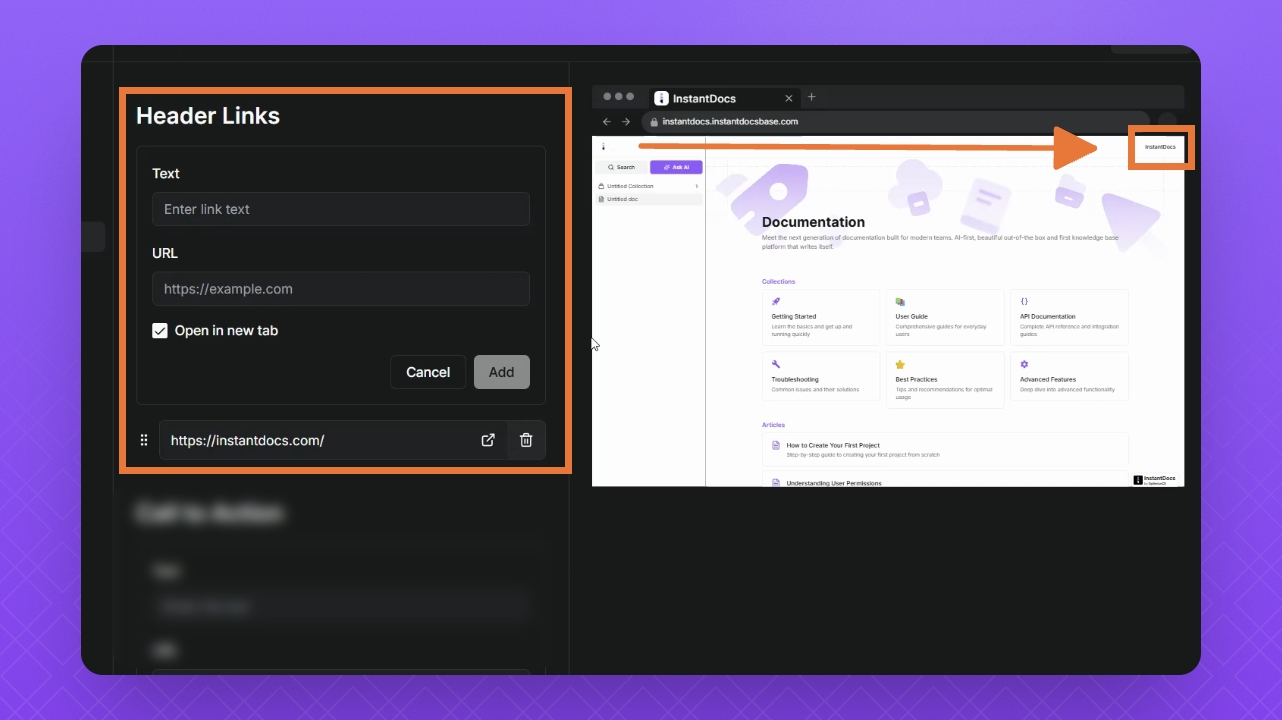
Go to Header and Footer tab to edit text and add URL.
3
Add call to action
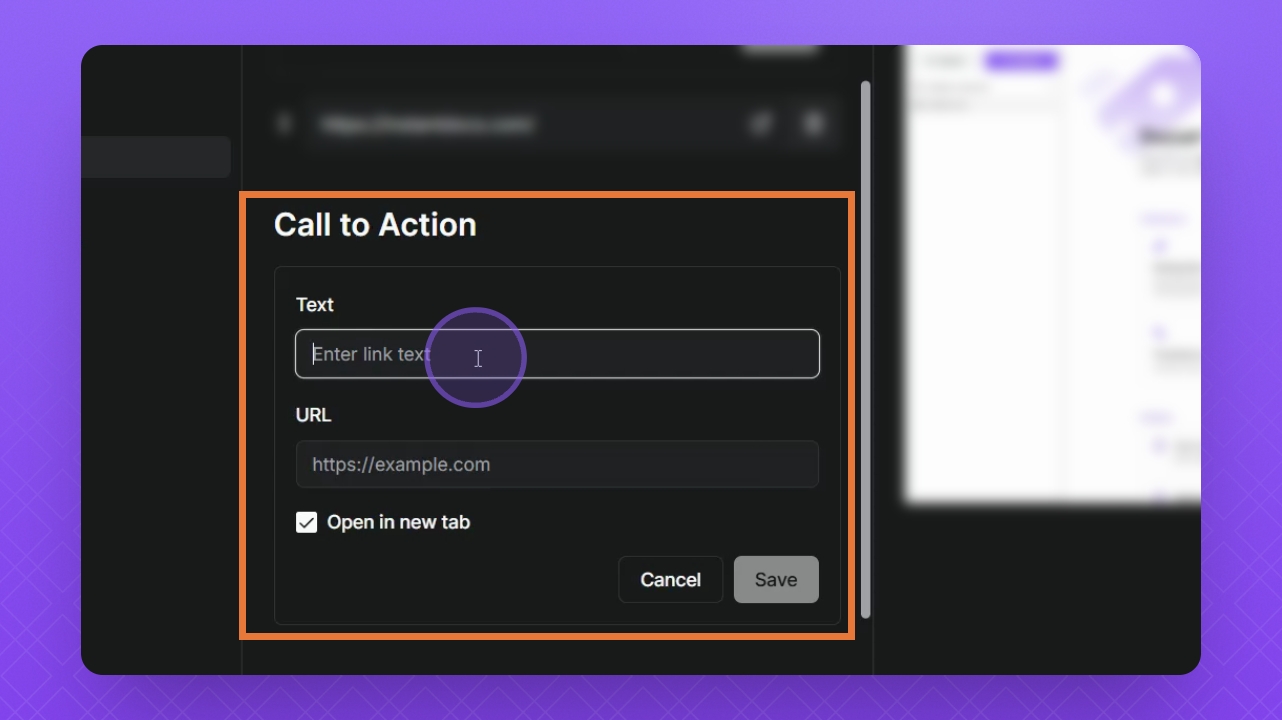
Add your Call to Action and click Save.
4
Save all changes
Add social links if needed and click Save Changes.
Let's Do It Together!
Step 1: Access Knowledge Base Settings
Select your Knowledge Base.
Click the three dots and select Settings.
Step 2: Edit Header and Footer
Click the Header and Footer tab.
Edit the text for your Header or Footer and copy/paste the URL.
Select the Open New Tab checkbox if you want the URL to open in a new tab.
Click Add.
Step 3: Add Call to Action
Add your Call to Action, edit the text, and copy your URL.
Click Save to finalize the changes.
You can only add one call-to-action to your Knowledge Base at a time. Multiple call-to-actions are not supported.
Step 4: Save Changes
If needed, add a social link to your knowledge base.
Remember to click Save Changes to finalize your changes.