InstantDocs

InstantDocs

Tips: Videos

Trim Video Clips

Trim and edit your video clips.

TL;DR

1
Trim the Video Clip
Click your main clip and select Trim Video Clip.
2
Discard Video Clips
Select the clip portion you want to delete and click the bin icon.
3
Undo mistakes
Click the Undo button to revert changes.
4
Save your edits
Click Save and then Continue.
5
Regenerate voiceover
Click Generate to create new voiceover audio.

Let's Do It Together!

1. Trim the Video Clip

  1. Click on the main video clip you want to trim.

  2. Then click the Trim Video Clip button.

  3. Play the video to find the edit point.

  4. Click to place a timeline marker where you want to edit.

  5. Select Split Clip to create segments.

You can now drag the edges of the clip to shorten it.
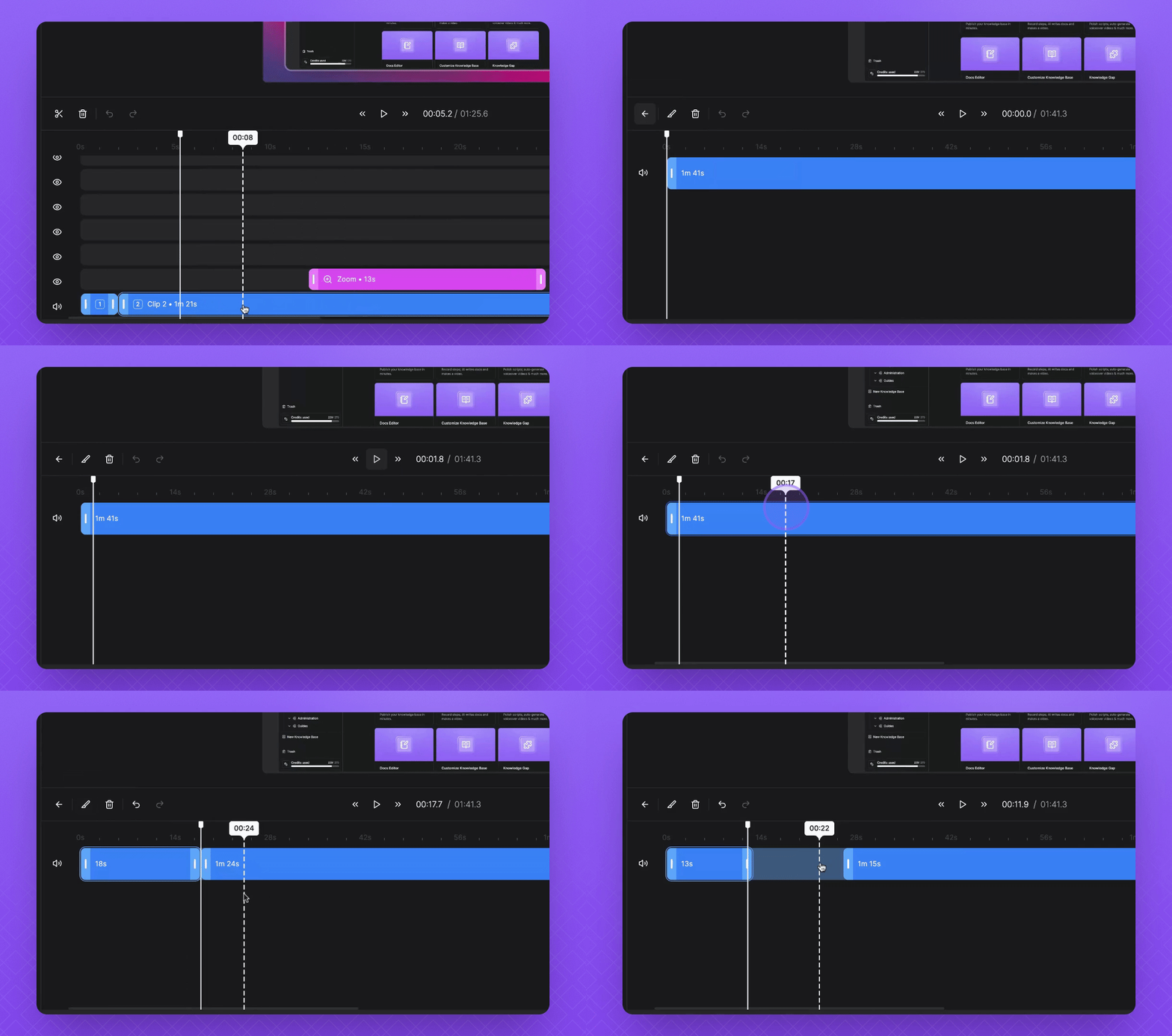
NOTE: Trimming will remove any voiceover audio, sync, and pause markers.
Snapshot

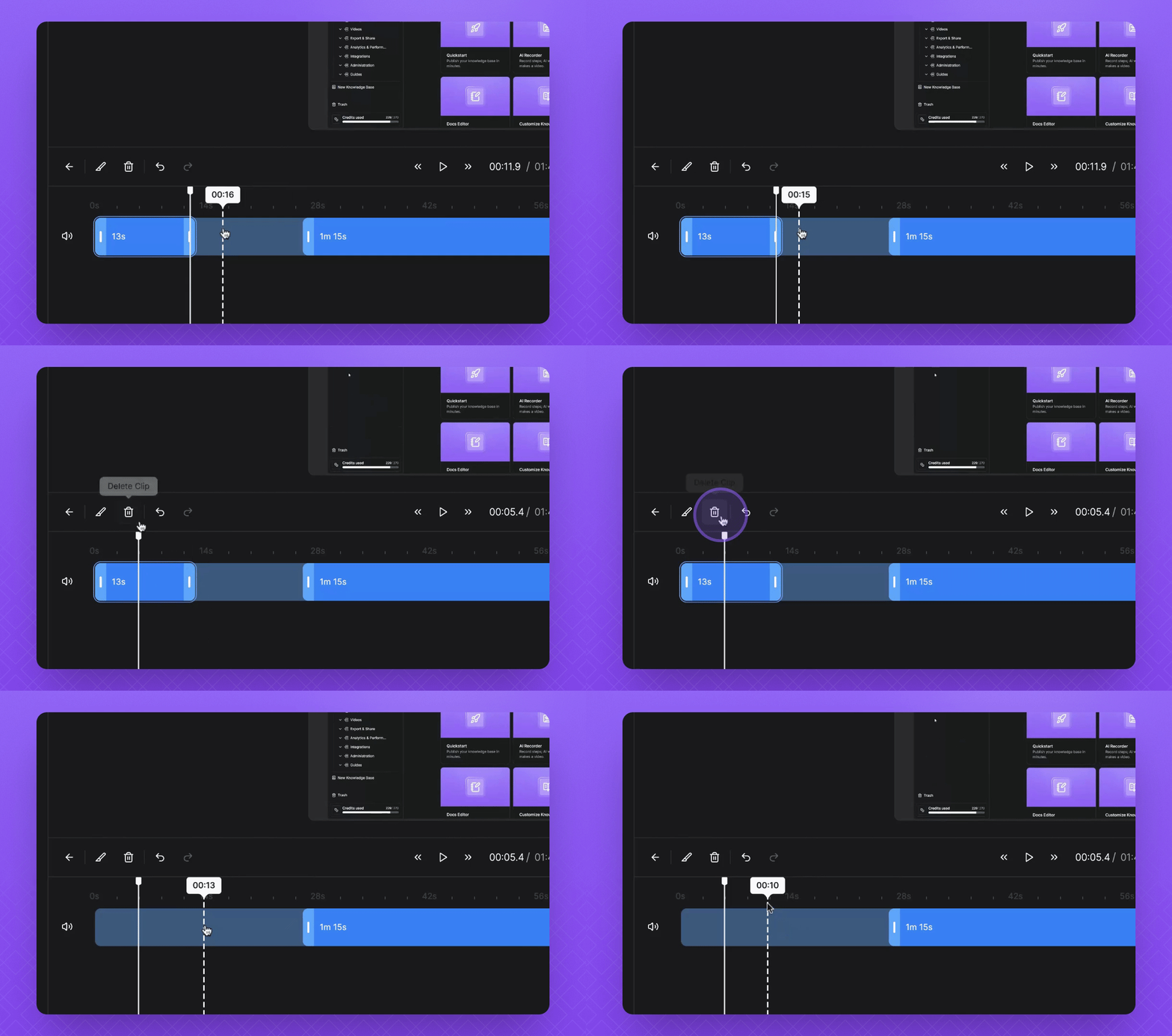
2. Delete Clips if Necessary

  1. If you want to delete a certain clip, click on it.

  2. Select the Bin icon to remove it.

Snapshot

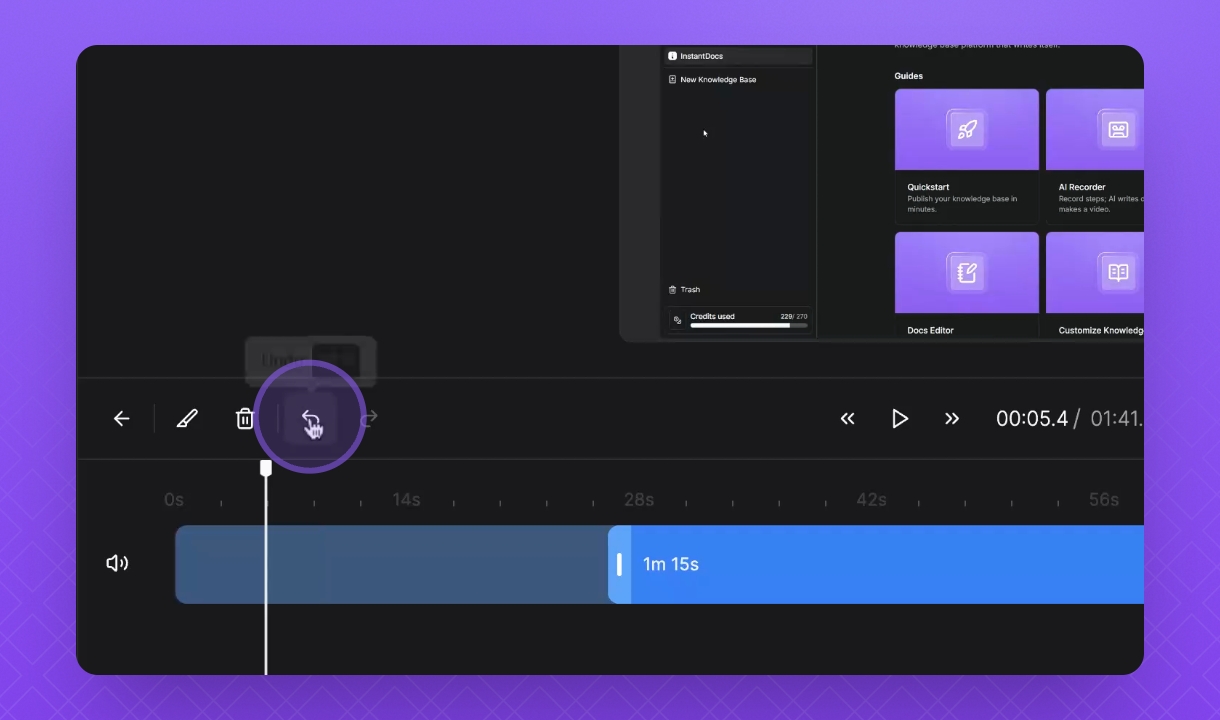
3. Undo Edits

  1. If you've made a mistake, click the Undo button.
Snapshot

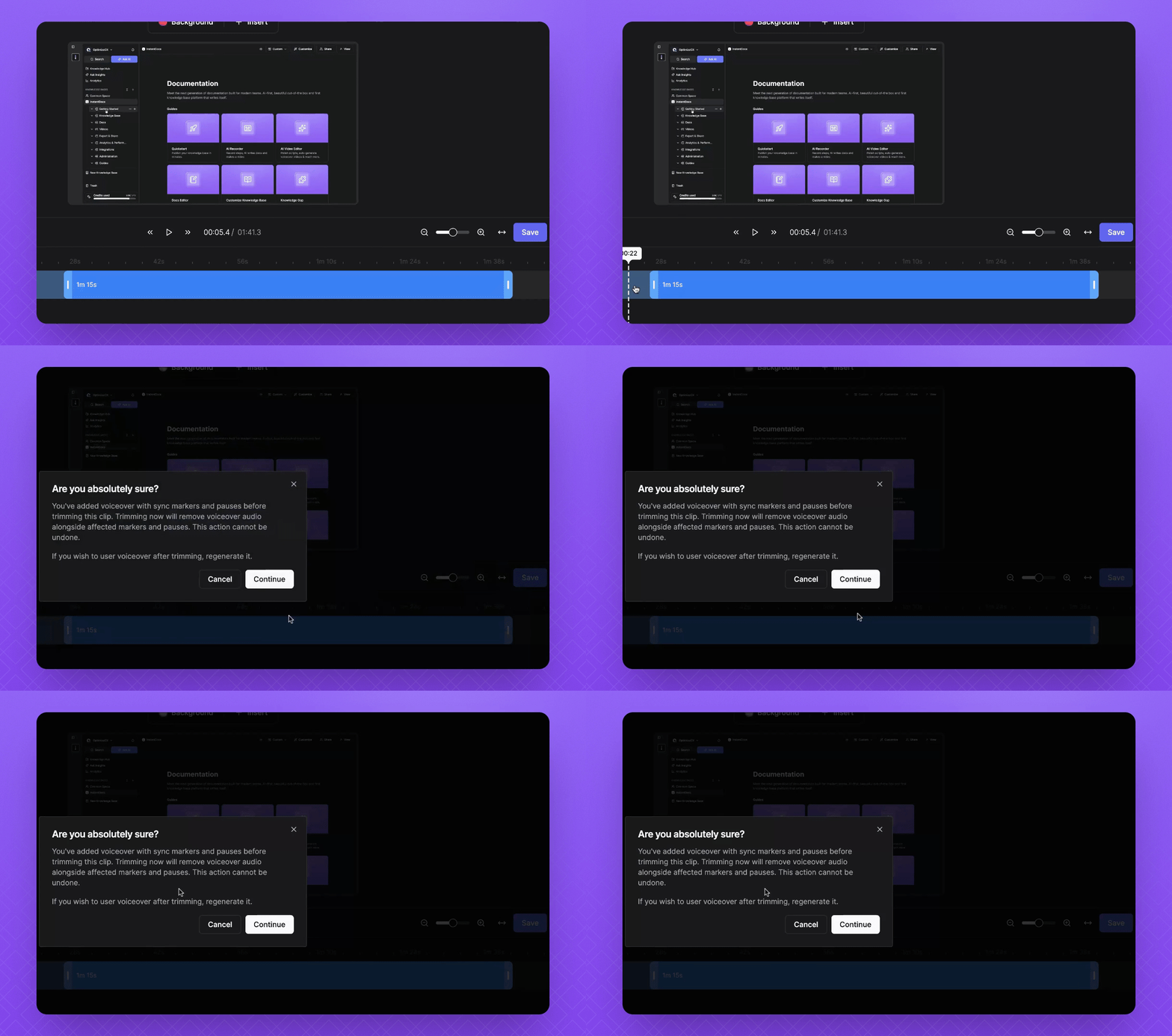
4. Save Your Changes

  1. Once you are happy with your edits, click Save.

  2. Press Continue to confirm.

Your video clip is now shortened and saved.
Snapshot

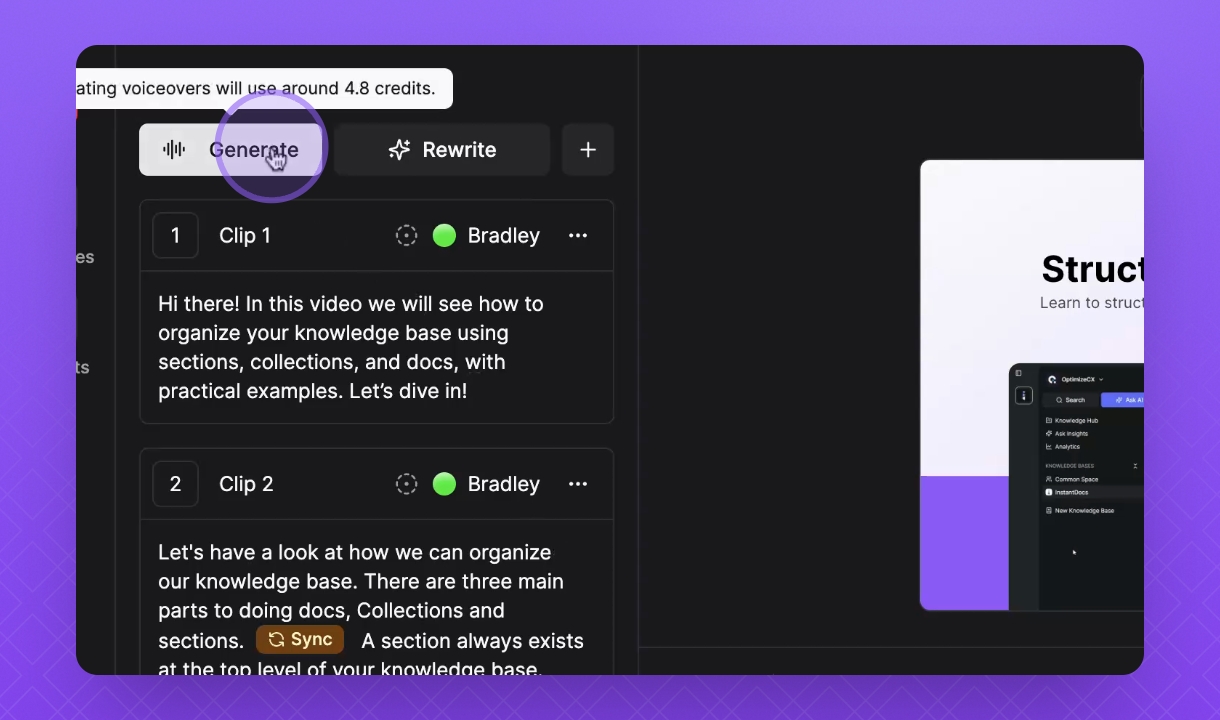
5. Regenerate Voiceover

  1. Click Generate to create new voiceover audio.

  2. Once done, click Done to finish.

Your voiceover audio is now regenerated.
Snapshot

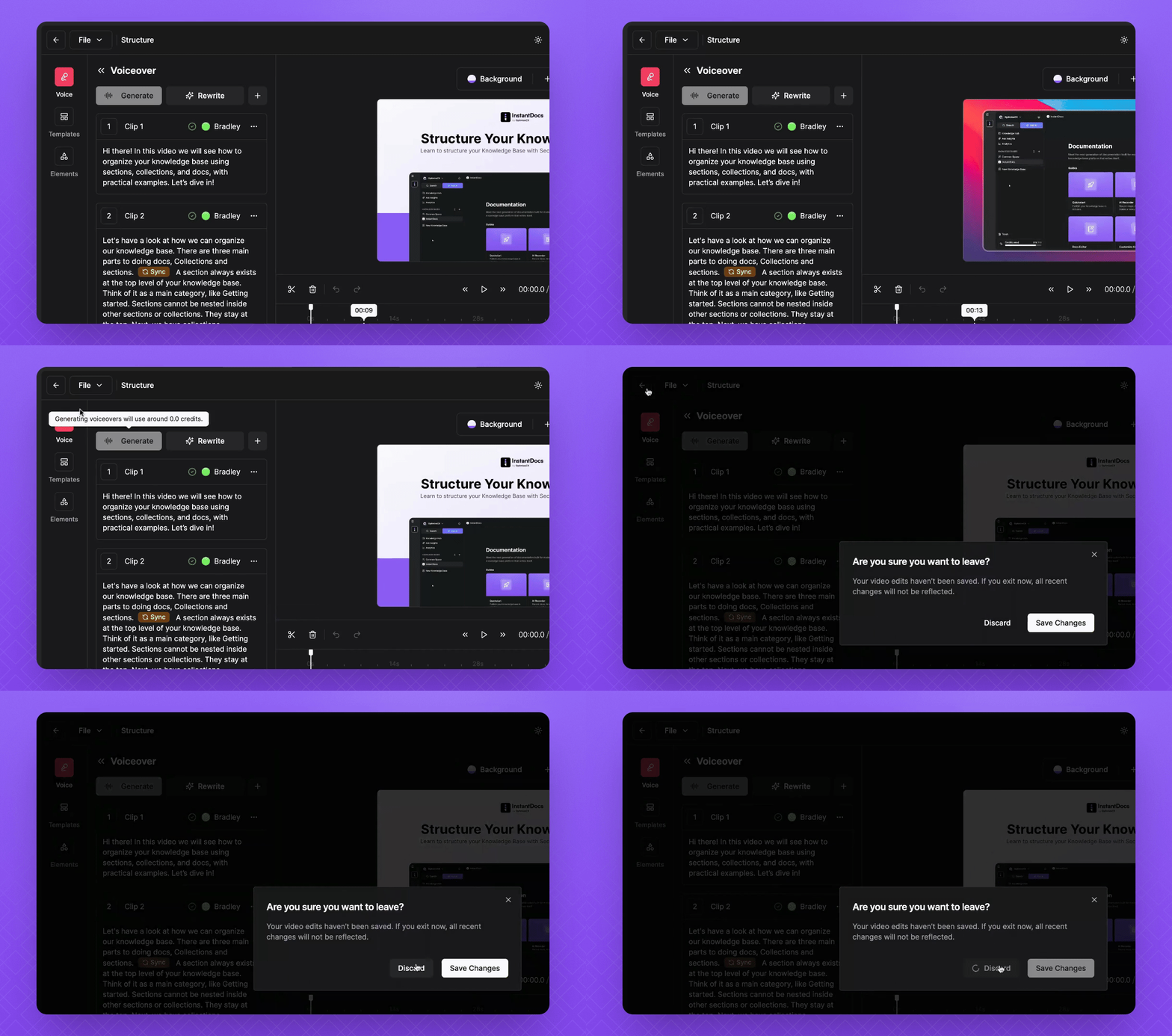
6. Discard Changes (if needed)

  1. If you're unhappy with your changes, click the Back button.

  2. Select Discard to revert to the previous state.

Your video returns to its last saved state.
Snapshot

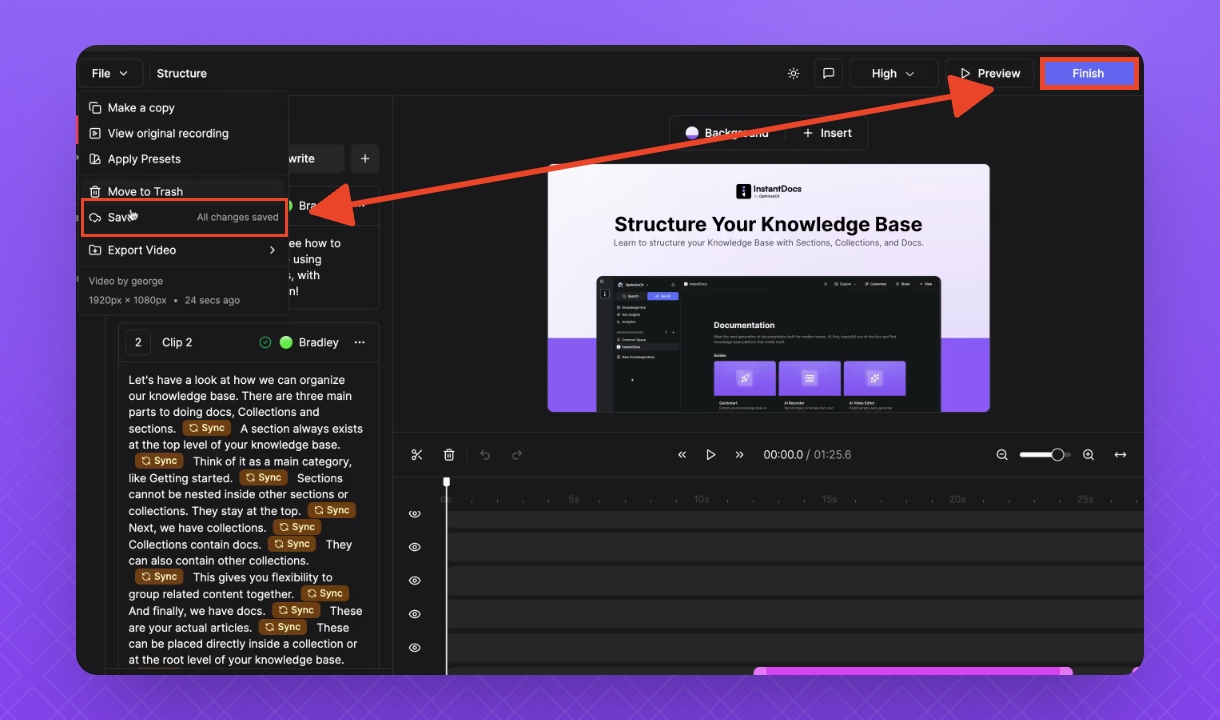
7. Remember Permanent Changes

  1. After making changes, using File Save or Finish makes changes permanent.
Snapshot

Troubleshooting

Voiceover audio missing
Trimming removes voiceover; regenerate after editing.
Changes not saving
Ensure you click Save or Finish to confirm edits. NOTE: Saving your changes in the video editor and permanent!

FAQ

Can I trim multiple clips?
You can only trim the main video clip which is the screen recording. The intro and outro clips will need to be edited on the Video Timeline by dragging the sides.
Why is my voiceover audio not aligned with the video after trimming?
Trimming removes voiceover and sync/pause markers. You will need to manually add them again.
Can I restore my video from its original state after making permanent changes?
Yes! Create a new blank Doc, select the option to add a video, search for the original video from the library, then click Add. This will generate a new Video Doc with the original screen recording.

Was this page helpful?
Previous

Layering Elements

Next

Powered by InstantDocs