

TL;DR
1
Hover and Click + Icon
Hover over your Knowledge Base and click the + icon. Select Add Doc.
2
Upload Video
Click to upload a video and select the desired video to generate your Video Doc.
3
Process Video
Allow the system to process the video for your new Doc.
4
Preview and Finalize
Preview your video and finalize the new Doc.
Let's Do It Together!
1. Start Creating a Doc
Hover over your Knowledge Base name, section, or collection.
Click the plus icon and select Add Doc.

2. Upload a Video
Open your new untitled Doc.
Click the option to upload a video and search for the desired video.
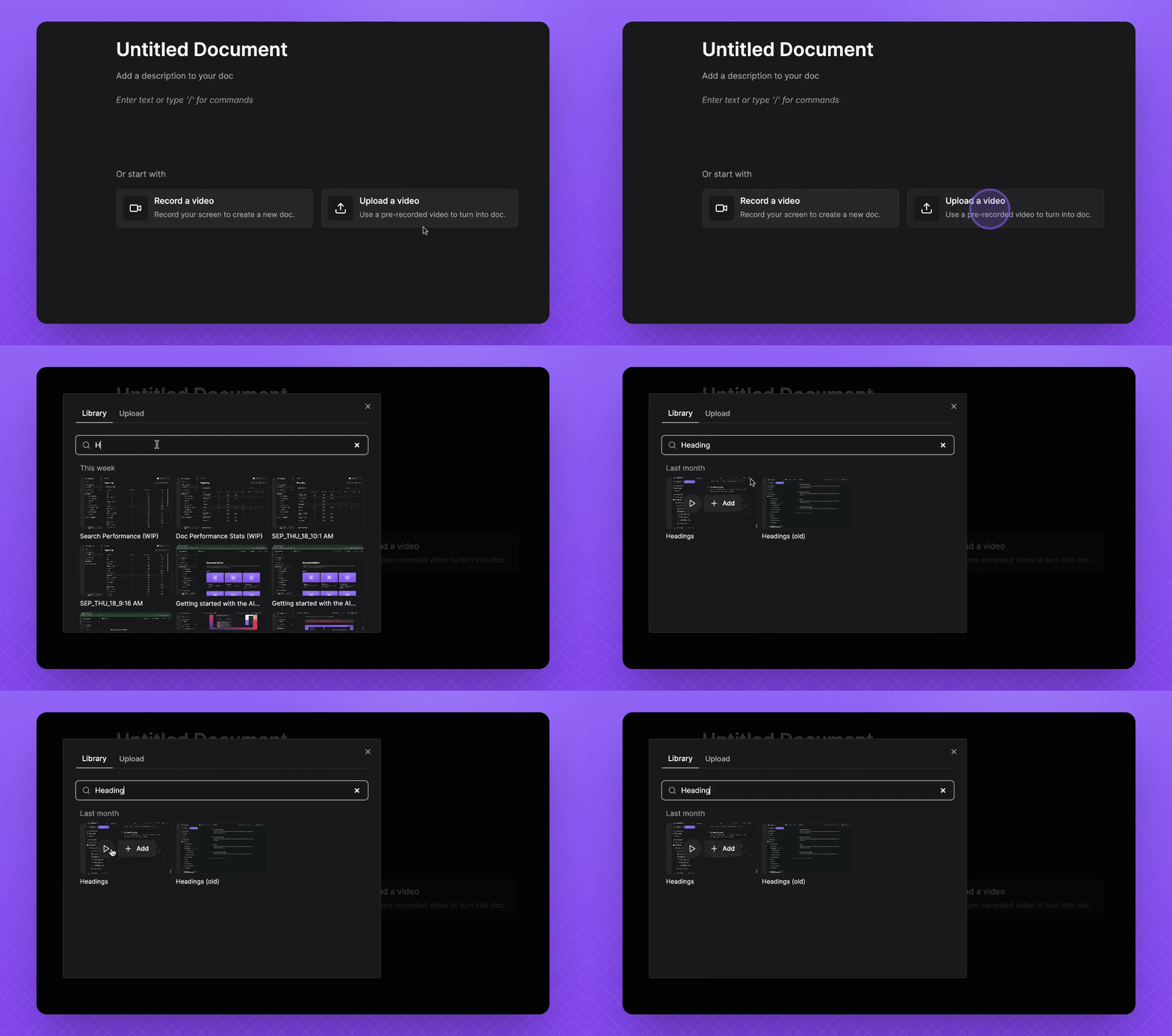
3. Finalize Your Document
Once you find your video, preview it or add it to the Doc.
Wait for the processing to complete.
You will have a brand new Doc based on the video's recording.
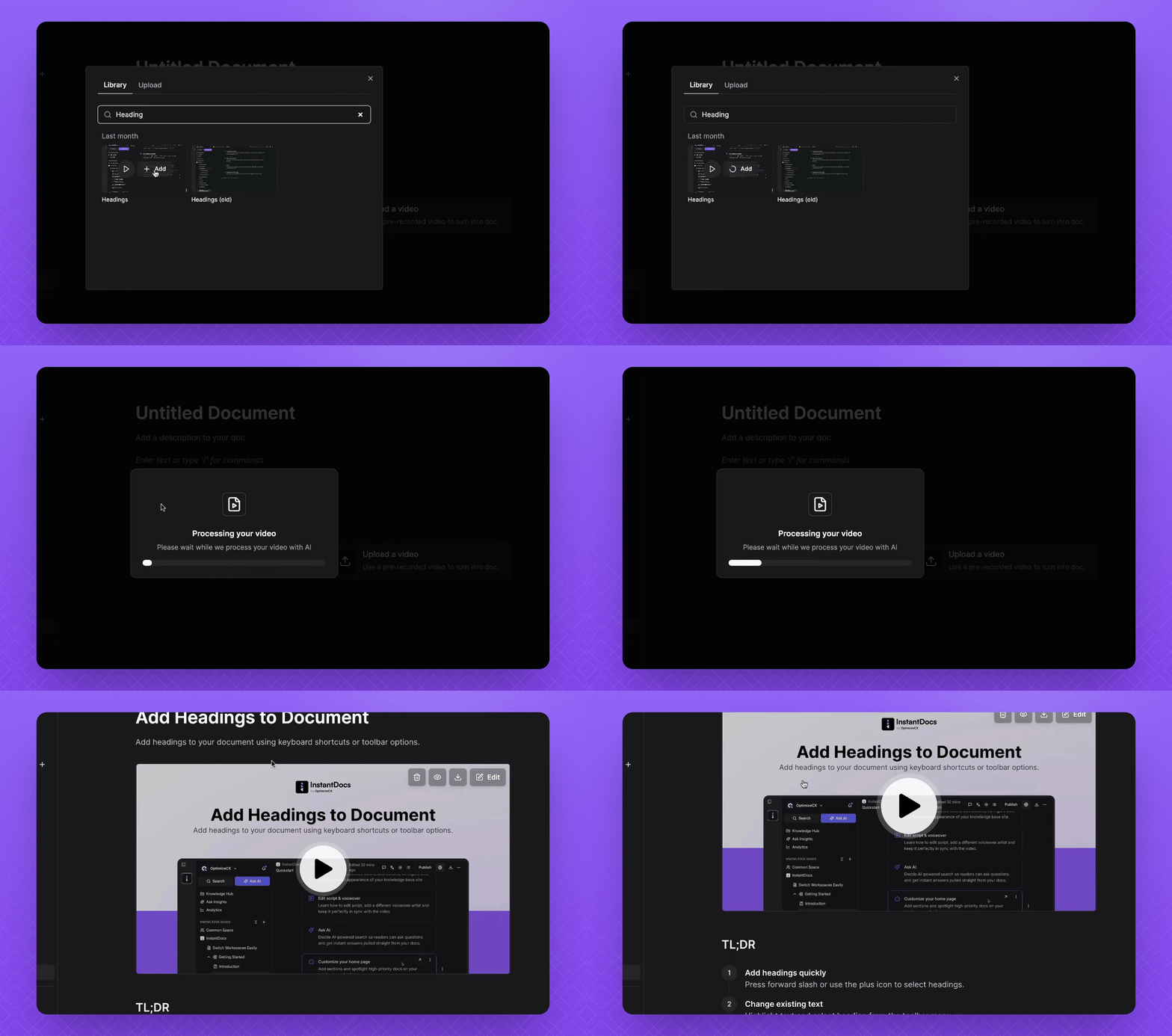
FAQ
Can I add multiple videos?
Currently, only one video can be added per document.