

TL;DR
1
Access Knowledge Base Settings
Hover over Knowledge Base and click the three dots, then Settings.
2
Enable Table of Contents
Toggle the Table of Content button in the Layout tab and save changes.
3
Preview the Table of Contents
Click the Table of Contents button in the top-right corner of the Doc to expand and view it.
4
Add Headings
Type /heading in an open Doc field to select heading formats.
Let's Do It Together!
Step 1: Access Settings
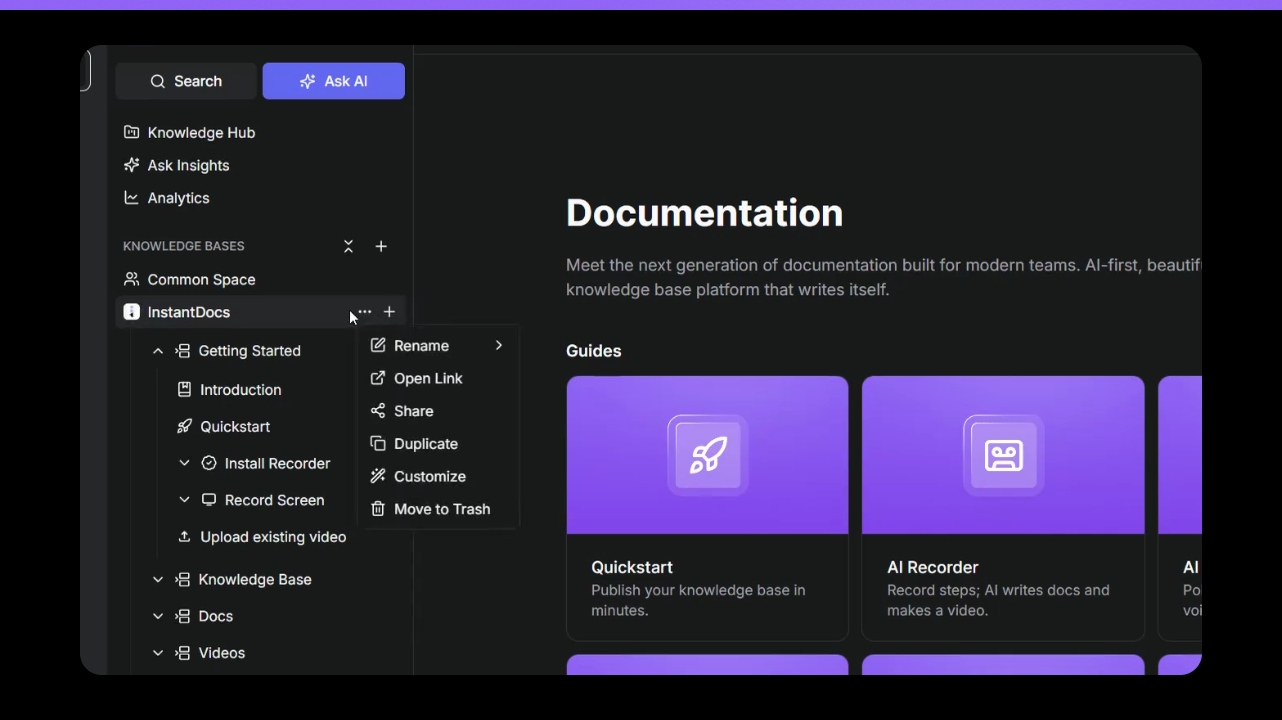
Hover over your Knowledge Base.
Click the three dots, then select Settings.
2. Enable Table of Contents
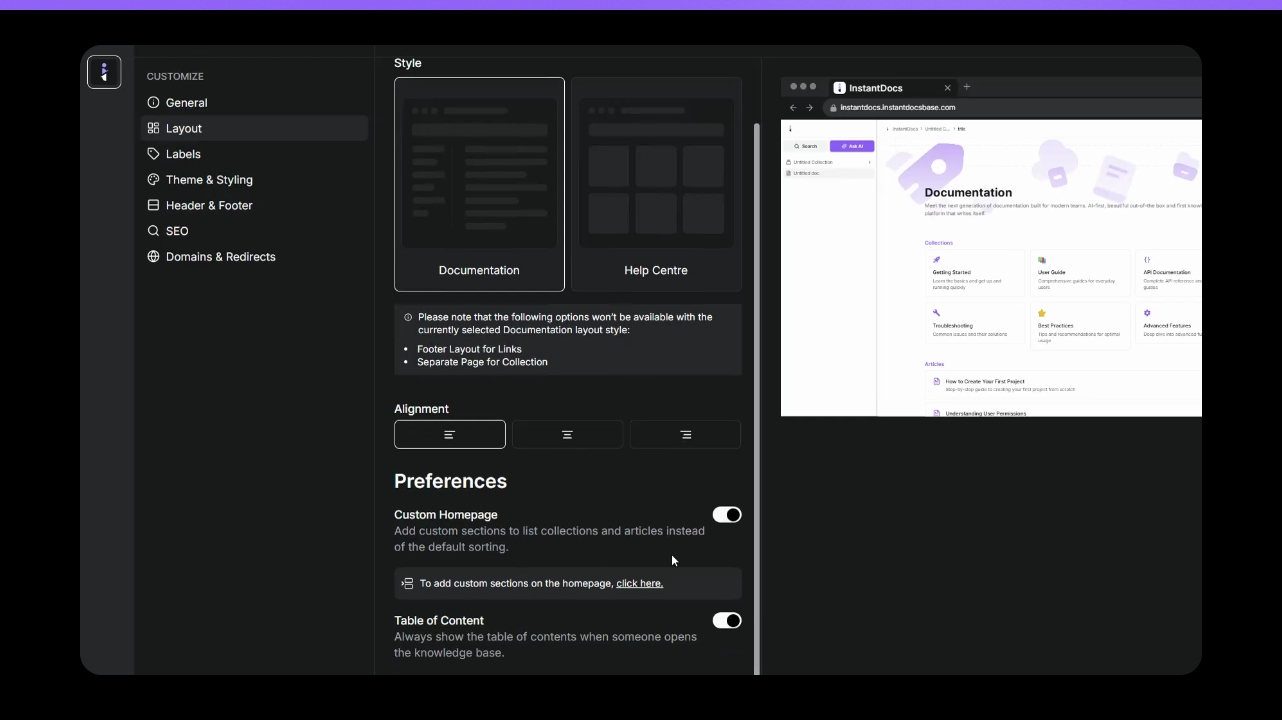
Select the Layout tab.
Scroll down and toggle the Table of Content button.
Click Save changes.
When the prompt appears, click Back.
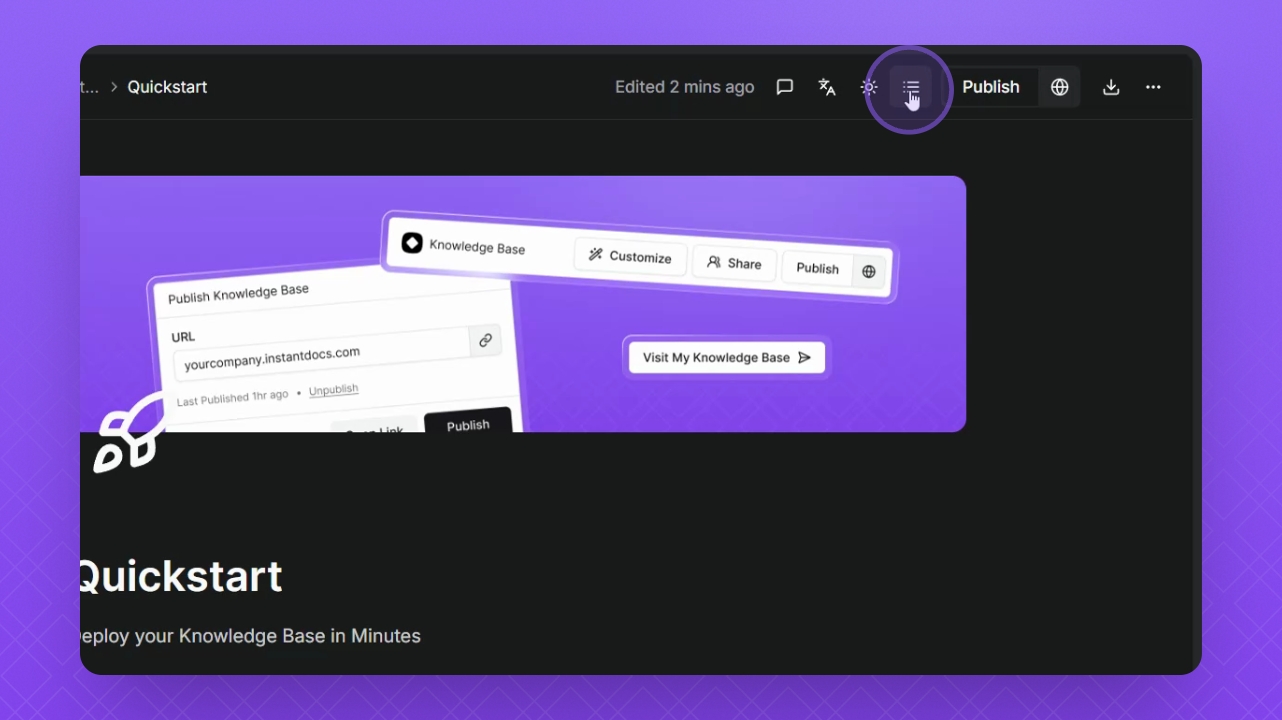
Step 3: Preview Table of Contents
Click the Table of Content button in the top right corner.
The Table of Contents will expand on the right-hand side.
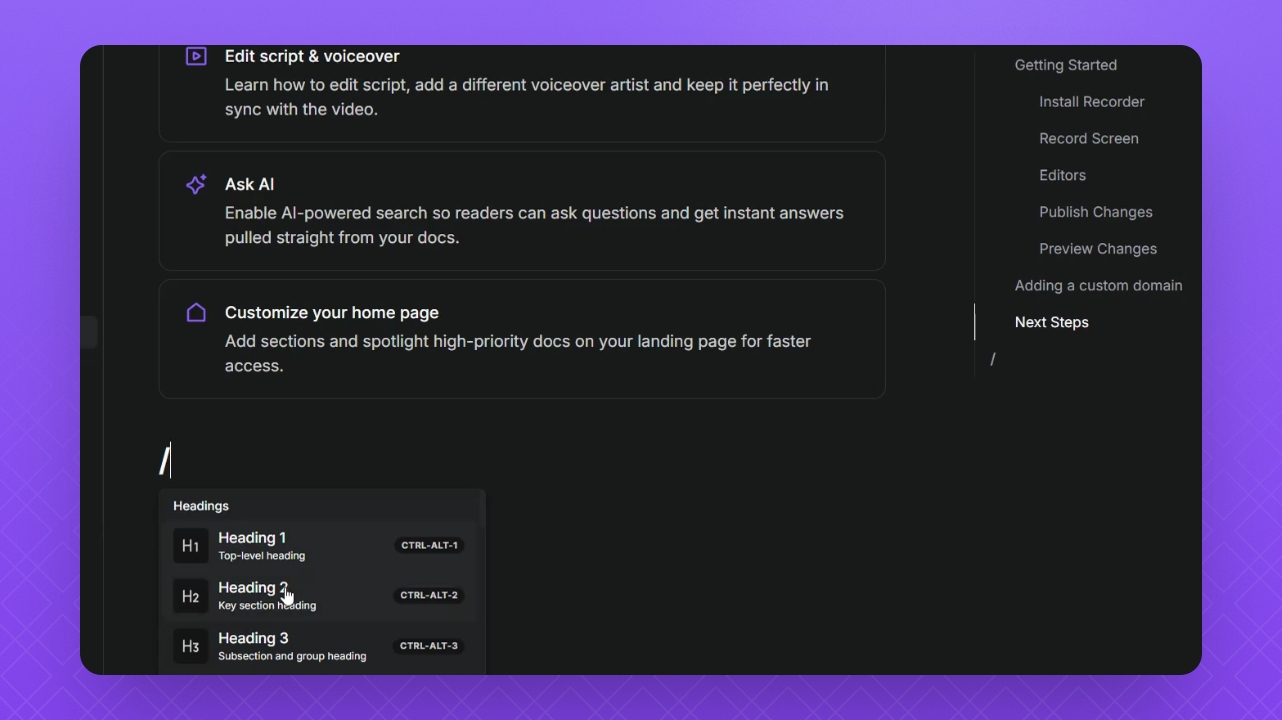
Step 4: Add Headings
Type /headings in the open field and select from the available formats.
Type in your heading and see the information appear in the Table of contents
Step 5: View Public Version
Lets preview this in a public Doc.
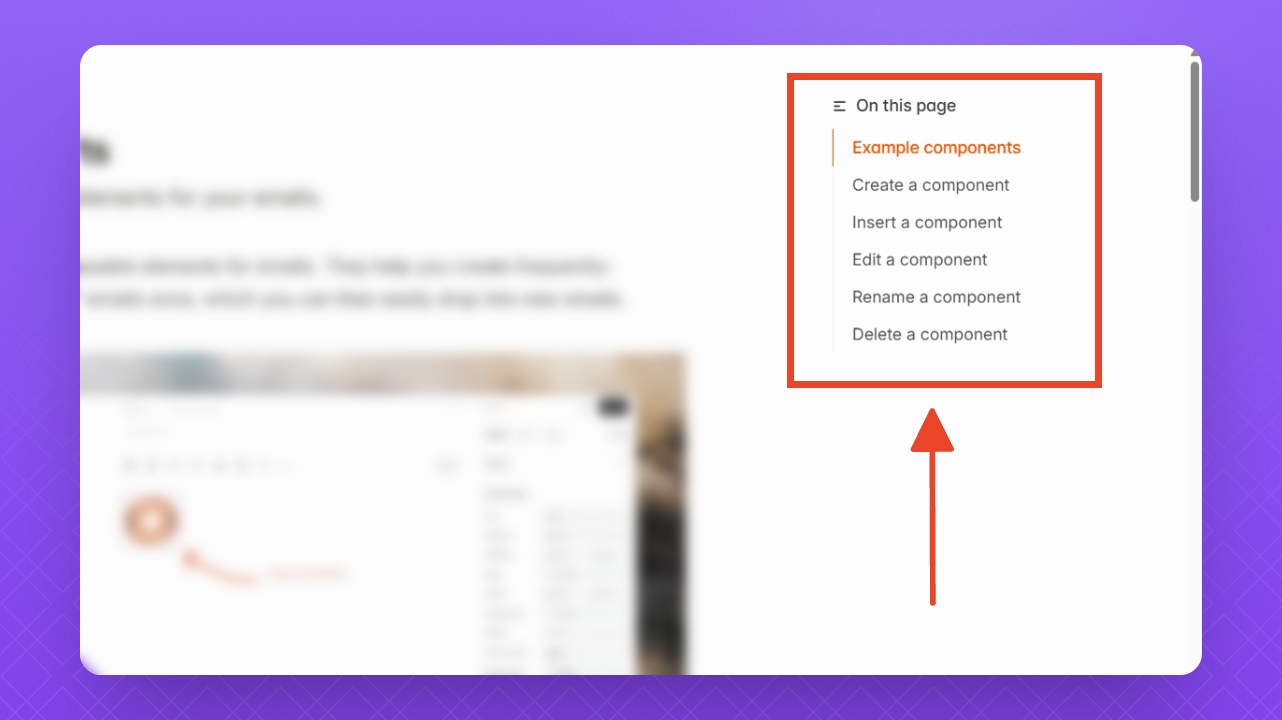
In the Doc, we can see the Table of Contents on the right side.
You can click the content in the table to navigate quickly to the information you need.
FAQ
How do I enable the table of contents in my document?
Hover over your knowledge base, click the three dots, and choose Customize.
Go to the Layout tab, scroll down, and toggle Table of Content on.
Click Save changes, then click Back when prompted.
How do I preview the table of contents before publishing?
In your document, click the Table of Content button in the top right corner.
The table expands on the right-hand side.
How are table of contents headings created?
They come from heading formats you’ve applied in the doc. To add a heading, press the / key, type headings, and choose a format in your open fields.