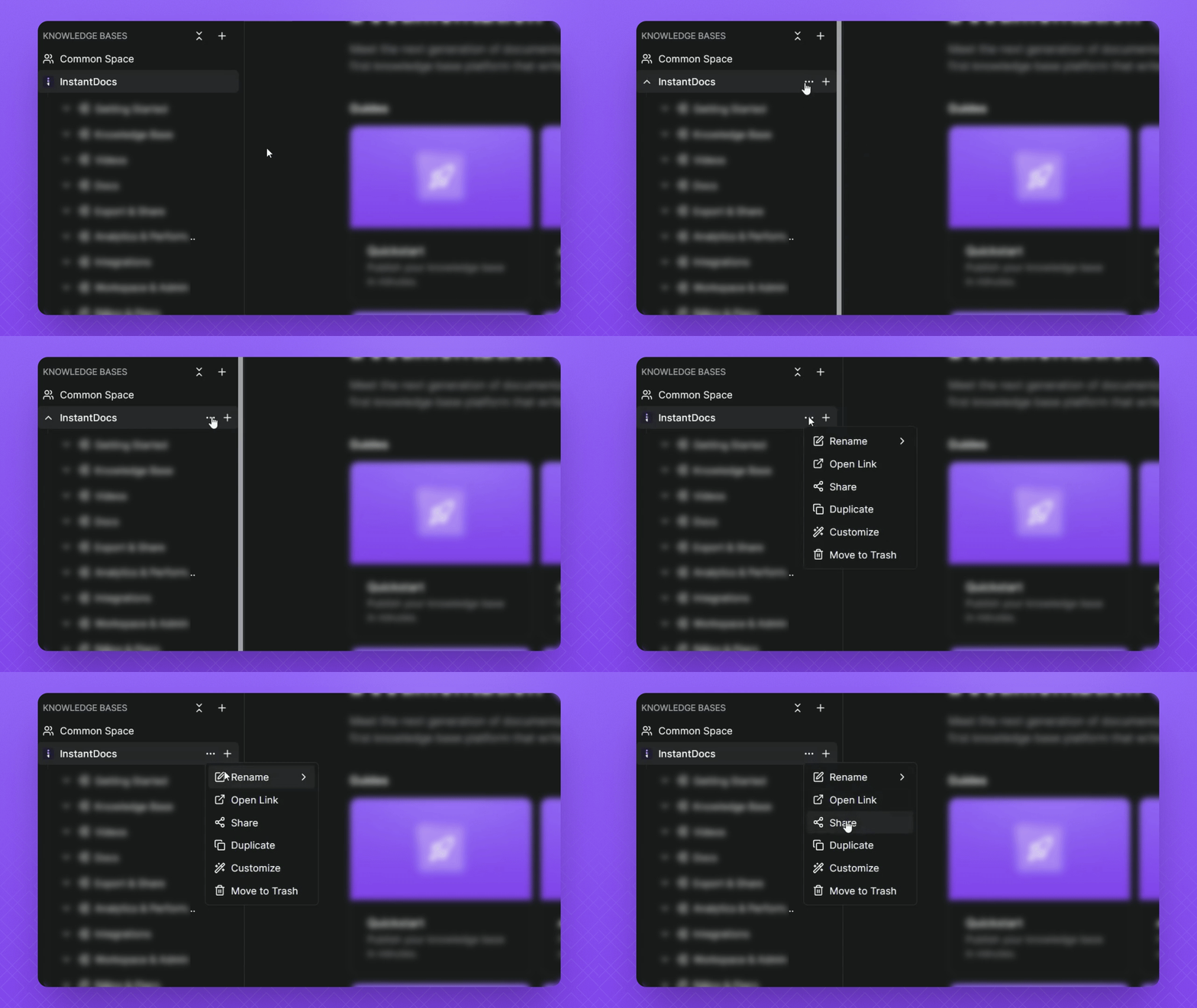
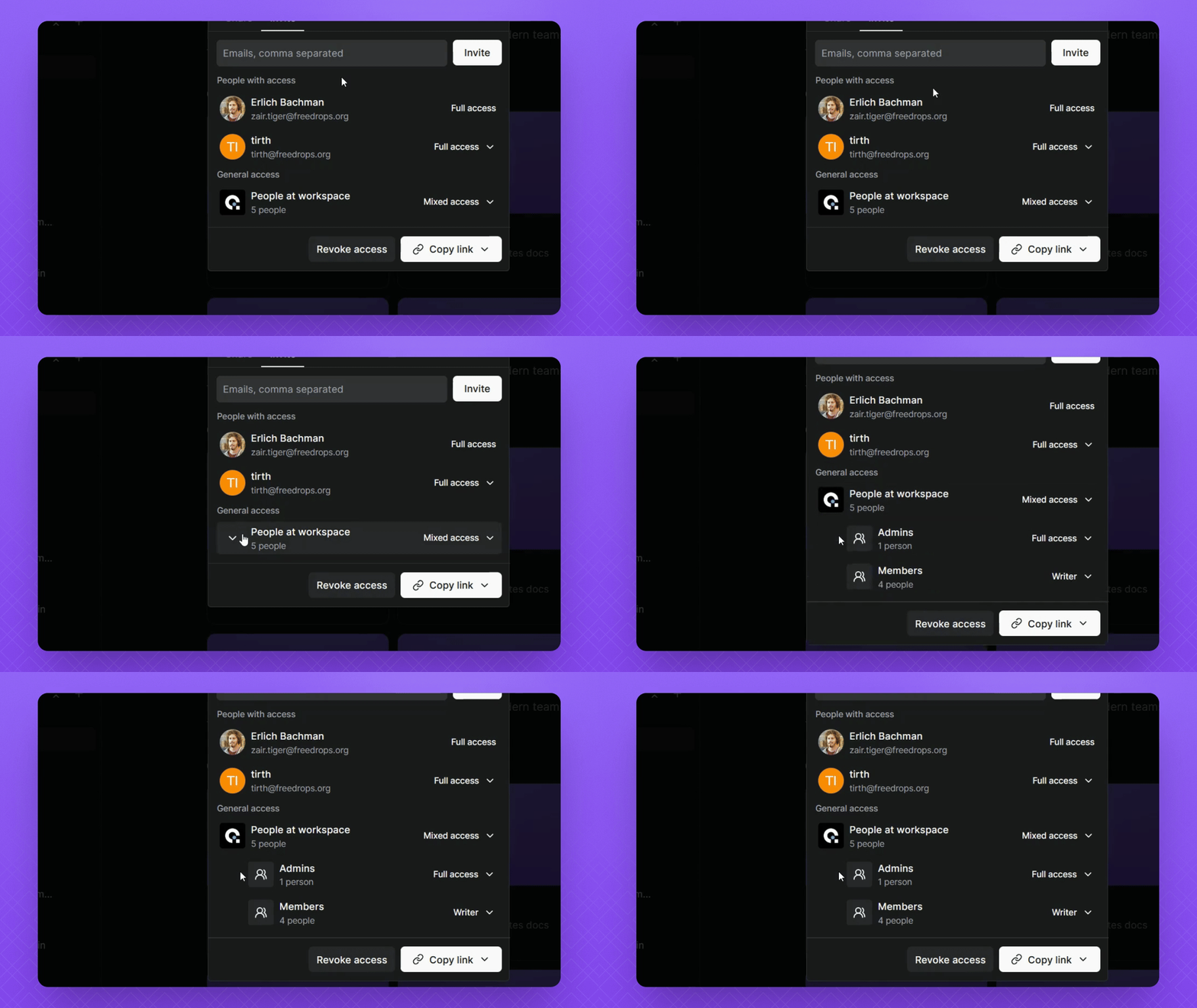
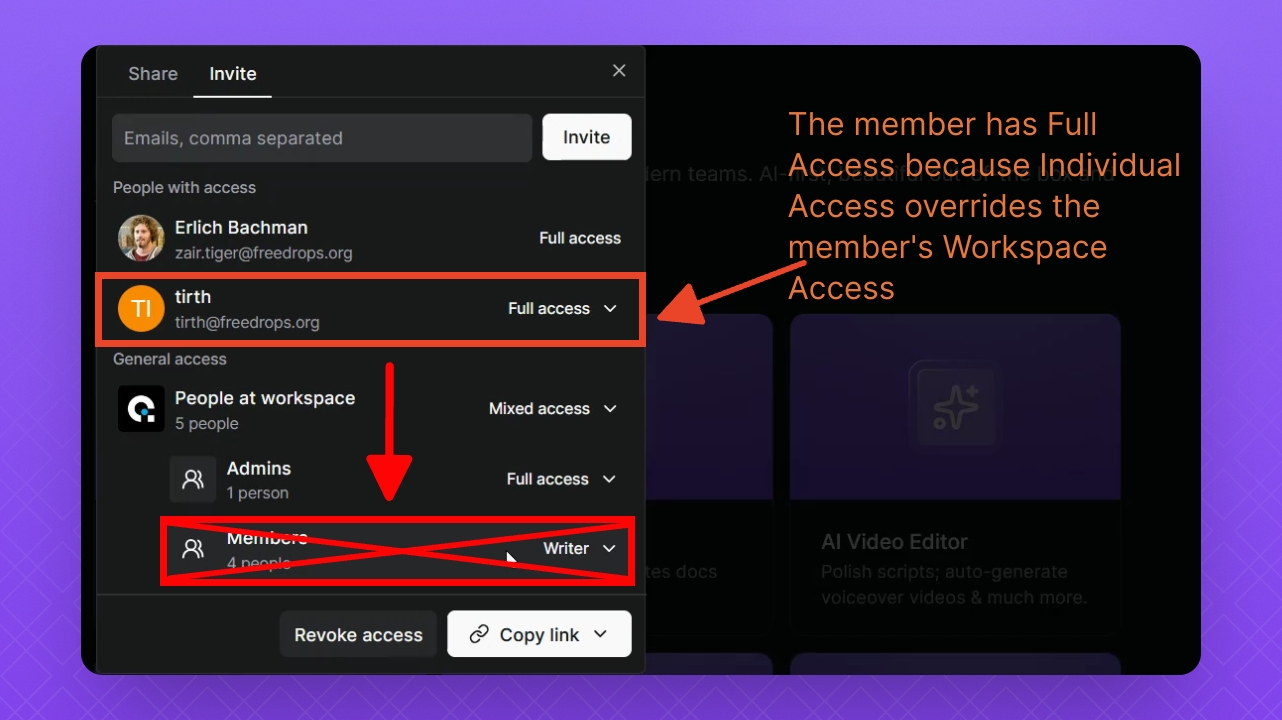
If a person has both Workspace Access and Individual Access, the Individual Access will override.
For example, if a member has Writer access by default but you've also given them Full access individually, they'll have Full access.
Step 4: Check Workspace Access
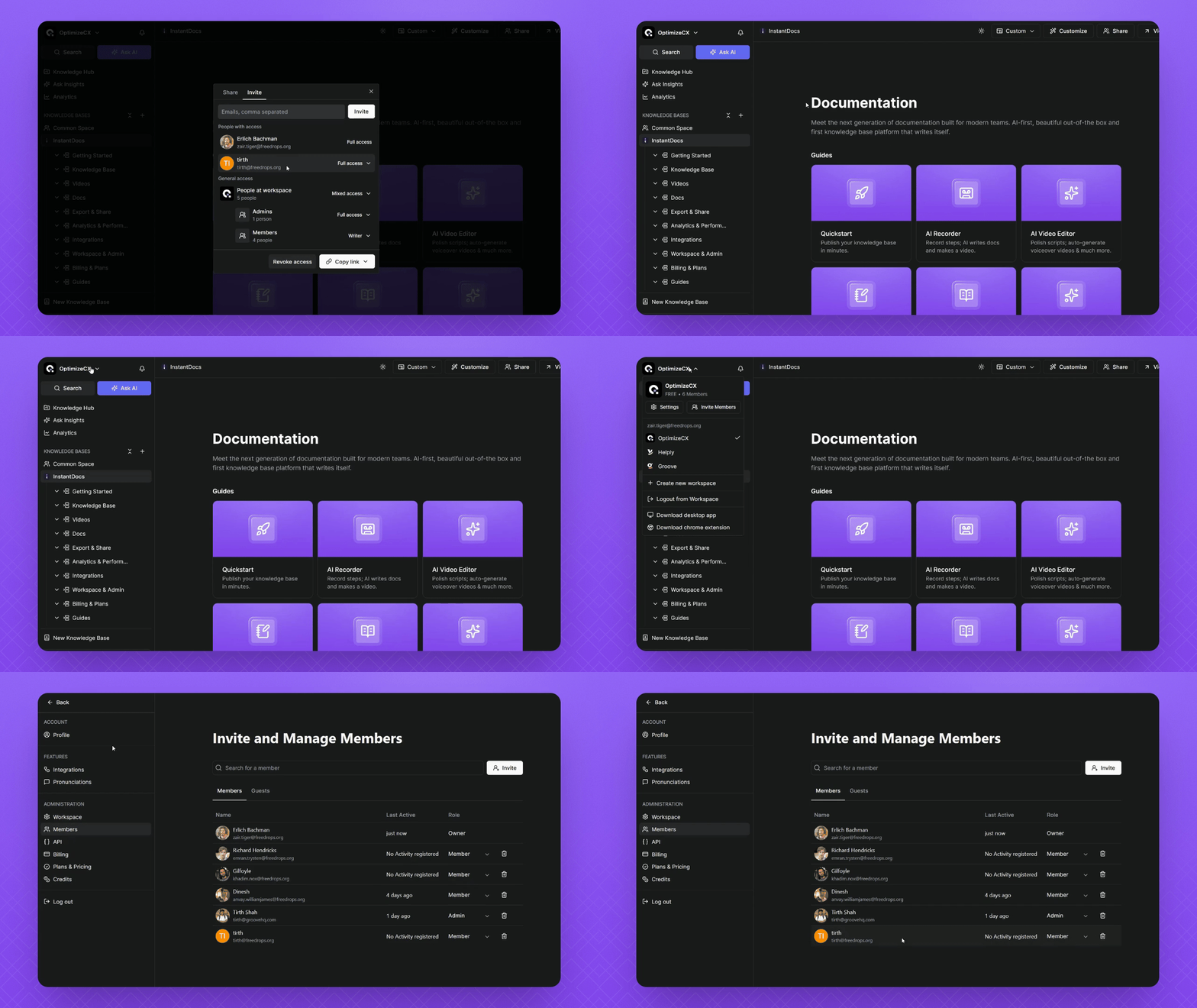
Click the Workspace button in the left side panel at the top, then select Invite Members.
Check that the example user has member level access to the workspace.
Step 5: Review Sharing Permissions
Click the Back button at the top and access Sharing via the Knowledge base.
Here, observe that members are set to have Writer access, but individual access takes precedence.
FAQ
What is the difference between normal access and workspace access?
There are two main levels of access:
- Individual Access: Sets permissions for specific email addresses.
- Workspace Access: Sets default permissions for all admins and members in your workspace.
NOTE: Individual Access always overrides Workspace Access.
How can I view a list of all the workspace members?
Click the Workspace button in the top left corner of the page, then select Invite Members. Here you’ll see a list of all your members.
How can I check if Individual Access is overriding Workspace Access for members?
Check the member list to see if the user is an admin or member, then open the knowledge base sharing settings and expand the Workspace Access dropdown. Compare their Individual Access with the Workspace Access to confirm if the Individual Access is overriding it.
NOTE: Individual Access always overrides Workspace Access.