

TL;DR
1
Open Workspace and Download
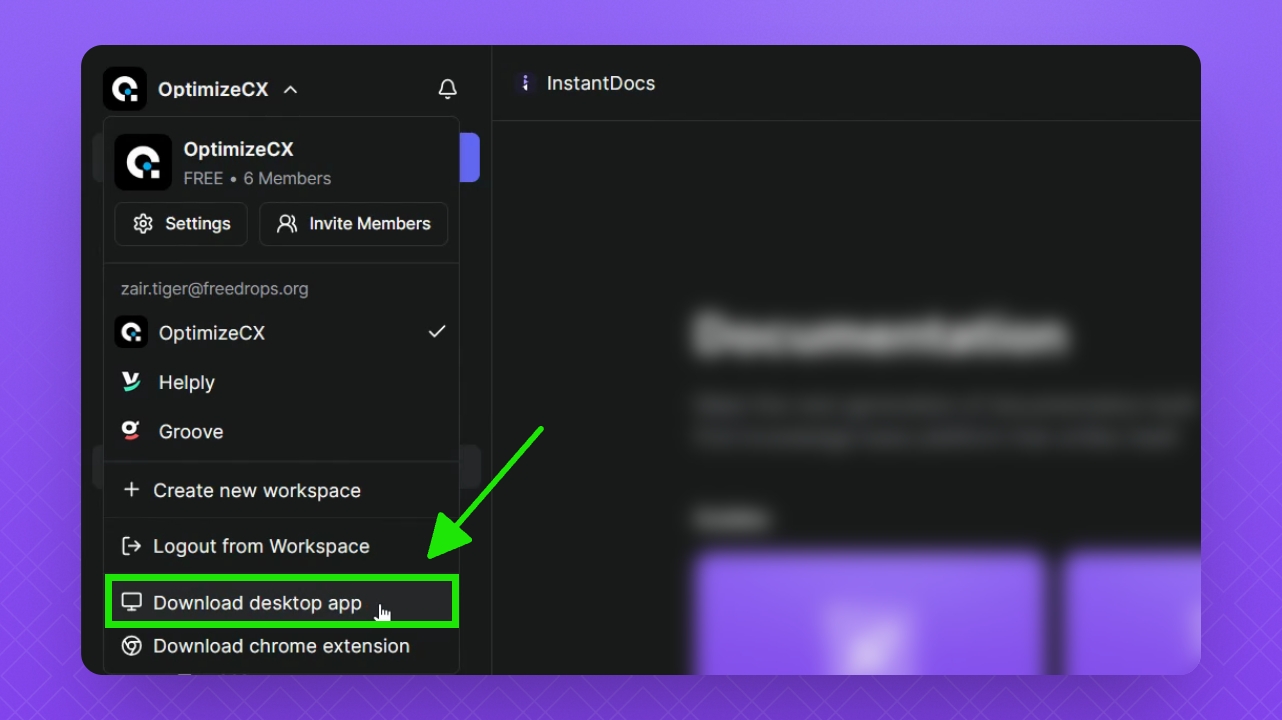
Click Workspace, then Download Desktop app to get the installer.
2
Install the App
Double click the installer and grant permissions to complete installation.
Let's Do It Together!
Step 1: Download the App
Click the Workspace button in the top left.
Navigate to Download Desktop app.
Download the app and find it in your Downloads folder.
You will have the Windows Recorder app ready for installation.
Step 2: Install the App
Double click the downloaded file to start the installation.
Grant any necessary permissions as prompted.
The Windows Recorder app will be installed and ready to use.
FAQ
How can I find my InstantDocs app version on Windows?
1. Open the InstantDocs Windows app.
2. Click the ••• (More) menu in the top-right corner.
3. In the popover that opens, look at the bottom—you’ll see the app version listed.
The app isn’t working on my Windows. What should I do?
If the app is not launching correctly, please contact support@instantdocs.com with your Windows operating system version, and supply screenshots of any errors you may see. We’ll log this with our developer team.
How do I update the InstantDocs Windows app to the latest version?
Keep the app open. If an update is available, it will download automatically in the background. When the update is ready, a popup will appear, click Update. The app will restart, and you’ll be on the latest version.